




If you are searching for:
This step-by-step guide explains everything clearly.
You will learn how IP camera connection works on a local network, how to add IP cameras from another location, and how to use Private, ONVIF, or RTSP protocols correctly.
You can add a network camera to your IP camera NVR system using three methods:
Each method affects features, AI support, and camera control. Choose the correct one based on your camera type and network setup.
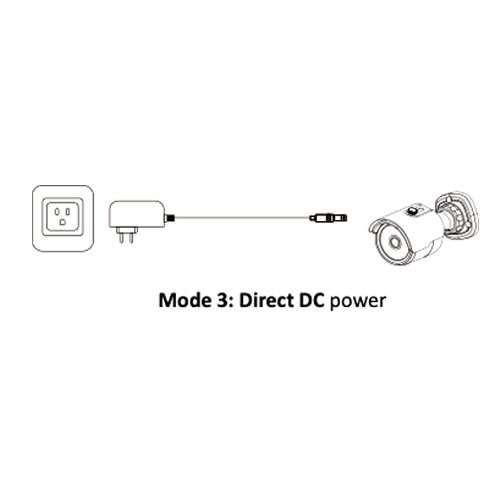
You can power and connect your IP camera in three ways:
If connected directly to NVR PoE ports, Camius cameras usually auto-add using Private protocol.
For best results, connect one camera per PoE port. Do not connect multiple cameras through a switch into a single PoE port.
Make Sure All Devices Are on the Same IP Segment
To avoid network connection issues, your IP camera, NVR or DVR, and router must be on the same IP address segment.
Example:
All devices must start with 192.168.254.x
Set the subnet mask to 255.255.255.0
If the IP segments do not match, the NVR will not detect or connect to the camera.
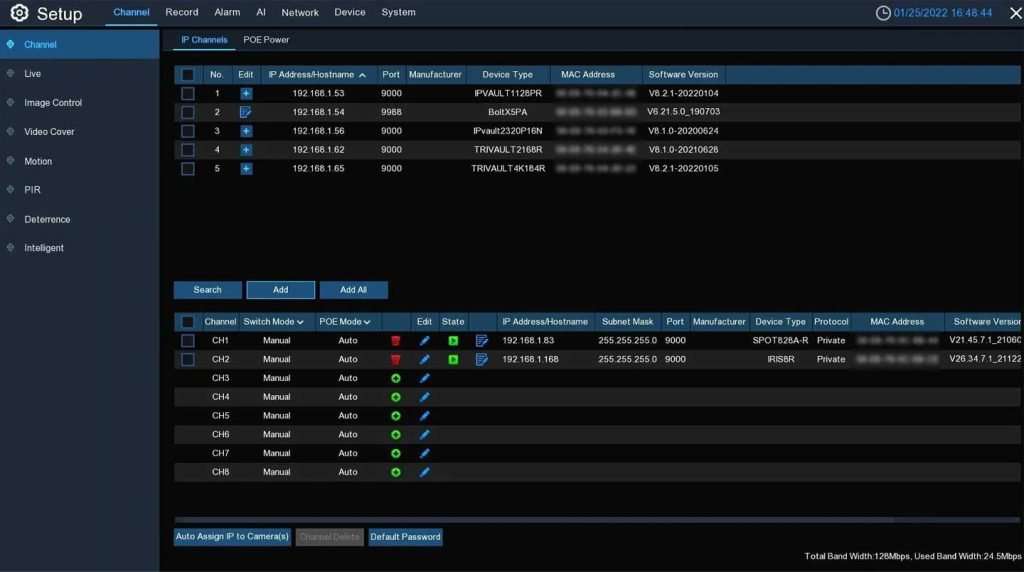
To configure NVR with IP camera, use the local HDMI interface. Move the mouse to the bottom left corner or right-click on Live screen and go to:
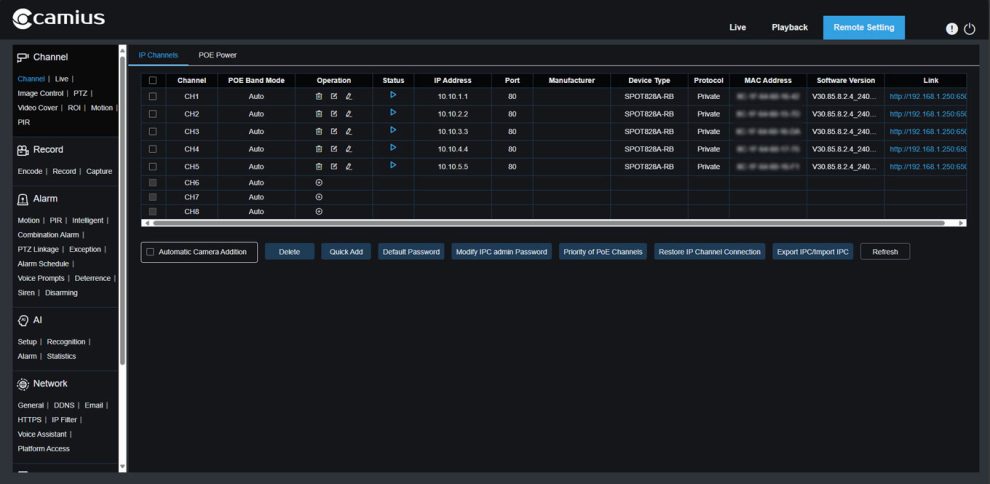
Setup >> Channel >> IP Channels (if you are using web browser to access the NVR, navigate to Remote Setting >> Channel >> IP Channels)
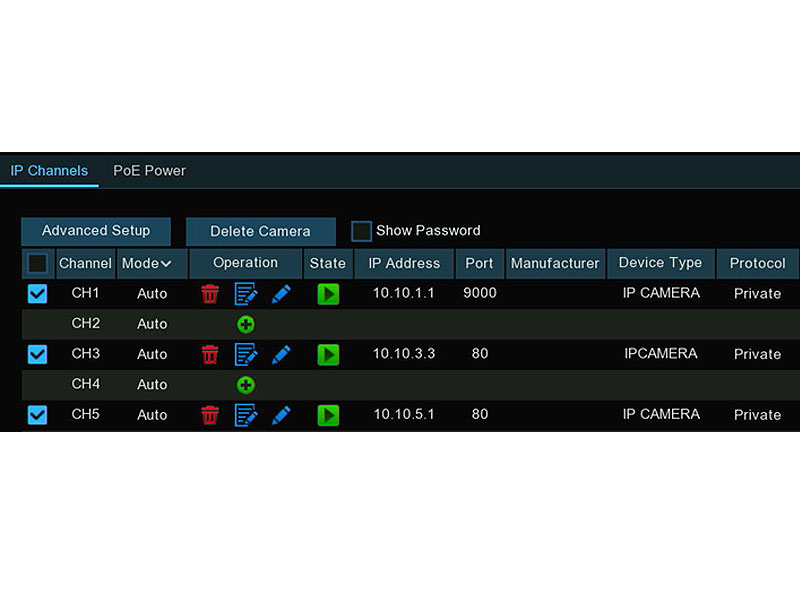
This menu allows you to take the following actions:
This is the main IP camera configuration area.
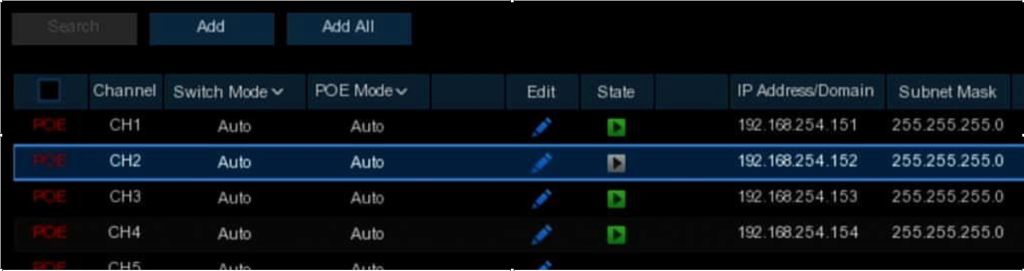
Inside the IP Channels menu you will see:
1- Switch Mode
2- PoE Mode
3- State
4- Auto Assign IP
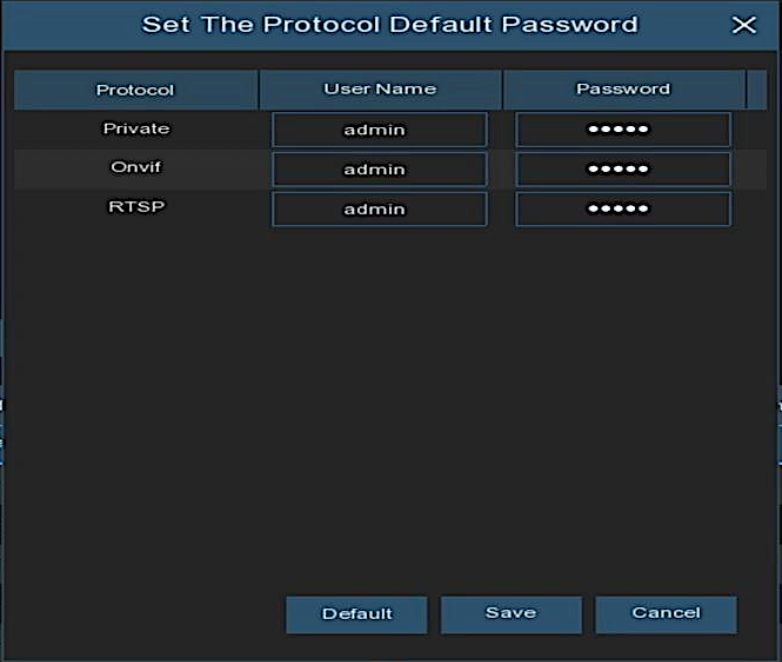
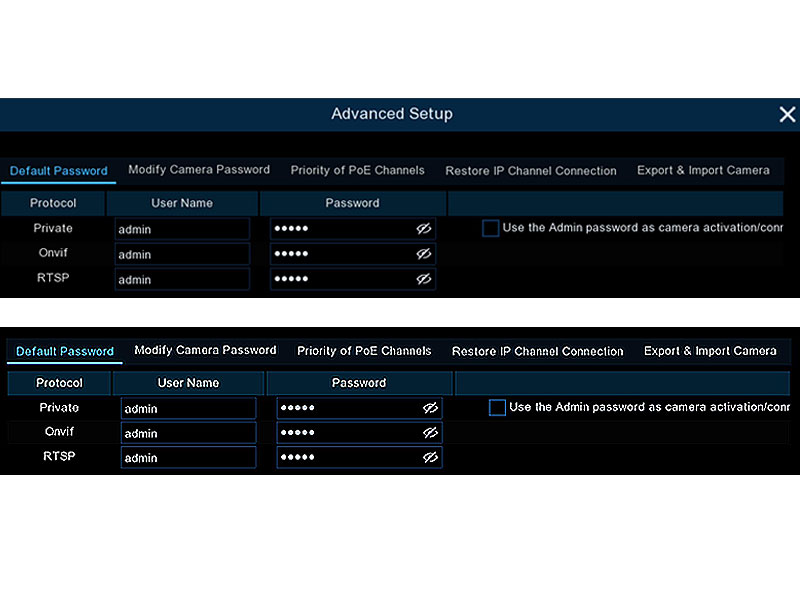
5- Default Password
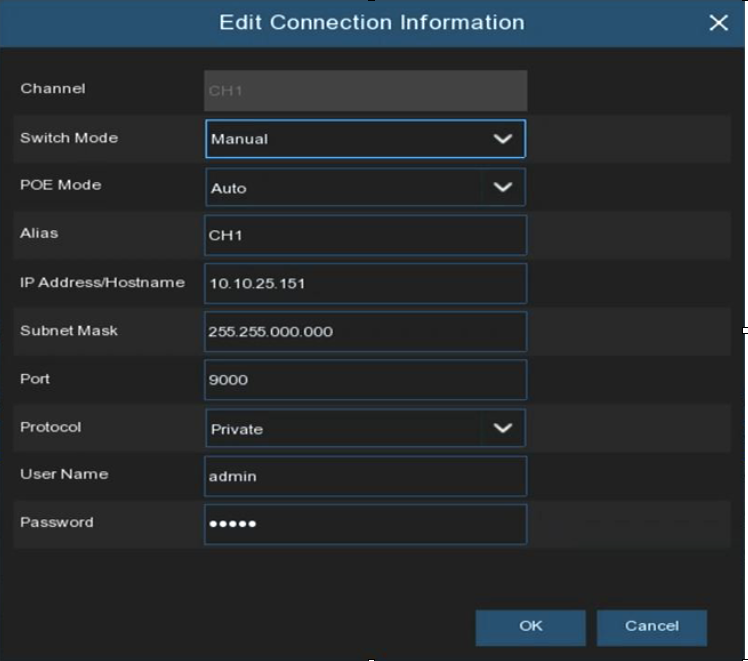
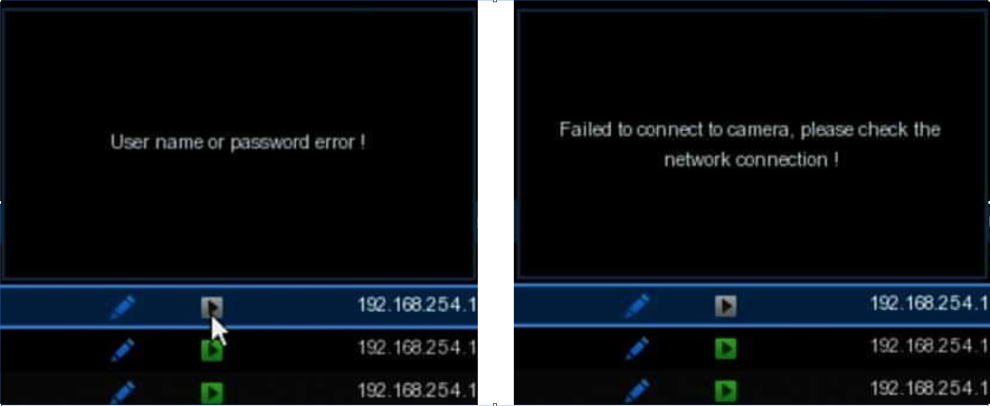
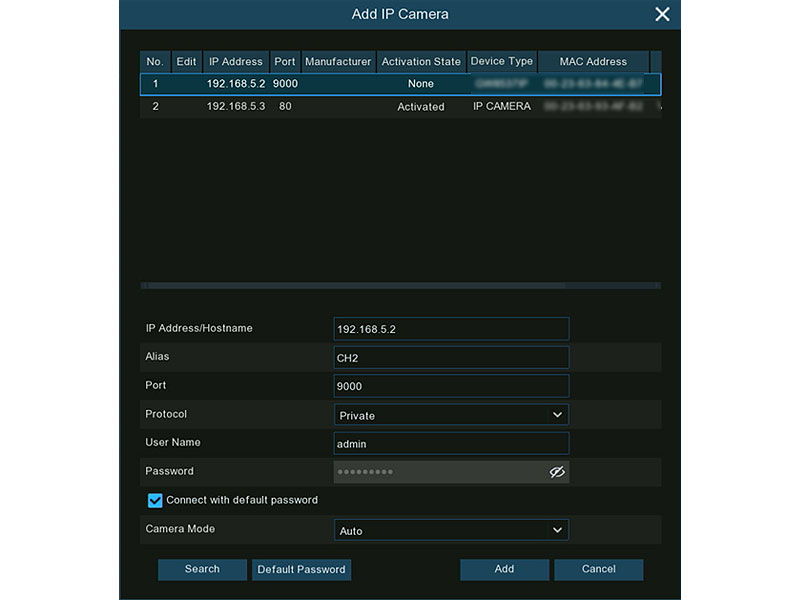
Select the suitable Protocol from the dropdown (Private is for Camius IP cameras), enter the IP camera(s) credentials (User Name and Password), and click Add. Green status indicates a successful connection; grey status could show a password or network error.
Grey color state icon means the IP camera failed to connect to the NVR. Click the gray icon to show the failure reason:
If the IP camera and NVR are connected to the same router, follow these steps.
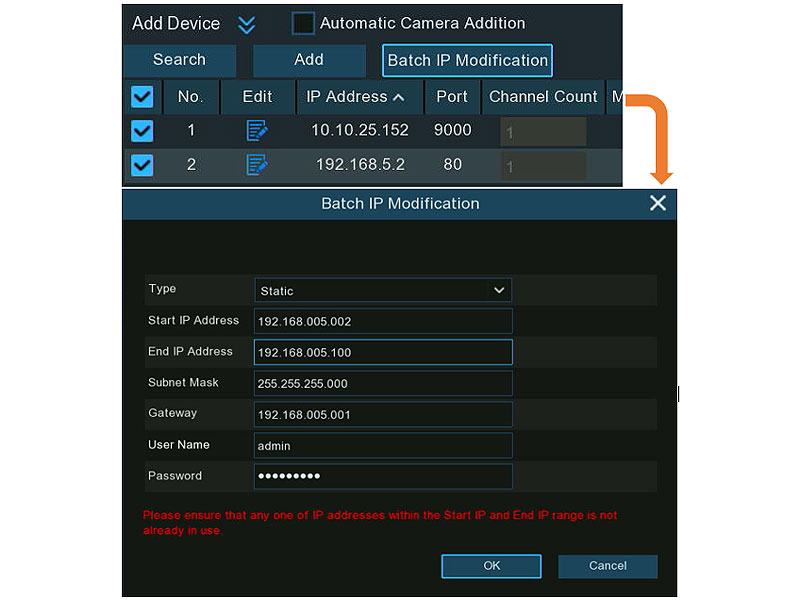
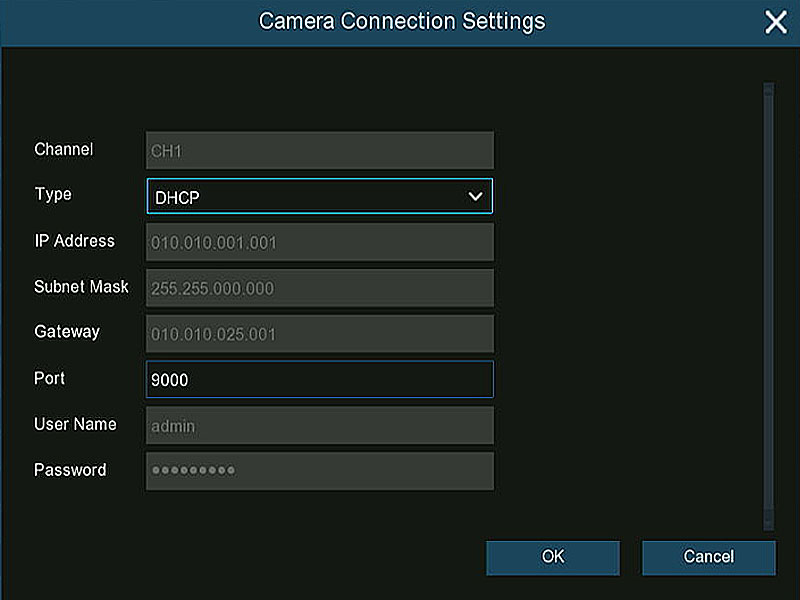
If the IP camera is not in the same subnet:
This ensures proper IP camera connection and prevents subnet conflict.
It is best for:
Private protocol enables full feature control within your IP camera NVR system
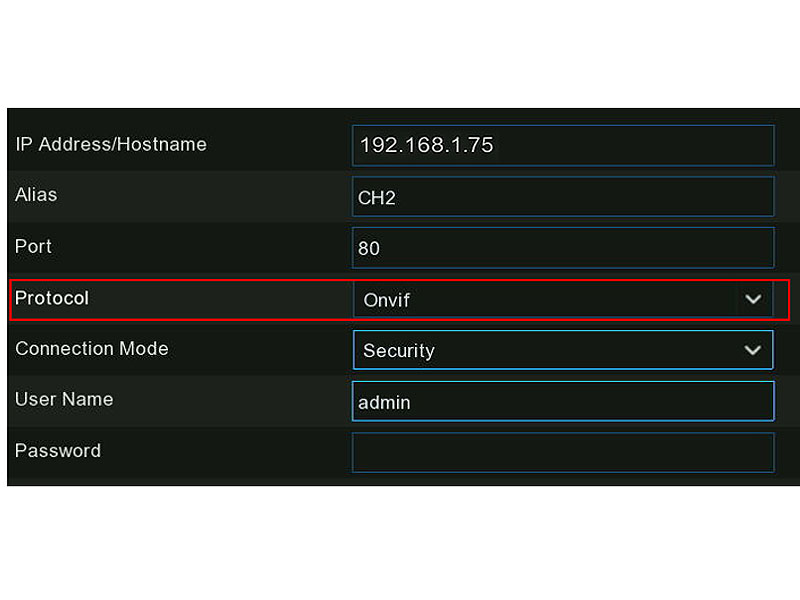
Use ONVIF when:
You may see Connect Mode:
If HTTPS is not supported, system switches automatically to the HTTP.
RTSP allows:
Video preview
Recording
RTSP does NOT support:
• AI detection
• Camera configuration
• Advanced features
Use RTSP only if ONVIF is unavailable
If your cameras have individual IP addresses accessible on your local network, you can connect directly to each camera using its RTSP stream.
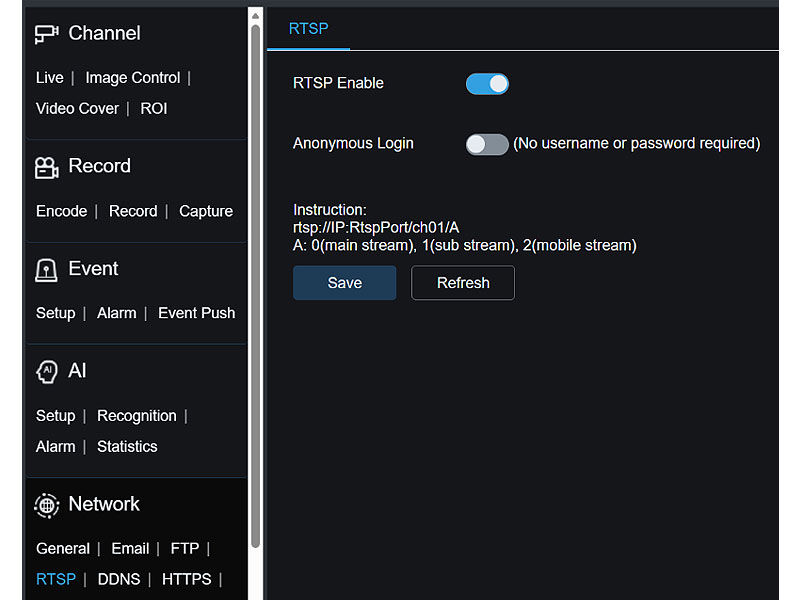
RTSP is enabled by default on Camius IP cameras.
This method connects directly to the camera’s live video feed.
Before You Start
Make sure you:
Use the following RTSP URL structure:
Main Stream rtsp://CAMERA_IP:554/ch01/0
Substream rtsp://CAMERA_IP:554/ch01/1
Mobile Stream rtsp://CAMERA_IP:554/ch01/2
Where:
CAMERA_IP = camera’s local IP address
80 = default RTSP port
ch01 = channel number
0 = main stream
1 = substream
2 = mobile stream
Example: rtsp://192.168.1.75:554/ch01/0
This connects directly to the camera’s main video stream.
RTSP allows preview and recording but does not support AI features or camera configuration.
If the IP camera is on a remote network:
Manually enter:
This is how to add a network camera from another site to your IP camera NVR system.
If Automatic Camera Addition is enabled:
The NVR will:
• Scan local network
• Add available IP cameras automatically
This is useful when installing multiple cameras at once
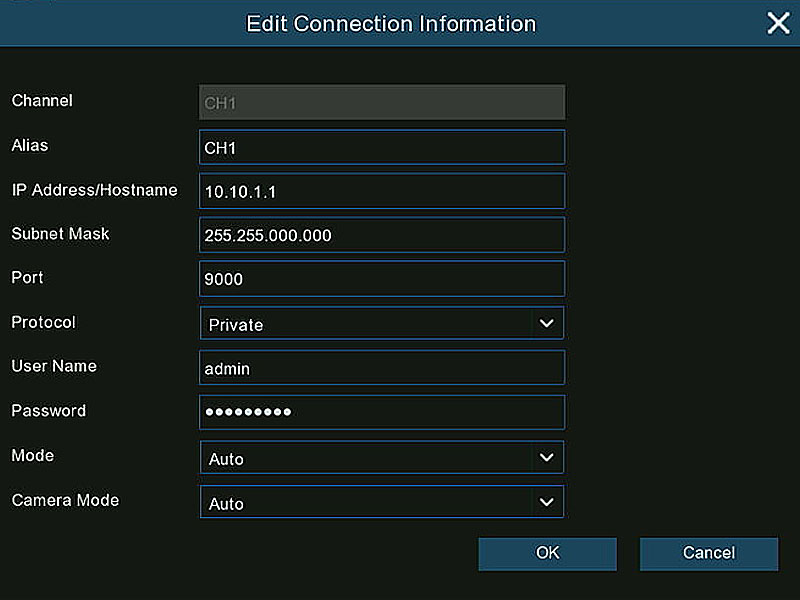
If camera IP address, port, username, or password changes:
This allows quick repair of IP camera connection issues.
Inside the Edit menu you can choose:
DHCP
Static
Static IP is recommended for stable IP camera configuration in larger systems
To remove a network camera:
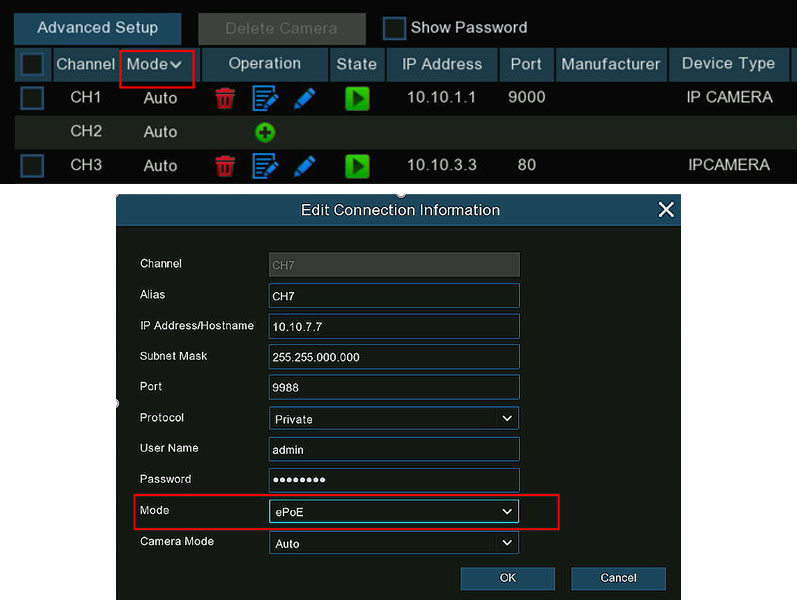
Camius NVR supports two PoE transmission modes for IP camera connection. These settings are useful when you need extended cable distances or optimized bandwidth allocation.
You can access PoE settings under: Setup >> Channel >> IP Channels >> Mode dropdown
Auto Modem is used for standard installations.
Best for most residential and commercial installs using standard Cat5e or Cat6 cable.
ePoE Mode is used for extended cable runs.
Note: When using ePoE mode, adjust encoding settings if needed. Lower bitrate or use substream for remote viewing if bandwidth becomes limited.
Use Auto mode by default. Switch to ePoE only when cable distance exceeds 394 ft.
This section supports long-distance IP camera connection planning and improves system reliability in large-scale installations.
Navigate to IP Channels >> Advanced Setup
You can:
This simplifies managing large IP camera NVR systems.