License Plate Detection Camera Setup Guide by Camius

The License Plate Detection Camera System by Camius enables users to accurately identify and capture license plates in Europe and the United States. This guide outlines the steps required to enable and configure the License Plate Detection function using available settings such as detection modes, sensitivity levels, and pixel thresholds. Whether you are setting up surveillance for a residential or commercial property, following these instructions will help ensure optimal detection and image capture performance.

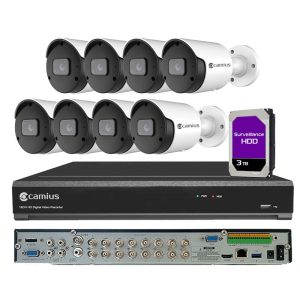
Camius PoE NVR camera systems with the below PoE IP camera support License Plate Detection:

Here are the steps on how to activate the License Plate detection. The below steps are based on the HDMI user interface, which is menu while the NVR is connected to a TV or monitor via HDMI video output. You can also activate the License Plate detection feature using the Camius NVR / Hybrid DVRs web browser menu.

License Plate Detection Settings using the NVR’s HDMI user interface

  • Navigate to Setup >> AI >> Detection Setup
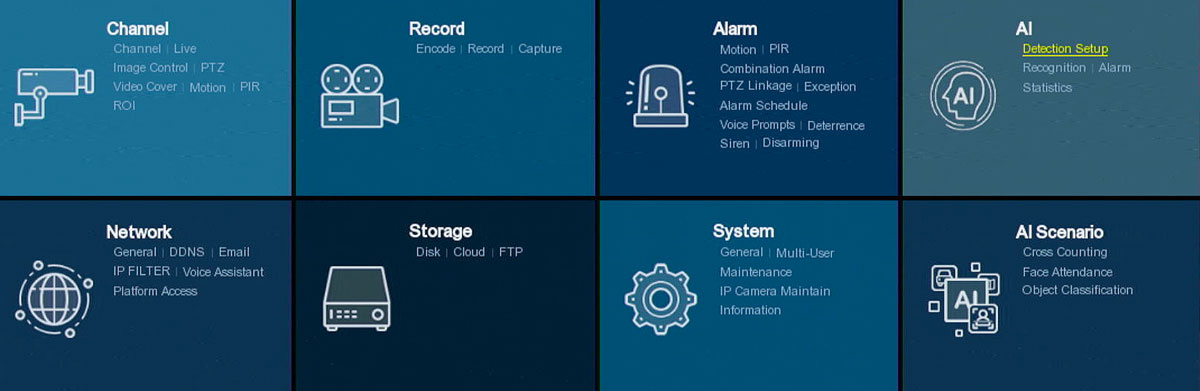
License Plate Detection - HDMI UI- Setup - AI - Detection Setup

If the License Plate detection switch is greyed out, you will need to turn off the Smart Motion Detection (SMD: Vehicle, Pedestrian or vehicle & Pedestrian) for the selected camera. Navigate to Channel >> Motion and select Motion as shown in the image below.

IMPORTANT: Smart Motion Detection (SMD) and AI features cannot be used at the same time. To enable License Plate Detection, you must first disable SMD.
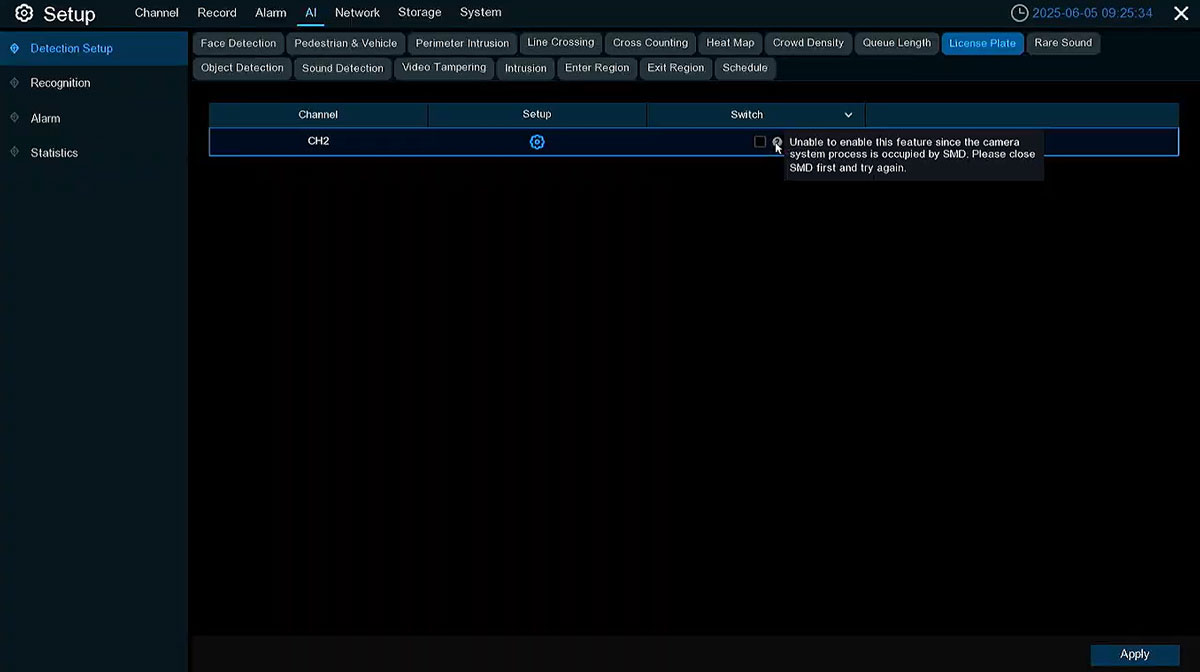
License Plate Detection - tiurn off SMD

  • Select ‘Motion‘ under the SMD by Camera.
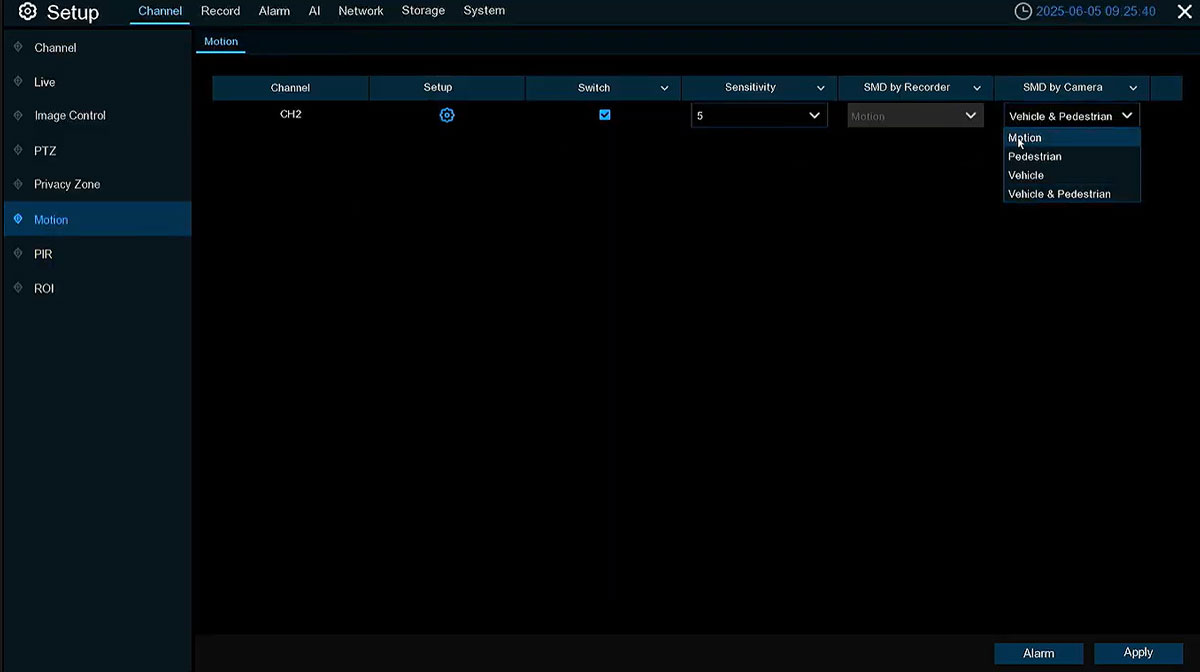
License Plate HDMI UI Channel Channel Motion

  • Navigate back to AI >> Detection Setup >> License Plate, where the License Plate Switch checkbox can now be enabled. Before you tick the box, navigate to the Setup (click on the Gear icon), to configure the License Plate settings
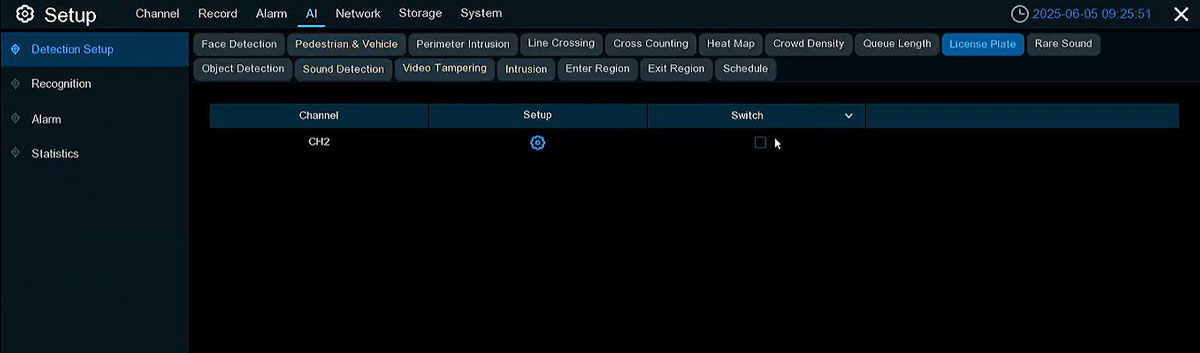
License Plate HDMI UI Detection setup LPD switch is blue

License Plate Detection Settings:

1- Channel: select the camera to configure

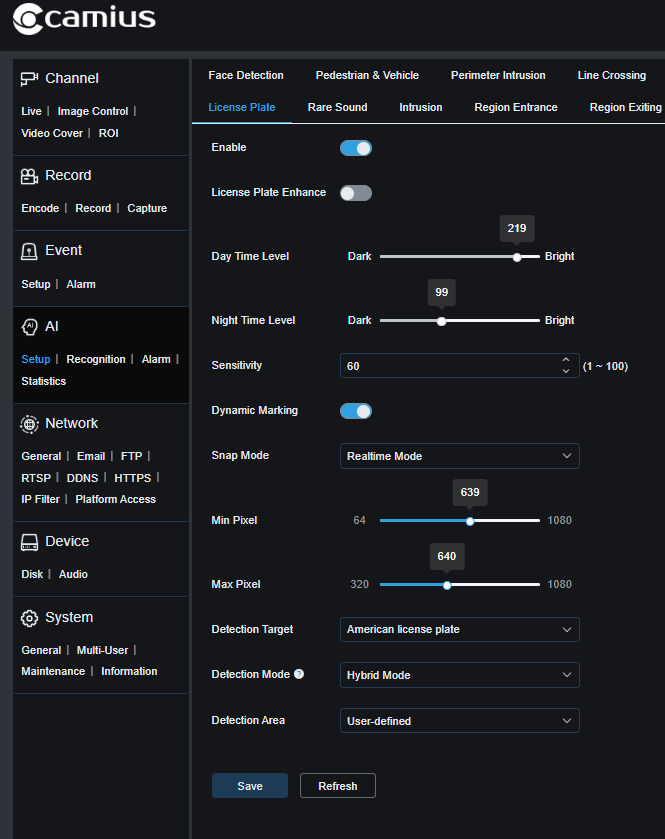
2- Snap Mode – Set the capture mode. 

Default – The camera pushes a license plate image only when the target disappears from view.
RealTime Mode – The camera immediately pushes one image when the target is detected and another when it disappears.
Interval Mode – The camera pushes images based on a defined interval and a set number of captures.

3- Min Pixel – The minimum pixel frame for detection. The license plate must be larger than this pixel value to be detected.

4- Max Pixel – The maximum pixel frame for getting detected. The license plate must be smaller than this pixel value to be detected.

5- Sensitivity – Select a sensitivity level between 0 and 100. Higher sensitivity increases the likelihood of detecting the target.

6- Detection Target– Choose from the supported license plate formats:

  • American license plate
  • European license plate

7. Detection Mode – Choose from two detection modes:
Hybrid Mode – Detects license plates of vehicles on screen, moving or static
Motion Mode – Ignores stationary vehicles and detects only moving license plates.

8- Detection Range – Select either ‘Full Screen’ or ‘User defined’ to define the detection area.

9- Dynamic Marking – Enable or keep it off for the detection frame and rule display.

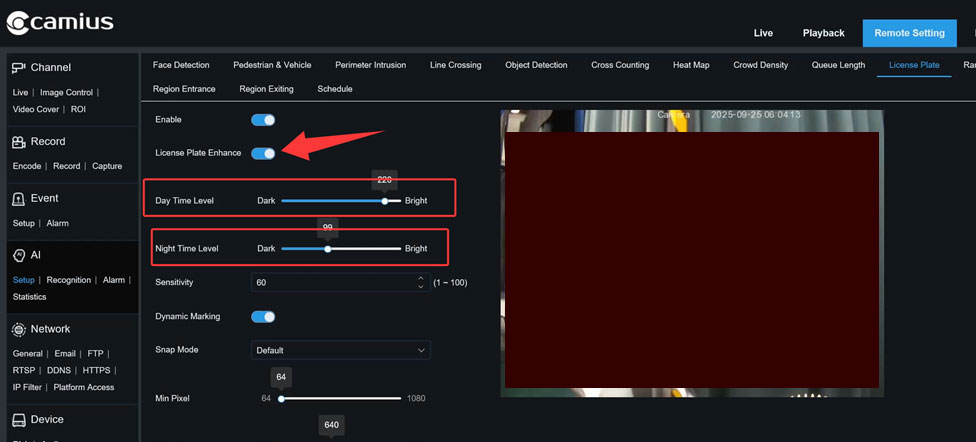
10- LPD Enhance (License Plate Enhance) – Turn on the LPD Enhance feature if license plates are difficult to read due to glare or bright light. This function automatically adjusts the camera’s exposure settings in real time to reduce overexposure and improve plate visibility, especially in challenging lighting conditions.

11- Day Time Level – Adjusts image brightness during the day. A lower value makes the image darker; a higher value makes it brighter. Available Range: 0 (dark) to 255 (bright).

12- Night Time Level – Controls image brightness at night. Increase the value for a brighter night image, or decrease it for a darker one. Range: 0 (dark) to 255 (bright).

LPS HDMI UI Setup AI Detection Setup License Plate Settings

You can also configure the Camius PoE camera s License Plates ettings in the Camius NVR or Hybrid DVR's web browser interface (menu)

LPD web UI Remote setting License Plate

Navigate to Remote Setting >> License Plate

License Plate Enhance

When License Plate Enhance is enabled, several image control parameters such as shutter speed and exposure are automatically optimized for clearer plate capture. However, this mode can make the overall image appear darker at night, as it prioritizes reading license plate details accurately under headlights or IR light.

The Day Time Level and Night Time Level values should always be adjusted according to the actual lighting conditions in your environment. If the image appears too dark or bright, fine-tune these levels to balance overall visibility and plate clarity.

In dynamic or challenging scenes—such as streets with variable lighting, reflective plates, or moving vehicles—it is recommended to disable LPD Enhance and manually adjust the camera under Image Control for best results.
Camius 5MP IP camera with zoom 10x license plate

Why Knowing This is Important for License Plate Detection

  • License plate detection benefits from sharp contrast. B&W + IR tends to help at night because IR illumination reflects nicely off license plates, boosting contrast.
  • But IR illumination in daylight (if not properly filtered) can cause glare, glare can blow out license plate detail. So in Day mode you want IR LEDs off/inactive.
  • Also the shutter/exposure settings in Day vs Night should be optimized differently.
  • Use a fast shutter speed to reduce motion blur; slow shutter speeds hurt plate readability.
  • WDR (Wide Dynamic Range) helps during glare / mixed lighting, but may cause motion artifacts; often recommended to turn off or limit WDR when capturing moving vehicles or at night.
  • Camera placement & angle: keep viewing angle as perpendicular as possible to reduce distortion; character pixel height matters (must be enough to read the plate).
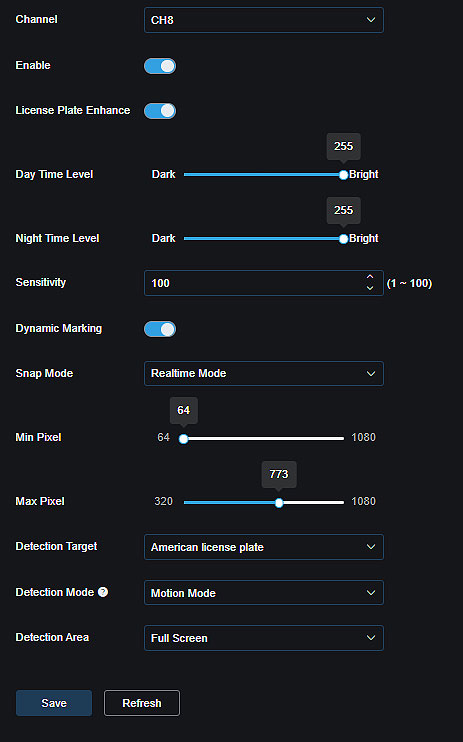
LPD web UI Remote setting License Plate settings
License Plate Enhance
BOLTVM5R10X
Image Control Settings

Recommended Image Control Settings by Scenario (License Plate Enhance OFF)

1. Slow Vehicles at Gate / Parking Entrance (≈10–15 km/h)

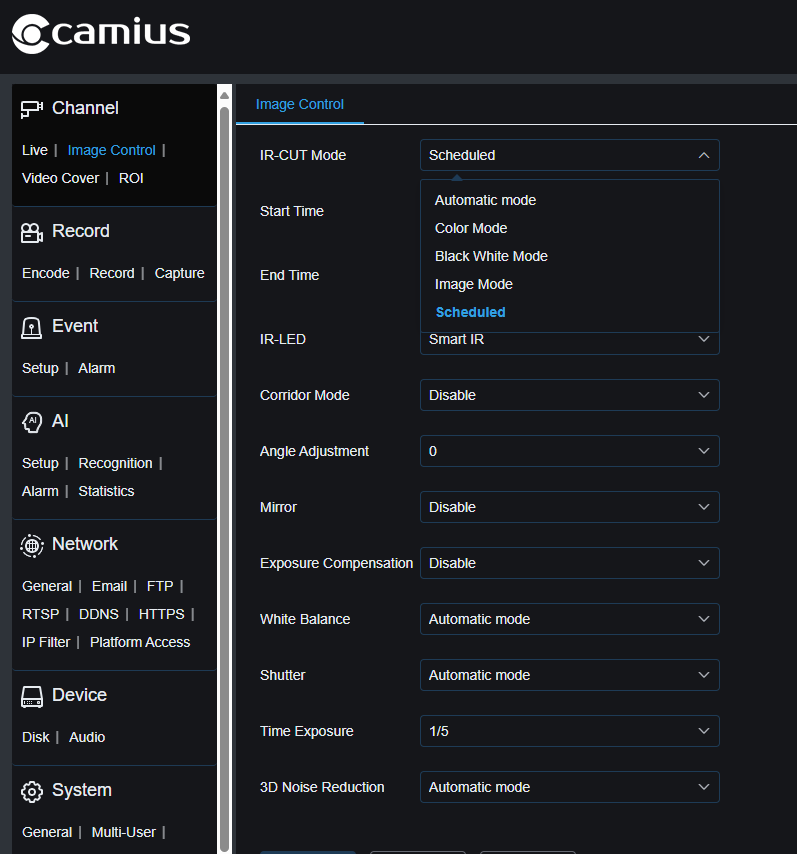
  • IR-CUT Mode: Scheduled (Day = Color, Night = B/W).
  • Day Mode:
    • IR-LED = Smart IR (will stay off).
    • Shutter = Auto, range 1/20000–1/250.
    • Exposure Compensation = WDR ON (sunlight/shade at entrances).
    • Time Exposure = ~1/250.
  • Night Mode:
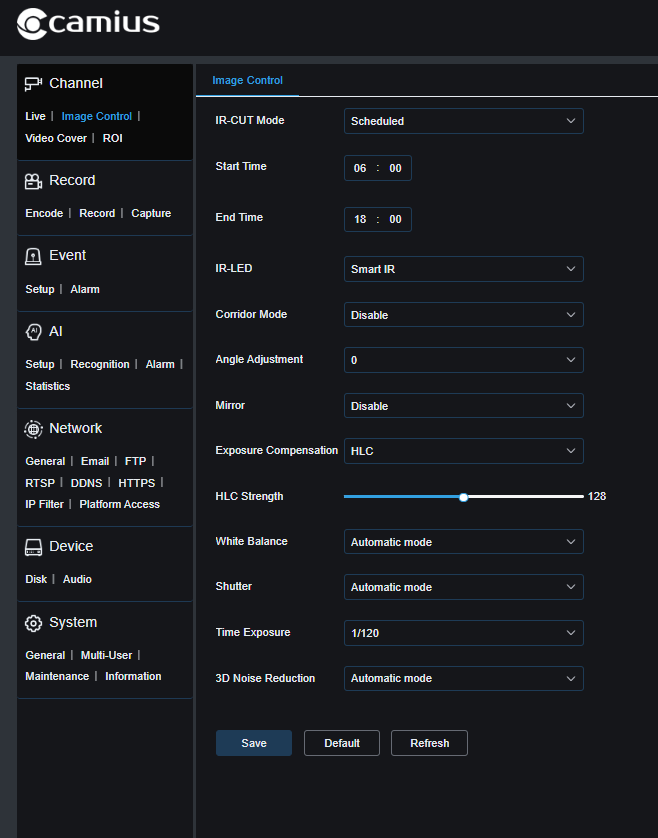
    • IR-LED = Smart IR.
    • Shutter = 1/120–1/250 (slower OK since cars stop/slow down).
    • Exposure Compensation = HLC ON if headlights shine directly.
    • 3D Noise Reduction = Automatic.
  • License Plate Detection Settings:
    • Detection Area = User-defined box around entrance lane.
    • Snap Mode = Realtime.
    • Detection Mode = Hybrid.
BOLTVM5R10X demo 1 night mode slow vehicles - LPD settings
License Plate Detection Settings
BOLTVM5R10X- demo 1 slow vehicles - image control - night
Night Mode

2. Street with Moderate Traffic (≈50–60 km/h)

  • Day Mode:
    • IR-CUT = Scheduled (Day profile).
    • IR-LED = Smart IR (inactive).
    • Shutter = 1/500–1/1000 to freeze moving plates.
    • Exposure Compensation = WDR ON (street shadows/backlight).
    • Time Exposure = 1/500 or faster.
  • Night Mode:
    • IR-LED = Manual with proper beam strength to avoid overexposure.
    • Shutter = 1/500–1/1000 to freeze motion.
    • Exposure Compensation = HLC ON to suppress headlights.
    • 3D Noise Reduction = Automatic (reduce smearing if plates look soft).
  • LPD Detection Settings:
    • Detection Area = User-defined, covering middle lane area only.
    • Detection Target = American License Plate (or European).
    • Snap Mode = Realtime.

3. Highways / Fast Vehicles (>70 km/h)

  • Day Mode:
    • IR-LED = Smart IR (off).
    • Shutter = 1/1000–1/2000.
    • Exposure Compensation = WDR OFF (motion artifacts at very fast shutter).
    • Time Exposure = 1/1000 or faster.
  • Night Mode:
    • IR-LED = Manual with reduced intensity to avoid glare.
    • Shutter = 1/1000 (faster is better, even if image is darker).
    • Exposure Compensation = HLC ON to cut headlight flare.
    • 3D Noise Reduction = Manual Low (avoid detail smear).
  • LPD Detection Settings:
    • Detection Area = Narrow ROI across lane center (not full screen).
    • Detection Mode = Motion Mode (vehicles pass quickly).
    • Snap Mode = Realtime.

4. Backlight / Headlight Glare Scene

  • Day Mode:
    • Exposure Compensation = WDR ON.
    • Shutter = 1/500–1/1000.
  • Night Mode:
    • Exposure Compensation = HLC ON (headlight compensation).
    • Shutter = ~1/500.
    • IR-LED = Smart IR (balances exposure).
  • LPD Detection Settings:
    • Detection Area = User-defined region excluding glare zones (avoid headlights directly in ROI).

5. Reflective Plates / Strong IR Reflection

  • Day Mode:
    • Brightness = Default 128.
    • Shutter = 1/1000 or faster.
  • Night Mode:
    • IR-LED = Smart IR, or Manual with low High Beam value.
    • Shutter = 1/500–1/1000.
    • HLC = ON.
  • LPD Detection Settings:
    • Sensitivity = Moderate (≈60).
    • Detection Area = User-defined around plate zone.

Key Installer Notes

  • Use Scheduled IR-Cut Mode, not Auto, to avoid headlights/streetlights forcing wrong profile.
  • Day = fast shutter + WDR, Night = Smart IR + HLC + controlled shutter.
  • Do not use full screen detection area unless unavoidable. Always define a User-defined Detection Area under the License Plate Detection menu so the camera analyzes only the lane or zone where vehicles pass. This improves accuracy.
  • Test at different times (day, dusk, night) with vehicles.

Once you have configured and saved the License Plate settings, go to AI > Detection Setup > License Plate. Check the Switch box to enable the License Plate Detection function for the selected camera, then click Apply to save the settings.

Next, click Alarm to configure actions triggered when a license plate is detected. Available options include:

  • Show Message – A message will appear on the screen.
  • Email Notification – Sends an email with a screenshot of the detection (ensure your email settings are properly configured).
  • Cloud Upload – Save detection snapshots to Dropbox or Google Drive.
  • FTP Uploads – Upload detection events to your FTP server.
  • Recording – Save the detection event to your local storage.

Below are screenshots of the HDMI menu

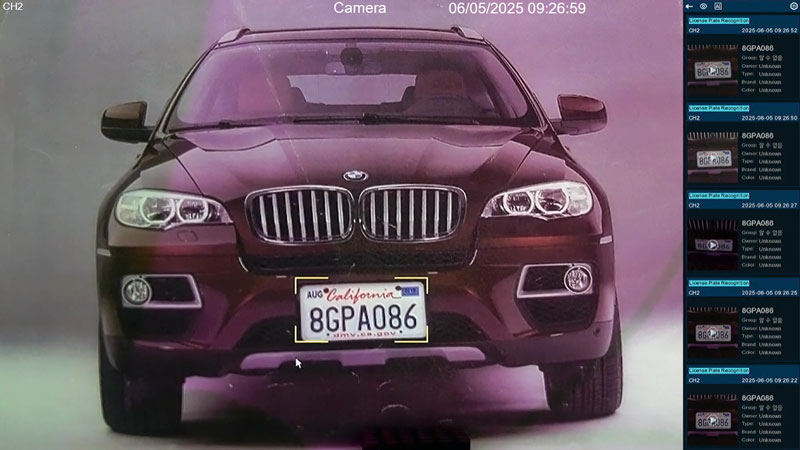
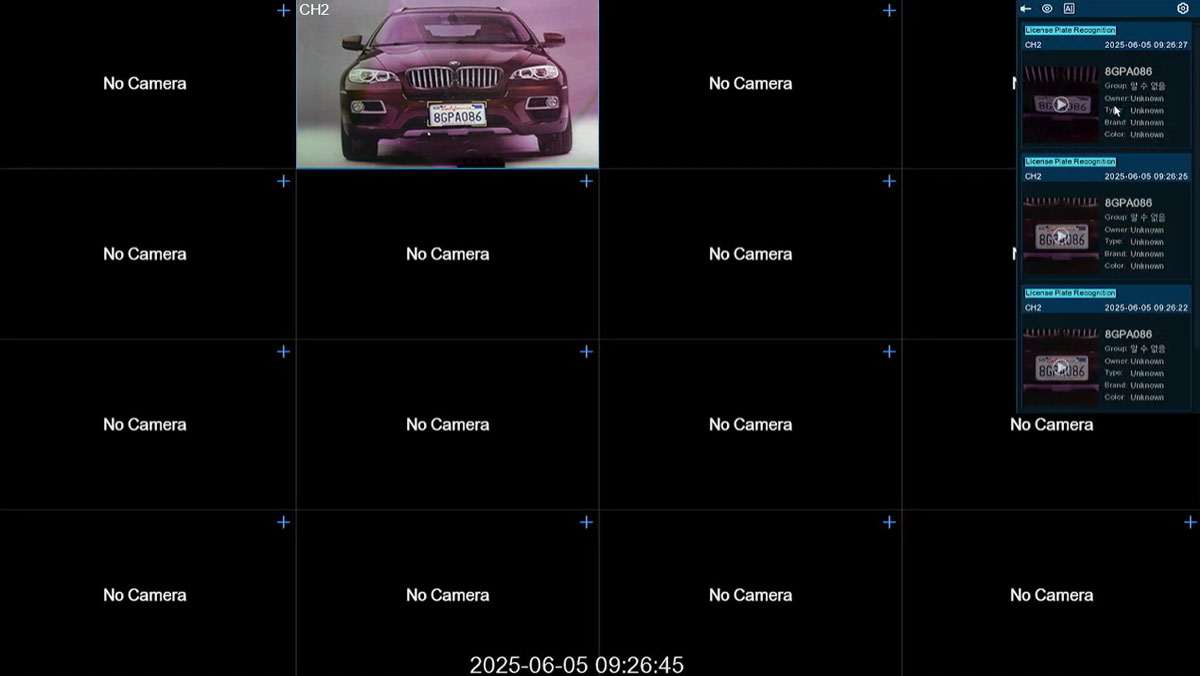
LPS HDMI UI Setup AI Detection Setup License Plate Live Preview single camera view
Camius License Plate Detection - muti camera live view

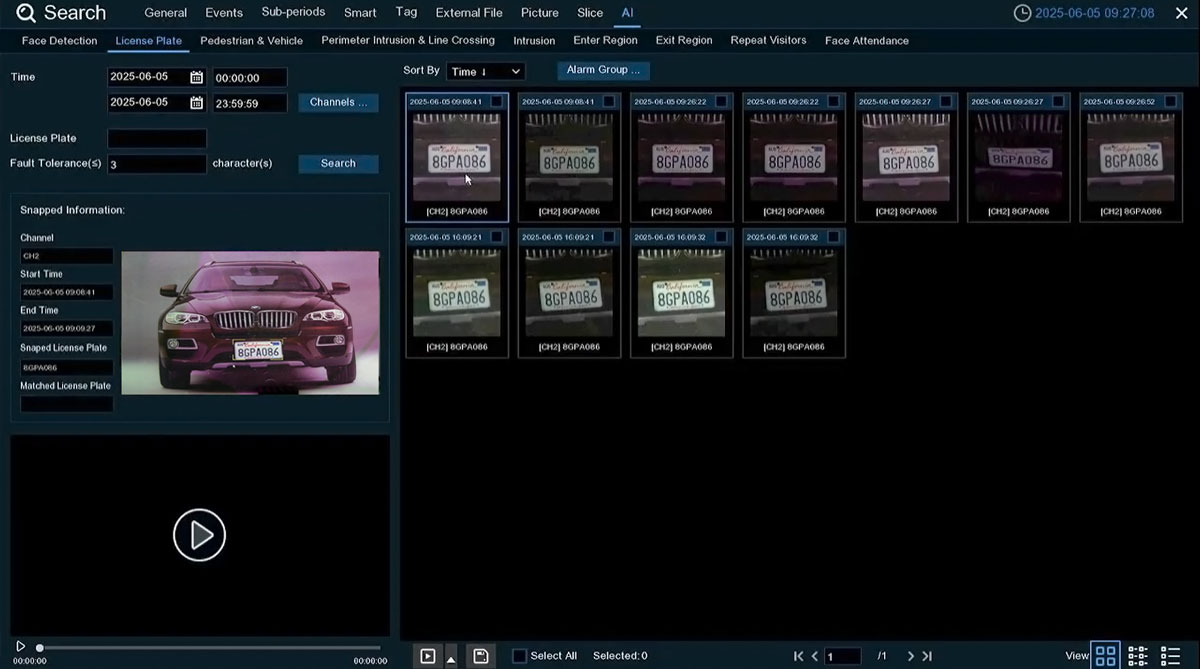
Playback: License Plate Detection Events

  • To view license plate detection events, click Playback from the bottom toolbar to open the Playback menu.
  • Go to AI > License Plate, then select the desired Date and Time, choose the Camera Channels, and click Search.
  • Detected events will appear on the screen as images showing the captured license plates with their numbers.

You can:

  • Click the Play button to review the recorded footage.
  • Click the Floppy Disk icon to save the event to a USB flash drive.
  • You can enter the License Plate number you are searching for in the License Plate tab on the left side of the menu
LPS HDMI UI SetupPlayback
LPS HDMI UI Setup Playback AI License Plate Search

Best Placement for License Plate Capture

For accurate license plate detection with your system, we recommend Camius PoE AI cameras. Our 2K and 4K fixed-lens models are effective for plate detection at distances of approximately 10 to 20 feet. For more flexibility, the SCOUT4K4XPTZ model features a 2.8–12mm motorized zoom lens, allowing for reliable plate capture from about 20 to 30 feet, depending on the zoom level and installation conditions.

Proper camera placement is essential. For optimal results:

  • Mount the camera 3 to 6 feet above ground, directly facing the vehicle’s path with minimal angle.
  • Avoid placing the camera in direct line with headlights to reduce glare.
  • When supported, adjusting the shutter speed can help minimize motion blur, especially at night.
  • Ideal mounting spots include gate entrances, driveways, or areas where vehicles slow down or stop.

Discover Camius NVR & Hybrid DVR Systems support License Plate Detection and more