
How to Format the Hard Drive in Your Camius DVR or NVR Recorder
Why Format a Hard Drive for Security Cameras
When you set up video surveillance using a Camius recorder, the internal drive must be prepared correctly. Whether you’re installing a new drive or replacing an old one, knowing how to format a hard drive for security cameras ensures reliable recording and playback.
You’ll want to pay attention to DVR HDD format type and NVR HDD format type because these two recorder types may handle the drive differently.
When You Should Format
-
On first use / new drive
If you add or replace a hard drive in your DVR or NVR recorder it is necessary to prepare the drive via the recorder’s interface. Many users ask do you have to format a new hard drive when installing for surveillance use. The answer is yes: you should run the format process so the recorder uses the correct file system and settings.
-
When the drive is full or showing errors
If the hard drive is full, the recorder alerts “No HDD space” or stops writing footage, you should perform a format and enable overwrite mode. This addresses the scenario where the system cannot continue recording because of storage saturation.
-
When switching drives or upgrading
When you upgrade the capacity or swap drives you should run the format process again so the recorder treats the new drive correctly. This is part of the best practice around formatting new hard drives in surveillance systems.
Formatting During Initial Setup
- After powering on your Camius DVR/NVR, launch the setup wizard and go to Start Wizard → Disk.
- Check the status of the drive; if it does not show “Normal” you should format. Selecting the drive and clicking Format HDD triggers the process.
- While formatting, set the Overwrite mode to Auto so the recorder uses the drive in loop-record fashion once full.
- Confirm by entering your recorder password. When status returns to “Normal”, the drive is ready.
Formatting on an Installed Drive (When It’s Full or After Errors)
- On the main screen click the menu icon bottom-left, then go to Setup → Device → Disk → Disk
- Tick the drive’s checkbox. Navigate to the Overwrite tab and set mode “Auto” (Recommended).
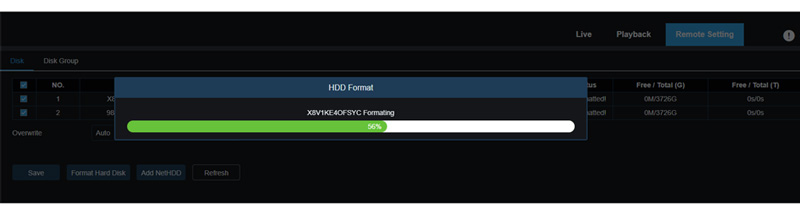
- Click Format HDD, then click Apply. Wait for the progress bar to finish.
Understanding DVR HDD Format Type vs NVR HDD Format Type
There is no single “file system type” (such as NTFS or FAT32) selection for many security recorders. Instead the recorder’s internal software handles the format. We recommend formatting require formatting via the recorder menu rather than pre-formatting via PC.
Camius offers Surveillance Grade Hard Drives recommended for 24/7 continuous operations:
Important Warnings & Compatibility Notes
- Formatting erases **all recorded footage** on the drive. Back up any recordings you need before proceeding.
- Use only compatible SATA HDD/SSD drives as specified in the Camius installation guide.
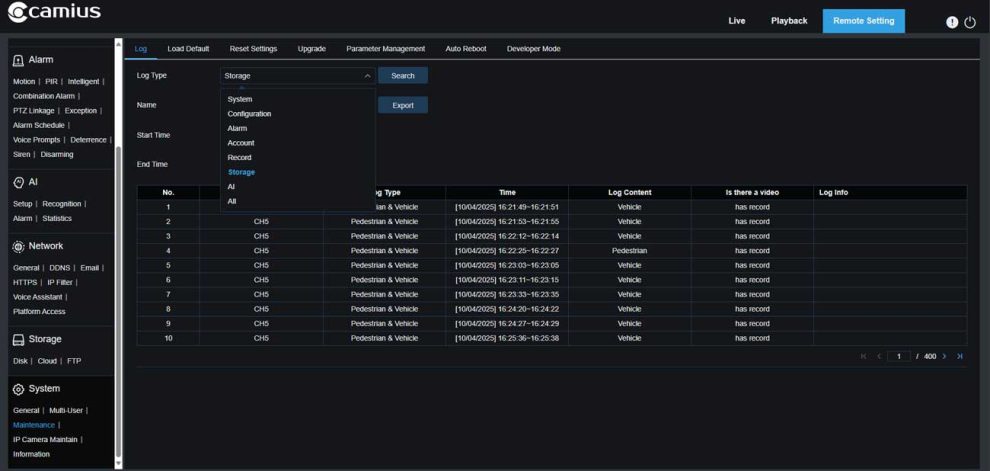
- Check health of the drive via Setup → Device → Disk → S.M.A.R.T. before assuming formatting will fix hardware-issues. or check the Recorder’s Log for errors via Setup → Maintenance→Log, select the Log Type ‘Storage’ followed by Search tab.
- Power supply or cable issues often mimic “drive error” conditions. Ensure power is stable and connections are secure.
HDD Not Detected / No Hard Drive Installed Icon
When you see the hard drive icon highlighted in red at the bottom of your Camius DVR or NVR live view screen, it indicates that the system has not detected a hard drive. This warning can appear for one of two reasons: either there is no hard drive physically installed, or the installed drive is not recognized by the recorder.
What This Icon Means
- No HDD installed: Your DVR or NVR does not have a hard drive connected inside the unit.
- HDD not detected: A hard drive is present, but the system cannot communicate with it due to power, data cable, or drive failure issues.
What Needs to Be Done
- Power Off the Recorder before checking the drive.
- Open the unit’s cover and verify that the hard drive is connected securely to both the power and SATA data connectors.
- Check the power supply—if the unit is receiving unstable power, the drive might fail to spin up or initialize.
- Restart the Recorder and see if the icon disappears. If the system still shows “HDD Not Detected,” go to Menu → Setup → Device → Disk to confirm if the drive appears in the list.
- If the drive is listed but marked “Unformatted,” click Format HDD, then select Overwrite = Auto to prepare it for recording.
- If the drive does not appear at all, get a new hard drive
- Once recognized, the icon will automatically disappear, confirming the system is ready to record.
FAQs About Formatting CCTV Hard Drive
How to format a hard drive for security cameras when installing a new drive?
Use the recorder’s built-in wizard or menu. Select the drive, hit Format HDD, set Overwrite to Auto.
What is the correct DVR HDD format type?
Camius DVRs and NVRs often use proprietary formatting.
Do you have to format a new hard drive?
Yes. Camius DVR, NVR recorder needs the drive formatted via its interface to be recognized and used for recording. Once formatting is complete and the drive status is “Normal”, proceed to set your recording schedule (continuous, motion, event). Confirm live-view and playback are functioning properly.
