
This guide applies to WF4KN Wireless NVR and WF4KC2 wireless cameras
Latest firmware versions:
- WF4KN (wireless NVR): V8.2.4-20251120
- WF4KC2 (4K wireless camera): V34.21.5.2_251011
Important: The wireless camera version can only be upgraded through the NVR's HDMI user interface. Wireless cameras cannot be upgraded using the NVR's web browser user interface.
Preparation Before Upgrade
- Download the correct firmware files for WF4KN and WF4KC2.
- Use a USB flash drive formatted to FAT32.
- Copy the .sw firmware file to the root directory of the USB drive.
- Safely eject the USB drive from your computer.
Make sure:
- The NVR is powered on and stable.
- Insert the USB flash drive into the front USB port.
- Cameras are paired and have a fully charged battery.
- Do not power off during upgrade.
System Upgrade: WF4KN Wireless NVR Firmware Upgrade
- Insert the USB flash drive into the NVR USB port.
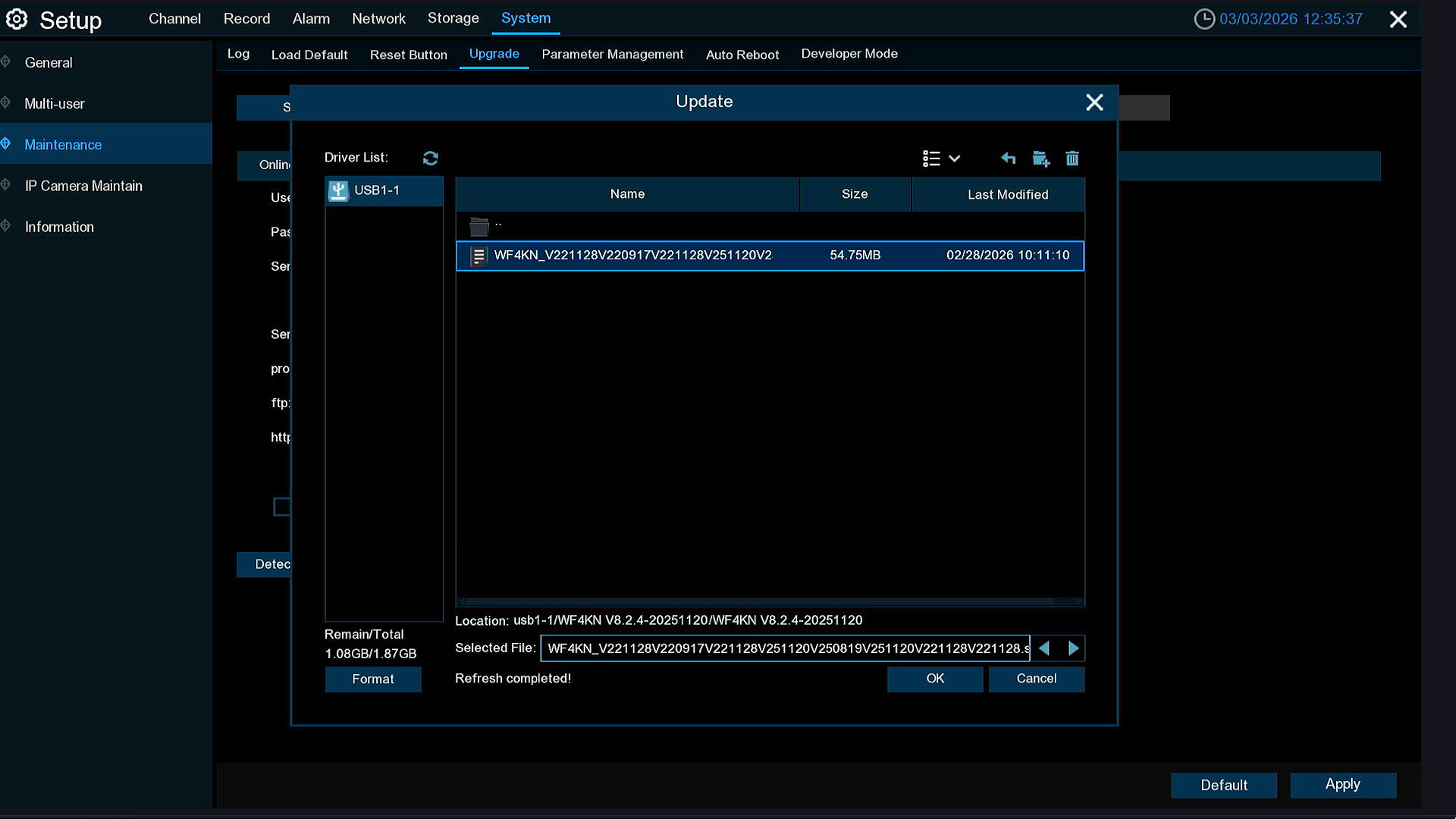
- Using a mouse connected to the NVR to access the HDMI TV user interface, right click and go to: Menu Setup >> System >> System Maintenance >> Upgrade
- Click Select File, click OK tab to proceed with the update
- Choose the WF4KN firmware file from the USB drive. Click OK.
- Click Upgrade. Authenticate with the admin NVR's password when prompted. The upgrade takes approximately 3 to 10 minutes.
DO NOT:
- Turn off the NVR
- Remove the USB drive
- Disconnect power
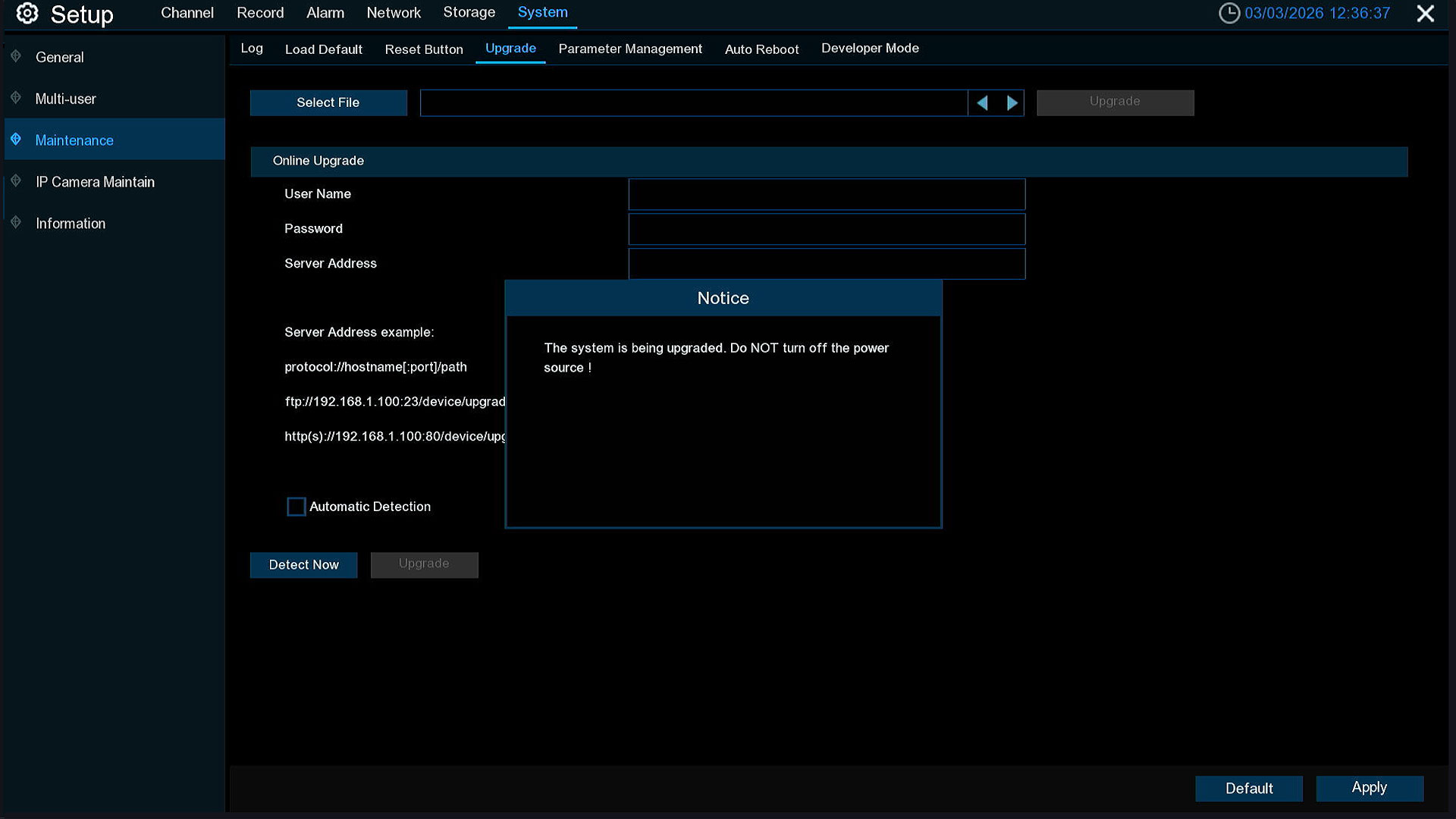
The NVR will reboot automatically after completion. After reboot navigate to: Menu Setup >> System >> System Information >> Verify software shows: V8.2.4-20251120
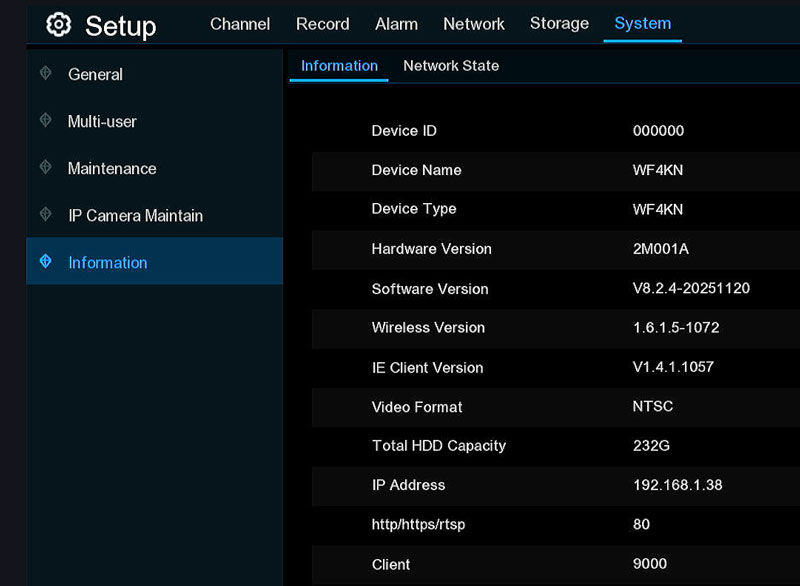
Upgrade Wireless Cameras: WF4KC2 Firmware Upgrade Through NVR
- The wireless cameras must be paired, and have a well charged battery not less than 50%
- Upgrade one camera at a time.
- Insert the USB flash drive with the WF4KC2 firmware into the NVR's front panel USB port.
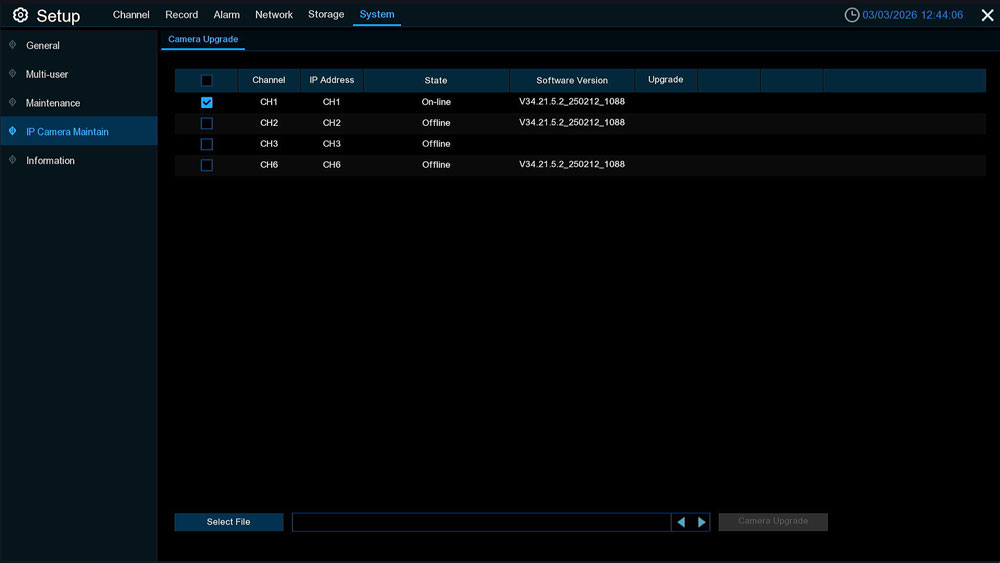
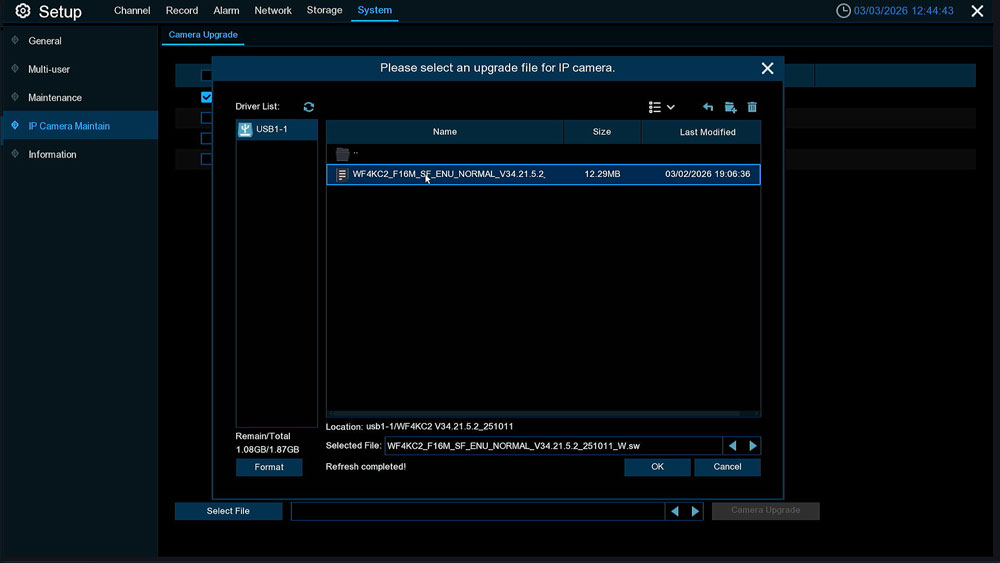
- Go to: Setup >> System >> IP Camera Maintain >> Camera Upgrade
- Select the wireless camera channel (for e.g., CH1) you want to upgrade by ticking the checkbox.
- Click Select File.
- Choose the WF4KC2 firmware file from the USB drive. Click OK.
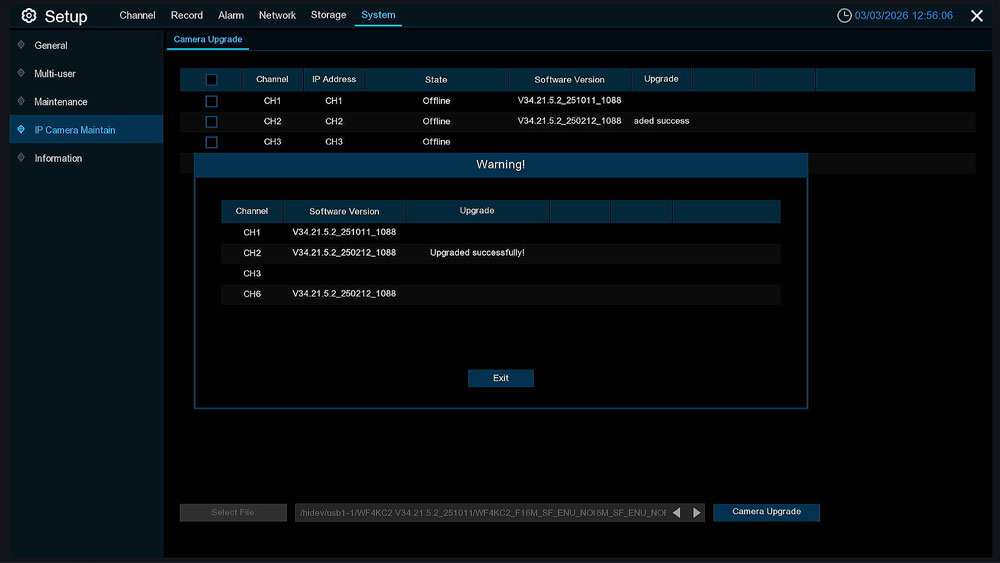
- Click Camera Upgrade.
- Enter the administrator password when prompted.
- The camera upgrade will begin. Upgrade time is typically 3 to 5 minutes per camera.
- Once you see the Exit tab, it means the upgrade has been completed and the camera will produce an audible beeping sound.
During upgrade:
- Do not power off the NVR.
- Do not power off the camera.
- Do not remove the USB drive.
After completion, navigate to Menu Setup >> Channel >> Wireless Camera >> Verify camera version shows: V34.21.5.2_251011
Upgrade Order
- Perform upgrade only in local network using the HDMI monitor connected to the NVR recorder.
- Do not attempt to upgrade remotely.
- Upgrade the WF4KN NVR first.
- After successful reboot, upgrade each WF4KC2 camera. Upgrade one camera at a time.
If the NVR or a Camera Fails to Upgrade
- Verify you used the correct firmware file for the specific device model.
- Check the current software version on the NVR or camera; it may already be up to date.
- Confirm the camera battery is sufficiently charged before starting the upgrade.
- Confirm the camera is paired and online prior to upgrading:
- If the camera appears as "Offline" under System > Maintenance > IP camera Maintain >> Camera Upgrade, it is in sleep mode.
- If you wish to wake the camera by triggering motion in front of it, or click the "Play" button on its live preview.
- The status will change from Offline to Online once the camera is active. Reboot the NVR, then retry the upgrade.
- If the firmware file is not detected, swap to a different USB drive and recheck the file is not corrupted.