
How to Back Up NVR and DVR Security Camera Footage
There are three ways to back up NVR and DVR security camera footage: via USB drive connected directly to the recorder, via web browser using the recorder’s IP address, or remotely using VMS Pro desktop software. This guide covers all three methods. You will need a FAT32-formatted USB drive for local backups. NTFS and exFAT are not supported by Camius recorders.
New to Camius? All NVR and DVR systems include local recording with no monthly fees. Browse systems at camius.com/shop.
Using the Search and NVR Backup Functions
The Search function on your Camius DVR or NVR recorder provides a powerful tool to locate and playback previously recorded audio-video footage and snapshots stored on the device’s hard drive. This feature allows you to find videos based on your recording schedule, manual recordings, or specific events.
While some DVR, NVR recorders may have slightly different event types under the Playback menu, the overall concept and menu path remain consistent across devices.
Option 1: Backing up CCTV footage using a Local User Interface (HDMI Connection to Monitor or HDTV)
When your Camius DVR or NVR is connected to a monitor or HDTV via HDMI, follow these steps:
- Step 1: Access the local user interface by connecting a mouse to the DVR/NVR.
- Step 2: Navigate to the playback or search menu. This varies slightly depending on your specific model, but typically you will find it under a menu labeled ‘Playback’, ‘Search’, or ‘Recordings’.
- Step 3: Select the date and time range for the recordings you wish to backup.
- Step 4: Choose the video files you want to backup and select the backup option.
- Step 5: Follow the prompts to specify the backup destination (e.g., USB drive connected to the DVR/NVR).
- Step 6: Confirm the backup process and wait for it to complete. Once finished, safely remove the USB drive.
Step 1: Click on the playback icon on the bottom menu bar. The quick tool bar has icons to help you navigate through the NVR / DVR’s menu


The quick tool bar has icons to help you navigate through the NVR / DVR’s menu
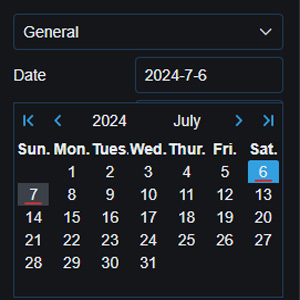
Step 2: On the Date dropdown menu, a red underline indicates days with recordings.
Step 3: Filter the Search Type (Motion, PIR, etc) and Stream Type (Mainstream or Substream), and select the Channel to playback. The 24-hour timeline will populate continuous recordings as green blocks and other event types in different colors. Clicking on the timeline jumps playback to the selected time. Different types of recording are displayed using different colors

Step 4: Backing up CCTV footage requires a USB thunb (flash) drive. On the playback search page, click on the events tab, select the date, type, and channels, and then click the Search button.

To save a video clip backup, insert your USB thumb drive into the Camius DVR or NVR’s USB port and start playing the recorded video. USB ports are on the front and rear panels of the DVR and NVR recorders.
2 – Select the icon

3 – Check the Channel(s) you want to backup and move the mouse cursor to the timeline where you want to start the clip.
4 – Press and hold the left mouse button and drag the cursor to the timeline where you want to end the clip.
The clip icon
will change to an icon

, which you can click to save the clip.
5 – Select one or multiple event thumbnails, click the Backup button at the bottom, choose .MP4 (recommended), then click Save
Make sure your USB thumb drive has enough space to save the video clips.

6 – Select a folder on the thumb drive, and click OK. The progress bar at the bottom of the window shows you the progress of the backup.

Running out of storage space on your hard drive? Camius recorders support high capacity local storage.
Option 2: Backup via Web Browser or the VMS Desktop Software
You can also backup audio video files locally using a web browser and remotely using the VMS Desktop Software which comes with built-in web client application.
Step 1: Open a web browser and enter the IP address of your Camius DVR/NVR (click here for more details on how to find your recorders IP address using a free Camius Device Config Tool). If you are using the VMS Software, click the Remote Setting tab which will take you to the Camius DVR/NVR system web browser application. Log in using your username and password.
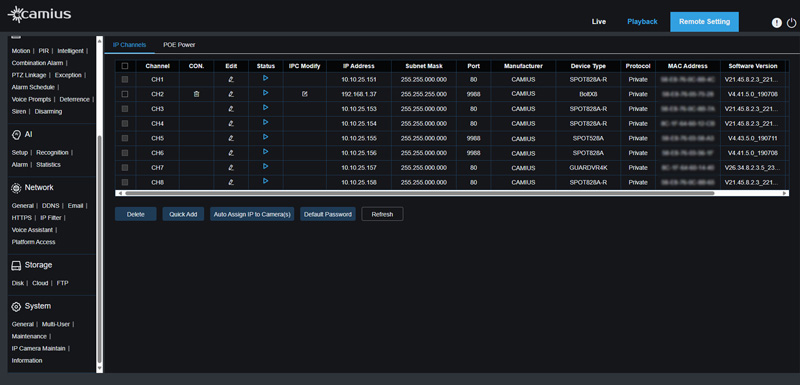
Step 2: Navigate to ‘Playback’
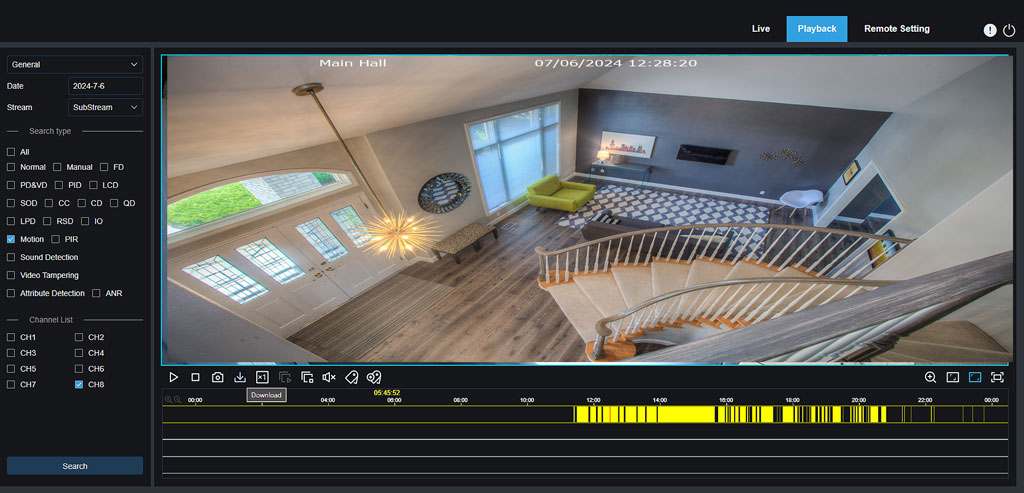
Select the dates with recordings, choose the stream (Sub stream is default and recommended), select the event type and channel, and check the dates with recorded footage (underlined in red).
Click the Search to see the recorded events
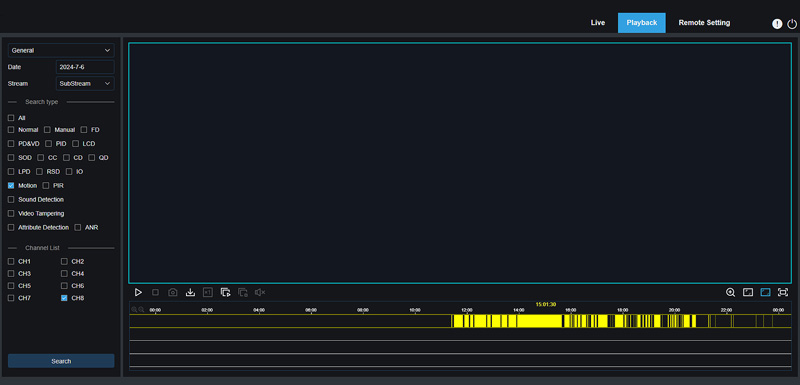
The following menu shows the Motion Triggered recordings (yellow color)
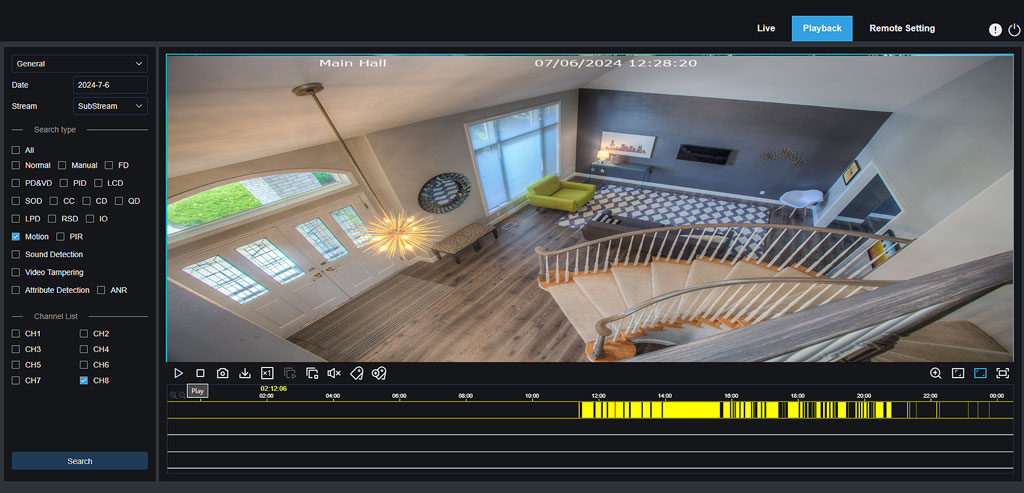
Step 3: Play the Available Events (Color-Coded Based on Event Type)
After accessing the Search function on your Camius DVR or NVR, you can play the events you’ve located. Events are color-coded to help you quickly identify their type:
- Green: Normal Continuous Recording
- Yellow: Motion Detection
- Red: Manual Recording
- Blue: AI Events
- Purple: PIR (Passive Infrared) Events
Steps:
- Access the Search Function: Go to the Search menu on your DVR or NVR.
- Find Events: Use the filters to locate events by date, time, camera, or type.
- Play the Event: Click on the event to play it. Use the playback controls to review the footage.
By following these steps, you can quickly review your recorded events based on their type.
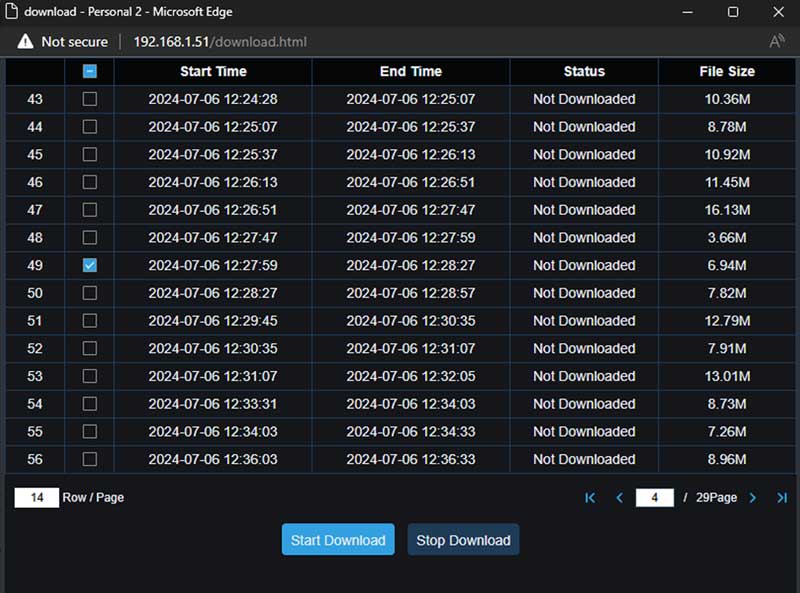
Once you’ve located the needed events, click on the Download icon (arrow down). This will open a window where you can select the event and start downloading it. You can download multiple files to your computer.
Select the files you wish to download
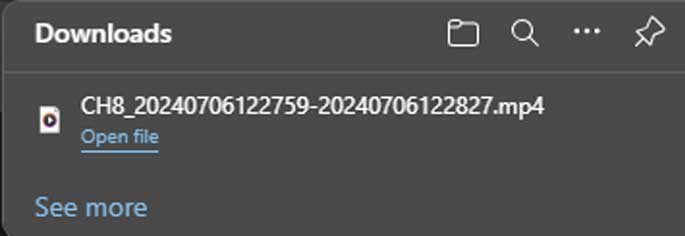
Check your default Download folder for the file, which will be saved in MP4 format. Use VLC media player to play the downloaded file.
VLC Media Player
Once you have downloaded the video files, open them using VLC media player. VLC is a free and open-source media player software developed by the VideoLAN project. It is available for desktop operating systems as well as mobile platforms, offering portability and support for various media formats.
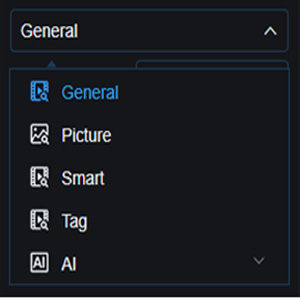
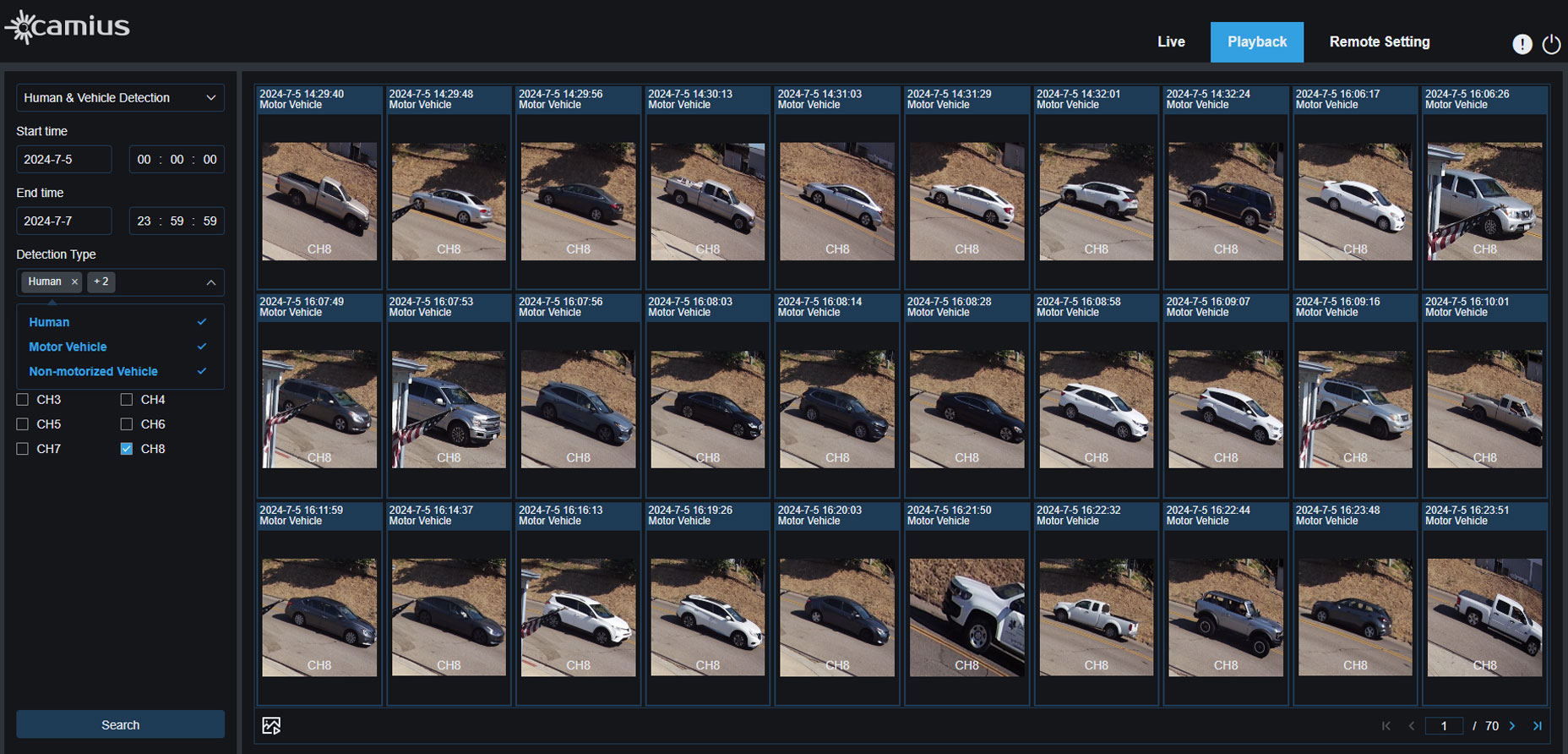
You can also select Picture, Smart, Tag, or AI event as your search criteria to narrow down the list of events.
For example, you can select Human and Vehicle detection. You can further narrow your search criteria to only Human, Motor Vehicle, or Non-Motorized Vehicle.

Video Player Software
- This lightweight software is used for playing video/audio files backed up from your recorder on your PC or Mac.
- The user can back up footage from the recorder in RF, MP4 or Camius proprietary format.
- Using Video Player, the user can take clear screenshots, trim the important parts of the video file and play multiple files simultaneously.
- Click here to Download Video Player Software
Frequently Asked Questions: Backing Up NVR and DVR Security Camera Footage
What file format are the backed-up video clips saved in?
When backing up via the local interface or web browser, you can save clips in MP4 format. MP4 is recommended because it plays on most computers and media players without extra software. The Camius Video Player software also supports RF and Camius proprietary formats if you back up in those formats.
How to Back Up CCTV Footage to USB: USB Format and Setup
Backing up CCTV footage to a USB drive requires the drive to be formatted as FAT32 before inserting it into the recorder.
Why does my NVR or DVR show my USB drive as unformatted?
Camius DVR and NVR recorders require the flash drive to be formatted as FAT32. NTFS and exFAT are not supported. The simplest fix is to format the drive directly from the recorder using the built-in Format option in the firmware upgrade menu. See the question below for steps. If you prefer to format on your computer, use FAT32. Windows does not allow FAT32 formatting for drives larger than 32GB through the standard format window.
How do I format my flash drive to FAT32?
The steps depend on the size of your flash drive.
For drives 32GB or smaller:
- Insert the flash drive into your Windows PC.
- Open File Explorer and right-click the drive.
- Select Format.
- Under File System, choose FAT32.
- Check Quick Format and click Start.
For drives larger than 32GB:
- Windows does not allow FAT32 formatting for drives over 32GB through the standard format window. You will need a free third-party tool such as Rufus or fat32format. Both are free to download. Once the tool formats the drive as FAT32, insert it into the recorder and it will be recognized.
Can I format my USB drive directly from the recorder?
Yes. All Camius DVR and NVR recorders include a built-in USB format option.
- Insert the flash drive into the front USB port.
- Go to Setup, then System, then Maintenance, then Upgrade.
- In the Update window, locate your USB drive under Driver List on the left.
- Click the Format button at the bottom left.
- Once formatting completes, do not remove the drive. Go directly to Playback and back up your footage.
Note: The front USB port is recommended for both formatting and backup. If the recorder does not detect the drive on the first attempt, power cycle the unit first, then reinsert the drive.
What software do I need to play backed-up files on my computer?
For MP4 files, use VLC Media Player, which is free and works on Windows and Mac. For files backed up in RF or Camius proprietary format, download the free Camius Video Player at camius.com/download/player/. The Camius Video Player also lets you take screenshots, trim clips, and play multiple files at the same time.
Will the backed-up video include audio?
Audio is included in the backup only if audio recording was enabled on that channel before the footage was recorded. Audio recording is not on by default. To enable it, go to Setup, then Record, then Encode, then Mainstream, and turn on audio for the channel. Audio cannot be added to footage that was already recorded without it.
What is the difference between Mainstream and Substream when searching for footage?
Mainstream is the full-resolution recording stored on the hard drive. Substream is a lower-resolution version used for remote viewing via web browser or VMS Pro. When backing up footage, select Mainstream to get the best quality recording. Substream is useful for previewing but not recommended for final backup copies.
Can I back up footage without being physically at the recorder?
Yes. Connect to your recorder remotely using a web browser and the recorder’s IP address, or use VMS Pro desktop software. Once connected, go to Playback, search for the footage, and use the Download option to save files directly to your computer. This works over your local network or remotely if your recorder has remote access configured.
Can I back up footage from the Camius View mobile app?
Yes, if you recorded a clip from within the app. Open the app, tap the menu on the left, and select Local Recordings. From there you can download the video to your phone or tablet, or share it directly via Messages, email, or other apps on your device. For a full backup of stored NVR or DVR recordings to a USB drive, use the local interface connected to an HDMI monitor. To download recorded footage files to a computer, use the web browser method covered in this guide.
How do I know how much space I need on my flash drive?
File size depends on the recording resolution, the number of cameras, and the length of the clip. As a general guide, one hour of footage from one camera at 4K resolution in Mainstream is roughly 3 to 6GB. Check the available space on your flash drive before starting a long backup. The progress bar on the backup screen shows how the transfer is going.
What happens if my flash drive runs out of space during backup?
The backup will stop when the drive is full. The files already transferred will remain on the drive. Insert a drive with more available space and repeat the backup for any files that did not transfer.
Can't find any recordings to back up. What should I check?
Start with these checks.
- First, confirm the hard drive was formatted after initial setup. An unformatted drive does not record. If you see an HDD icon at the bottom of the screen, the drive has not been formatted yet. Read more about formatting hard drive
- Second, check that the date, channel, and event type filters in the Playback menu match the time period you are looking for. Days with recordings show a red underline on the calendar.
- Third, check your recording status based on your system type:
- IPVAULT NVR IP camera systems and TRIVAULT DVR camera systems: 24/7 continuous recording is enabled by default. If there are no recordings, the most likely cause is an unformatted drive or a drive that was recently replaced or reset.
- Wireless NVR camera systems (WF4KN): Motion recording is enabled by default. Continuous recording and person detection are not on by default and must be enabled manually. If you are only seeing short clips or missing expected footage, check whether continuous recording and person detection have been set up. See the wireless NVR recording guide, Learn how to activate person detection setup for wireless cameras.
Still need help? Our support team is available Monday through Friday, 9am to 5pm Pacific. Contact support team.