




The Camius security NVR, DVR recorders, and IP cameras have an email notifications feature informing you of suspicious activities. With this feature, you can set up the system to send email alerts to your designated email address whenever motion is detected or an alarm is triggered. This ensures you are notified in real-time, allowing you to take necessary actions. The email notifications feature is particularly useful when you are away from your property and want to stay informed about potential security breaches. Knowing that you will be immediately alerted to any unauthorized access or movement within your property gives you peace of mind. This feature is easy to set up and can be configured to suit your specific needs.
Email alerts are available for Camius IP cameras, DVRs, and NVR systems to notify you of real-time motion, sound, and PIR detection events. Furthermore, Camius security camera systems send email alerts when your recorder’s hard drive has an error, or the camera is disconnected.
Also, you can set up your system to send emails triggered by AI events like human and vehicle, perimeter intrusion or line crossing detection, and cross counting.
On the NVR or DVR HDMI local user interface, move the mouse cursor to the bottom left, click the main menu button, and then click Setup. Setting up Email is under Setup >> Network>>Email; if you have your Email server, use the correct port, encryption, server, and credentials
If you are using the Camius IP cameras as a standalone security camera solution, access the Camius NVR/DVR web browser view by following the menu: Remote Setting >> Network >> Email >> Email Configuration. The same is applicable to Camius IP cameras
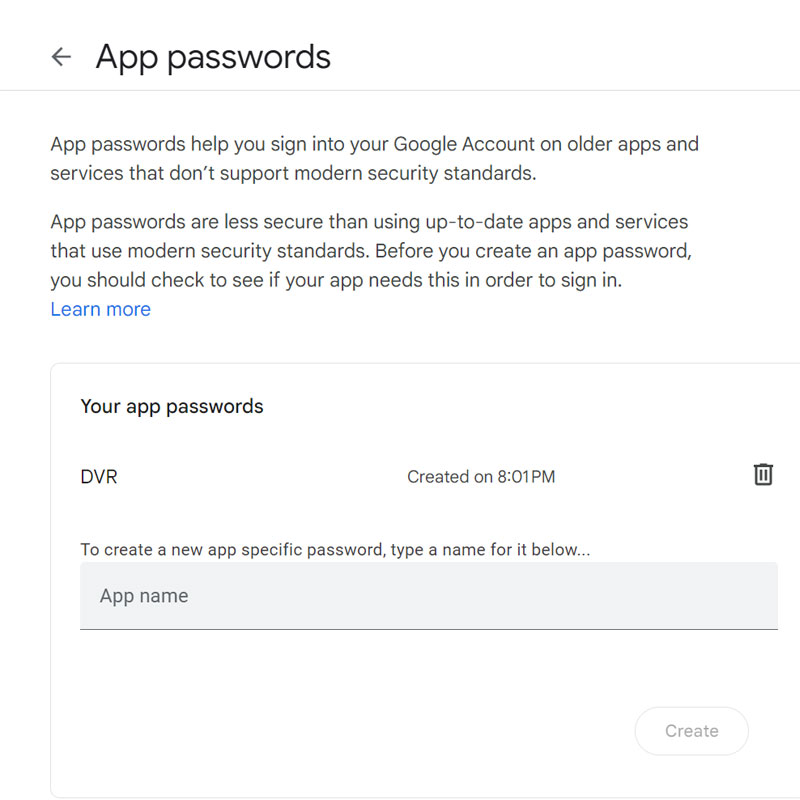
When configuring email notifications , especially when using a Gmail account, you require the use of an App password. Due to recent updates from Google, certain apps may be deemed less secure and blocked from accessing your account using just a username and password. You need to create an app password, especially if your account has 2-Step Verification enabled.
For detailed instructions on how to create and manage app passwords, refer to the following resources:
Apps & your Google Account
Sign in with app passwords
These articles will guide you through the process and help ensure seamless integration of your email notifications.
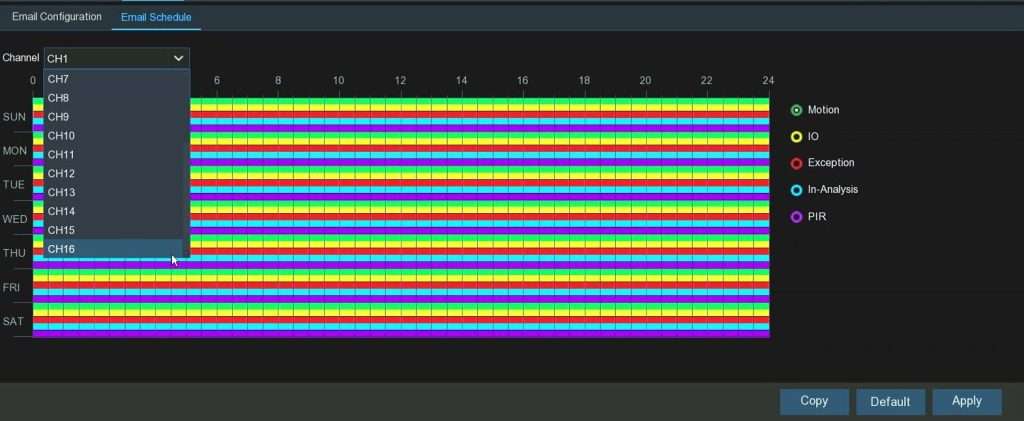
Email scheduling is enabled by default in the NVR and DVR recorders, which you can modify based on your requirement
Once you have configured the Email Settings and Schedule, ensure that Email Notifications are enabled for Motion Detection and other Alarm events of your choice.
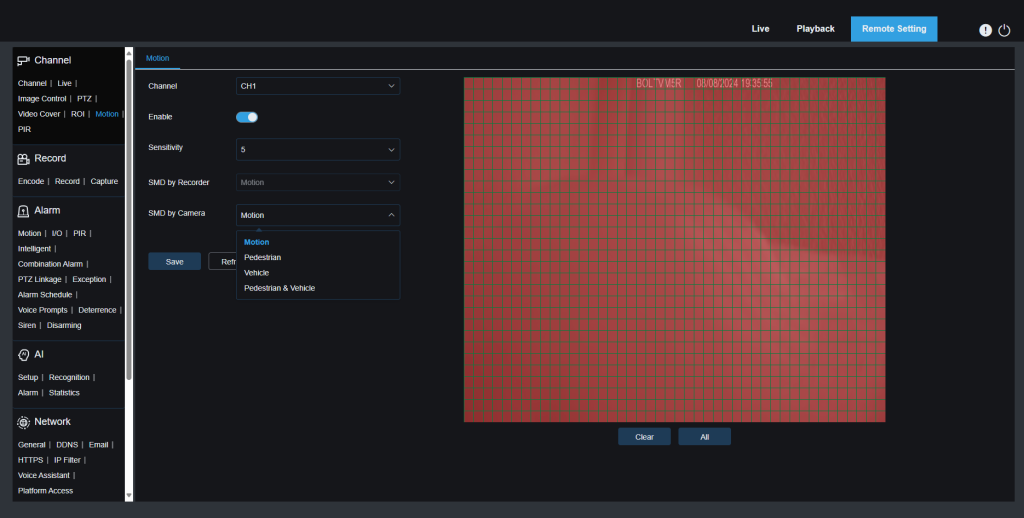
Enable Motion Detection for Each Camera:
Begin by activating motion detection under the relevant channel for each camera. Camius IP cameras are equipped with Smart Motion Detection (SMD), allowing you to choose between standard motion detection (Motion) or more specific detections such as Pedestrian, Vehicle, or Pedestrian & Vehicle.
Choosing Detection Types:
By following these steps, you’ll ensure that your system is configured to send email notifications based on your chosen motion detection and alarm settings.
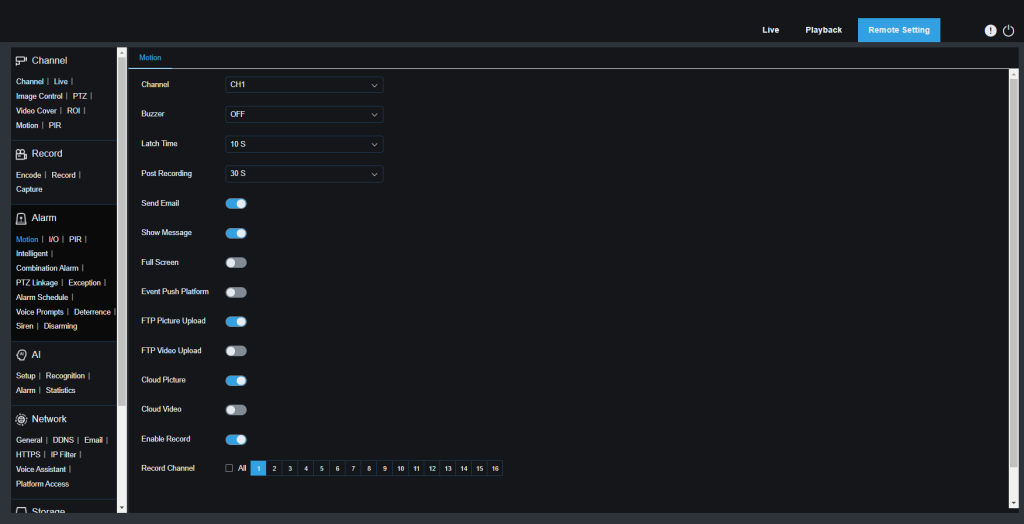
Turn on “Send Email”:
Navigate to Alarm >> Motion >> Channel and turn on the “Send Email” option. This step is essential for receiving email notifications triggered by Motion Detection. The same applies to other Alarm events and AI detection modes.
Ensure Alarm Schedule is Active:
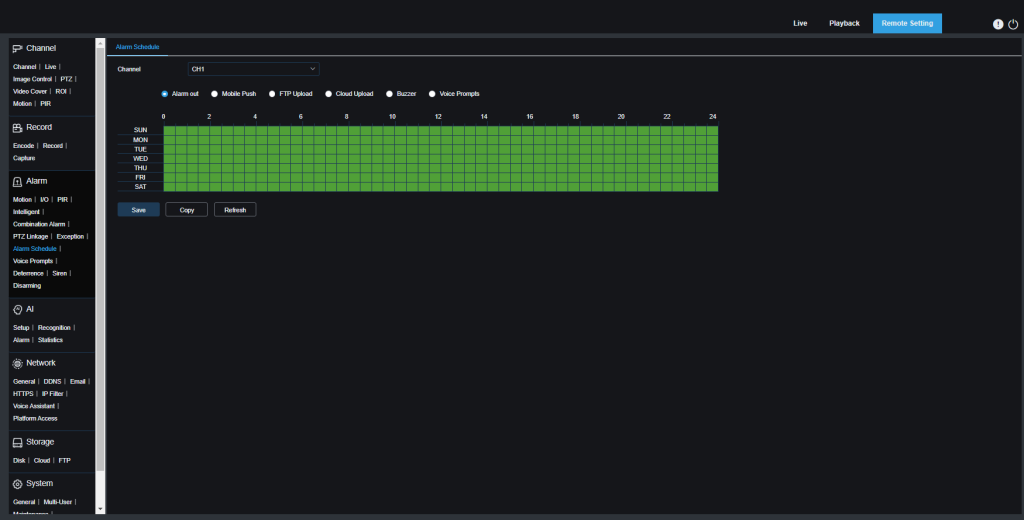
Verify that the Alarm Schedule is active for the selected channels by checking if the corresponding schedule is marked in green. You can also customize the schedule according to your specific requirements to ensure notifications are sent during the desired time periods.
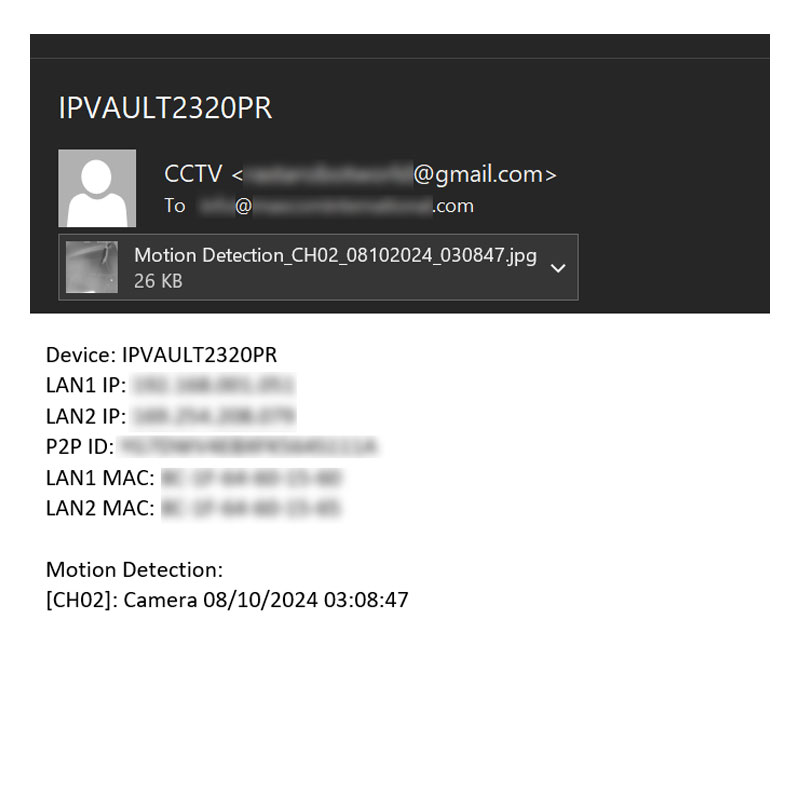
Once motion detection is triggered, you will receive an email notification containing the event picture, along with your Camius device name, and the date and time stamp.
Go to Setup → Network → Email on the NVR. Enter your email provider’s SMTP server, port, encryption, and login. For Gmail, use smtp.gmail.com, Port 587, TLS, your Gmail address, and a Google App Password. Add your recipient address, click Test, then Save. The same settings apply to any of Camius analog DVR (digital video recorder), PoE NVR (network video recorder), IP cameras, wireless NVR cameras
Each email contains the event type (motion, AI, or system alert), the device name, time, and date. For motion and AI events, a snapshot image is also attached.
Google requires App Passwords when you have 2-Step Verification enabled. A normal Gmail password will not work with the security camera recorder (NVR or DVR) or IP camera.
Make sure the Test passed on the NVR, check your Spam folder, confirm the correct App Password was entered, and verify “Send Email” is enabled under Alarm → Motion for the cameras you want alerts from.
Yes, as long as you know the correct SMTP server, port, encryption type, and login details for your email provider.
Yes. Once Email is set up, go to AI → Alarm and enable “Send Email” for human, vehicle, or other AI events.
Yes, when a motion or AI event is triggered, the NVR sends an email with an event picture, the device name, and a date/time stamp.