


Step 1 – Enable Pedestrian Detection in the NVR
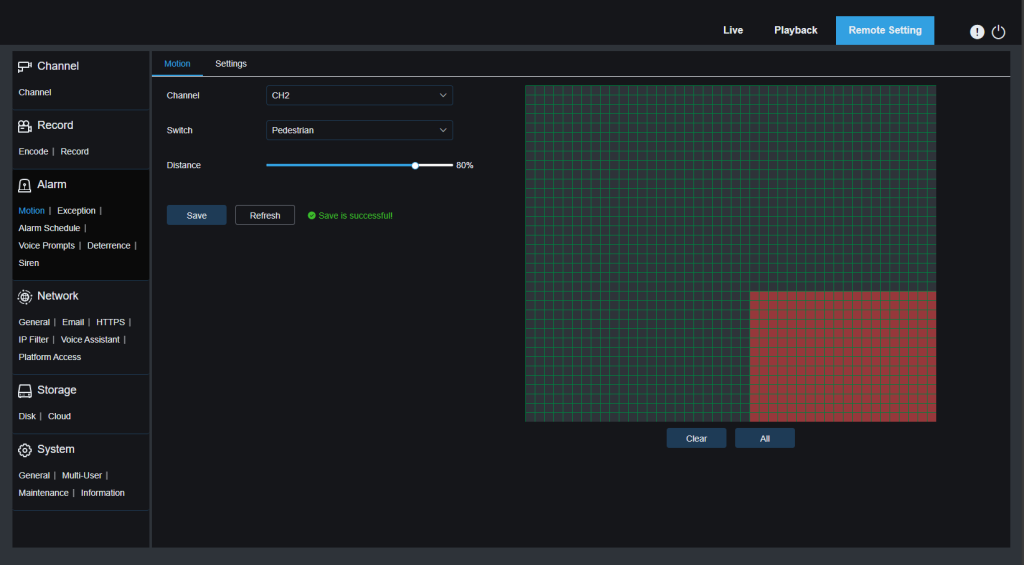
- On your NVR, go to Setup → Alarm → Motion Detection.
- Select the camera channel you want to configure.
- Under Switch, choose Pedestrian (recommended for person-only detection)
- Disable = no detection.
- Motion = any movement.
- Pedestrian = person detection only.
- Click Area to draw the zones where you want detection (avoid trees, busy roads, or moving shadows).
- Adjust Distance to set how far detection should reach.
- Check Event Push Platform so the NVR can send alerts to the app.
- Click Apply to save.
See User Manual: Chapter 4.3.1, pp. 28–29

Step 2 – Configure Alarm Schedule (Push Alerts)
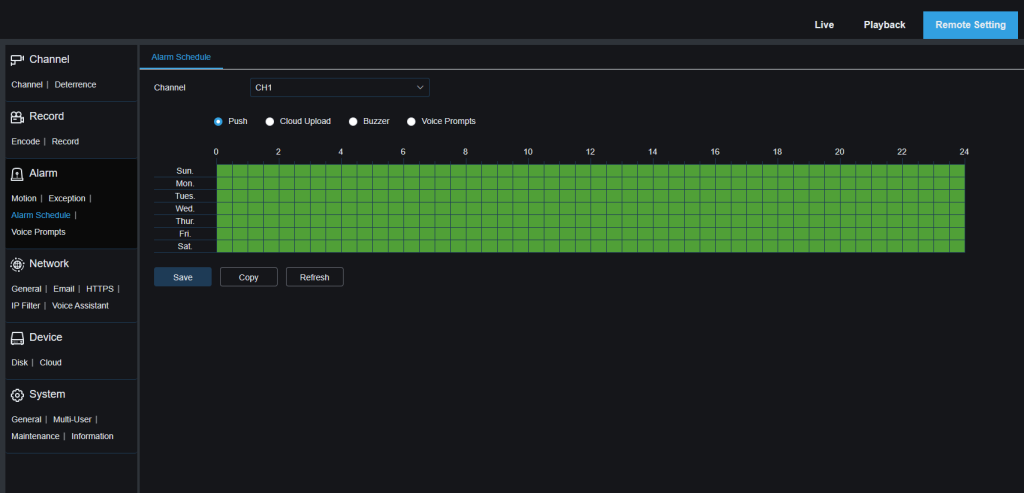
- Still under Alarm, open Alarm Schedule.
- Select the Channel and choose Push.
- In the schedule grid, mark in green the hours/days you want push alerts active.
- Click Apply to save.
See User Manual: Chapter 4.3.3, p. 31
Step 3 – Configure Recording Schedule
Setting the recording schedule ensures that the NVR saves clips whenever Pedestrian detection is triggered.
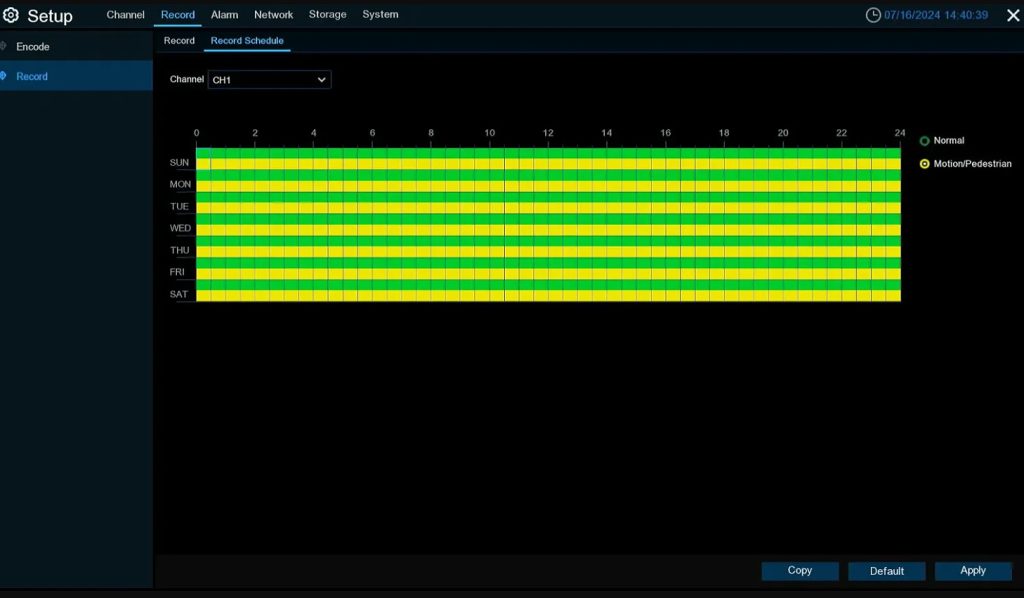
1- Go to Setup → Recording → Recording Schedule.
2- Select the same camera channel.
3- In the schedule grid
- Yellow = Pedestrian event-based recording.
- Green = Continuous recording
- Black = No recording.
4- Select Motion/Pedestrian and drag across the times you want.
5- Use Copy to apply to other channels if needed.
6- Click Apply to save.
See User Manual: Chapter 4.2.2.2, pp. 26–27 or check the details guide on the wireless camera recording
Step 4 – Enabling Push Notifications in Camius View App
1) Enable NVR Push
- Open the Camius View app.
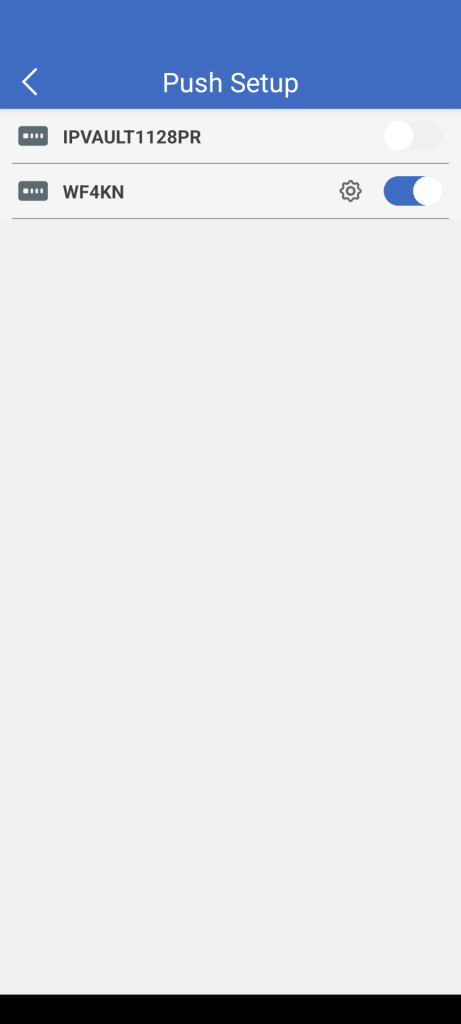
- Go to Menu → Push Notifications which takes you to Push Setup

- Toggle your NVR (WF4KN) to ON in Push Setup. The switch turns blue when enabled.
- Tap the gear icon next to your NVR to configure (You can rename your device in Configuration → System → General → Device Name if needed.)
2) Subscribe to Notifications
- After tapping the gear, you’ll enter the Subscribe page.
- Here you can select which notifications you want to receive per camera channel.
- Make sure to check: Motion Detection or / and Person Detection (recommended)
- Enable these for each camera channel (CH1, CH2, etc.) you want alerts from.
- Tap Save in the top corner.

3) Test Notifications
- Once enabled, test the setup by walking in front of the camera.
- Push notifications will appear under Push Notifications → AI in the app.
- Notifications will be labeled Person Detection, and you can tap them to view recorded clips.
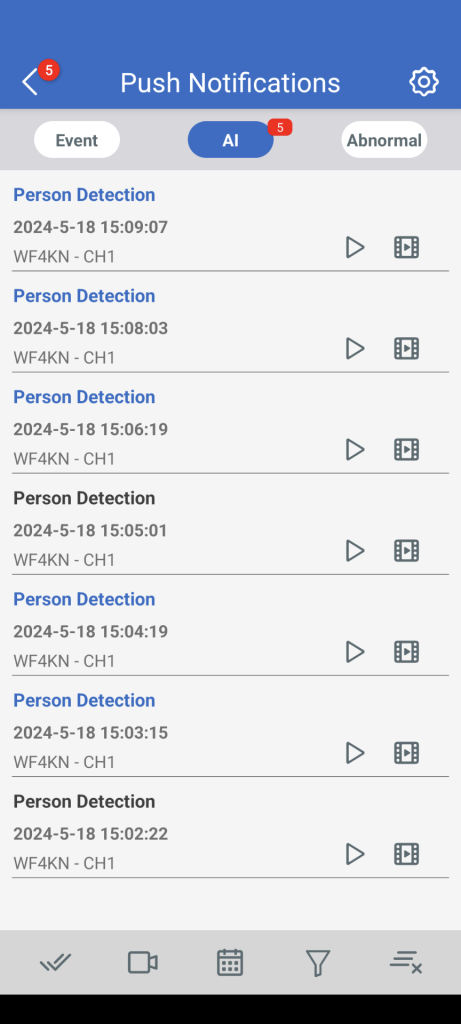
With this setup, you will receive push notifications for person detection, and short video clips will be saved on your NVR according to your recording schedule.