How to Configure Smart Motion Detection in Camius NVR and DVR Camera Systems

Motion Detection Setup

On this page, you can configure motion detection parameters for the camera. When motion is detected within the camera’s frame, Camius DVR/NVR will activate the motion detection alarm.

Camius IP cameras, hybrid DVR, and IP NVR recorders support smart motion detection (SMD), which reduces false alarms.

Accessing Motion Detection Settings

  1. On Camius NVR/DVR interface, move the mouse cursor to the bottom left
  2. Click the main menu button
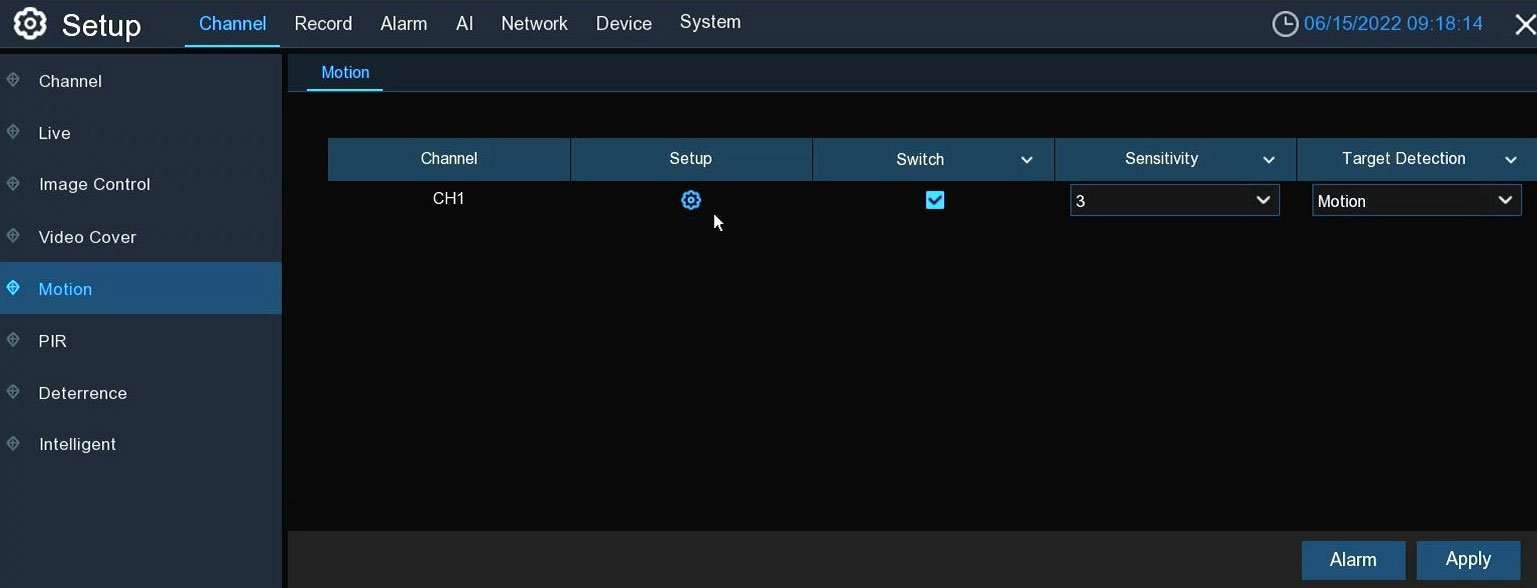
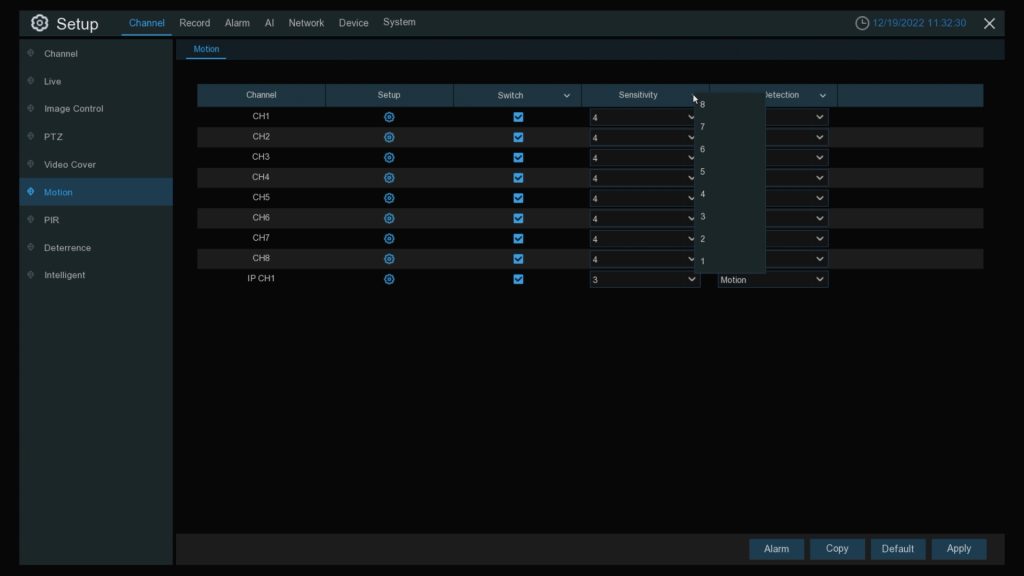
  3. Navigate to Setup >> Channel >> Motion
  4. Tick the Switch checkbox to enable motion detection
1128PR IRIS528R motion detection
IPVAULT1128PR (8 Channel NVR): Channel >>Motion
Best Outdoor Security Camera System with DVR: Built for Real World Protection smart motion detection
TRIVAULT4K184R2 (Hybrid 8 Channel DVR): Channel >>Motion

Overview

On this page, you can configure motion detection parameters for the camera. When motion is detected within the camera’s frame, the NVR will activate the motion detection alarm.

Basic Settings

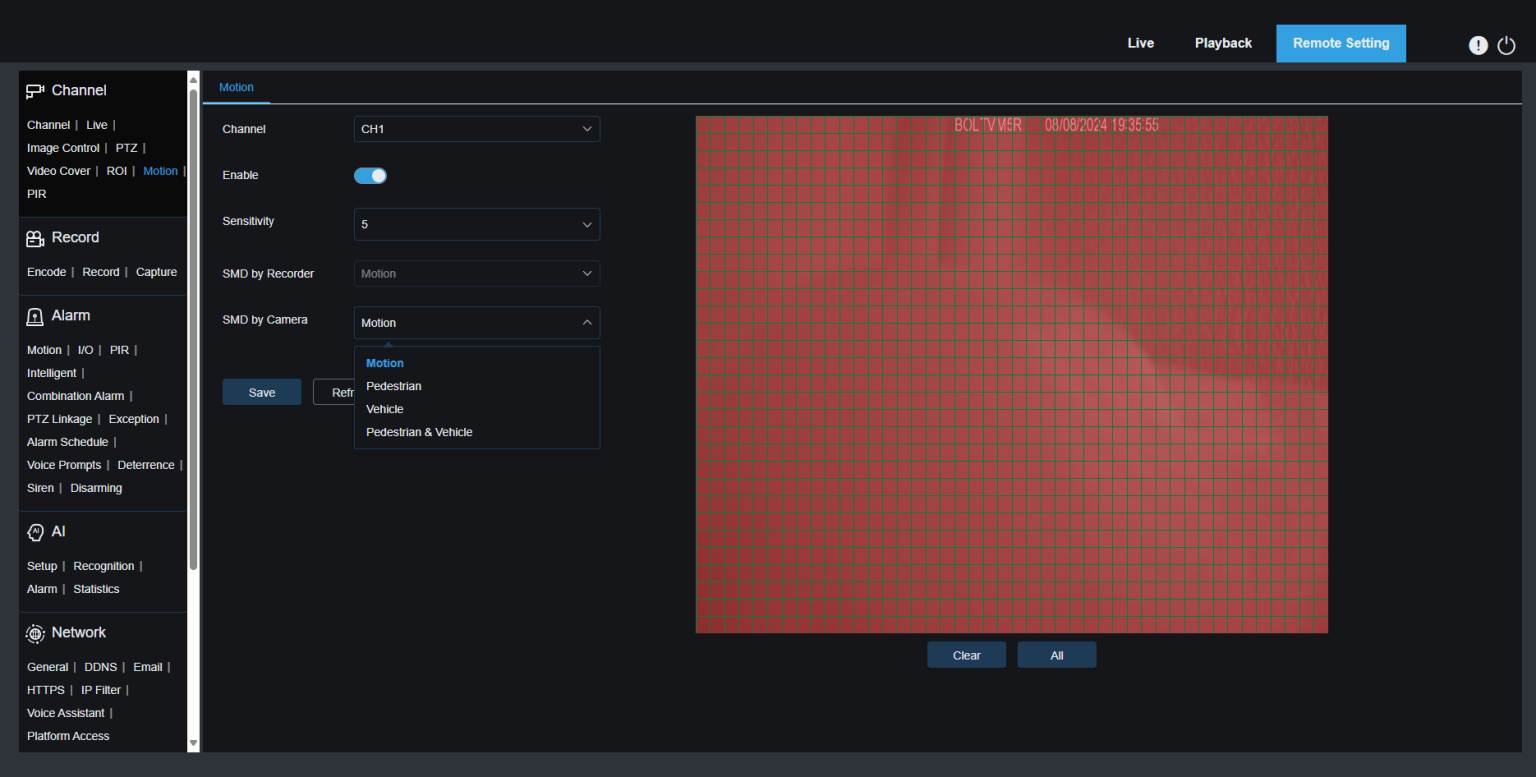
  • Switch: Enable or disable motion detection
  • Sensitivity: Adjust the sensitivity level. Higher numbers make the NVR more sensitive to motion detection, but it may correspondingly increase false detection

Detection Types

SMD by Recorder

SMD (Smart Motion Detection) applies for cameras that do not support smart motion detection.

  • Motion: Detects all types of motion, including humans, vehicles, animals, trees, etc.
  • Pedestrian: Detects only human movements
  • Vehicle: Detects only vehicle movements
  • Vehicle & Pedestrian: Detects both human and vehicle movements

SMD by Camera

(Applicable for IP cameras that support intelligent motion detection.)

  • Motion: Detects all types of motion, including humans, vehicles, animals, trees, etc.
  • Pedestrian: Alerts only when human movements are detected
  • Vehicle: Alerts only when vehicle movements are detected
  • Vehicle & Pedestrian: Alerts when movements of either humans or vehicles are detected
  • ,

    Original price was: $149.00.Current price is: $89.00. Add to cart
  • ,

    Original price was: $149.00.Current price is: $89.00. Add to cart
  • ,

    Original price was: $169.00.Current price is: $129.00. Add to cart
  • ,

    Original price was: $249.00.Current price is: $149.00. Add to cart
  • ,

    Original price was: $179.00.Current price is: $149.00. Add to cart
  • Original price was: $249.00.Current price is: $179.00. Add to cart
  • ,

    Original price was: $249.00.Current price is: $179.00. Add to cart
  • ,

    Original price was: $499.00.Current price is: $349.00. Add to cart
Motion Detection Area Configuration

  • Click the settings button for each channel to configure the motion detection area for that channel.
  • The areas covered by red grids in the image represent the active motion detection zones. Areas without red grids are inactive. Motion detected within the red grid areas will trigger alerts.
2320PR channel motion
IPVAULT2320PR web client: Channel >> Motion >> SMD by camera

Motion Detection Recording & Schedule

Setting Up Motion Detection Schedule for Recording

To enable and configure motion-triggered recording for your cameras, follow these steps:

Access the Schedule Settings:

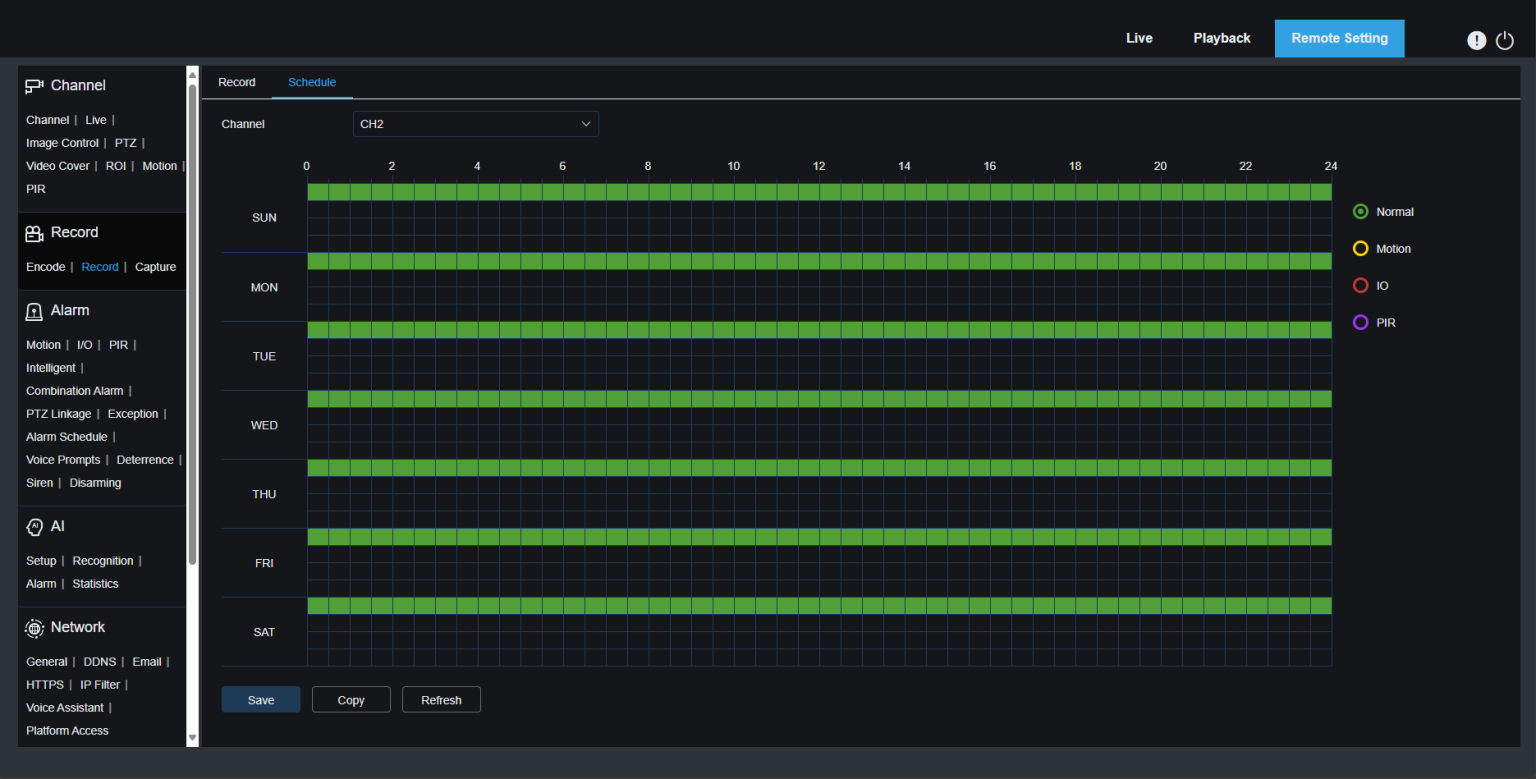
  • Navigate to Setup >> Record >> Record Schedule on your NVR/DVR interface.

Enable Motion Recording:

  • Locate the green circle labeled Motion on the right side of the schedule interface.
  • Click on it to activate motion detection recording.

Set Time and Days:

  • Define the specific times and weekdays for motion recording by selecting areas on the schedule grid.
  • You can click and drag to highlight the entire grid or specific sections for customized scheduling.
  1.  
Is My NVR or DVR Recording. How to Set Up Security Camera Recording - Camius
IPVAULT1128PR: Record >> Record Schedule
IPVAULT22566PR Recording schedule e1679810351955
16 Channel NVRs HDMI Menu: Setup>> Record>>Schedule (Normal and Motion Recording enabled)
TRIVAULT4K184R2 record schedule
TRIVAULT4K184R2: Record >> Record Schedule (all recording modes are enable for the full time)
16 Channel DVR with 4K live view and versatile recording modes
TRIVAULT4K2168R: Record >> Record Schedule (all recording modes are enable for the full time)
2320PR Record Schedule Normal
IPVAULT2320PR web client: Normal recording is enabled by default
2320PR Record Schedule motion copy to other channels
IPVAULT2320PR web client menu: Motion recording is not activated by default and needs to be enabled by a user and you can copy the recording schedule to the rest of the cameras (channels)

Apply to Multiple Channels:

  • After configuring one channel, use the Copy button to duplicate the schedule to other cameras.
    Click the Apply button to save the settings.

Confirmation of activation:

  • Motion detection will be indicated by an orange “walking person” icon in the top-right corner of the camera view on the HDMI interface.
IPvault NVR icons live view motion etc
HDMI local menu user interface

See below the meaning of the menu icons:

Playback icons

Important Notes about Motion Activated Security Camera Playback and Notifications

  • Playback and Notifications: Enabling the Motion Record Schedule is necessary for playback of motion-detected recordings and to trigger push notifications for motion events.
  • Push Notifications: If enabled, ensure the Motion Record Schedule is properly configured for notifications to work effectively with Camius View app

This process ensures seamless motion-triggered recording for selected cameras, enhancing both security and efficiency.