
How to Setup DDNS on Camius NVR, DVR surveillance recorder
How to Access your Camius DVR or NVR recorder remotely from your PC or Mac using the DDNS server offering static IP address
Camius security camera systems (NVR, DVR, IP cameras) support secure web browser viewing without any extra plugins, ActiveX or paid subscriptions. Using a standard web browser such as Chrome, Edge, Firefox, Safari and even Brave, users can access live view, playback, and system settings directly from a a windows or Mac computer on the local network. This guide explains how to locate your Camius DVR or NVR recorder or an IP camera, open the web viewer, and complete setup using a browser. Camius systems are designed for simple deployment, long term reliability, and full ownership of your video data, making them a strong choice for homes and businesses looking for a professional surveillance solution without recurring fees.
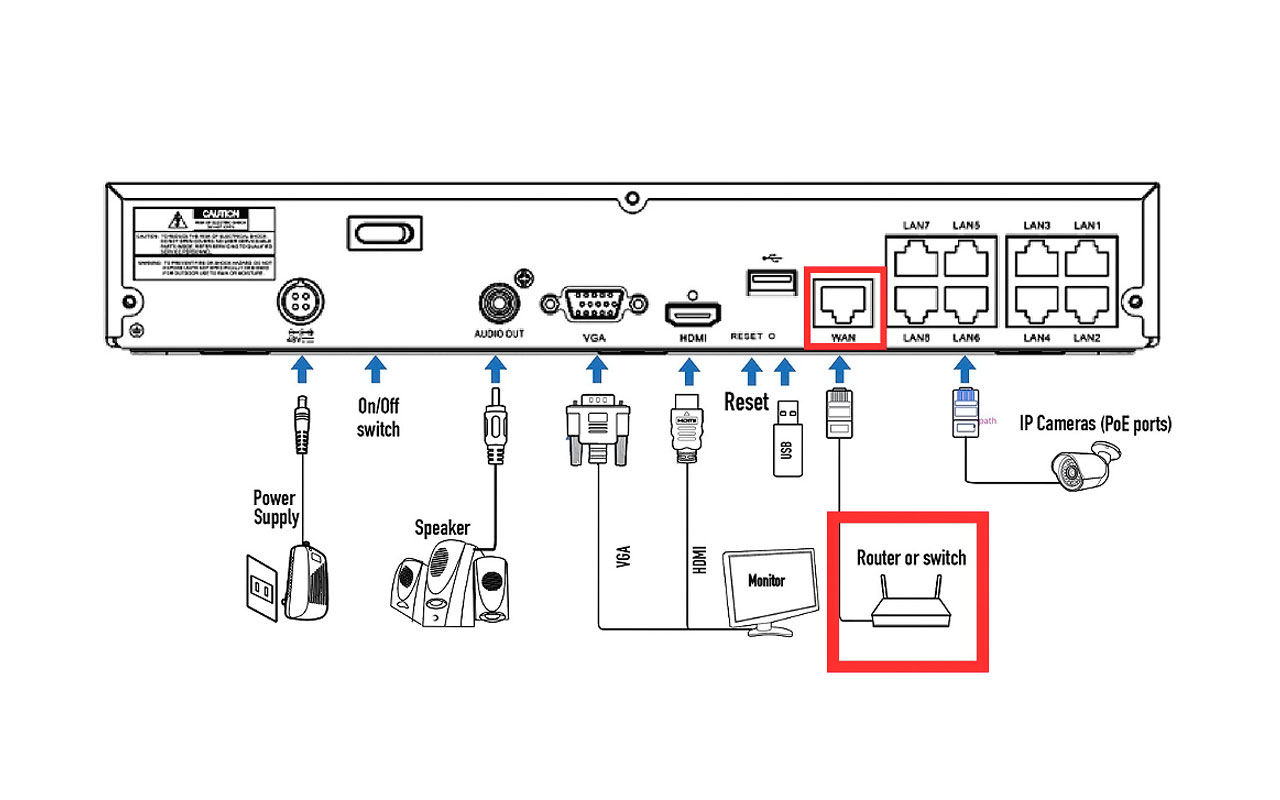
Before accessing the NVR or DVR recorder from a PC or Mac using a web browser, the recorder must be connected to a router using an Ethernet cable. This connection allows local access from computers on the same network. If you plan to access the recorder remotely from outside your network, the router must also have an active internet connection. Without a router connection, web browser access to the recorder is not available.

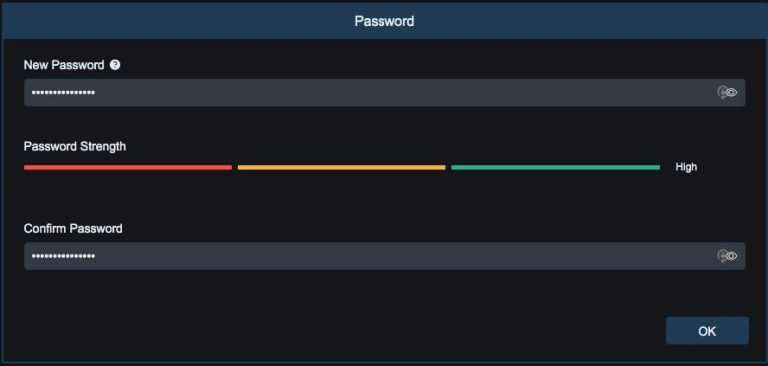
Click on the Camius NVR or DVR’s local IP or type it into your browser’s address bar. The latest Camius surveillance security camera recorders work with multiple web browsers, including Edge, Google Chrome, Mozilla Firefox, Edge, and Safari, and include the following models:
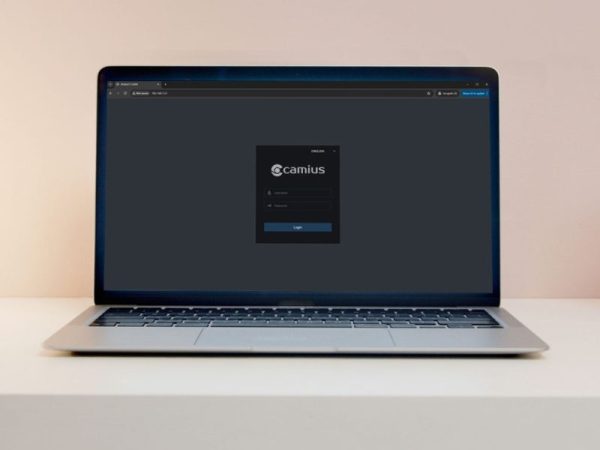
Use your admin username and DVR or NVR password to log in. Your recorder’s Configuration is under Remote Settings.

You can check the ‘Web Compatibility Mode‘ in the Camius NVR/DVR and even IP camera settings (this can be done from the Camius recorder’s local user interface (Via HDMI/VGA) and in the web browser viewer.
The below picture is based on the IPVAULT1128PR’s web browser view

For the Camius NVR, DVR web browser view via the Internet remotely, you will need to setup DDNS following the tutorial available on Camius, otherwise the Camius devices offer a P2P peer to peer connection via the desktop software and Camius View smartphone app
How to Access your Camius DVR or NVR recorder remotely from your PC or Mac using the DDNS server offering static IP address
Installing Camius VMS/VMS Pro on a personal computer, whether it is a Windows or Mac, allows users to remotely access their Camius system from that same computer when traveling or working away from the office. This provides a robust local VMS experience on a more powerful machine.
Another advantage is that VMS Pro has a built-in web viewer, enabling remote access from any computer via the web just like the browser-based VMS. But you get enhanced features, functionality and performance compared to the free web viewer.
Deploying VMS Pro on a desktop effectively gives users a “local” VMS wherever they have their laptop, while still facilitating traditional remote and mobile access via Camius View mobile app. It offers the best of both worlds for remote monitoring from virtually anywhere.
Deploying Camius video management software from a computer provides a flexible, high-performance solution for remote users on the go.
