



Installing a hard drive in a DVR (digital video recorder) or an NVR (network video recorder) (DVR NVR for short) is a relatively straightforward process. Still, it is essential to follow the steps carefully to ensure proper installation and prevent damage to the equipment. Here is a step-by-step guide on how to install a hard drive in your surveillance DVR or NVR recorder.
Camius network and hybrid digital video recorders accept 3.5″ and 2.5″ SSD internal hard drive disks. While 8 channel DVR and NVR recorders accept a single hard drive up to 10 TB in capacity, 16-channel DVR and NVR recording, along with 32-channel NVR will support a 14TB hard drive on each SATA port.
Visit this link to see the tested and recommended hard drives, CLICK HERE
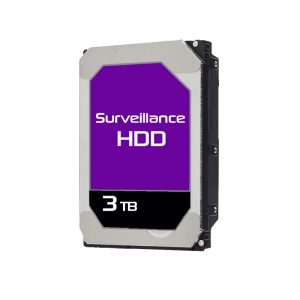
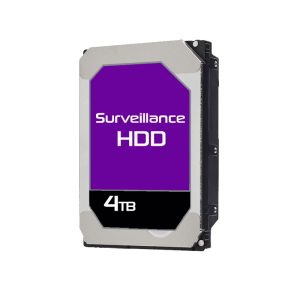
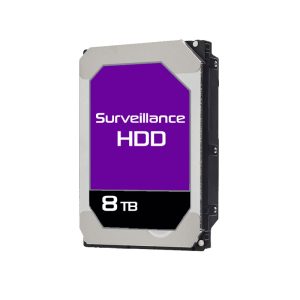
The below examples are based on installing one and two SATA hard drives.
You will need a Phillips head screwdriver, the hard drive you want to install, and any necessary screws (when you order a DVR or NVR from Camius without a pre-installed hard drive, the product box will include a set of screws for the hard drive disk installation).
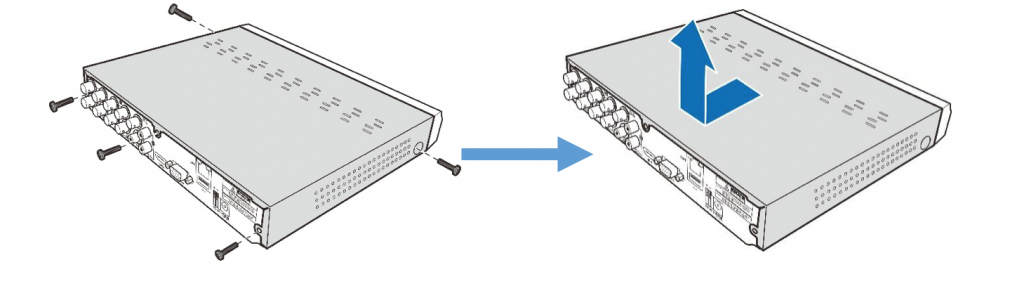
Remove any screws from the Recorder’s top cover (chassis) using a Philips head screwdriver. Carefully remove the top chassis and set it aside (picture 1)
Place the hard drive into the hard drive bay, ensuring the drive is oriented correctly and appropriately seated.
Connect the Data and Power cables to the two hard disk drives and place the hard disk drives on the video recorder’s case. The Data cable connects the hard drive to the DVR NVR’s motherboard. Locate the SATA port on the DVR’s motherboard and connect one end of the SATA cable to it. Then, connect the other end of the cable to the hard drive. The SATA Power cable provides power to the hard drive. Locate the SATA Power cable and connect one end to the hard drive and another to the Power Supply (pictures 2 and 3)
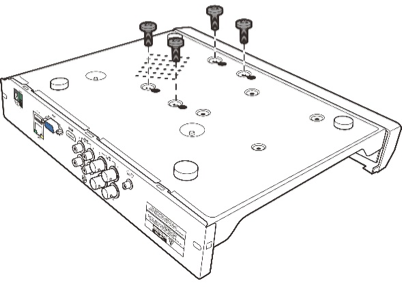
Carefully flip the video recorder case and secure the hard disk drives to the recorder with the four (4) screws if it is one SATA HDD (pictures 4 and 5) and eight (8) screws for the 2 SATA HDDs (picture 6)
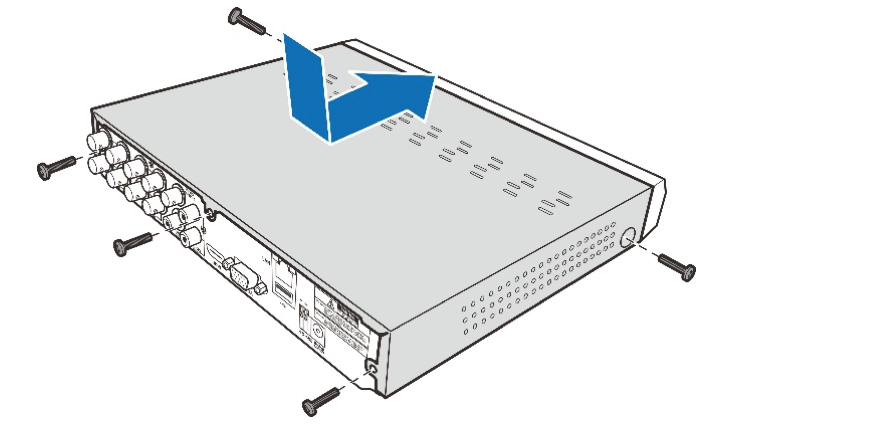
Place the top cover on the DVR NVR and secure it with the screws (picture 7)
Power on the DVR NVR and allow it to boot up completely. If the hard drive was installed correctly and is in working condition, it should be recognized by the DVR and ready for use. Remember to format the hard drive (here is the guide on how to format the hard drive). Ensure that you use the power supply with the Camius video recorder.
IMPORTANT: Some users may find an issue when the hard drive is not recognized or not showing on the DVR. One of the primary reasons could be a wrong or defective recorder’s power supply.
If you need to replace a defective power supply with an expired warranty, you can order them direct from Camius:
That’s it! Your DVR NVR should now have a new hard drive installed, allowing it to store more video footage. Follow these steps carefully and seek additional assistance if you encounter any difficulties.
Power off from the unit, open the top cover, and connect both the SATA data and power cables to the new hard drive. Mount the drive using the provided screws and close the cover. Turn the unit back on and format the drive through the Camius menu.
If your Camius DVR or NVR displays “No Disk,” it usually means the system cannot detect or communicate with the hard drive. Common causes include loose SATA connectors, a faulty hard drive, or damage from a sudden power outage. Check the SATA power and data connections, then format or replace the drive if needed.
Power off the recorder, remove the cover, and confirm both SATA power and data cables are securely connected. Reinstall the drive and restart the system. If still not detected, press and hold the reset button on the DVR’s back panel for about 10 seconds, then reboot. Once the drive appears, go to Menu → Storage → HDD → Format to prepare it for recording.
To format your drive, open Menu → Storage → Disk, select the hard drive (HDD), and click Format. Wait until the process reaches 100%, then reboot your Camius DVR or NVR If the status shows “Normal,” the drive is ready to record. Detailed instructions: Do I need to format the hard drive on a new DVR or NVR?
Yes. When a DVR or NVR loses power suddenly, the hard drive can stop spinning instantly while writing data, which may damage its internal components or corrupt files. To prevent this, Camius recommends using a UPS (Uninterruptible Power Supply). A UPS keeps your security camera recorder and cameras powered during brief outages and ensures a safe shutdown.
No. A surge protector only blocks short voltage spikes. It does not supply backup power when electricity cuts out. A UPS provides temporary battery power to keep your Camius DVR or NVR, hard drive, and cameras running during outages, protecting the system from data loss and hardware failure.