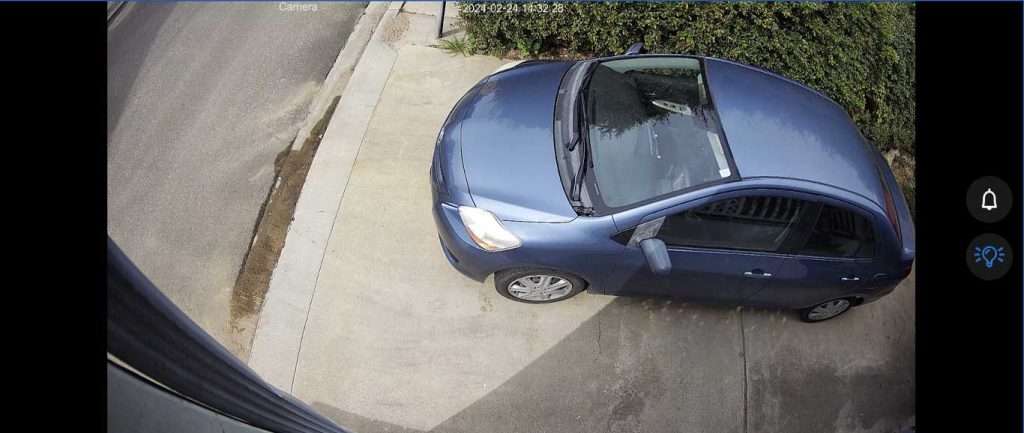
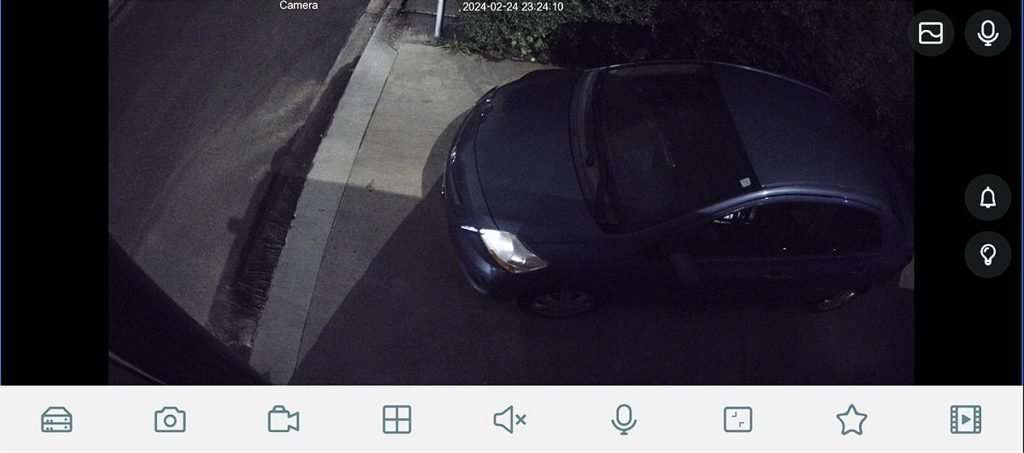
What Is Deter Mode on a Security Camera and How to Configure It on a Camius NVR or DVR
Deter mode is a security camera feature that actively warns a potential intruder the moment a camera detects them, before any crime occurs. Camius security systems include two separate deterrence functions: Deterrence, which controls the camera’s built-in spotlight or warning lights depending on the camera model, and Siren, which triggers an audible alarm. On Camius PoE NVR systems and TRIVAULT Hybrid DVR kits paired with Camius spotlight cameras, both functions sit under the Alarm menu and each runs on its own independent schedule. This guide covers Deterrence and Siren setup for Camius PoE NVR and TRIVAULT Hybrid DVR systems. Deterrence and Siren are not available on standard PoE cameras without a built-in spotlight.
For wireless battery-powered camera setup, see the wireless camera setup guide.
Deter Mode vs Deterrence and Siren: What Camius Calls It
| Term | Camius PoE NVR and TRIVAULT Hybrid DVR with PoE Cameras | Camius Wireless NVR System |
|---|---|---|
| Deter mode lights | Deterrence menu under Alarm, independent schedule | Deterrence toggle with options and schedule |
| Siren | Siren menu under Alarm, independent schedule | Siren on/off toggle follows Deterrence schedule |
| Events triggering deterrence | Deterrence enabled with Motion and AI detection trigger | Motion and Pedesterian Detection |
| Deter mode off | Deterrence disabled | Deterrence toggle set to off |
| Deterrence and Siren schedule | Set independently per function under Alarm menu | Lights schedule set under Deterrence siren follows same schedule |
For step by step Deterrence setup on Camius wireless battery-powered cameras, see the wireless camera setup guide.
4K PoE spotlight security camera with siren, lights, and two-way audio (SPOT828A-RB)
-
IP Cameras – Professional PoE Cameras, Commercial-Grade PoE IP Camera Systems
$249.00Original price was: $249.00.$169.00Current price is: $169.00. Add to cart
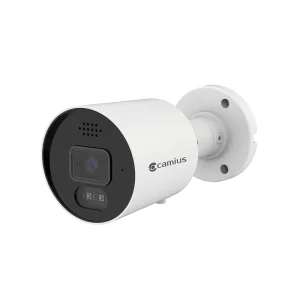
4K PoE spotlight security camera with siren, lights, and two-way audio & weatherproof junction box (SPOT828A-RB + MB100)
-
IP Cameras – Professional PoE Cameras, Commercial-Grade PoE IP Camera Systems
$249.00Original price was: $249.00.$199.00Current price is: $199.00. Add to cart
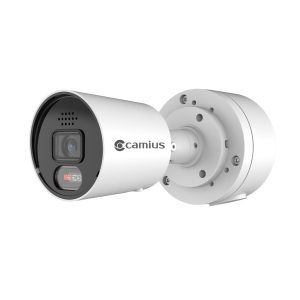
4K PoE pan tilt zoom camera with 4x optical zoom, siren, and red and blue lights (SCOUT4K4XPTZ)
-
IP Cameras – Professional PoE Cameras, Zoom Lens IP Cameras
$499.00Original price was: $499.00.$299.00Current price is: $299.00. Add to cart
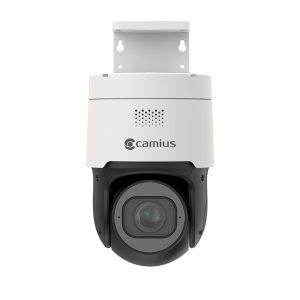
What Is Deter Mode on Camius Spotlight PoE Cameras
Image Control Settings for Camius Spotlight Cameras
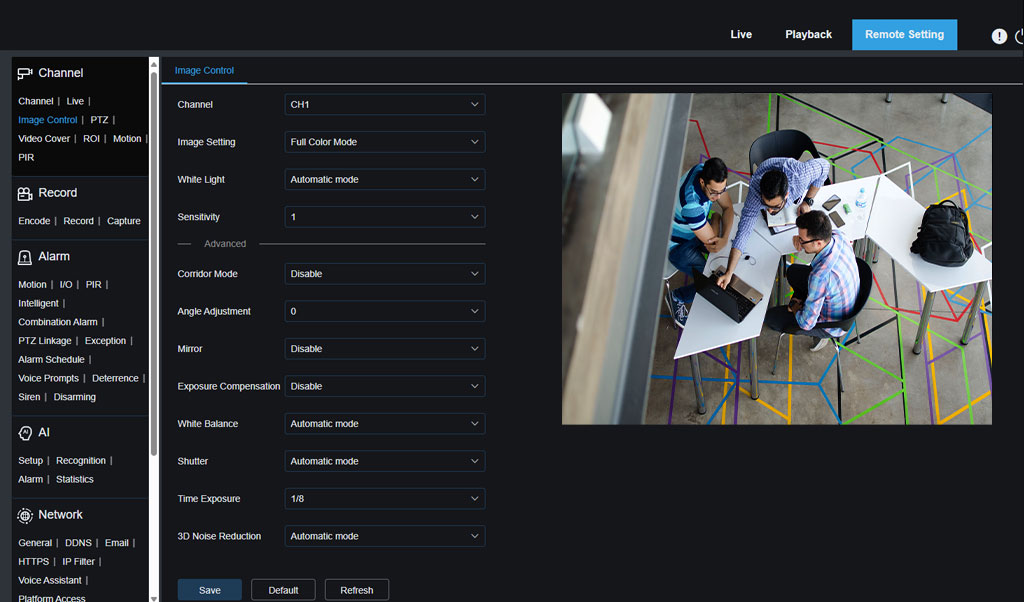
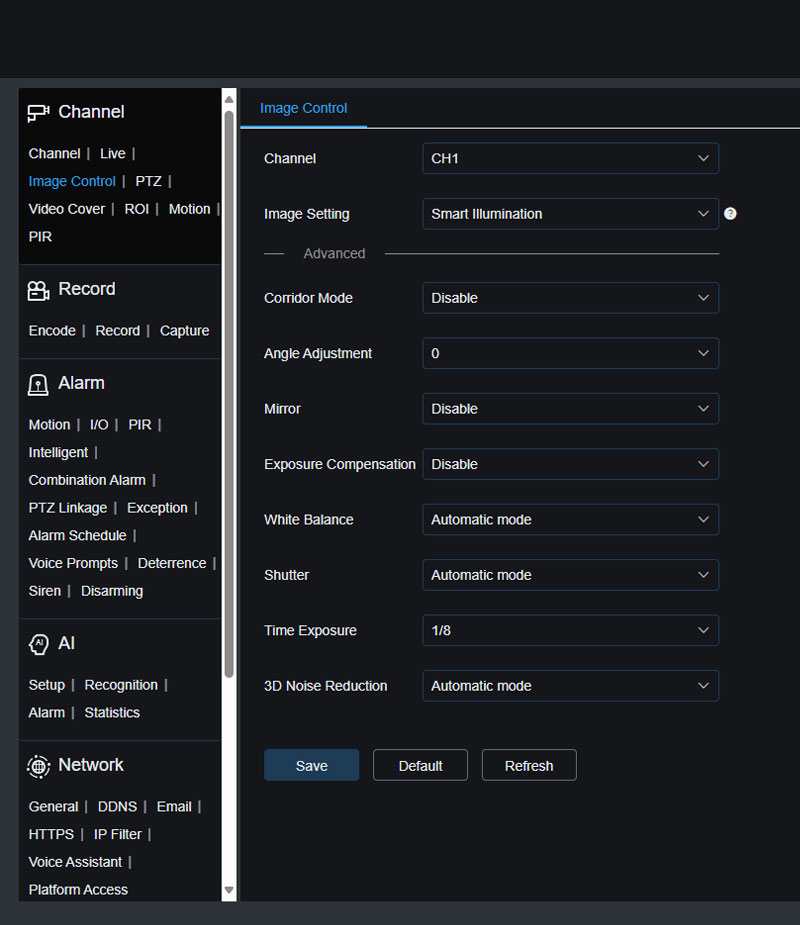
Configure Image Control before setting up Deterrence. If your SPOT828A-RB is set to Full Color Mode, the Deterrence settings menu will not be available. You must set the camera to Day/Night Mode first to access Deterrence configuration. Access Image Control by going to Channel, then Image Control in the NVR menu.
The SPOT828A-RB cameras offer not only White light but Red, and Blue Light capabilities. Adjust camera image settings in Channel >> Image Control to suit your environment with two options: Full Color and Day/Night modes, which affect Deterrence settings.
Full Color Mode
In Full Color Mode, the white light illuminators activate to provide fill lighting and the image remains in color at all times. Under White Light, configure the white light illuminator operation using one of three settings:
- Automatic: The camera automatically turns the white light on and adjusts brightness based on ambient lighting conditions.
- Manual: Manually adjust brightness by configuring the Sensitivity setting from 0 to 3 and the Light Distance setting from 0 to 100.
- Off: Disables the white light illuminator entirely.
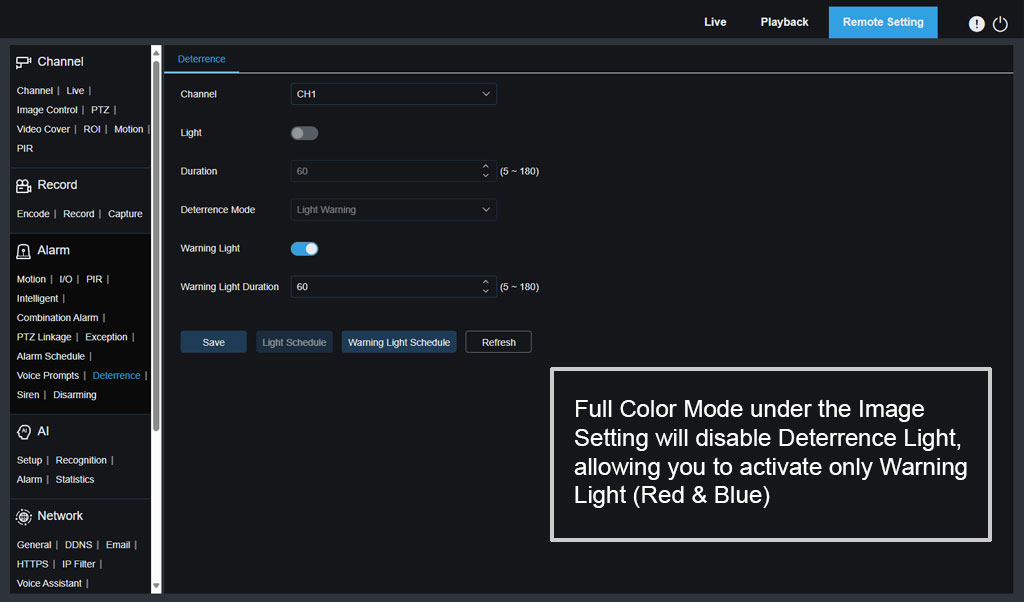
- Note: When the camera is set to Full Color mode, only Warning Light mode is available in the Deterrence menu. To access full Deterrence configuration including the white spotlight, set the camera to Day/Night mode
Day/Night Mode
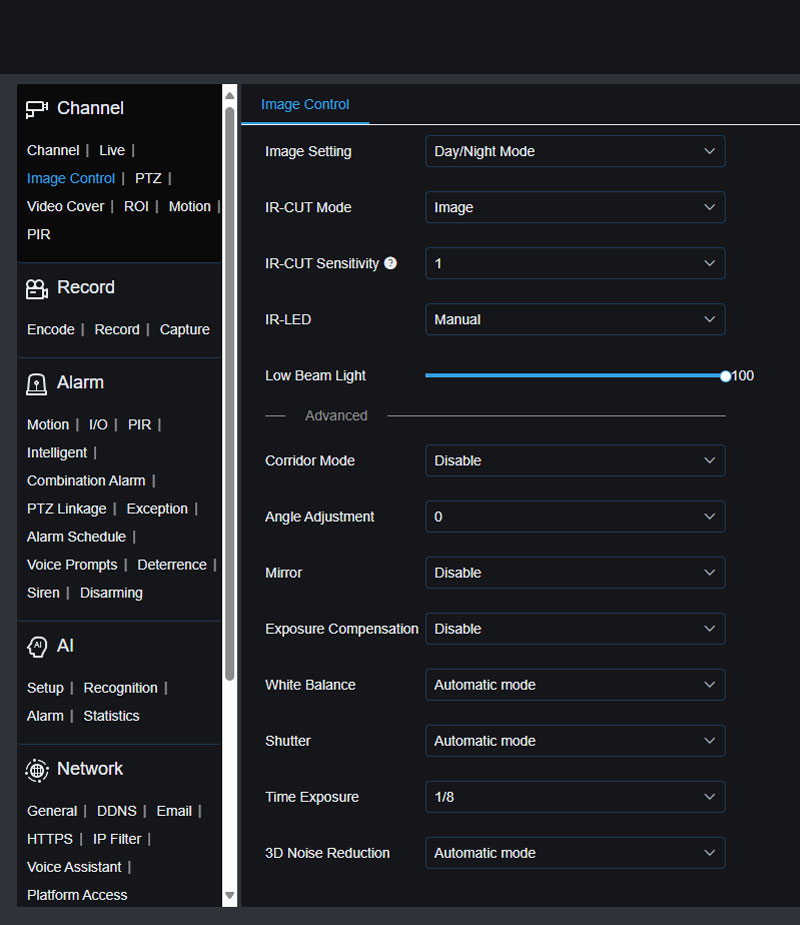
In Day/Night mode, the IR illuminator provides fill lighting when ambient light is insufficient and the image displays in black and white during night vision. This is the recommended mode for configuring Deterrence. When an alarm triggers, the spotlight activates according to the Deterrence settings.
To enable full Deterrence configuration including both the white spotlight and red/blue warning lights, the camera must be set to Day/Night mode. Go to Channel, then Image Control, then set Image Mode to Day/Night.
Smart Illumination Mode
Smart Illumination is a third Image Mode available on select Camius spotlight cameras. In this mode, the IR illuminator operates normally during night vision, producing black-and-white images. When an alarm is triggered, the white light illuminator activates automatically to produce color images for the duration of the alarm. After the alarm ends, the camera switches back to IR and black-and-white images.
Smart Illumination balances power use with color detection capability. It is suited for installations where continuous white light is not desired but color footage on alarm events is important. Availability depends on camera model.
How to Configure Deterrence Settings on Camius PoE Cameras
The below example is based on the NVR’s web browser interface.
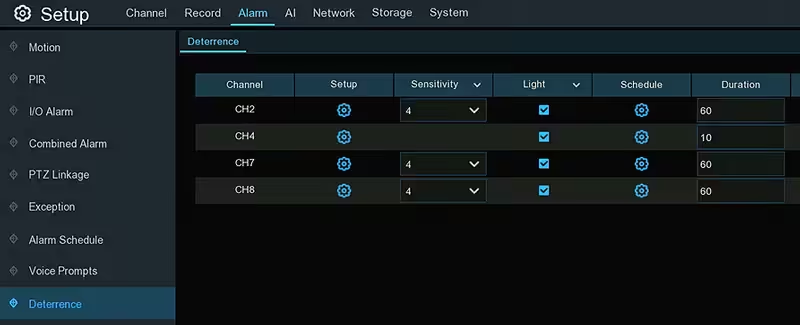
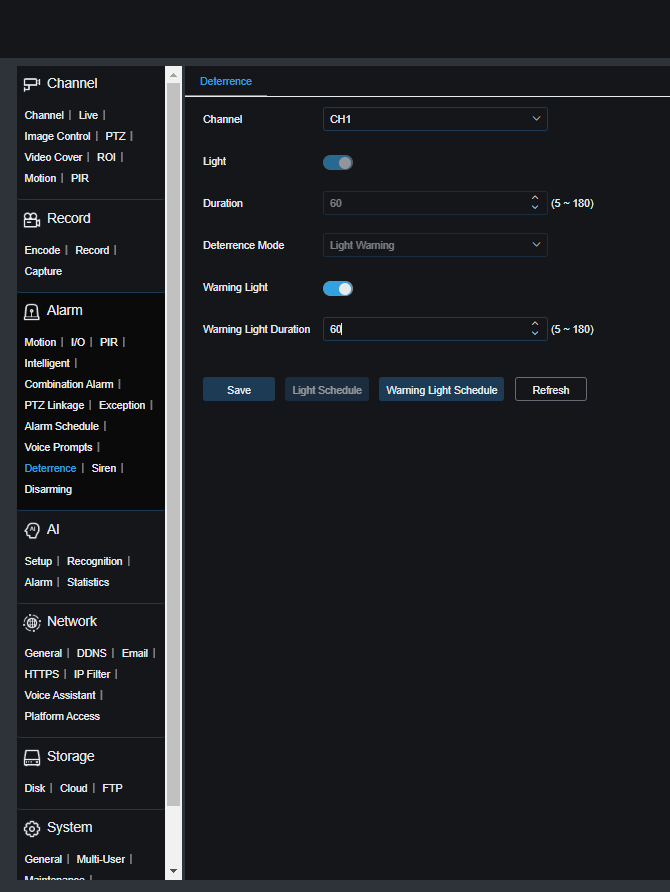
Access Deterrence settings by going to Alarm, then Deterrence in the NVR menu. This is accessible through the NVR web browser interface, the local HDMI interface, or VMS software.
Important: Deterrence settings are only configurable when the connected spotlight camera is set to Day/Night mode in Image Control. If the camera is in Full Color mode, the Deterrence configuration options will not be available.
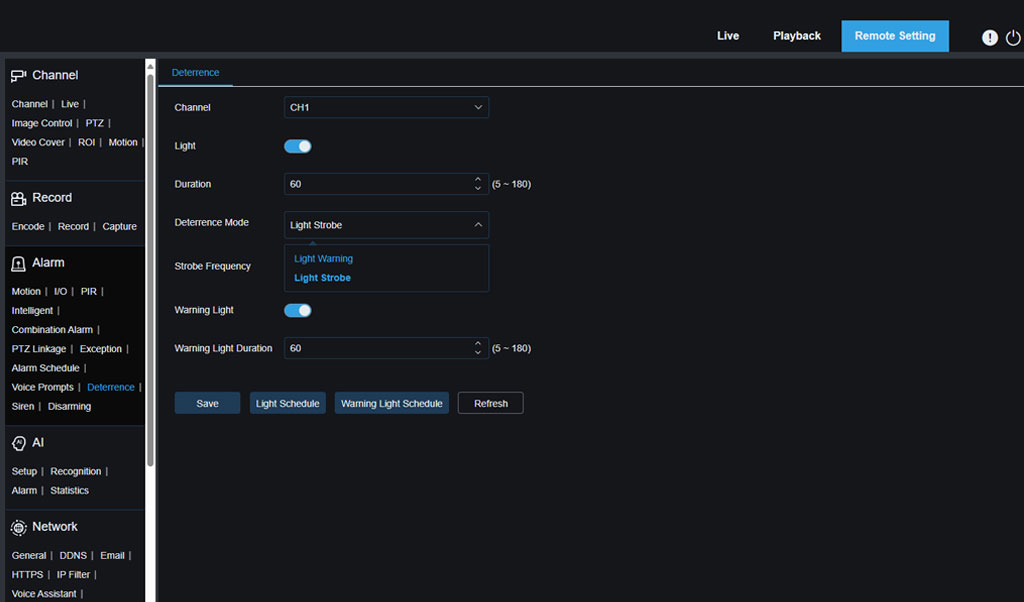
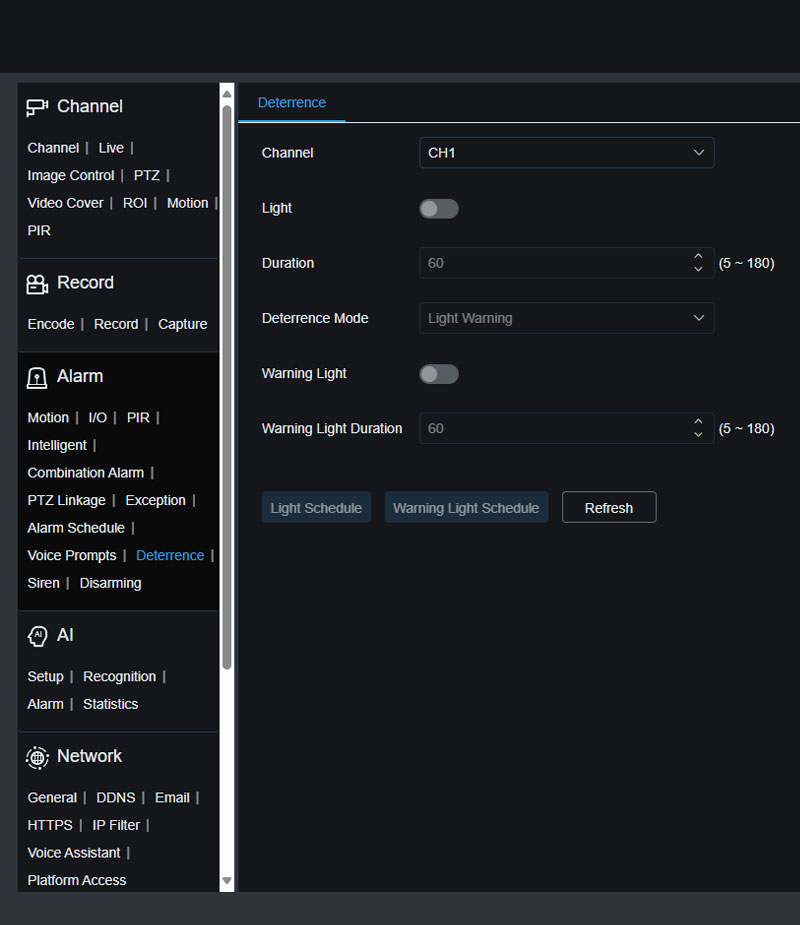
Click the Setup button to open the detailed Deterrence configuration page for each camera with the following options:
- Light: Enable or disable the white light warning.
- Duration: Set the duration in seconds the white light stays on when an alarm is detected.
- Deterrence Mode: Choose between Solid Light, also called Warning Light, where the lights remain steady, or
- Flashing Light, also called Strobe Light, where the lights blink at a set frequency. For Strobe Light, select a frequency of low, medium, or high.
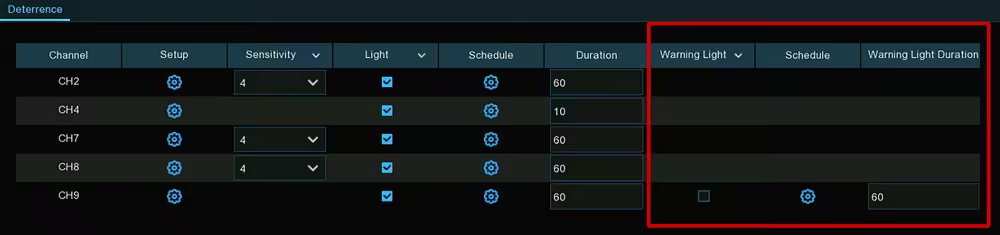
- Warning Light: Enable or disable the red and blue warning lights.
- Warning Light Duration: Set the duration in seconds for the red and blue lights.
where you can activate the Lights by enabling the Light toggle (it is off by default), adjust the Light Value, its duration, and selecting the Deterrence Mode
Deterrence Light Schedule
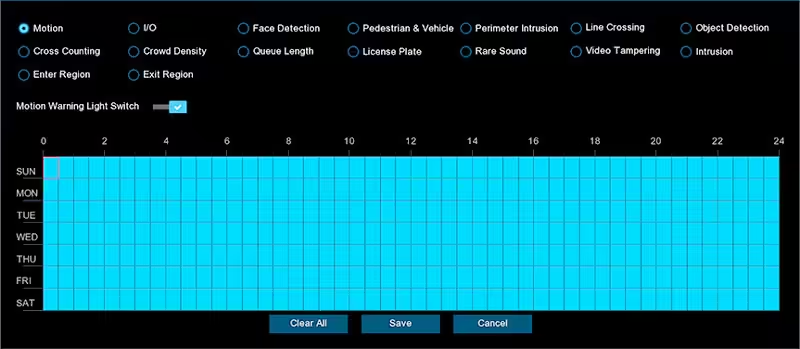
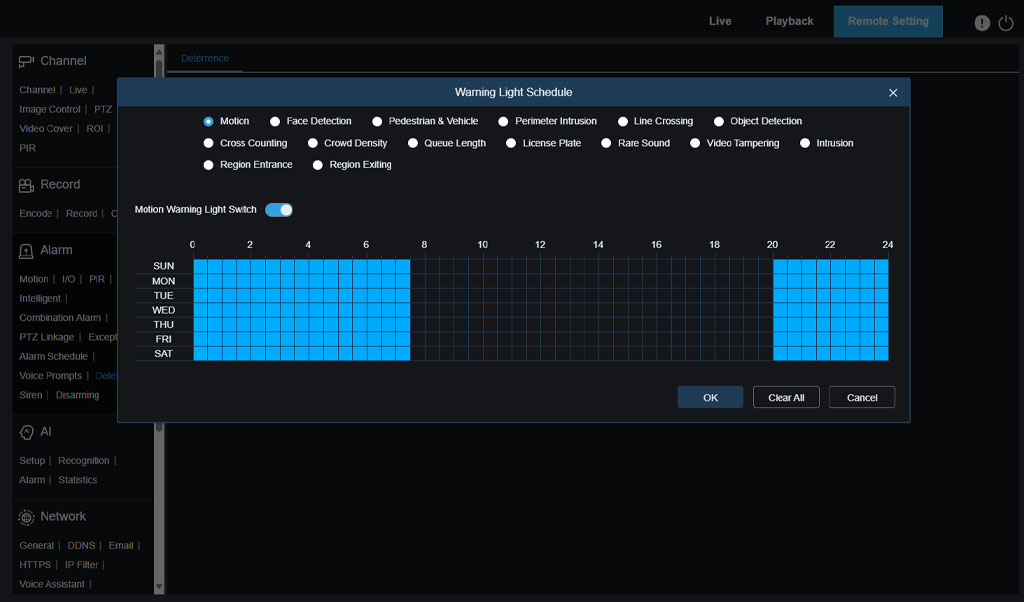
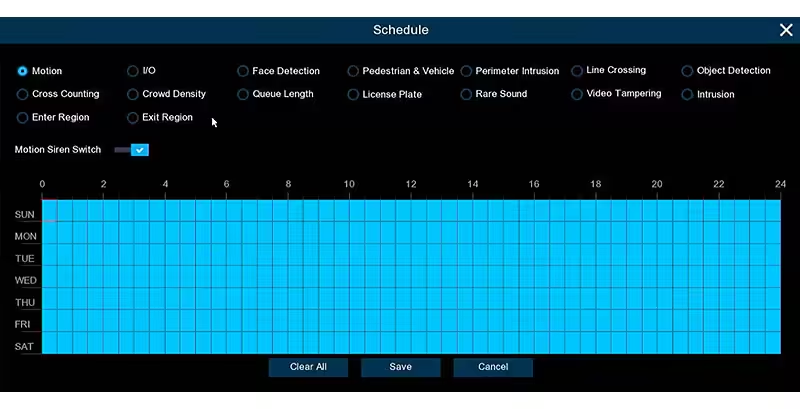
Use the Deterrence schedule to control the time periods when the spotlight and warning lights activate and to set different durations for different alarm types. Click the Schedule icon in the Deterrence settings to open the schedule page.
If the camera is connected to the NVR via the Media/Client port, the schedule page shows a simple timeline. Click or drag on the schedule to select the time slots when deterrence lights will activate. Blue sections indicate active periods.
If the camera is connected to the NVR via the HTTP port, the schedule page shows an event-based setup:
- Select the event type you want to schedule by clicking the corresponding radio button. Options include motion, human detection, vehicle detection, and other AI events.
- Click or drag on the schedule to select the time slots.
- Toggle the Switch to activate the schedule.
Click Apply to save the schedule
How to Configure Siren Settings and Schedule on Camius PoE NVR
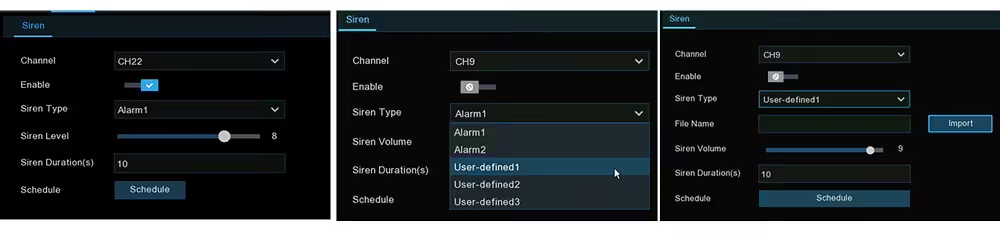
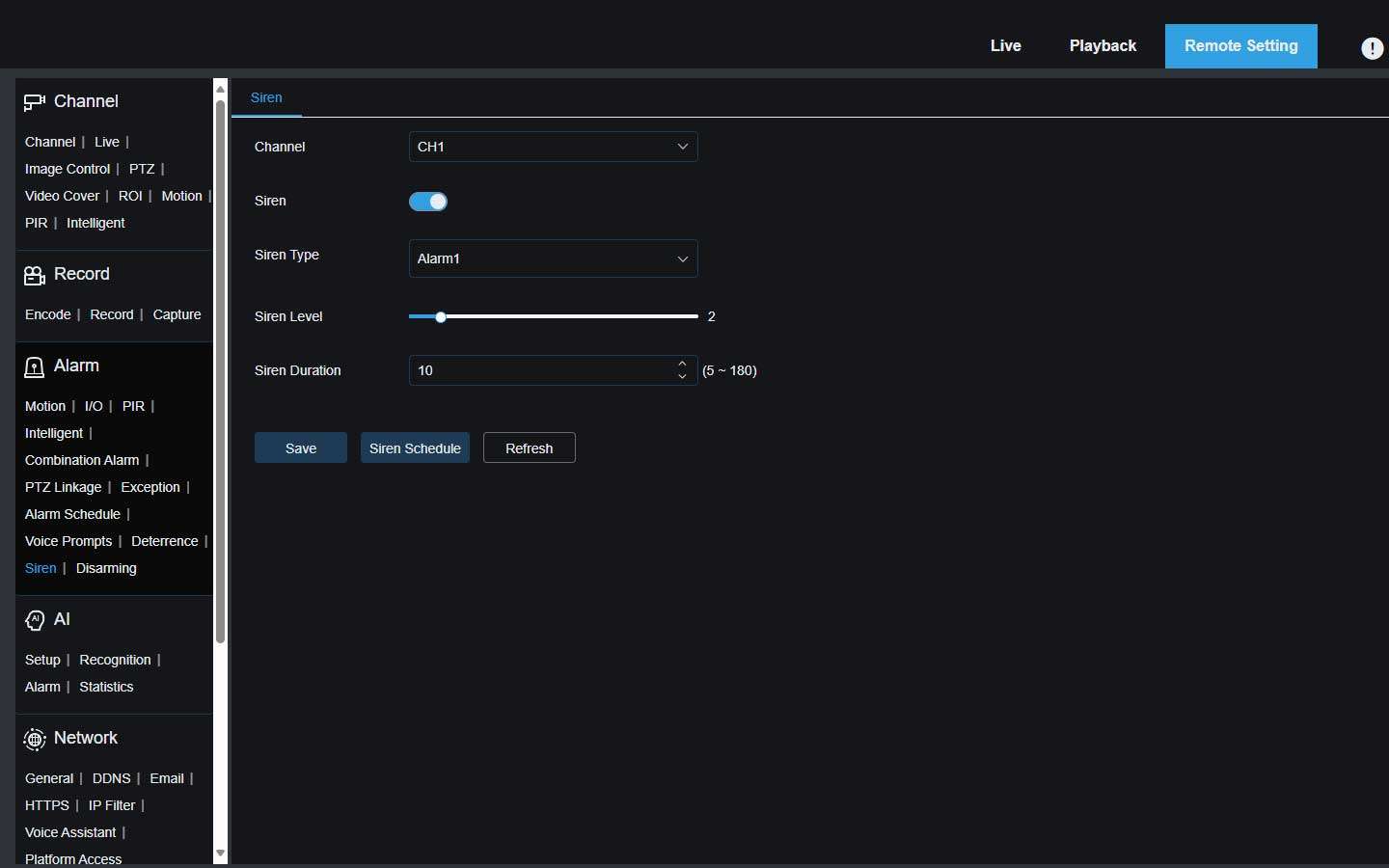
Access Siren settings by going to Alarm, then Siren in the NVR menu. The Siren is configured separately from Deterrence and has its own independent schedule on Camius PoE NVR and TRIVAULT Hybrid DVR systems.
For Camius PoE cameras, which have a built-in speaker, configure the following settings:
- Enable: Toggle to enable or disable the siren function.
- Siren Type: Select the audio file the siren plays when triggered. Depending on the camera model, built-in alarm sounds are available. To use a custom voice warning or audio file, select User-defined and upload a PCM or WAV file from a USB drive. The file must be under 256KB with a maximum sampling rate of 8000Hz. A Delete button will appear to remove the current custom file.
- Siren Volume: Set the volume level from 1 to 8. Higher numbers produce louder output.
- Siren Duration: Set the duration between 5 and 180 seconds.
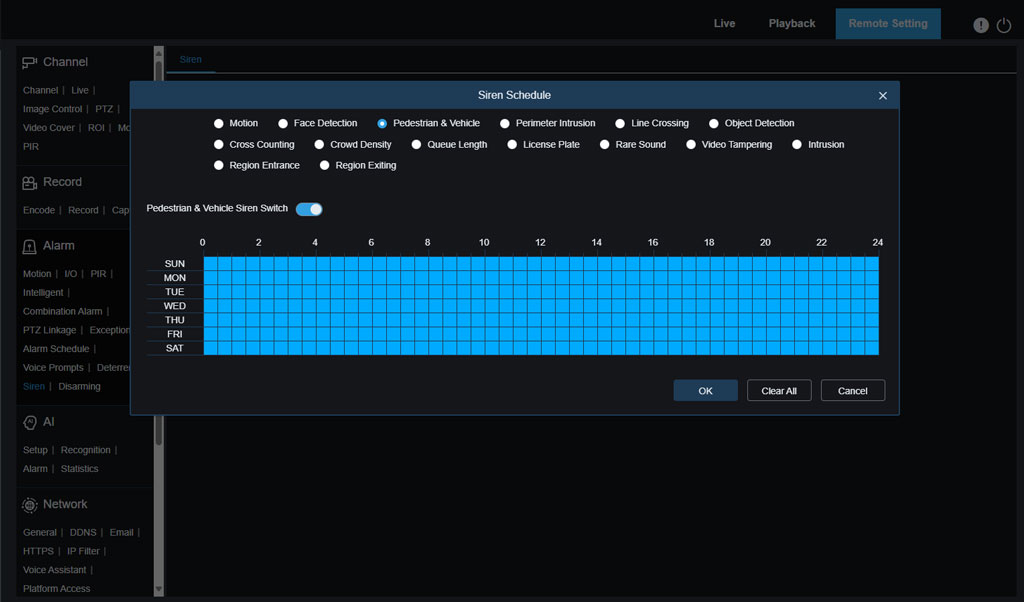
For the Siren schedule, click the Schedule button to configure siren activation times:
- Click the event radio button you want to schedule. Options include motion, human detection, and vehicle detection.
- Click or drag to select the time slots on the schedule. Blue sections indicate when the siren will be active.
- Click the Switch to activate the schedule.
Click Apply to save all Siren settings.
How to Manually Activate Deter Mode Lights and Siren
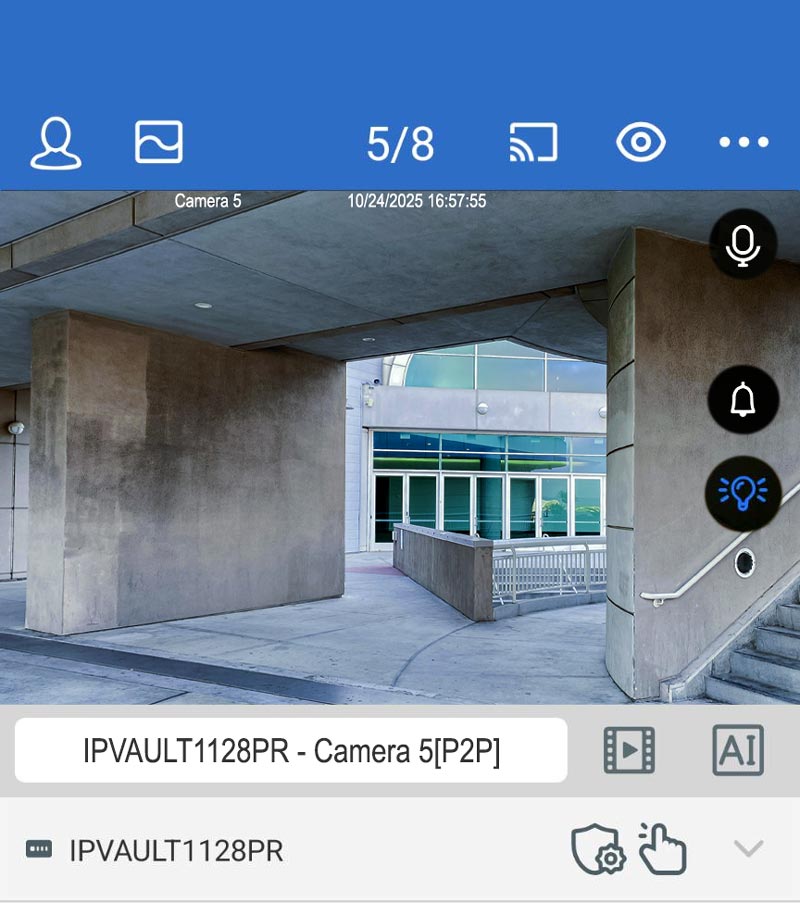
You can manually trigger the Deterrence lights and Siren at any time without waiting for an alarm event, directly from the NVR Live View interface or the Camius View web client or mobile app.
From the NVR local HDMI interface: Click the Audible and Visual Alarm icon in the NVR status bar to toggle lights and alarm bells on or off for all supported channels simultaneously.
From the Camius View web client or mobile app, three separate controls are available per camera:
- White Light Control: Manually activates the white spotlight on the camera. Requires camera support for white light deterrence.
- Siren Control: Manually activates the audible siren on the camera. Requires camera support for built-in speaker.
- Red and Blue Light Control: Manually activates the red and blue warning lights on the camera. Requires camera support for red/blue lights.
- Each control operates independently. You can activate the spotlight without triggering the siren, or activate all three simultaneously. This is useful for testing your deterrence setup after configuration or for manually warning a detected individual in real time
Why Install a Security Camera System with Active Deterrence for Business or Home
By installing a Camius audio video surveillance system, you can enjoy a range of benefits that go beyond just deterring intruders. The high-quality footage captured by Camius 4K cameras can serve as valuable evidence in the event of a crime, helping law enforcement identify and apprehend perpetrators. Additionally, the presence of a security system can lead to lower insurance premiums, as it demonstrates your commitment to protecting your property. Furthermore, the peace of mind that comes with knowing your home or business is under constant surveillance is priceless. With Camius, you can rest assured that your safety and security are in good hands.
FAQs About Deter Mode on Camera
What is the Camius equivalent of deter mode?
Camius splits deter mode into two functions. Deterrence controls the spotlight or color light on both PoE and wireless cameras. Siren controls the audible alarm. On Camius PoE NVR systems and TRIVAULT Hybrid DVR systems with spotlight PoE cameras added, both functions have independent schedules configured under the Alarm menu.
Can I set different schedules for the deterrence lights and siren on my Camius system?
On a Camius PoE NVR system or a TRIVAULT Hybrid DVR system with spotlight PoE cameras added, yes. Deterrence and Siren each have their own independent schedule under the Alarm menu, so you can set the spotlight to run from 8PM to 6AM and the siren to run from 10PM to 4AM as separate configurations.
What does deter mode mean on a security camera?
In Camius systems this is split into Deterrence for light control and Siren for sound, each configured separately under the Alarm menu on PoE NVR systems and TRIVAULT Hybrid DVR systems with spotlight PoE cameras.
Do all Camius PoE cameras support Deterrence and Siren?
No. Deterrence and Siren are available only on Camius spotlight cameras that have a built-in color light. When a spotlight camera is connected to a Camius PoE NVR or TRIVAULT Hybrid DVR, the Alarm menu will show the Deterrence and Siren options for that channel. Standard PoE cameras without a built-in spotlight do not support these features and will not display the Deterrence menu.
Individual spotlight cameras that support Deterrence and Siren:
- 4K PoE spotlight security camera with siren and two-way audio (SPOT828A-RB)
- 4K PoE spotlight camera with junction box value bundle (SPOT828A-RB)
- 4K PoE pan tilt zoom camera with 4x optical zoom, siren, and red and blue lights (SCOUT4K4XPTZ)
For a complete system with spotlight cameras already included, browse PoE NVR security camera systems with spotlight cameras included.
What does deter on mean versus deter off on my Camius camera?
On Camius PoE NVR systems and TRIVAULT Hybrid DVR systems with spotlight PoE cameras, Deterrence and Siren each have their own on/off control and independent schedule under the Alarm menu.
Why does my camera’s light stay on or keep flashing all night?
The SPOT828A-RB, 4K spotlight camera, has deterrence lights that are triggered by detection settings. If deterrence is enabled, the light may remain on (steady) or flash (strobe) depending on configuration. Adjust these in Alarm > Deterrence, or disable the linkage in AI > Pedestrian & Vehicle Detection and Alarm > Motion Detection.
In the menu I only see “On/Off” for Warning Light. Am I missing something?
No. When the camera is in Full Color mode, the Warning Light (red/blue) can only be set to On or Off. To access more deterrence options (white light, schedules, triggers), switch the camera to Day/Night mode under Channel > Image Control.
What is the difference between Full Color mode and Day/Night mode for deterrence?
Full Color mode: Only Warning Light (red/blue) is available under Deterrence. White light is controlled separately under Image Control > White Light.
Day/Night mode: Full deterrence options are available, including White Light, Warning Lights, schedules, and trigger events.
Can I schedule when the deterrence lights turn on?
- On a Camius IPVAULT PoE NVR and TRIVAULT Hybrid DVR systems, Deterrence and Siren each have their own schedule set separately under the Alarm menu. This lets you run the spotlight on a wider schedule and the siren on a narrower one.
- On a Camius wireless NVR system, the Siren does not have a separate schedule. It uses an on/off toggle and activates within the same time window set by the Deterrence lights schedule to preserve camera battery life.
Can I control the deterrence lights and siren from the mobile app?
Yes. The Camius View app allows you to turn deterrence lights and siren on or off manually while viewing live video.
Is this a hardware fault if the lights don’t behave as expected?
No. In nearly all cases, the deterrence lights are functioning correctly. Unexpected behavior usually comes from configuration or default settings, not from a hardware fault.