
If your NVR or DVR is randomly beeping, the recorder is warning you about a system event. The most common causes are hard drive errors, hard drive full, video loss, network disconnection, or an active motion alarm. On Camius recorders, this sound is called the Buzzer. The buzzer activates when the system detects an exception under Setup → Alarm → Exception, or when motion and alarm events are enabled. You can stop the beeping by adjusting the Buzzer settings, disabling unnecessary alerts, or correcting the underlying issue such as formatting the HDD or restoring a lost camera connection.
Below you will find step by step instructions with screenshots showing exactly how to stop the beeping on your Camius NVR or DVR.
Why Is My Security Camera Beeping
Your security recorder beeps when it detects a condition that could affect recording.
This feature works across all Camius PoE, DVR, and wireless systems.
Common reasons for beeping:
- Hard drive not detected, full, or unformatted
- Video loss from one or more cameras
- Motion or AI detection triggered
- Power or network interruption
When this happens, icons appear on your monitor:
- Red HDD icon for hard drive issues
- “Video loss” for camera disconnection
- Bell icon for motion or AI alarm
If your Lorex or Reolink NVR also beeps, the reason is likely the same. The advantage with Camius is that you can identify the cause faster using on-screen status icons and simple menu access.
Looking for a reliable wired system?
Explore Camius wireless and wired security camera systems for business and home security:
How to turn off the alarm beeping sound from DVR / NVR
To turn off the alarm beeping sound from DVR or NVR recorder follow the below steps:
Step 1 – Open the Main Menu
Right-click on the live screen and choose Menu → Setup.
Step 2 – Go to Alarm Exceptions
Click Alarm → Exception. You’ll see a list of alerts that can trigger the buzzer.
Step 3 – Identify the Active Alert
Check which options are active under “Switch.” Common ones include “No Disk,” “Disk Error,” or “Video Loss.”
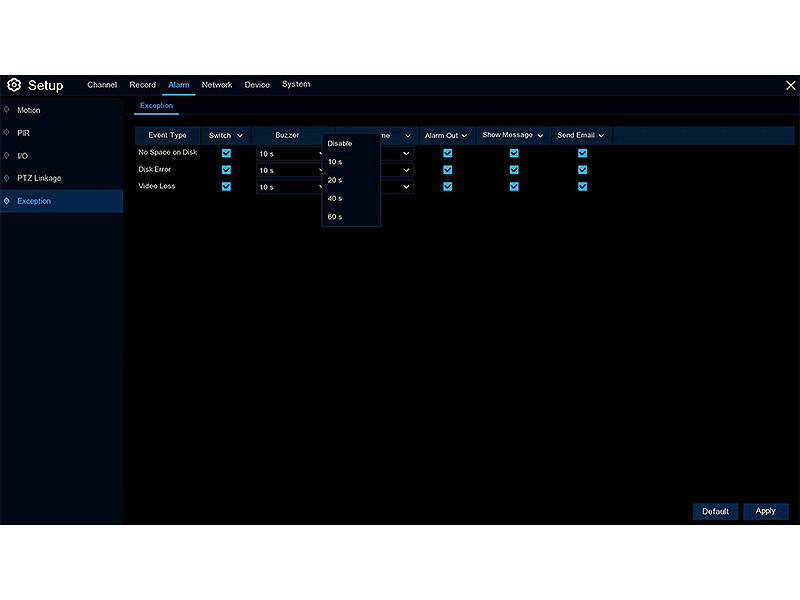
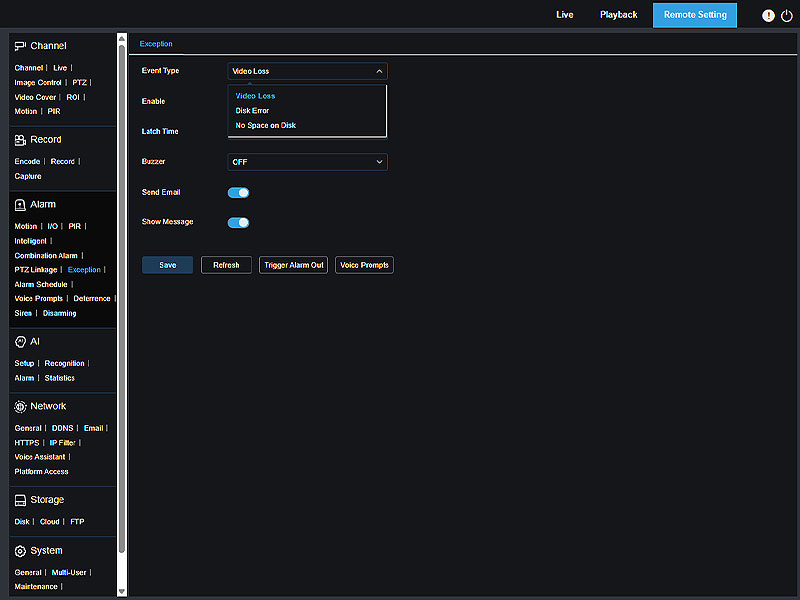
Step 4 – Disable or Limit the Buzzer
Select “Buzzer” and turn it Off, or change the duration to 10 or 20 seconds instead of continuous.
Click Apply to save.
Step 5 – Check the Hard Drive
If the beeping continues, go to Setup → Device → Disk and check disk status.
- “Unformatted” means the drive must be formatted.
- “Abnormal” means the cable connection is loose or the disk is failing.
After formatting or reconnecting, the state should show “Normal,” and the alarm will stop.
How to Format a Hard Drive for Camius NVR
How to Stop Beeping from Motion or AI Detection
If motion alerts are enabled, the recorder will beep each time motion or an AI event occurs.
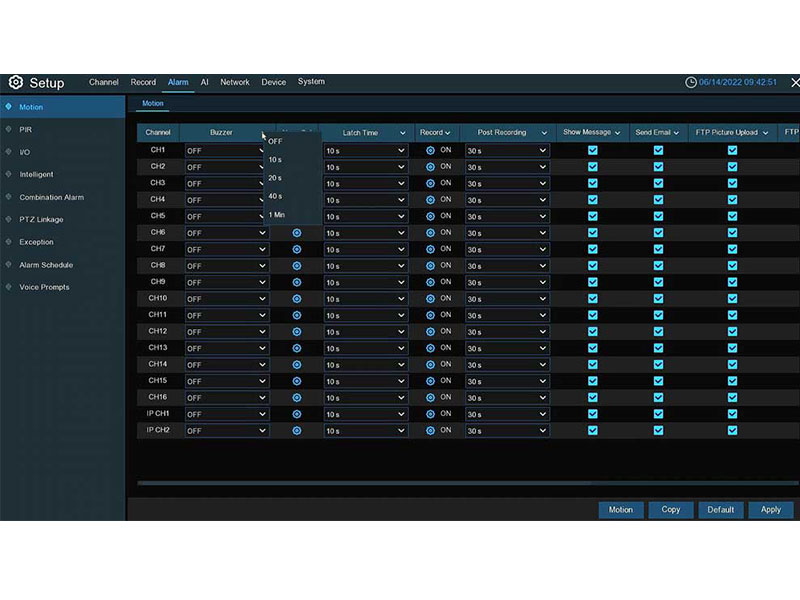
- Open Setup → Alarm → Motion Detection.
- Uncheck Buzzer.
- Adjust sensitivity or motion area if false alerts occur.
- Click Apply.
For quiet operation, use the Camius View App to receive event notifications on your phone instead of audible beeps.
How to Fix NVR Beeping from Video Loss
When the NVR recorder detects video loss, it will activate the buzzer.
- Confirm each camera has power.
- Make sure the PoE port LED on the NVR is on (applies to PoE NVRs)
- Open Setup → Channel → Camera and verify each shows “Online.”
If using third-party IP cameras, make sure the Onvif protocol and login details match.
If the NVR/DVR Beeping Does Not Stop
- Check that the hard drive and power cables are securely connected.
- Ensure your system is running the latest firmware from camius.com/support.
- Restart the recorder after saving settings.
Why Choose Camius for Reliable Monitoring
Camius recorders use a buzzer to alert you to real issues, but newer systems add smarter AI notifications, person and vehicle detection, and automatic buzzer reset once the issue clears.
If you’re using another brand and struggle with constant beeps, a Camius 4K PoE or wireless camera system can give you quiet, reliable alerts directly on your phone.
Shop Camius security cameras sale for current promotions and system options.
Quick Reference Menu Paths
- Setup → Alarm → Exception → Buzzer → Off
- Setup → Device → Disk → Format HDD (if needed)
- Setup → Alarm → Motion Detection → Disable Buzzer
Camius View App:
- Menu → Push Notifications → Enable alerts without sound
Need More Help?
Contact our technical support team. View installation guides:
FAQs on Why Beep Sound Coming from CCTV DVR, NVR
How do I get my security system to stop beeping?
Open Setup → Alarm → Exception → Buzzer and switch it to Off. You will still see a warning icon without sound.
How to stop camera beeping?
Go to Setup → Alarm → Deterrence and disable siren or light alerts if using Camius cameras with built-in deterrence features.
Why do I suddenly hear a beep sound in CCTV DVR?
Your recorder may have detected a temporary alert such as disk error, power loss, or video signal change.
How do you stop a motion sensor from beeping?
Under Setup → Alarm → Motion Detection, uncheck “Buzzer.” You can still receive app alerts.
Why does my camera box keep beeping?
This is your DVR or NVR housing. The beeping is the internal buzzer. Check for video loss or hard drive warnings.
Why is my DVR box making noise?
Short periodic beeps come from alerts, while a constant mechanical sound may be the hard drive spinning.
Does a beeping alarm mean it needs batteries?
Camius recorders do not use batteries for alerts. A beeping alarm always means an active event, not a battery issue.