PTZ DVR Control Guide for Camius Hybrid DVR Systems
A PTZ DVR lets you control pan, tilt and zoom on supported cameras.
Camius hybrid DVR systems support analog PTZ cameras, motorized zoom cameras and supported IP PTZ models.
This guide explains how to connect a PTZ camera, configure PTZ settings and operate PTZ functions using the current Camius DVR interface.
What Is PTZ Control on a Security Camera
PTZ stands for pan, tilt and zoom.
A PTZ camera can rotate in all directions and zoom in for more detail.
You control these functions from the DVR screen, the Camius View app or the VMS software.
Camius PTZ DVR systems provide wide area coverage and flexible viewing angles for homes and businesses.
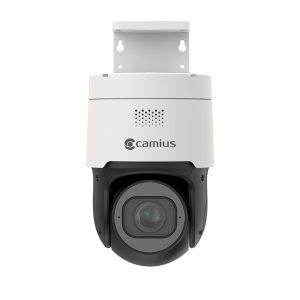
IP Cameras with PTZ & Motorized Zoom Lens
-
IP Cameras – Professional PoE Cameras, Zoom Lens IP Cameras
$399.00Original price was: $399.00.$349.00Current price is: $349.00. -
IP Cameras – Professional PoE Cameras, Zoom Lens IP Cameras
$499.00Original price was: $499.00.$379.00Current price is: $379.00.
Supported PTZ and Motorized Zoom Cameras on Camius DVRs
Analog PTZ Camera Setup
Analog PTZ cameras use a coaxial cable for video and two RS485 wires for control. This is the most common method for a PTZ on coaxial camera system.
Motorized Zoom Camera DVR Support
Camius motorized zoom cameras use the DVR interface for optical zoom and auto focus. These cameras do not use RS485 wiring.
IP PTZ Cameras on Hybrid DVRs
The latest Camius DVR firmware includes XVR support by default.
The DVR detects analog and IP camera types automatically.
How to Connect PTZ to DVR
The steps below follow the Camius DVR installation guide.
Step 1: Connect the BNC Video Cable
Connect the BNC video cable from the PTZ camera to the DVR channel.
Step 2: RS485 PTZ Wiring
Connect the camera’s RS485 wires to the DVR terminals.
• Camera A to DVR A
• Camera B to DVR B
If the PTZ does not respond, reverse A and B on the DVR and test again.
Step 3: Power the PTZ Camera
Use a stable power supply with the correct voltage and current. A weak power supply can stop the PTZ motors.
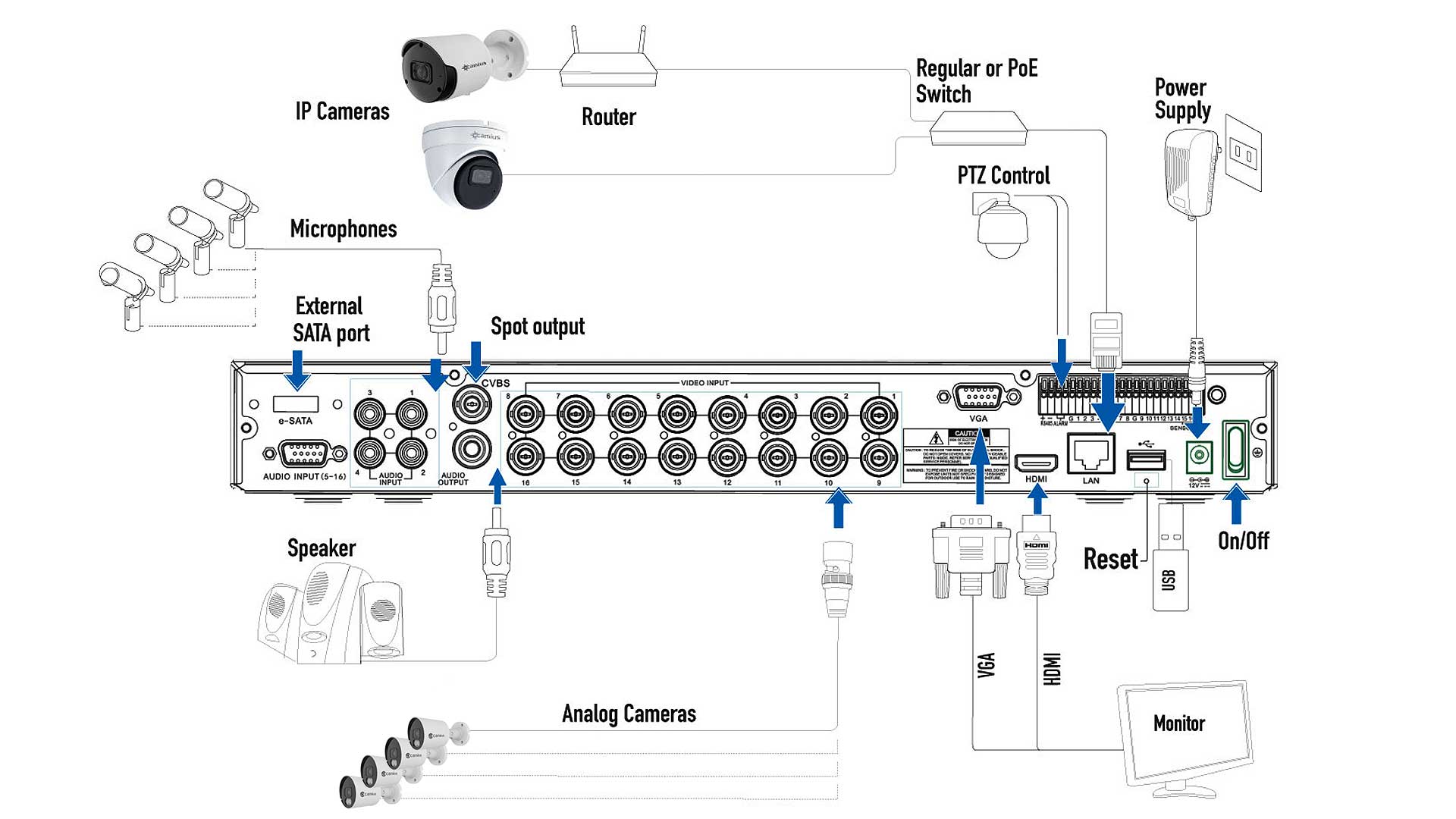
Camius 16 Channel PTZ DVR Camera Connection Diagram
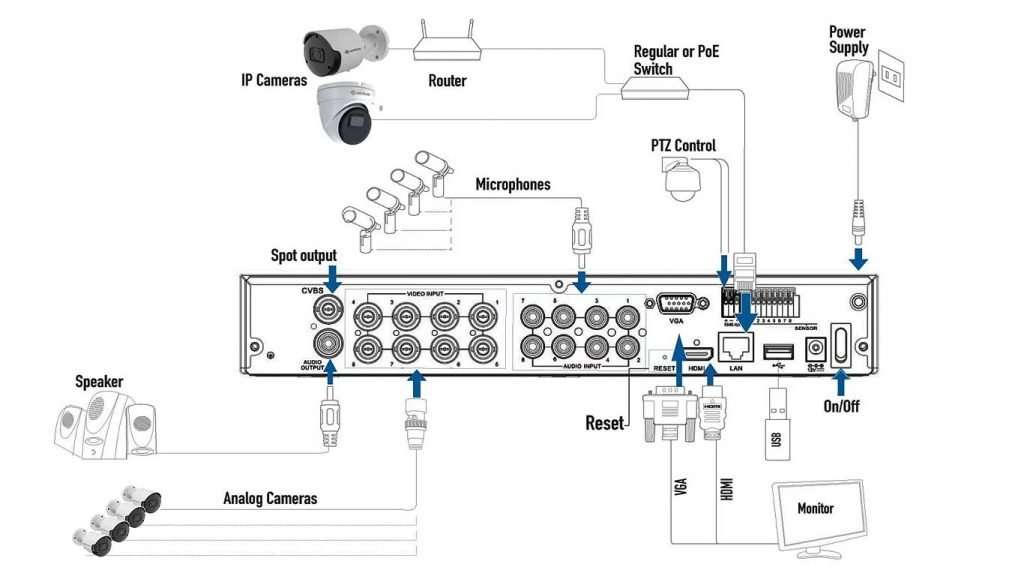
Camius 8 Channel PTZ DVR Camera Connection Diagram
DVR PTZ Camera Configuration
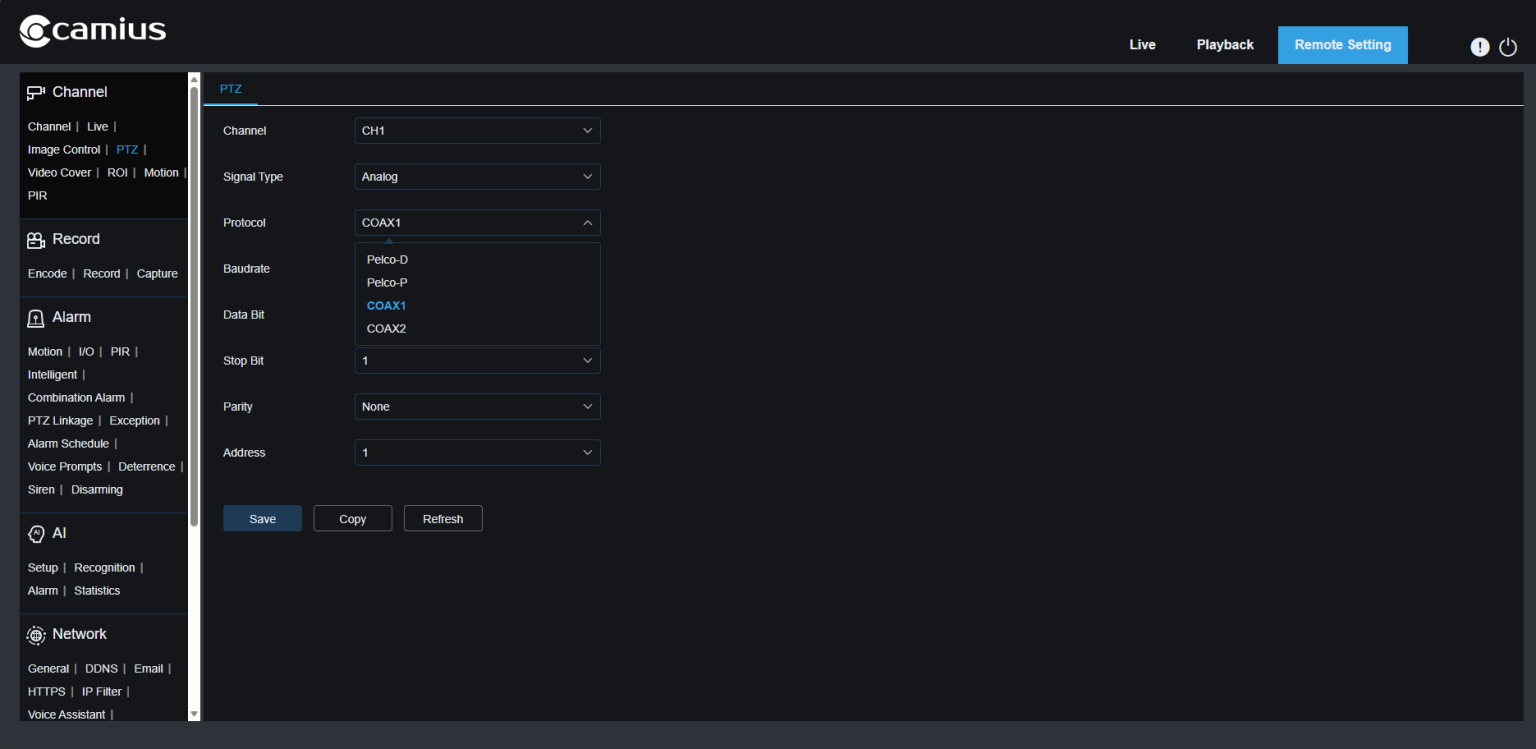
- Open the PTZ menu on the DVR’s local menu under: Setup >> Channel >>PTZ (or Remote Setting >> Channel >> PTZ using a web browser user interface)
Signal Type (Analog or Digital)
- Choose Analog if your PTZ camera is connected via RS485 port
- Choose Digital if the PTZ camera is connected over the network
Use these settings unless your PTZ documentation requires different values:
- Protocol: Pelco D or Pelco P
- Baudrate: 9600
- DataBits: 8
- StopBit: 1
- Parity: None
- Address: match the camera address, most cameras use 1
Using PTZ Controls on a Camius DVR
Live PTZ Operation
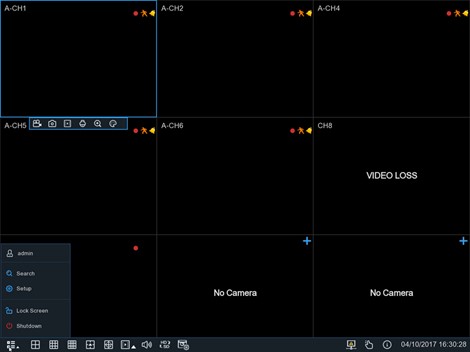
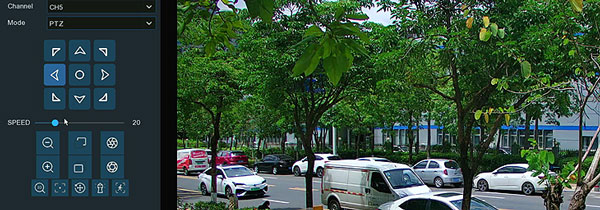
During live view click once on a camera channel to open the Camera Quick Toolbar. This toolbar provides access to recording, snapshots, digital zoom, color settings, audio and AI features before opening the PTZ control panel.
Then click the PTZ icon
. You can now control: Pan, Tilt, Zoom, Focus, Iris.

Presets
- Move the PTZ camera to a desired point and save it as a preset.
- Some PTZ cameras support up to 255 presets.
Tours
- A tour moves the PTZ camera through preset positions in sequence. You control the speed and wait time.
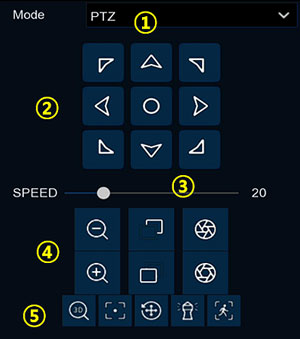
Directional Control, Speed and Lens Control
These controls allow you to move the PTZ camera in all directions and adjust zoom, focus and iris. The speed slider changes how fast the camera pans or tilts.
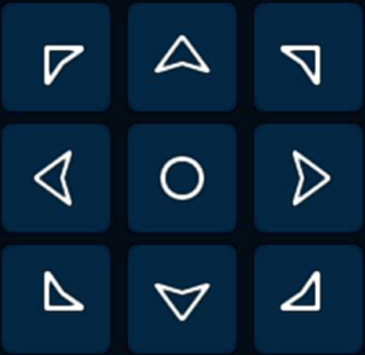
• Directional buttons
• Speed slider
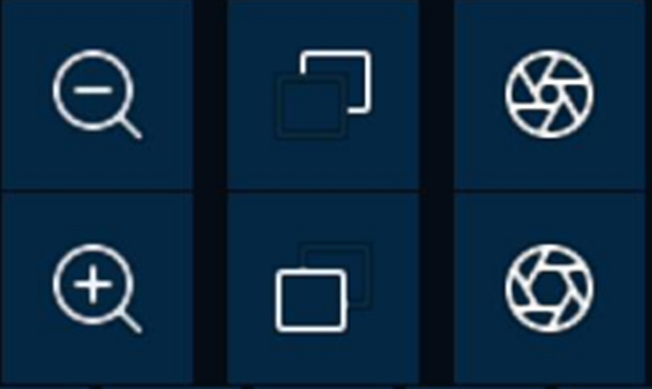
• Zoom in and out
• Focus and iris controls
- Directional Control Buttons: Movement arrows and rotation icon
- Speed Slider Section: Speed adjustment for pan and tilt
- Lens Control Buttons: Zoom In, Zoom Out, Focus In, Focus Out, Iris Open, Iris Close
3D PTZ Control Section
The 3D PTZ feature allows direct control of pan, tilt and zoom on the live screen. This gives faster control during monitoring.
Use the steps below to operate the 3D PTZ tools.
1. Select PTZ Mode: Open the PTZ panel on the live view screen and make sure the mode is set to PTZ.
2. Move the Camera with Directional Buttons: Click any directional arrow to move the PTZ camera in that direction. Holding the button moves the camera until you release it.
3. Adjust Pan and Tilt Speed: Use the speed slider to set how fast the camera moves.
4. Control Zoom, Focus and Iris: Use the zoom, focus and iris buttons to adjust the lens as needed.
5. Use 3D Functions on the Image: These actions work directly on the live video:
- Click the 3D PTZ Control Section icon. This icon activates 3D control mode on the image.
- Click anywhere on the image to center the camera on that point.
- Drag your mouse inside the live image to zoom in or zoom out.
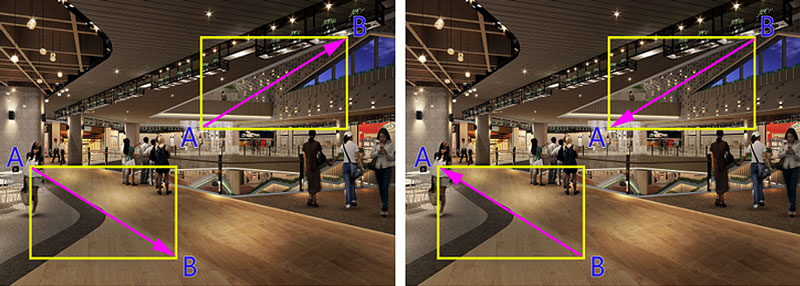
- Click and drag from point A to point B to zoom in and move the view closer.
- Click and drag from point B to point A to zoom out and move the view farther away.
These functions provide fast control for close inspection and wide area coverage.
Watch Mode and Auto Tracking
Watch Mode lets the PTZ camera move to a set point when there is no user activity for a selected time. The DVR performs this action automatically once the time interval is reached.
Watch Mode Functions
- Auto focus keeps the image sharp

- Load default values resets all PTZ parameters to factory settings

- Start or stop Watch Mode from the PTZ control panel

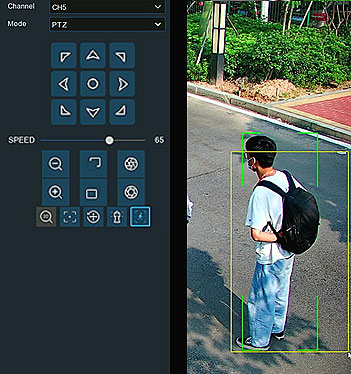
Manual Target Tracking
If the PTZ camera supports human tracking, you can control the target manually when more than one person is detected.
Human Detection must be enabled first
PTZ Auto Tracking must also be active ![]()
This allows the PTZ camera to stay focused on a selected human target as long as they stay in view.
Preset Positions
A preset is a saved PTZ position.
You can store up to 255 preset points depending on the camera.
Follow these steps to create and use presets:
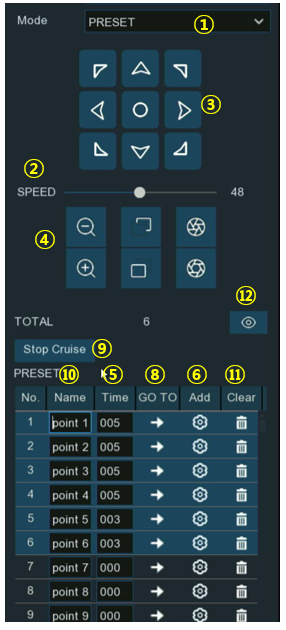
- Select PRESET mode in the PTZ panel.
- Use the Speed slider to set how fast the camera moves.
- Move the camera using the directional buttons.
- Adjust zoom, focus or iris if needed.
- Enter the wait time in seconds for this preset point.
- Click Add to save this position.
- Repeat the steps above to add more presets. Saved presets show in the list.
- Click GO TO to move the camera to a preset point.
- Click Start Cruise to move through the preset list in sequence. Click Stop Cruise to end it.
- You can rename any preset in the list.
- To delete a preset, click Clear.
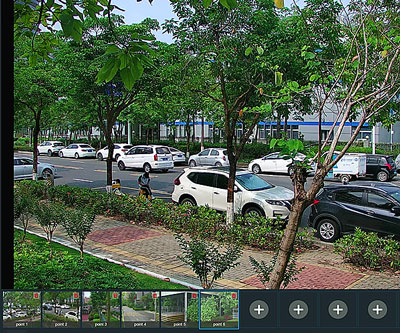
- Click the Visual icon to show preset thumbnails at the bottom of the Live View screen. You can view, delete or add preset points from this visual list.
Preset positions allow fast navigation to important areas and are used for PTZ tours and automated patrols.
Line Scan in Camius DVR PTZ Camera Settings
Line Scan moves the PTZ camera back and forth between two points in a horizontal direction.
You can use it to watch a long area such as a hallway or a parking lot.
Follow these steps:
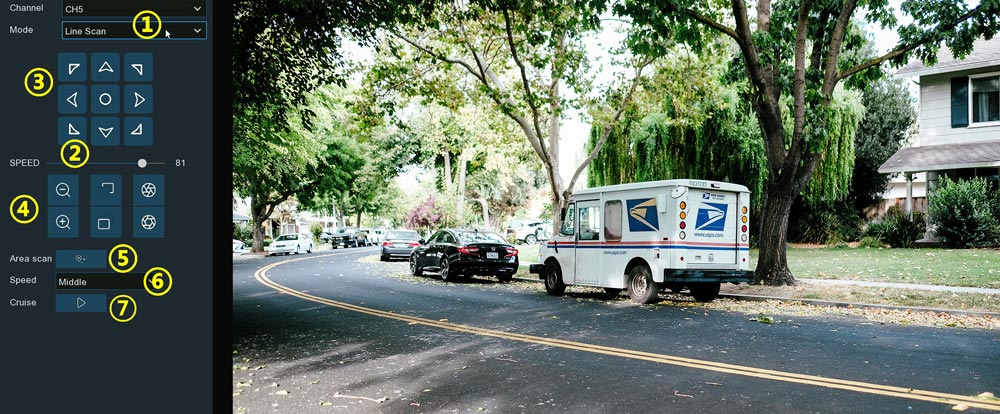
- Select Line Scan mode from the PTZ Mode list.
- Set the movement speed with the Speed slider.
- Move the camera to the first point using the directional buttons.
- Adjust zoom, focus or iris if needed.
- Click the Add button to save Position A.
- Move the camera to the second point.
- Click the Add button again to save Position B.
- Set the cruise speed for the movement between A and B.
- Click the Play button to start the Line Scan.
- Click the Stop button to end the movement.
Line Scan gives steady horizontal monitoring without manual control.
Tour
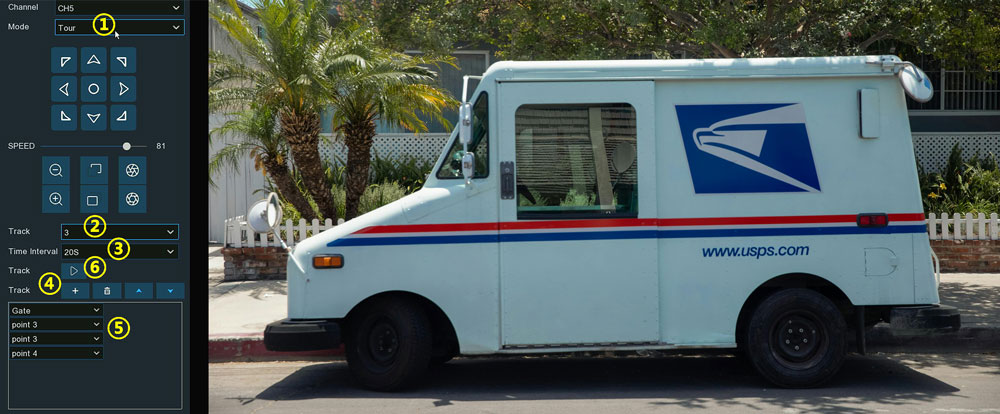
A Tour moves the PTZ camera through a list of preset points. Each point has a wait time and the camera moves through them in the order you choose.
Follow these steps:
1- Select Tour mode from the PTZ Mode list.
2- Pick a Track.
3- Set the wait time for how long the PTZ stays at each preset.
4- Click the Add button to insert a preset point into the track.
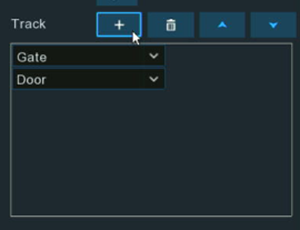
5- Select a preset for that track position.
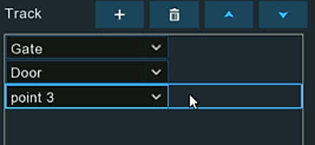
6- Repeat to add more preset positions.
7- Use the up or down buttons to change the order.
8- Click Play to start the Tour.
9- Click Stop to end the Tour.
Tours help the PTZ camera monitor several key points without manual control.
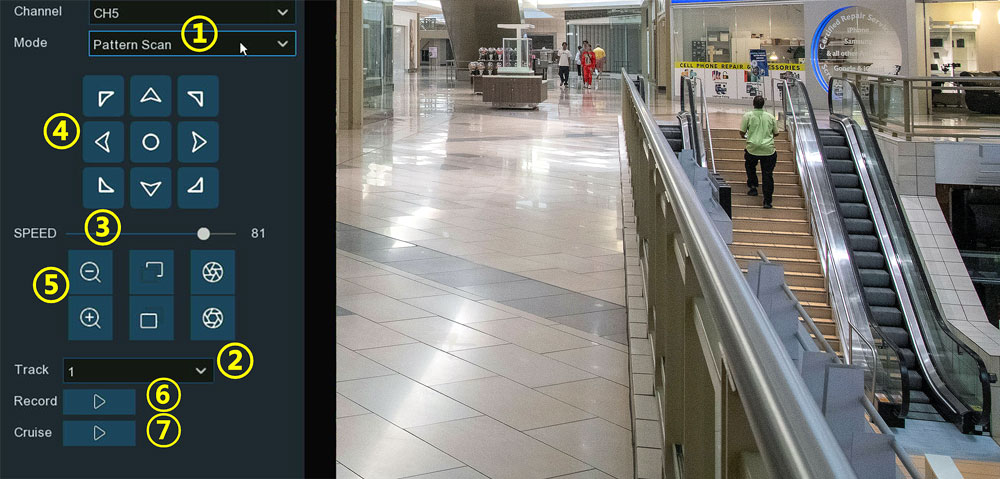
Pattern Scan
Pattern Scan records a movement path for the PTZ camera.
The camera repeats this path when Pattern Scan is started.
Follow these steps:
- Select Pattern Scan mode from the Mode list.
- Choose a Track. You can have up to four tracks.
- Set the Speed slider to control how quickly the PTZ camera pans or tilts during the scan.
- Use the directional buttons to move the camera and define the movement path.
- Adjust zoom, focus or iris if needed while defining the route.
- Click the Record button to start saving the pattern.
Move the camera to create the route.
Click the Stop button when you finish recording. - Click the Play button to start Pattern Scan.
The camera will repeat the recorded path.
Click Stop to end the scan.
Pattern Scan is helpful for repeating a complex camera movement that presets and tours cannot cover.
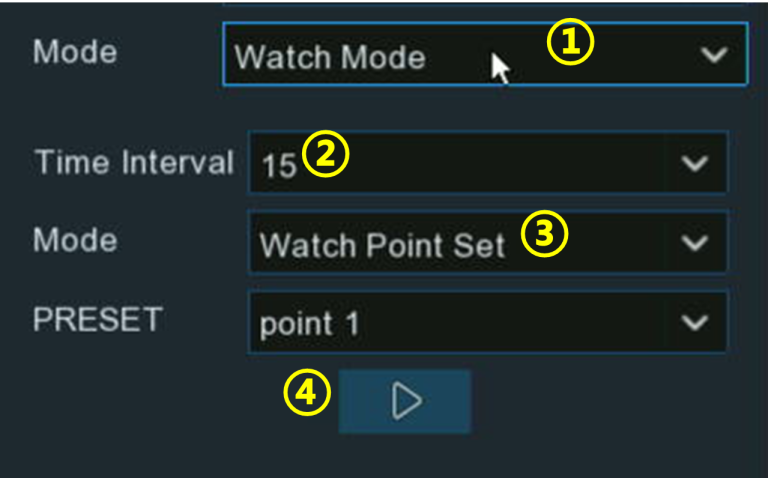
Watch Mode
Watch Mode moves the PTZ to a selected action after a set period of no user control.
The camera performs a preset, a tour, a pattern scan or a line scan after the time expires.
Follow these steps:
- Select Watch Mode in the PTZ Mode list.
- Set the time interval before Watch Mode activates.
- Select the action the camera will perform when the time expires.
- Click Play to start Watch Mode.
- Click Stop to turn it off.
Watch Mode keeps active monitoring running even if the operator is not at the screen.
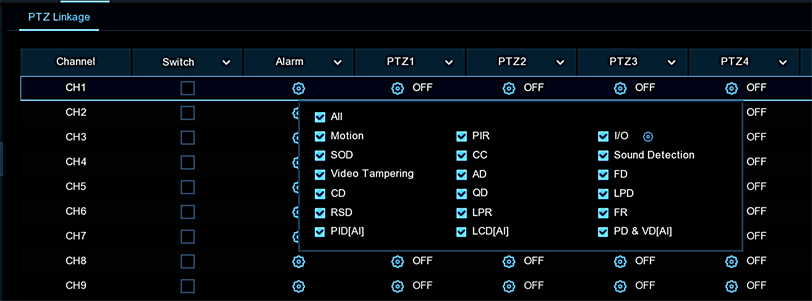
PTZ Camera Linkage
PTZ Linkage allows the DVR to move a PTZ camera to a preset position when a selected event occurs.
This helps the PTZ camera focus on important areas when the DVR detects activity.
Switch: Select the checkbox to enable or disable PTZ Linkage for that channel.
Alarm Source: Click the configuration icon to choose the event that will trigger the PTZ movement. Supported alarm sources include:
- Motion
- PIR
- I/O sensor
- Sound Detection
- Video Tampering
- Human Detection
- Vehicle Detection
- Other smart detection features available on the connected camera
PTZ Actions: Each channel supports up to four PTZ linkage actions. These appear as PTZ1, PTZ2, PTZ3 and PTZ4.
For each PTZ action:
1- Click the configuration icon beside PTZ1, PTZ2, PTZ3 or PTZ4.
2- Select the PTZ camera channel.
3- Choose the preset position that the camera should move to when the event occurs.

4- Save the configuration.
When the selected alarm is triggered, the PTZ camera turns to the assigned preset point automatically.
This creates simple automated monitoring for areas that need attention without user control.
Motorized Zoom Camera DVR Features
Camius motorized zoom cameras use optical zoom and auto focus for clear images.
You can adjust:
• Zoom
• Focus
• Auto focus
• Manual fine tuning
Motorized zoom cameras do not require RS485 since control is handled through the coaxial connection and DVR interface.
Adding IP PTZ Cameras to a Camius DVR
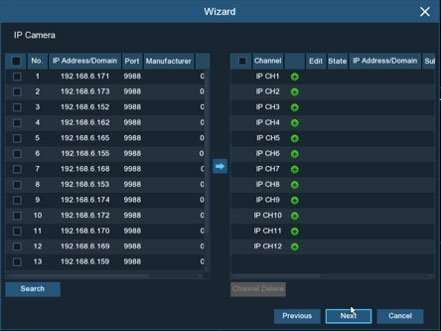
The DVR automatically detects supported IP cameras on the network.
How to Add an IP PTZ Camera
Steps:
- Go to the IP Cameras screen
- Select the PTZ camera from the left panel
- Enter the camera password
- Click Add
- The camera appears in the live grid
- IP PTZ cameras use the same PTZ toolbar as analog PTZ cameras.
PTZ Camera Troubleshooting
Follow these steps if the camera shows video but does not respond to PTZ commands.
RS485 Wiring
- Make sure A to A and B to B.
- If movement fails reverse A and B.
Protocol
Try Pelco D first. If no movement try Pelco P.
Baudrate
Use 9600 for most PTZ cameras.
Address
Match the DVR address to the camera address.
Channel Type
Analog PTZ requires the channel to be set to Analog.
Cable Distance
Long RS485 runs or low-quality cable can weaken the control signal.
Live Test
Open the PTZ panel and test movement buttons.
If a change restores movement, the earlier setting was incorrect.
Why Choose a Camius PTZ DVR System
Camius PTZ DVR systems provide stable PTZ control, simple installation and high video clarity.
They support analog and IP PTZ cameras in the same system.
Camius DVR kits come with a pre installed hard drive and strong remote access through the Camius View app.
Buyers who need wide coverage and long distance zoom choose Camius for home or business security.
FAQs about PTZ DVR camera systems
What is PTZ control on a security camera?
PTZ control on a security camera lets you pan, tilt, and zoom the camera for a wider viewing range. A PTZ camera rotates in all directions and zooms in for clear detail. Camius DVR and NVR systems support full PTZ control with smooth movement, optical zoom, presets, and tours, giving homes and businesses flexible and accurate monitoring.
What does PTZ stand for?
PTZ stands for pan, tilt and zoom. A PTZ camera moves left, right, up and down and uses optical zoom for clear detail. Camius DVR and NVR systems support full PTZ control through the DVR local (HDMI) and web browser menu, the Camius View app and the VMS software.
What is PTZ in DVR?
PTZ in a DVR refers to built in controls that move a PTZ camera and adjust zoom, focus and iris. Camius DVRs include PTZ control for analog PTZ models using coaxial video and RS485 wiring. They also support PTZ control for supported PTZ IP cameras. This gives homes and businesses flexible viewing from a single system.
Buy Camius 4K PTZ IP camera with true 4X Optical Zoom and Auto-tracking
How to control a PTZ camera with a DVR?
To control a PTZ camera with a Camius DVR, open live view and click the PTZ icon. Direction buttons move the camera. Zoom and focus buttons adjust the lens. You can save presets, start tours and record pattern scans. Camius DVRs provide PTZ control without extra hardware.
How to add a PTZ camera to a DVR?
- Connect the analog PTZ camera video cable to a coaxial channel (BNC) on the DVR. Connect the RS485 A and B wires to the DVR for PTZ control. On the Camius DVR open Channel then PTZ and select Pelco D or Pelco P. Set the baudrate, address and other control values.
- IP PTZ cameras are added from the IP Camera list. Select the camera found on the network, enter its password and add it to a channel. The Camius DVR interface guides you through each step on screen.
What is the disadvantage of a PTZ camera?
A PTZ camera moves and zooms which means it covers one area at a time. If the camera is turned toward one point it will not monitor the opposite direction at that moment. Some users prefer a mix of PTZ and fixed cameras. Camius DVR camera systems make this setup simple since you can add fixed and PTZ cameras in the same system.
Are PTZ cameras overkill for home security?
PTZ cameras are useful for large yards, long driveways, parking areas and wide open spaces. For small indoor rooms they are not always needed. Many homeowners use one PTZ camera outdoors with several fixed Camius 4K analog and 2K and 4K IP cameras in other areas. This gives wide coverage with clear detail where it matters.
How much do PTZ cameras typically cost?
PTZ prices vary by zoom level, resolution and smart features. Entry level models cost more than a fixed camera while advanced PTZ cameras with long optical zoom and smart tracking cost more. Camius offers motorized zoom cameras and supported PTZ options that give clear detail and strong reliability at a fair price for home and business use.