




What is VMS Pro Software?
VMS stands for Video Management Software. It is used to manage, record, store, and access video from surveillance cameras through one centralized interface.
Camius VMS Pro is the latest free video management software for Camius devices (hybrid DVRs, PoE NVRs, IP cameras, Wireless NVR). It runs on Windows and macOS and gives you:
- Live video monitoring
- Playback of recorded footage
- Recording schedule configuration
- Alarm and event management
- Alerts for motion or AI-based events
It supports multi-camera setups across different locations and provides secure remote access and full control of your Camius system — all without subscription fees.
Note: VMS and VMS Pro is free and supported only for Camius devices.
What are the system requirements for VMS Pro?
To run VMS Pro smoothly, your computer should have:
- Operating System: Windows 7/10/11 or macOS 11.6+
- Processor: Intel Core i5-4590 @ 3.3GHz or higher
- Memory: 4 GB RAM or more
- Graphics: NVIDIA GT 730 or better
Is the VMS Pro password the same as the NVR/DVR device password?
No, they are different.
- VMS Pro password – This is the login you create when you first install the VMS Pro software on your computer. It controls access to the program itself.
- NVR/DVR device password – This is the password set on your recorder (or IP camera). You enter it in VMS Pro when adding the device so the software can connect to it.
Both passwords must be correct: you use the VMS Pro password to open the software, and the NVR/DVR password to connect your cameras inside the software.
What should I do if the video on VMS is not displaying smoothly?
The VMS software has the Substream and Mainstream preview.
In case the network speed on the PC client software was not sufficient to display smooth video, we recommend switching down the Substream bandwidth from 1024 to 512 and trying again:
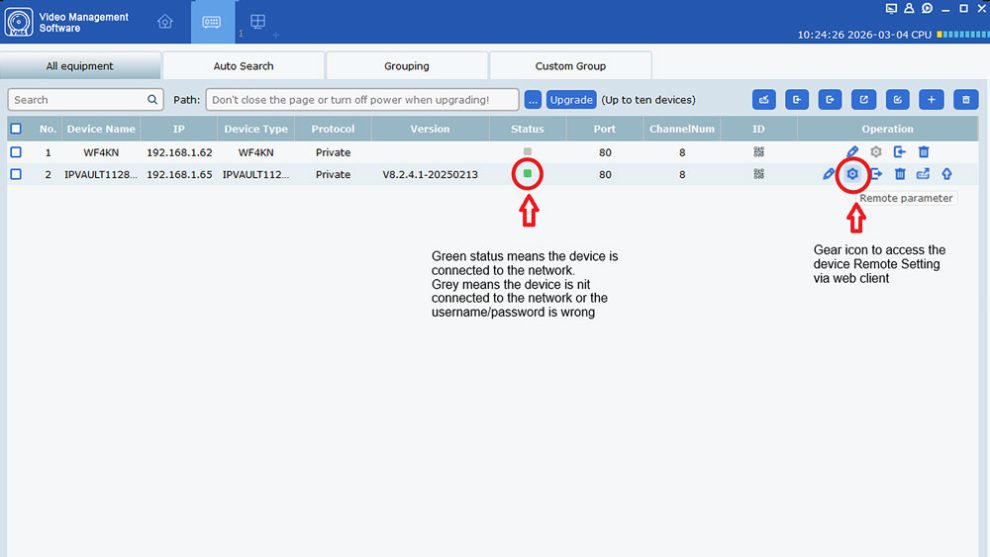
1. In VMS Pro, navigate to Home >> Device Management
2. Select the NVR, following by clicking on the NVR’s Remote Setting
3. Continue to Record >> Encode >> Substream >> Bitrate
For the remote viewing, we recommend selecting Substream in the VMS pro software.
How do I stop VMS Pro from logging out or locking the screen every few minutes?
If VMS Pro is logging you out or locking the screen automatically after a few minutes of inactivity, it may be due to the screen lock or session timeout behavior. While the current system settings do not provide a direct “timeout duration” field, you can manage related settings as follows:
Steps to Review System Configuration:
- Launch VMS Pro and log in.
- From the main menu, go to System Config.
- On the System Configuration page, under the General section, verify the following:
- Enable Auto-Login: Enable this option if you want the software to log in automatically when restarted.
- Hotkeys – Lockscreen: Check whether a hotkey is set to trigger screen locking and avoid accidental use.
- Switch User or Lockscreen Hotkey: If you’re being logged out, check if these are being triggered unintentionally.
After making adjustments, click Save.
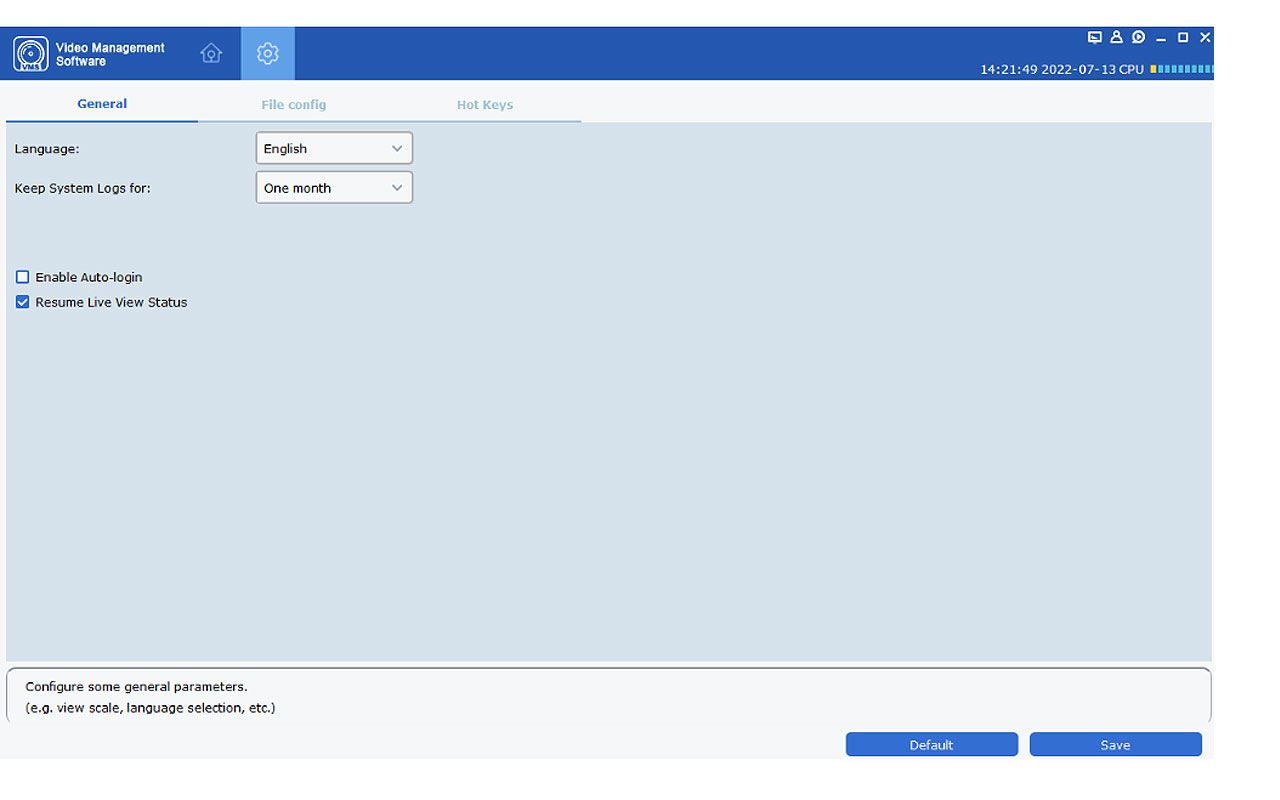
Note: At this time, the VMS Pro client does not provide a specific setting to change session timeout or auto-lock duration. If auto-logout continues unexpectedly, make sure your system is not triggering screen lock or sleep mode at the OS level.
We recommend ensuring that the operating system’s power and screen timeout settings are configured to avoid interruptions if you’re using VMS Pro for continuous monitoring.
How do I fix the “permission declined” error in my VMS Pro?
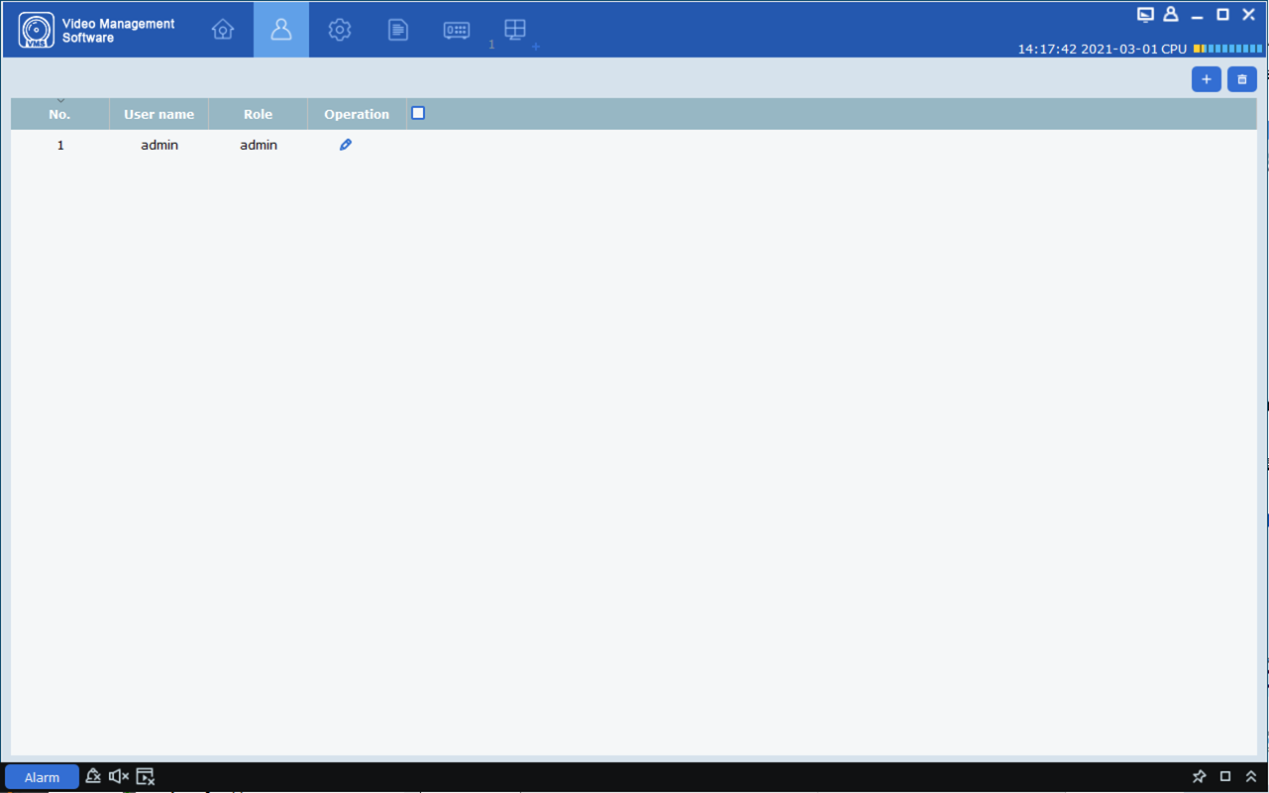
Log in with the Administrator account in VMS Pro (the password created when you first installed the software).
- Go to Account Management.
- Select your user and make sure permissions for Live View, Playback, Capture, and Record are enabled.
- Save the changes, log out, and log back in.
How do I install and log in for the first time?
-
On first launch, you will be asked to create an administrator password and set security questions.
What if I forget my VMS Pro password?
If you forget your password, click Forgot Password on the login page. Answer the security questions you set during the first login, and then create a new password.
How do I add my Camius devices to VMS Pro?
You can add devices in three ways:
- Auto Search – best for adding multiple devices in the same network
- Manual Add – use the device’s IP address, domain name, or serial number
- Import Configuration File – if you already have the device settings saved in a file.
Can I view cameras live with VMS Pro?
Yes. From the Mainview page, you can:
- Watch cameras in real time.
- Record video locally.
- Take snapshots.
- Use voice intercom (if supported).
- Zoom in digitally.
- Enable cruise view (automatic switching between cameras).
How do I play back recordings?
Go to Remote Playback to search and view recordings stored on your DVR/NVR. You can:
- Search by time, channel, and type of recording.
- Cut and download specific clips.
- View multiple channels side by side.
- Export recordings to your computer.
- You can also use Local Playback to view recordings saved on your
Can I control PTZ cameras with VMS Pro?
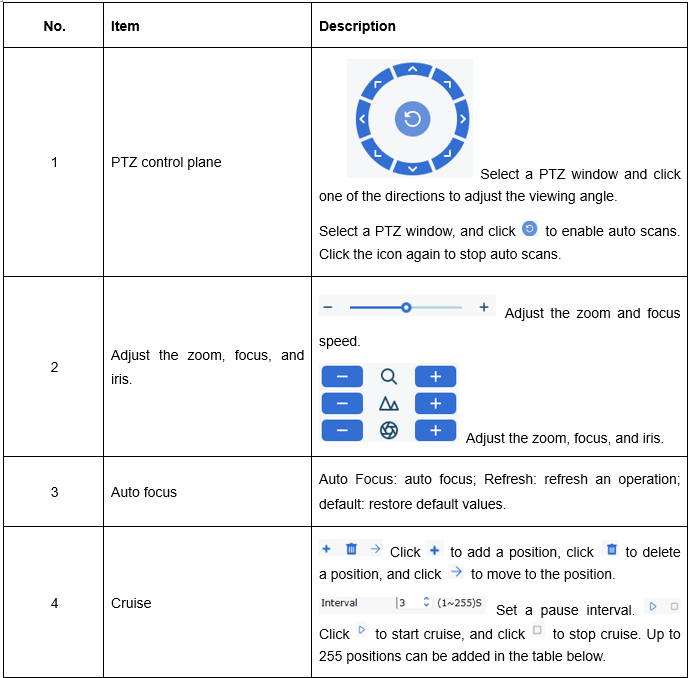
Yes. If you have Camius 4K PTZ (Pan-Tilt-Zoom) cameras, you can control them directly from the preview screen in VMS Pro.
With PTZ control you can:
Move the camera view using the directional arrows.
- Adjust zoom, focus, and iris manually or automatically.
- Use auto scan mode to sweep an area continuously.
- Create and manage presets (specific saved positions).
- Configure cruise paths with multiple waypoints and dwell times (up to 255 positions).
- Start or stop a cruise plan with one click.
This makes it easy to monitor wide areas and automate patrols without needing physical repositioning of the camera.
The below screenshot of the PTZ control panel is showing the direction pad, zoom/focus/iris sliders, presets, and cruise configuration options 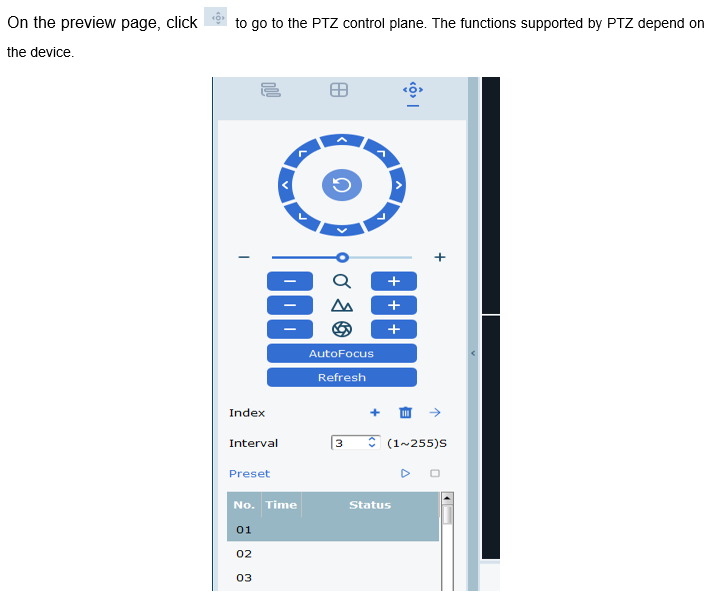
Does VMS Pro support AI features?
Yes. Depending on your camera/DVR/NVR model, VMS Pro can support:
- Face detection & attendance
- Human & vehicle detection
- License plate detection
- Intrusion and line-crossing detection
- Heat maps and crowd counting
We recommend setting up those features in the Camius NVR/DVR for the best results
How do I manage multiple users in VMS Pro?
Admins can create sub-users with different permissions. For example, you can allow some users to only view live video but not export recordings.
Can I create sub-users with limited permissions in VMS Pro?
Yes. On the Account Management page, the Administrator can add sub-users and set their rights. For example, you can allow a sub-user to view Live Video only, without the ability to export recordings.
Steps to add a sub-user:
- Log in as Administrator (the super user created at first setup).
- From the main menu, choose Account Management.
- Click the “+” (Add User) button in the upper right corner.
- Fill in the User Name, Password, and Confirm Password.
- Under Base Rights, check or uncheck what the user can manage (Device Management, Log Management, Alarm Config Management, E-map Management, Attendance Management, Topology Management, AI Search, Data Analysis, AI Scene, AI Config, Change Password).
- Under Channel Permissions, assign rights for each channel:
- Live View – Real-time Preview
- PTZ Control – PTZ Control
- Capture – Snapshot
- Record – Manual Recording
- Playback – Playback
- Download Record – Export a Recording
- Local Record Schedule – Local Recording Plan
- Local Playback – Local Playback
- Click OK to save.
Important: The Administrator (super user) has all rights by default, and these cannot be modified or deleted. Added users can be modified or deleted at any time in Account Management.
Why is my video playback skipping, lagging, or freezing on the VMS Pro software?
If your security camera footage plays smoothly on the mobile app or on an HDMI monitor but skips on your computer (Mac or Windows), it is likely a data decoding issue rather than a hardware defect.
- Cause: The VMS Pro software is struggling to decode the high-bitrate Main Stream (4K/High Definition) in real-time due to local network limits or the computer’s processing power.
- Solution 1 (Live View): Switch to SubStream. For smoother remote viewing, we recommend using the “Substream,” which uses less bandwidth. In the VMS software, right-click your device name in the left-hand menu and select “Set all ch substream.”
- Solution 2 (Recorded Playback): Change Compression to H.264. If recorded footage skips during playback, your computer may be struggling to process the newer H.265 (HEVC) video format. To fix this for future recordings, go to Remote Setting > Record > Encode > MainStream and change the “Compression” or “Video Codec” from H.265 to H.264.
- Diagnostic Test: To confirm if the issue is network-related, download a small clip of the footage to your computer’s hard drive. If the downloaded file plays smoothly in a local media player (like VLC), the file is healthy, and the issue is strictly related to live network streaming or software decoding.
The Camius phone app shows live view, but VMS Pro on my computer does not connect. Why?
- When the phone app shows live video, the recorder internet connection is active and working.
- VMS Pro on a computer connects differently. Local device discovery and local IP access work only when the computer and the recorder are on the same local network and same subnet. VPN software, computer firewalls, guest WiFi, mesh systems, or secondary routers often block this connection.
- If the computer is not on the same local network, the recorder will not appear in device search and local IP access will fail.
- To avoid local discovery limits, add the recorder to VMS Pro using Device ID. This method works on the local network and remotely over the internet and does not depend on local network discovery.