
RTSP Streaming Setup Guide for NVR, DVR and IP Cameras
RTSP, Real-Time Streaming Protocol, lets you pull a live video stream directly from your NVR, DVR, or IP camera into VLC, Blue Iris, or any third-party VMS software. The default RTSP port on modern recorders is 80. This guide covers the correct RTSP URL format, channel identification, stream type selection, VLC setup, and error troubleshooting. Compatible with Camius PoE NVR and hybrid DVR systems used in homes, businesses, and commercial installations across the US.
What Is RTSP and How Does It Work on NVR and DVR Systems
RTSP, Real Time Streaming Protocol, allows external software to request a live video stream directly from the recorder.
You use RTSP for:
- VLC testing
- Third party VMS integration
- Custom monitoring dashboards
- Automation systems
- Network diagnostics
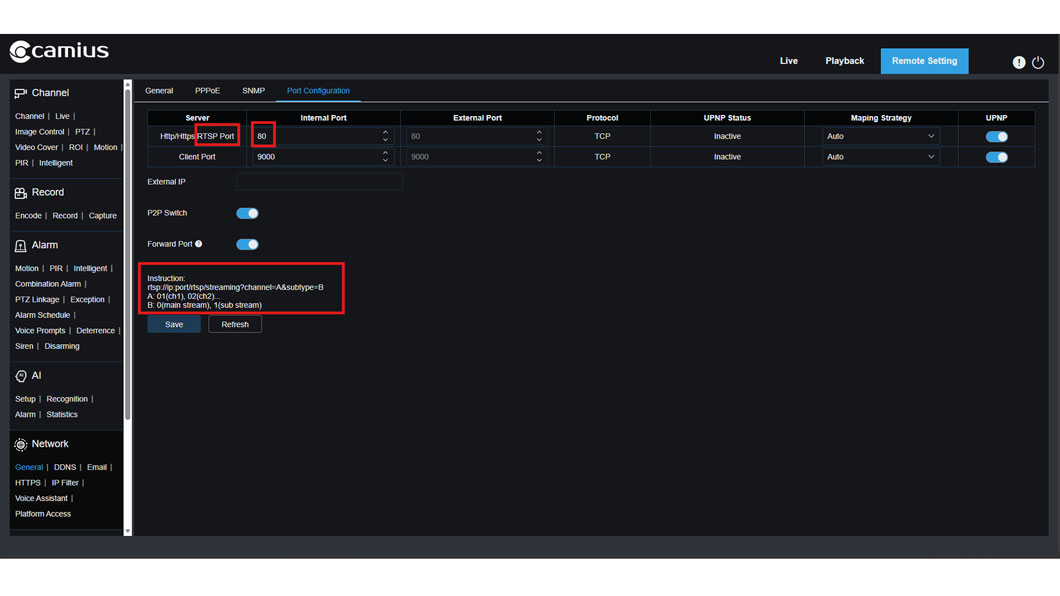
Camius NVRs and DVRs support RTSP through the network configuration menu. The default HTTP and RTSP port is 80 unless changed under Network settings.
This applies to software (firmware) version V8.2.4.1 and later. Earlier firmware versions may default to port 554.
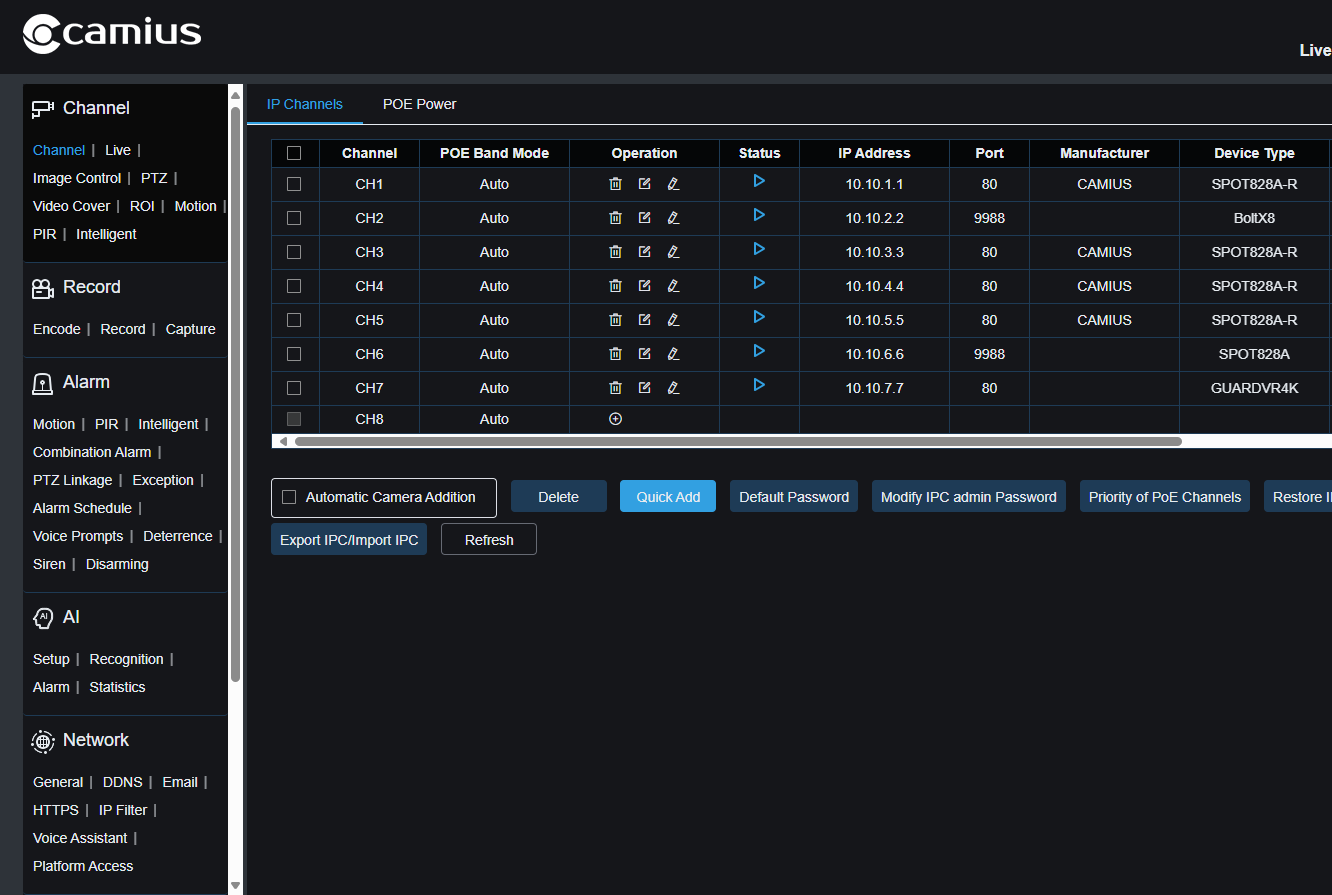
Step 1: Confirm the Camera Is Online and Identify Channel Number
- Connect the IP camera to the PoE port on the NVR.
- Wait until the camera status shows online.
- Confirm the assigned channel number.
Channel numbering example:
- CH1 = 01
- CH2 = 02
- CH5 = 05
You will use this number inside the RTSP URL.
Step 2: Build the Correct RTSP URL
Camius RTSP format:
rtsp://ip:port/rtsp/streaming?channel=A&subtype=B
Replace the parameters:
- ip = NVR or DVR local IP address
- port = RTSP port number
- A = channel number
- B = stream type
- Stream type values:
- 0 = Main stream
- 1 = Sub stream
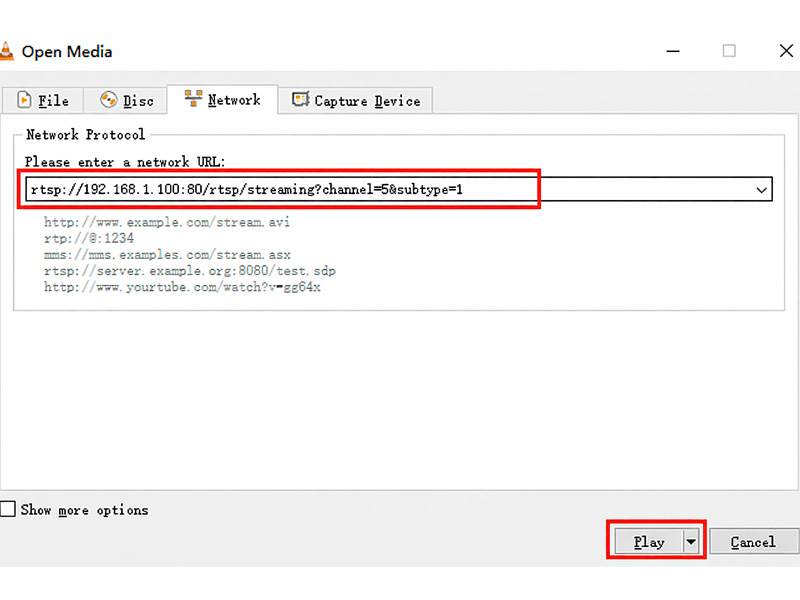
Example using a typical local 192 network IP: rtsp://192.168.1.100:80/rtsp/streaming?channel=5&subtype=1
In this example:
- IP address = 192.168.1.100
- Port = 80
- Channel = 5
- Subtype = 1, sub stream
If you want full resolution, use subtype=0 for main stream.
The RTSP port is configurable under Network Configuration
Step 3: Open the RTSP Stream in VLC
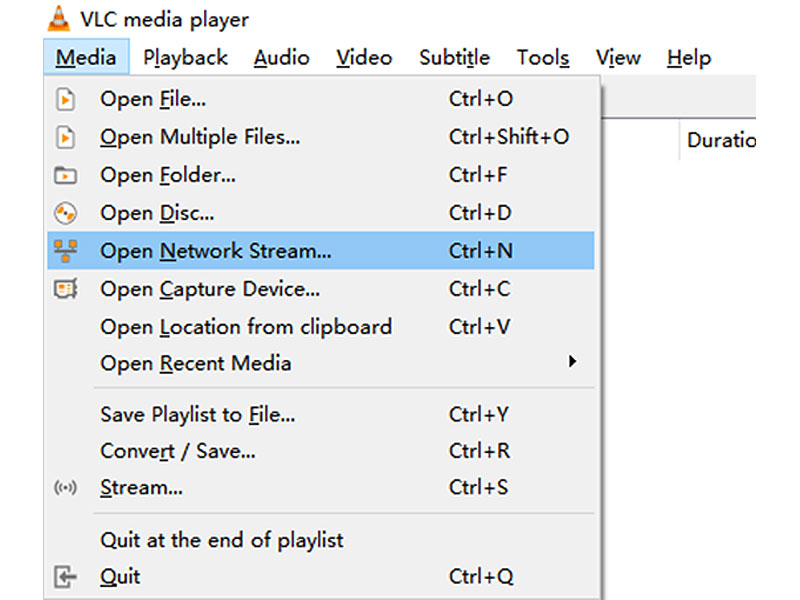
- Open VLC Media Player (if you do not have one, click here to download the VLC Media Player)
- Click Media.
- Select Open Network Stream.
- Paste the RTSP URL.
- Click Play.
When prompted, enter:
- Username: admin
- Password: your NVR or DVR password
If credentials are correct, live video displays.
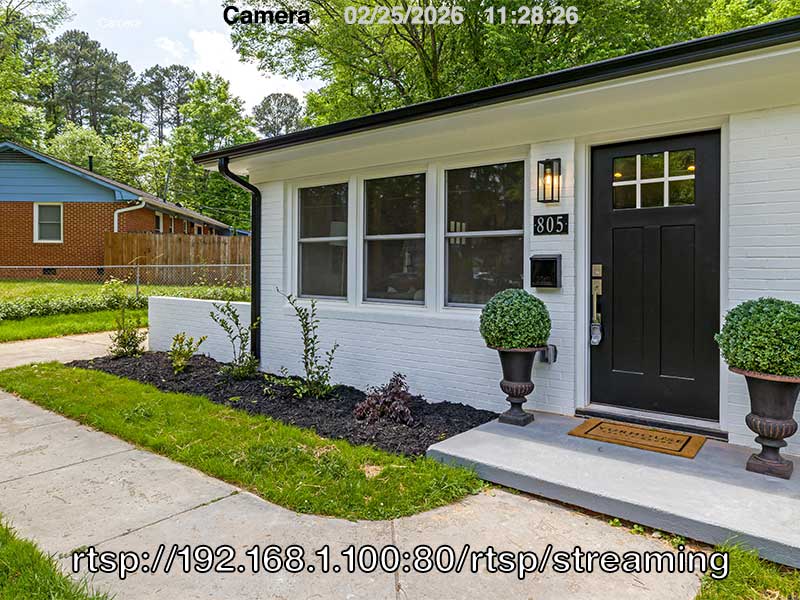
This method works for:
- 8 channel Camius NVR systems
- 16 channel Camius NVR systems
- 32 channel Camius NVR
- Camius hybrid DVR systems
Main Stream vs Sub Stream
Choose based on bandwidth and use case.
Mainstream:
- Full resolution
- Higher bitrate
- Best for recording and local playback
Substream:
- Lower resolution
- Lower bandwidth usage
- Better for remote testing or limited network
If third party software shows decoding errors, confirm encoding format and switch to H.264 if required
How to Find and Change the RTSP Port on Your NVR or DVR
On the recorder navigate to Menu Setup (or Remote Setting if you are using a web browser to access the NVR) >> Network >> General >> Port Configuration >> HTTP / HTTPS / RTSP Port >> Default HTTP and RTSP port is 80
If you change the port, update:
- Your RTSP URL
- Any router port forwarding rules
How to Set Up Remote RTSP Access for Security Cameras
For remote RTSP access:
- Forward the RTSP port on your router
- Use your public IP address
- Use strong credentials
Example: rtsp://yourPublicIP:port/rtsp/streaming?channel=1&subtype=0
For most users, remote access through the Camius View App using P2P ID is simpler and avoids manual port forwarding.
How to Check Your Firmware Version
Before configuring your RTSP port, confirm your firmware version to verify the correct default port for your device.
- HDMI (or VGA) monitor: Setup >> System >> Information
- Web Browser: Remote Setting >> System >> Information
- Camius App (Camius View): System >> Information
- Device Config Tool: Scan your local network for Camius devices; firmware version appears in the device details.
Look for the Software Version field:
- Devices running V8.2.4.1 or later use port 80 as the default RTSP port.
- Earlier firmware versions may default to port 554.
RTSP Stream Not Working: Common Problems and Fixes
No video:
- Verify IP address
- Confirm port number
- Confirm camera is online
- Check username and password
Black screen:
- Switch from main stream to sub stream
- Verify codec compatibility
Connection refused:
- Check firewall rules
- Confirm port is open
- Test inside local network first
If you see decoding failed errors, verify compression settings.
RTSP vs Local Monitor: When to Use Each for IP Camera Streaming
Use RTSP when you need:
- Third-party video management software integration such as Blue Iris or Milestone
- Custom software or server-side video ingestion
- Direct stream testing in VLC
- Embedding the video stream into another platform
- Stream-level access without device management
RTSP provides raw video output. It does not include AI event control, deterrence settings, or recorder configuration.
Use Camius View App, VMS Pro, Web Client, or HDMI Monitor when you need:
- AI detection setup and event tuning
- Playback search, filtering, and backup
- Light and siren configuration
- User management and permissions
- Network and port configuration
- Firmware upgrades
- Full system administration
- These methods provide full recorder control and feature access.
If you need help identifying your recorder’s IP address, RTSP port, or stream format, submit a support request here.
RTSP Setup FAQs: NVR, DVR and IP Camera Streaming
What is an RTSP port?
An RTSP port is the network port through which the RTSP (Real-Time Streaming Protocol) sends its control commands (such as Play, Pause, Setup) between a client and a media server.
Camius recorders running software V8.2.4.1 use port 80 as the default, not 554. You can change this under Network >> General >> Port Configuration. If you change the port, ensure it is mapped to your public network for remote access.
What is the RTSP URL format for a Camius NVR or DVR?
The standard RTSP format is: rtsp://IP:Port/rtsp/streaming?channel=A&subtype=B
Where:
- IP = NVR or DVR local IP address
- Port = RTSP port, default is 80
- A = Channel number, 01, 02, etc.
- B = 0 for mainstream, 1 for substream
Example: rtsp://192.168.1.100:80/rtsp/streaming?channel=01&subtype=0
What is the default RTSP port on Camius recorders?
The default RTSP port is 80. You can verify or change it under: Setup (Remote Setting if you are accessing the recorder using a web browser) Network >> General >> Port Configuration → RTSP >> Port
If the port is changed, update your RTSP URL accordingly.
What happens if I don’t open or forward the RTSP port?
If your network blocks the RTSP port or it’s not forwarded when accessing from outside the local network, the stream may not connect or be viewable via external clients. You will need to allow the port through your router/firewall or use an alternate method.
What is the difference between Mainstream and Substream in the RTSP URL?
Mainstream (subtype=0):
- Full resolution, full bitrate
- Best for recording and high-quality viewing
Substream (subtype=1):
- Lower resolution and bitrate
- Best for remote viewing or limited bandwidth
Use mainstream for recording servers and substream for mobile or remote access.
Can I use RTSP with Blue Iris or other third-party software?
Yes. Camius NVR and DVR systems support RTSP integration with:
- Blue Iris
- VLC
- Milestone
- Synology Surveillance Station
- Other RTSP-compatible VMS software
Use the RTSP URL format shown above in this guide.
Does RTSP include AI detection events?
No. RTSP provides only the video stream.
AI detection, deterrence lights, siren control, and event rules must be configured through:
- HDMI monitor
- Web interface
- VMS Pro
- Camius View app
Can I access RTSP remotely over the internet?
Yes, but you must:
- Forward the RTSP port on your router
- Use your public IP address
- Secure the recorder with a strong password
Local network access is recommended for testing.
Why is my RTSP stream not working?
Common causes:
- Incorrect IP address
- Wrong port number
- Firewall blocking the port
- Incorrect channel number
- Using mainstream when bandwidth is limited
- Incorrect username or password
Verify the port under Network >> General >> Port Configuration.
Can I change the RTSP port?
Yes.
Go to: Network >> General >> Port Configuration >> RTSP Port
After changing the port, update the RTSP URL to match.
Example:
If port is changed to 554: rtsp://192.168.1.100:554/rtsp/streaming?channel=01&subtype=0
After changing the port, ensure it is forwarded on your router and mapped to your public network before attempting remote access. See how to set up DDNS for remote access to connect using a hostname instead of a static IP.
Is RTSP secure?
RTSP is not encrypted by default.
For secure remote access:
- Use strong passwords
- Avoid exposing ports unless necessary
- Consider VPN access instead of open port forwarding
Should I use RTSP or the Camius View app?
Use RTSP when:
- Integrating with third-party VMS
- Testing video streams
- Embedding into custom systems
Use Camius View, VMS Pro, or HDMI when:
- Managing AI detection
- Configuring alerts
- Performing playback and backup
- Controlling lights and sirens
- Updating firmware
RTSP is stream-only access.