






Camius security camera systems provide multiple ways to backup audio video files locally and remotely using their user-friendly interfaces.
The Search function on your Camius DVR or NVR recorder provides a powerful tool to locate and playback previously recorded audio-video footage and snapshots stored on the device’s hard drive. This feature allows you to find videos based on your recording schedule, manual recordings, or specific events.
While some DVR, NVR recorders may have slightly different event types under the Playback menu, the overall concept and menu path remain consistent across devices.
When your Camius DVR or NVR is connected to a monitor or HDTV via HDMI, follow these steps:
Step 1: Click on the playback icon on the bottom menu bar. The quick tool bar has icons to help you navigate through the NVR / DVR’s menu
The quick tool bar has icons to help you navigate through the NVR / DVR’s menu
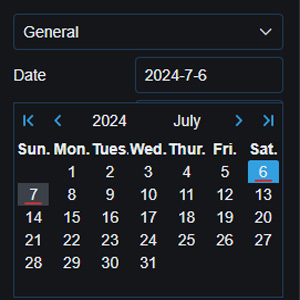
Step 2: On the Date dropdown menu, a red underline indicates days with recordings.
Step 3: Filter the Search Type (Motion, PIR, etc) and Stream Type (Mainstream or Substream), and select the Channel to playback. The 24-hour timeline will populate continuous recordings as green blocks and other event types in different colors. Clicking on the timeline jumps playback to the selected time. Different types of recording are displayed using different colors
Step 4: Backing up CCTV footage requires a USB thunb (flash) drive. On the playback search page, click on the events tab, select the date, type, and channels, and then click the Search button.
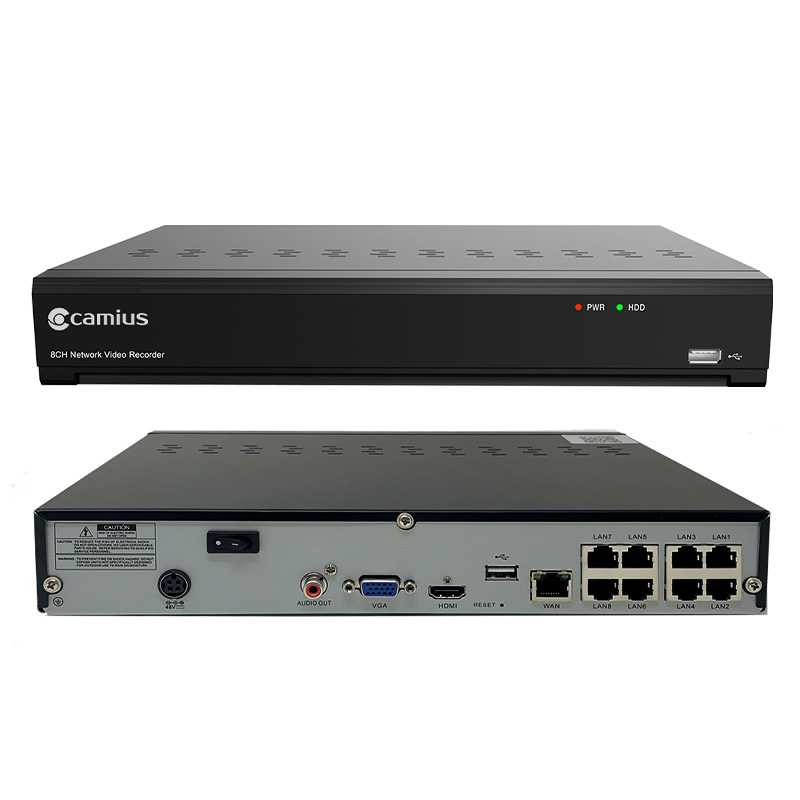
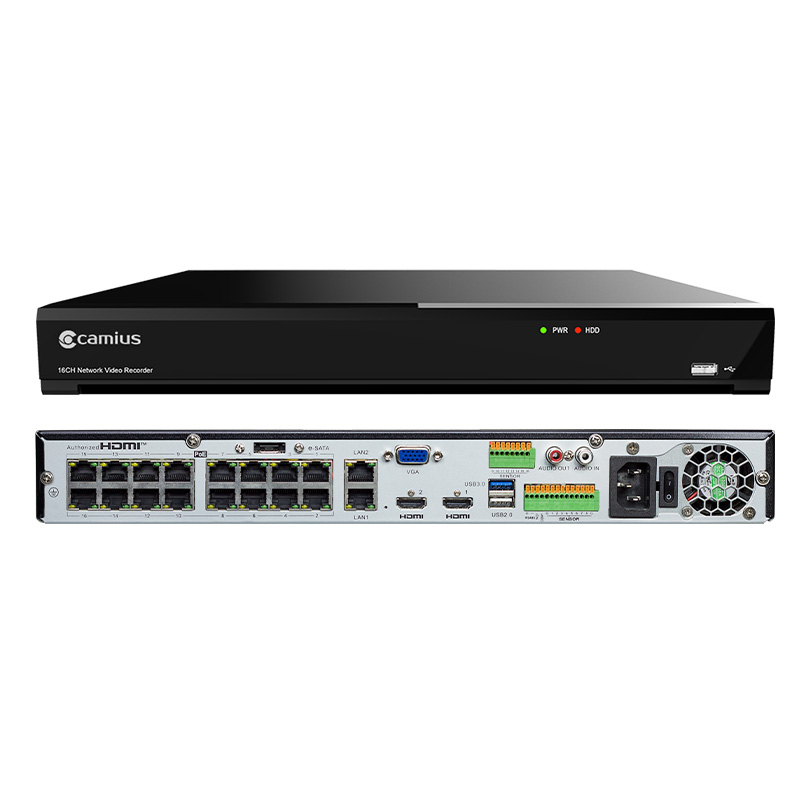
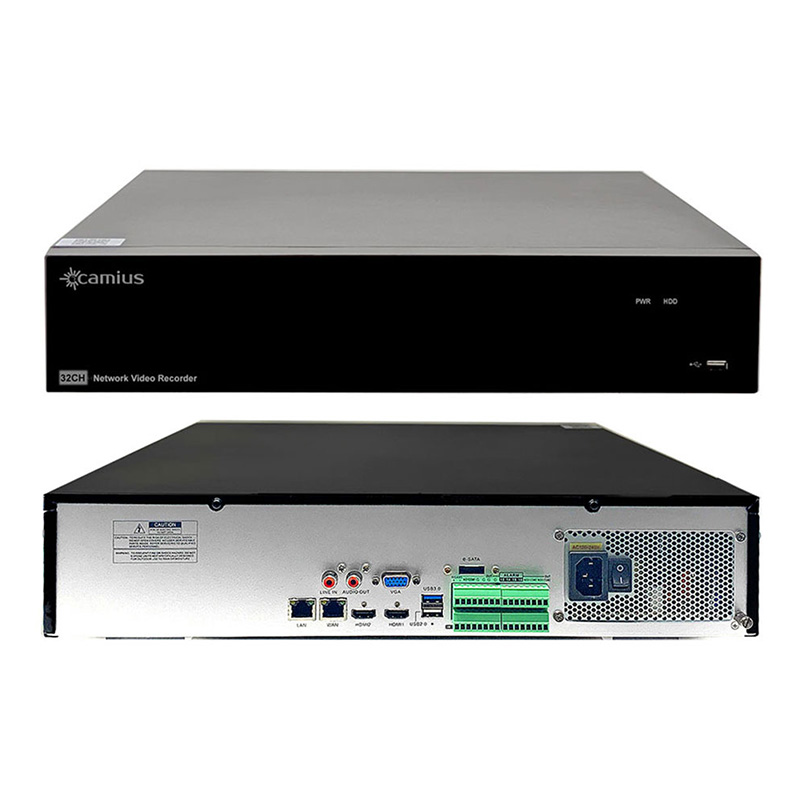
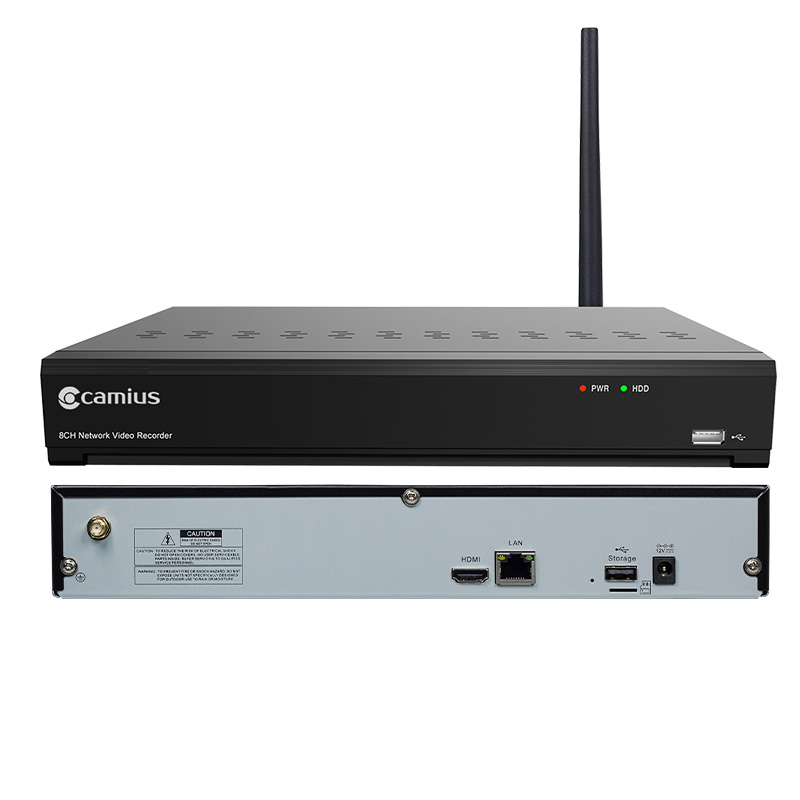
To save a video clip backup, insert your USB thumb drive into the Camius DVR or NVR’s USB port and start playing the recorded video. USB ports are on the front and rear panels of the DVR and NVR recorders.
2 – Select the icon
3 – Check the Channel(s) you want to backup and move the mouse cursor to the timeline where you want to start the clip.
4 – Press and hold the left mouse button and drag the cursor to the timeline where you want to end the clip.
The clip icon
will change to an icon
, which you can click to save the clip.
5 – Select one or multiple event thumbnails, click the Backup button at the bottom, choose .MP4 (recommended), then click Save
Make sure your USB thumb drive has enough space to save the video clips.
6 – Select a folder on the thumb drive, and click OK. The progress bar at the bottom of the window shows you the progress of the backup.
You can also backup audio video files locally using a web browser and remotely using the VMS Desktop Software which comes with built-in web client application.
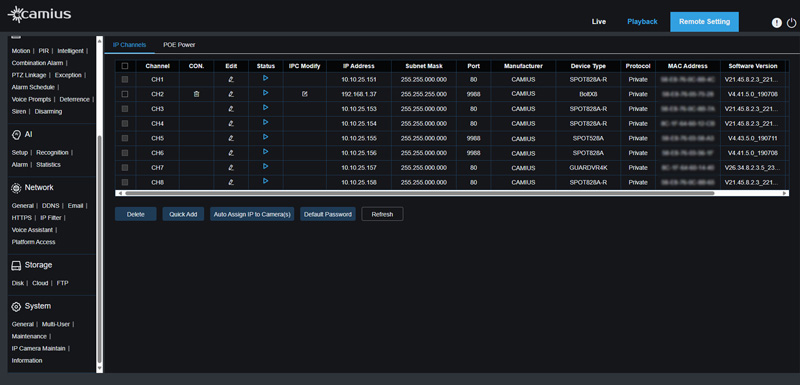
Step 1: Open a web browser and enter the IP address of your Camius DVR/NVR (click here for more details on how to find your recorders IP address using a free Camius Device Config Tool). If you are using the VMS Software, click the Remote Setting tab which will take you to the Camius DVR/NVR system web browser application. Log in using your username and password.
Step 2: Navigate to ‘Playback’
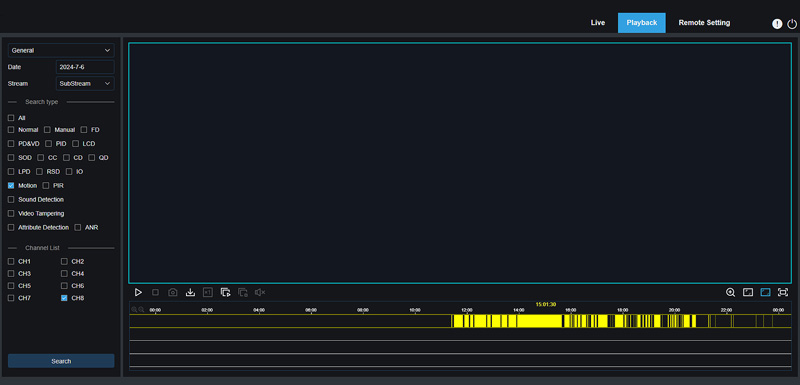
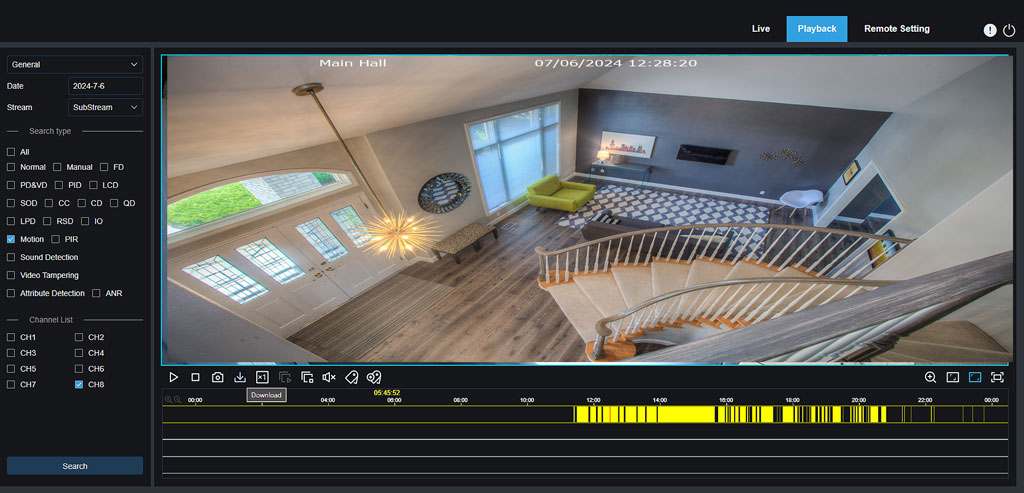
Select the dates with recordings, choose the stream (Sub stream is default and recommended), select the event type and channel, and check the dates with recorded footage (underlined in red).
Click the Search to see the recorded events
The following menu shows the Motion Triggered recordings (yellow color)
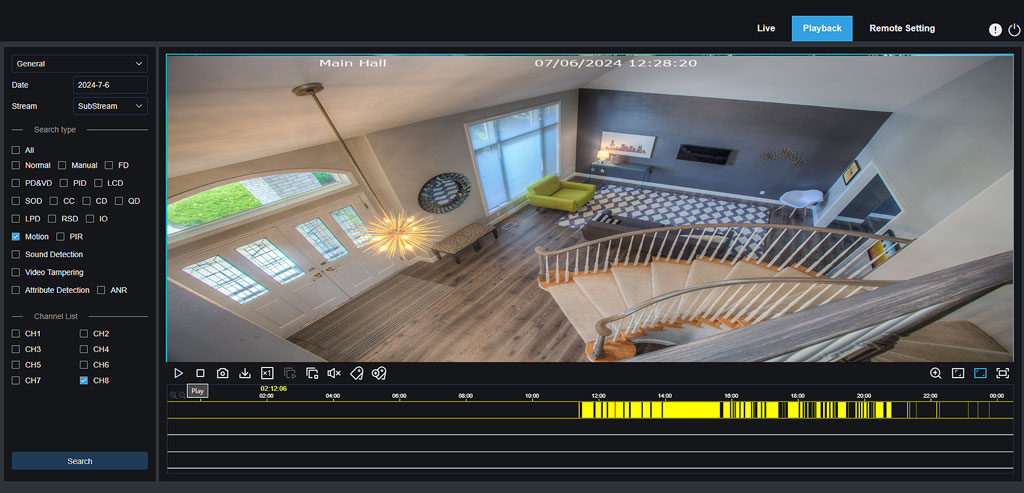
Step 3: Play the Available Events (Color-Coded Based on Event Type)
After accessing the Search function on your Camius DVR or NVR, you can play the events you’ve located. Events are color-coded to help you quickly identify their type:
Steps:
By following these steps, you can quickly review your recorded events based on their type.
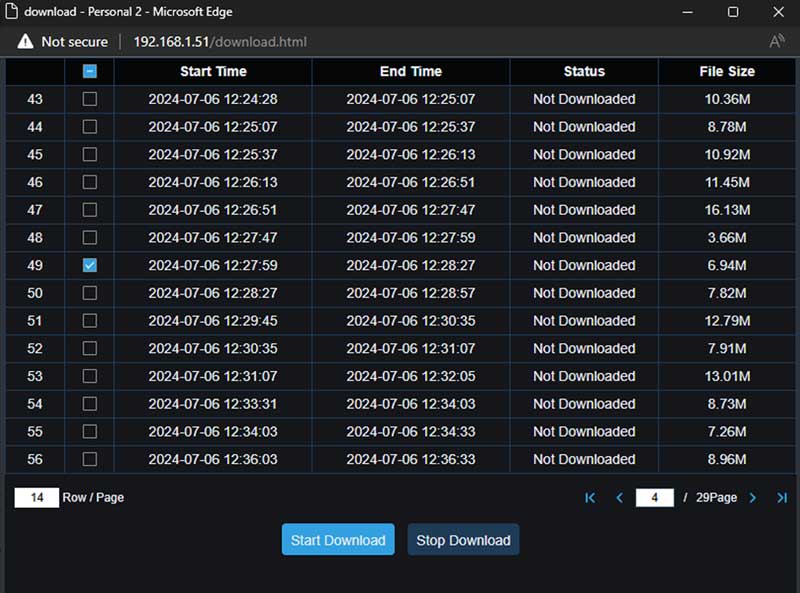
Once you’ve located the needed events, click on the Download icon (arrow down). This will open a window where you can select the event and start downloading it. You can download multiple files to your computer.
Select the files you wish to download
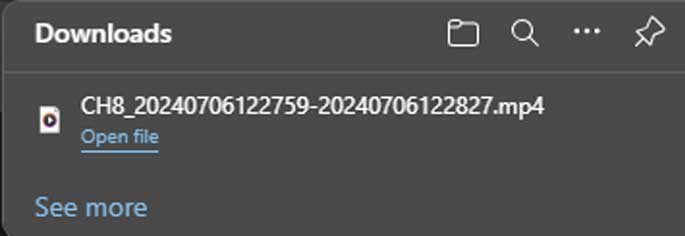
Check your default Download folder for the file, which will be saved in MP4 format. Use VLC media player to play the downloaded file.
Once you have downloaded the video files, open them using VLC media player. VLC is a free and open-source media player software developed by the VideoLAN project. It is available for desktop operating systems as well as mobile platforms, offering portability and support for various media formats.
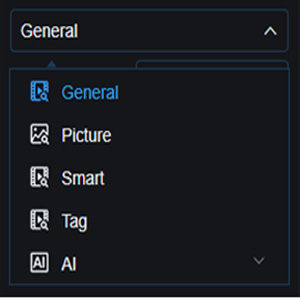
You can also select Picture, Smart, Tag, or AI event as your search criteria to narrow down the list of events.
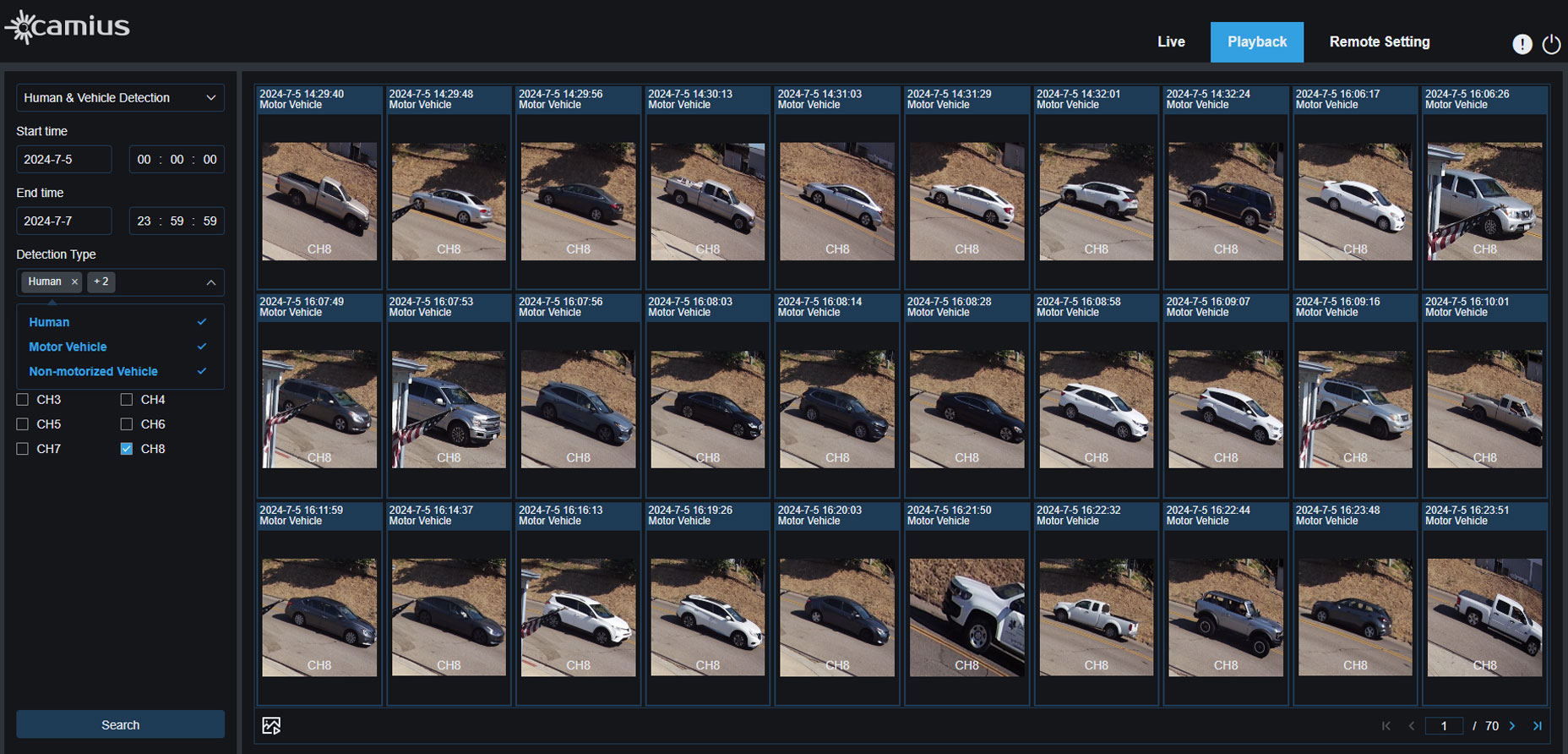
For example, you can select Human and Vehicle detection. You can further narrow your search criteria to only Human, Motor Vehicle, or Non-Motorized Vehicle.
Regularly checking your recordings and backing them up is crucial to ensure you don’t lose important footage. This proactive approach not only helps you maintain a secure environment but also ensures that critical events are documented and retrievable when needed. By routinely reviewing and safeguarding your recordings, you can effectively manage your security system and have peace of mind knowing that your data is protected.
Thank you for your diligence in safeguarding your recordings. We are continuously working to improve our technology to enhance your user experience.