
How to set a password on my new Camius DVR, NVR recorder?

Turn on the DVR / NVR recorder using the On/Off switch. The DVR doesn’t come with a default password, you need to set one, and there are two ways.

Option 1 – Connect your DVR or NVR to a monitor using an HDMI or VGA output for local access.

4k184r2 and Analog Camera connection Diagramm 70kb
8 CHANNEL DVR - TRIVAULT4K18R2
Camius 4K DVR comes with 3 video outputs to add a monitor or TV for live viewing. 1 x HDMI output which supports 4K video (3840x2160) 1 x VGA output that supports 1080P video (1920x1080) 1 x CVBS (or BNC) for the spot monitor to call out a certain camera. 
16 CHANNEL DVR - TRIVAULT4K2168R
Camius Simplified Security with Plug-N-Play Ease - Camius PoE NVR and PoE camera ip camera nvr connection
8 CHANNEL NVR - IPVAULT1128PR- TRIVAULT4K18R2
16 Channel NVR Systems
16 CHANNEL NVR - IPVAULT225PR
IPVAULT2320PR and SPOT828A RB connection diagramm 1024
16 CHANNEL NVR - IPVAULT2320PR

During the Camius loading screen, your recorder detects the monitor connected to the HDMI or VGA port; a message will appear if a higher resolution is available. Click here for the steps to adjust your monitor’s resolution if needed

On the next screen:

  • Select the desired menu Language
  • The default Device ID is 000000
  • The administrator username is ‘admin’

DVR and NVR Password requirements:

  • 8-16 characters, a lowercase, an uppercase, a digit, and a special character.

Unlock Pattern is optional for easy access:

  • Click on the tab ‘to Draw’ and set your unlock pattern, then click ‘Apply.’
  • Users can set or skip Password Recovery Questions & Answers.
How to set a password on my new Camius DVR or NVR recorder?

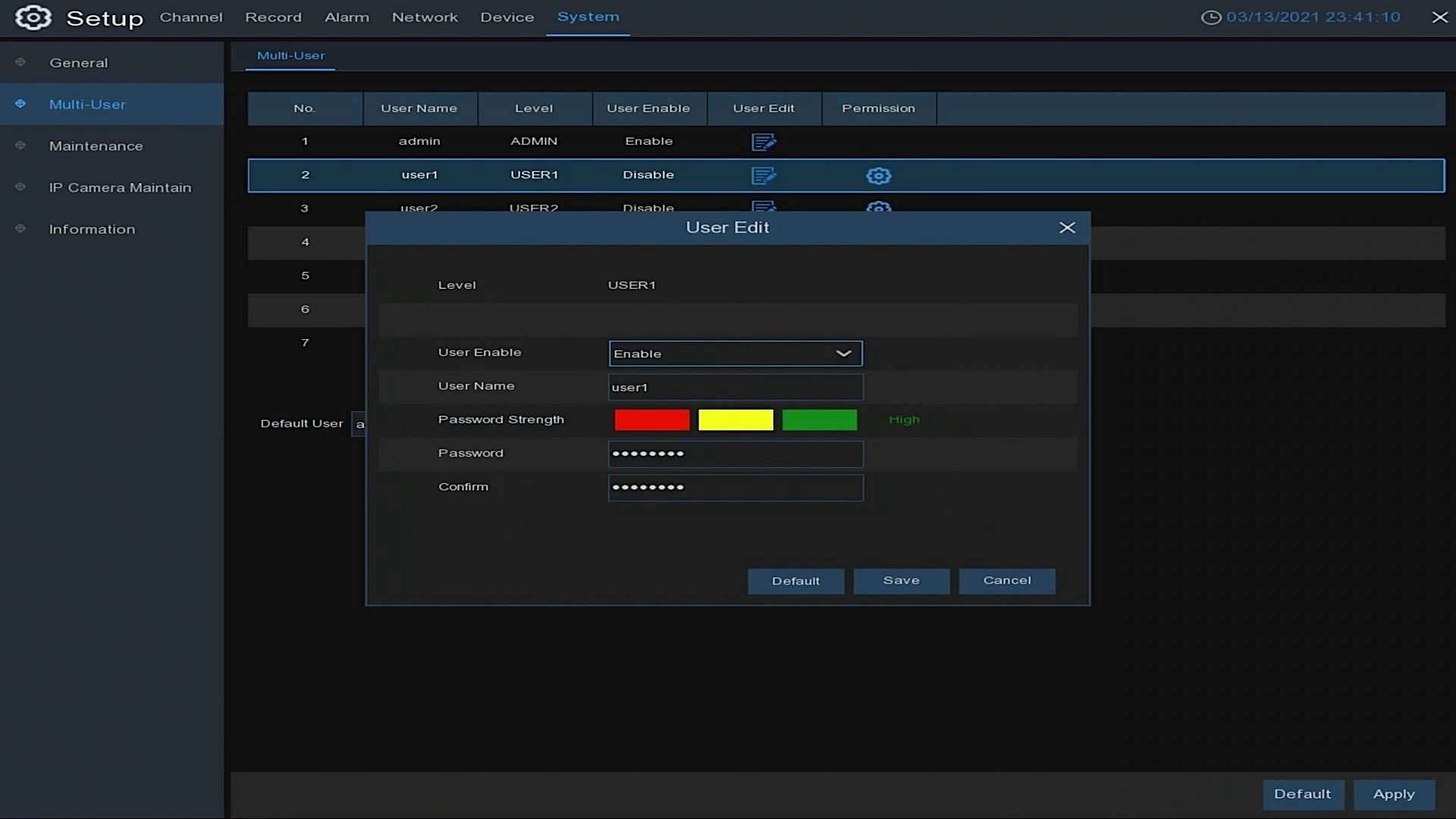
Note: You can activate and edit users under Menu >> Setup >> System >> Multi-user

4K184 SYSTEM MULTI USER USER 1 PASSWORD

Option 2 – Setup a new password on your DVR or NVR using a web browser access

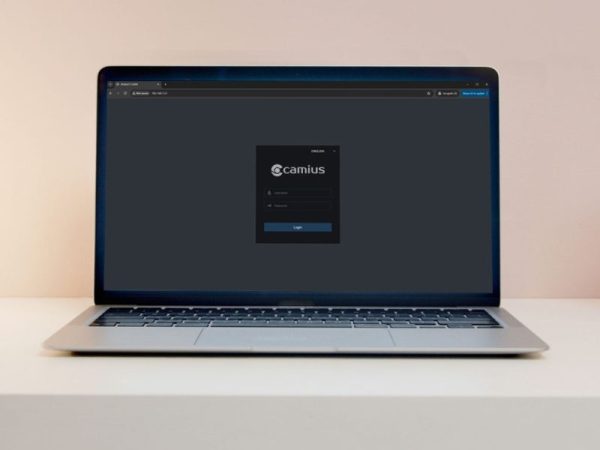
Camius IP cameras, DVR, and NVR recorders of the R-series are compatible with modern web browsers (click here for the browser access instruction on non-R series devices)

Camius nvr dvr ip camera device config tool - search tool
  • Step 2 – Click the Search button to scan your local network for Camius IP cameras, DVR and NVR.
  • Step 3 – Click on the device’s IP address, which will take you to your default browser to access the device’s interface asking to set a new password.
DVR and NVR Password requirements:
  • 8-16 characters, a lowercase, an uppercase, a digit, and a special character.
web browser new password setup 2023
Recover password on the web 2023
  • Step 5 – Once you set a new password, the browser will reload, and you will be asked to use your new password to access the device (username is admin)
Web browser compatible - Camius

Adding Your DVR or NVR to the Camius View App with Your New Password

Only once you set a new password using one of the above ways, add the Camius NVR/DVR to your Camius View app using your new password (follow this guide on how to add a Camius recorder or IP camera to the Camius View app).