Reset Camius DVR, NVR Password | Easy Steps for Password Reset

We’ve got you covered if you forgot the password for your Camius analog DVR, IP camera NVR, or wireless camera recorder. You can reset your Camius security system password using the hard reset button, the Camius View app, or by requesting a temporary reset password from Camius.

Option 1: applicable to Camius security DVR, NVR password using a reset button

Check the rear panel of your recorder for a reset button, as shown in the pictures below. Use a paper clip to press and hold the button for about 10 seconds until you hear an audible confirmation. This will reset all system settings, including the password, but it will not erase any video recordings stored on the hard drive

  • Pictures 1, 2, 3 & 4 represent IPVAULT NVR network video recorders.
  • Pictures 5 and 6 show the reset button for Camius TRIVAULT Hybrid security camera DVR recorders.
  • Picture 7 shows the reset button of the Camius Wireless NVR
Picture 1 - Reset button of Camius 8 channel NVR [IPVAULT1128PR}
Picture 2 - Reset button of Camius 16 channel NVR [IPVAULT2256PR]
Camius 16 channel nvr reset
Picture 3: Reset Button of the IPVAULT2320PR
Picture 3 - Reset button of 32 channel NVR [IPVAULT8256R]
Picture 4: IPVAULT8256R
Picture 4 - Reset button of Camius 8 channel DVR [TRIVAULT4K184R, TRIVAULT4K184R2}
Picture 5: TRIVAULT4K184R, TRIVAULT4K184R2
Camius wireless NVR reset button
Picture 7: WF4KN Wireless 8 Channel NVR

Setting Your New Password After the Reset

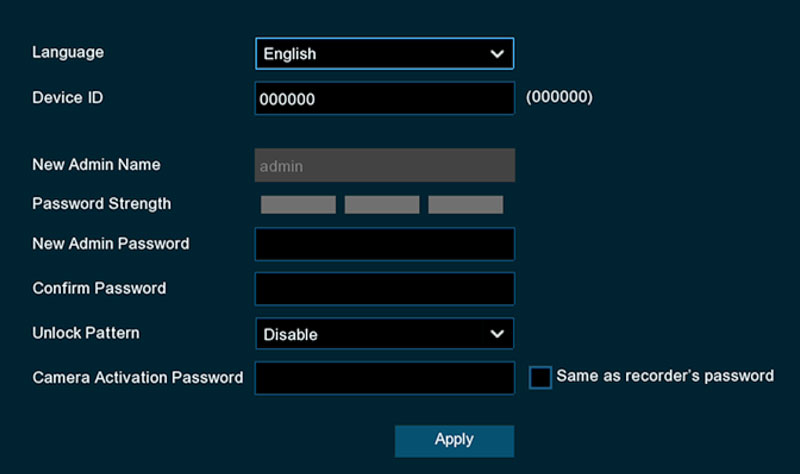
Once the recorder restarts, you will be prompted to set a new password. Visit the full password setup guide with step-by-step pictures:

It is recommended to tick this checkbox. This allows all connected PoE cameras to be activated with the same password as the NVR admin password.
  • Step 1. Language: select your preferred menu language from the dropdown.
  • Step 2. Device ID: leave as 000000 unless you have a specific reason to change it.
  • Step 3. New Admin Name: this field is fixed as “admin” and cannot be changed.
  • Step 4. New Admin Password: enter your new password. The Password Strength indicator will show whether your password meets the requirements. Confirm it in the Confirm Password field.
    Password requirements: 8 to 16 characters, including at least one lowercase letter, one uppercase letter, one number, and one special character.
  • Step 5. Unlock Pattern: optional. Leave as Disable or set a pattern for quick local access.
  • Step 6. Camera Activation Password: check the box labeled “Same as recorder’s password.” When checked, the recorder will automatically apply your new admin password to all connected cameras. You will not need to set each camera password separately. This setting applies to IPVAULT and TRIVAULT recorders.
  • Step 7. Click Apply to save.

Applying the Same Password to Your Connected Cameras

On the password setup screen, check the box labeled “Same as recorder’s passcode.” When this box is checked, the NVR or DVR will automatically assign the new password to all connected cameras. This means you will not need to set each camera password separately after the reset.

If you skip this step during setup, you can apply the NVR password to cameras later by going to: Start Menu > Channel > IP Channels > Advanced Setup > Default Password
Check the box labeled “Use the Admin password as camera activation/connection password” and save.

Option 2: Changing Password via the Camius View Mobile App

Available for the R series NVR, NVR recorders:

Follow the steps below to reset your Camius DVR or NVR system password using the Camius View mobile app:

Step 1: Access the System Reset Settings

  1. Open the Camius View app on your mobile device.

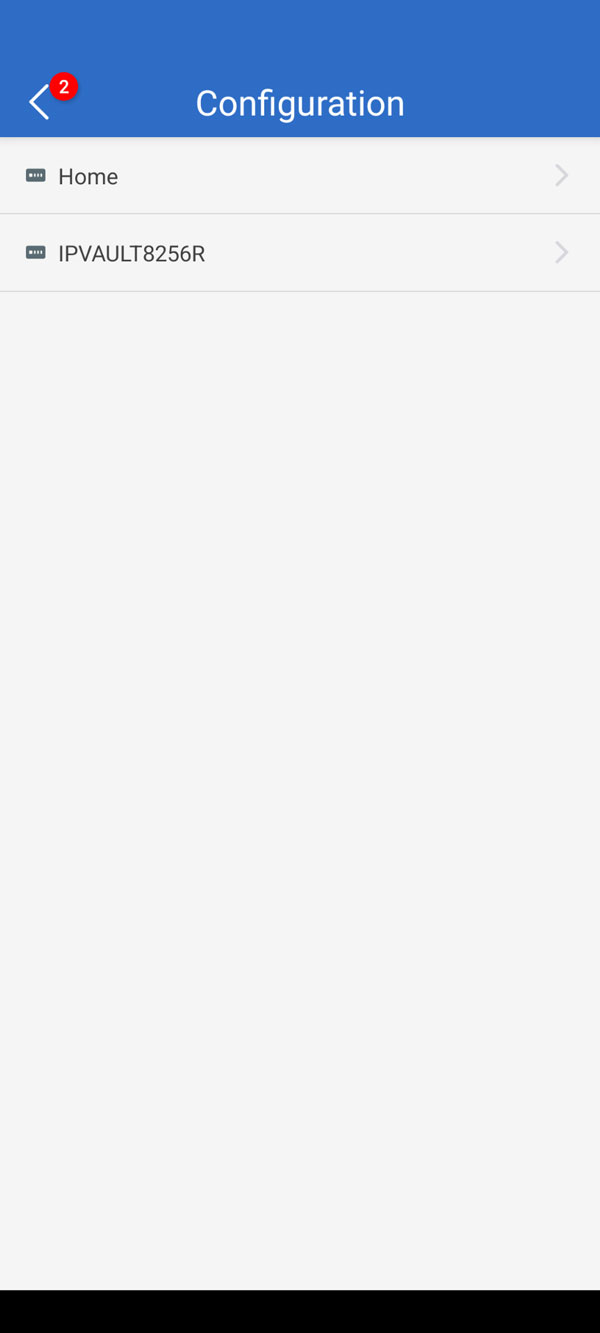
  2. Navigate to Configuration

Camius View Configuration

3. Select the Device


Camius View Configuration Select Device

4.  Configuration >> System

Camius View Configuration menu

5. Load Default >> select System and tap the Save icon (second button from the top right corner).

Camius View Configuration Maintenance Load Default System

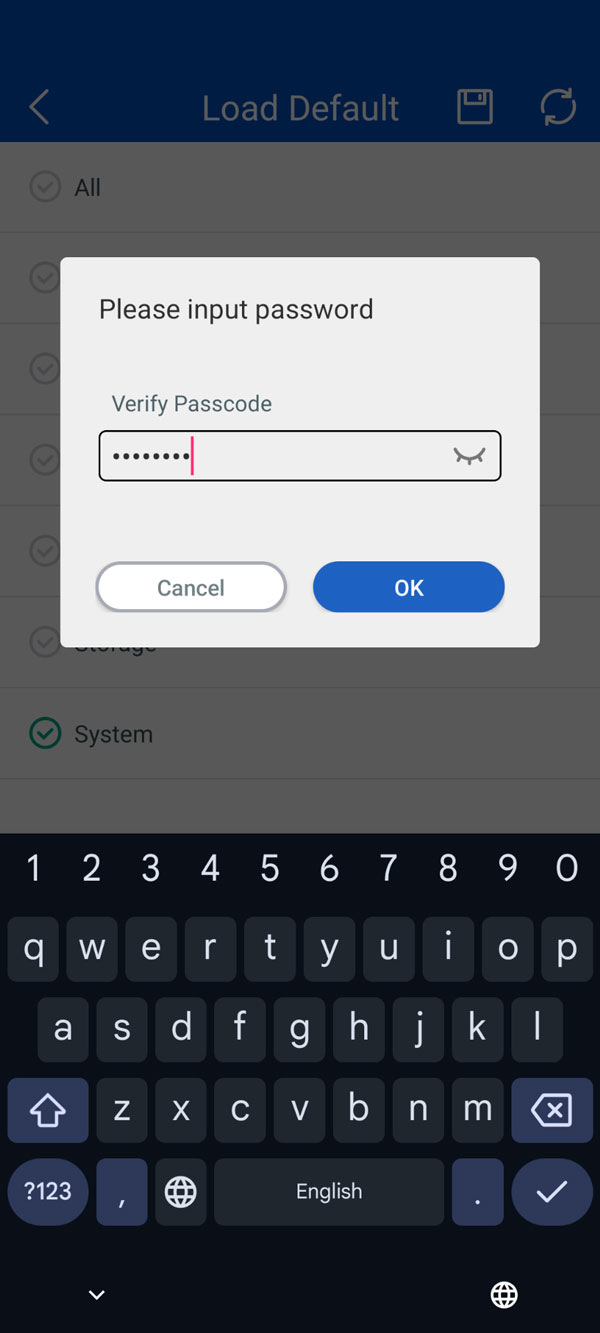
Step 2: Enter the Current Password

  • You will be prompted to enter the current system password to proceed.
  • Upon confirmation, the system will reboot automatically.

Please allow a few minutes for the system to restart—restart time may vary based on your network speed.

Camius View Configuration Maintenance Load Default System Input password 1

Step 3: Re-Add the Recorder

  • After the restart, go back to the app and re-add the device to your account.
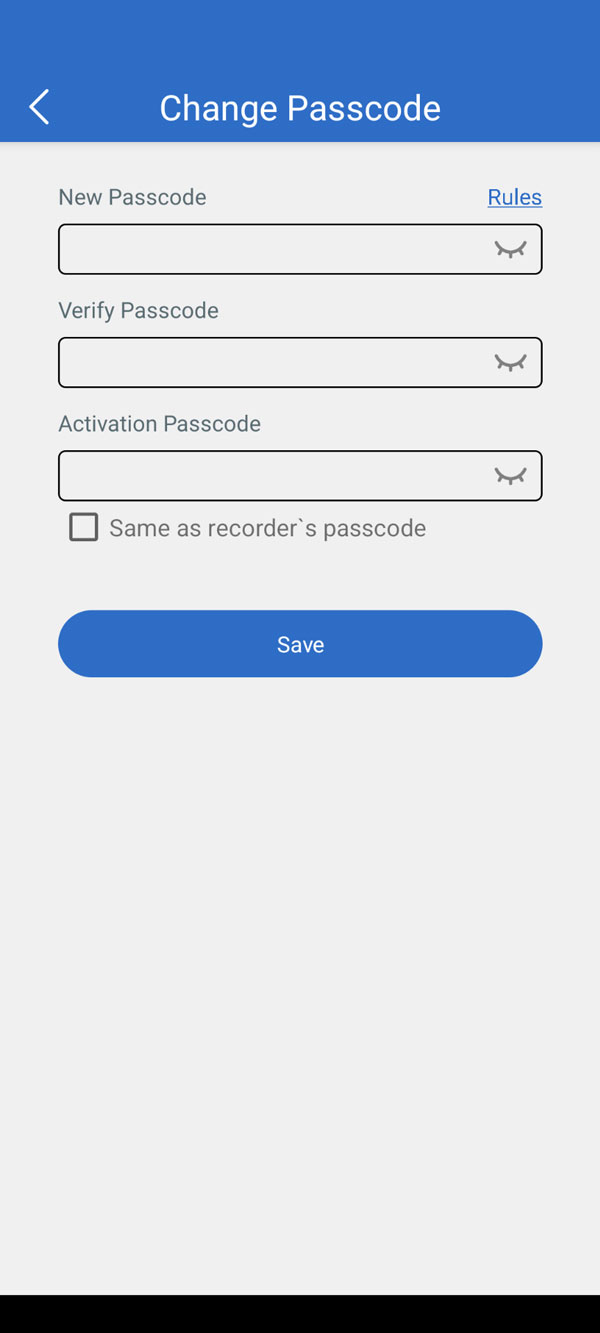
  • During the setup, you’ll be prompted to create a new password.
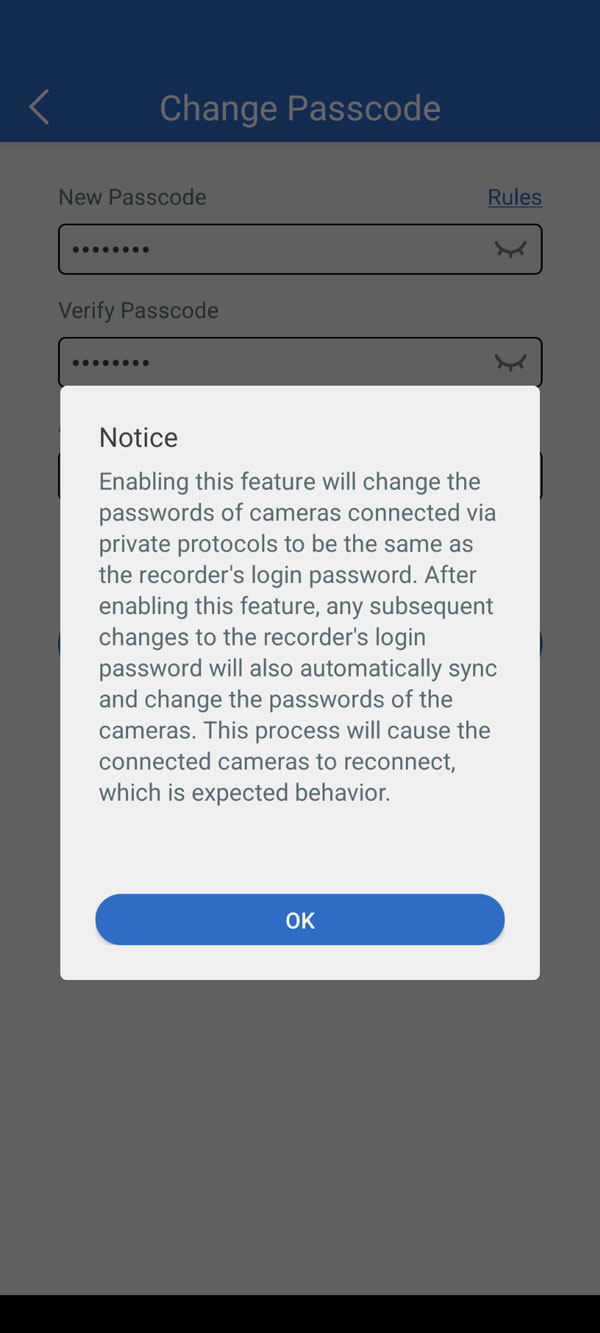
  • You may check the box labeled “Same as recorder’s passcode” to automatically apply the new password to all connected cameras.


Camius View enter new pass
Camius View Configuration Maintenance Load Default System assigning NVRs pass to cameras

Option 3 - applicable to Camius DVR or NVR recorders without a reset button

If your DVR digital video recorder or NVR network video recorder doesn’t have a reset button, please follow the below steps to receive a temporary password that is Mac ID and Date sensitive. This applies to IPVAULT160P, IPVAULT1128P, IPVAULT2320P8N, IPVAULT2320P16N, IPVAULT82320-N, TRIVAULT184, TRIVAULT4K184, TRIVAULT4K2168

STEP 1 – Have your recorder connected to a monitor via HDMI or VGA output

  •  Click the (i) information icon at the bottom right of your DVR or NVR recorder’s interface for the Mac ID, as shown in the following picture 6. You don’t need the recorder to be unlocked for this.
  • The Date is also displayed, as shown in picture 6.

DVR NVR system forgot password mac ID and date
Picture 6 - Mac ID and Date

STEP 2 – Mac ID and the System Date

Once you have your device Mac ID and current date, submit a support request at this LINK, select the subject as ‘Lost Password,’ and include the model number, Mac ID (xx-xx-xx-xx-xx-xx), and Date (MM/DD/YYYY) on your device. Make sure to use the correct email address.

IMPORTANT: If you didn’t register your product with Camius, please CLICK HERE for the product registration or  include the NVR/DVR recorder’s model number available on the recorder’s enclosure, box label and purchase details (order number and/or shipping address)

STEP 3 – Load Default Settings

Using the temporary password, reset your Camius DVR or NVR by loading the default settings with the below steps:

  1. Access the System settings of your device by navigating to the “System” section in the menu
  2. Look for the “Maintenance” option within the system settings
  3. Locate the “Load Default” function and select it. This feature allows you to restore the system settings to their default values.
  4. In the “Load Default” menu, you will find checkboxes for different system components. Select the checkbox next to “System” to reset the system settings.

IMPORTANT: Selecting all checkboxes in the Load Default menu will reset all your DVR/NVR recorder settings.

DVR NVR system maintenance load default reset system password
Picture 7
password authentication
Picture 8

  • After selecting the “System” checkbox, click on the “Apply” button to initiate the reset process.
  • A prompt for authentication will appear. Use the temporary reset password provided to authenticate the request.
  • Follow any additional on-screen instructions to complete the reset process.

By following these steps, you will be able to load the default system settings on your Camius DVR or NVR, allowing you to set a new password for your device.

Setting a New Password for your DVR or NVR

After your Camius DVR/NVR recorder restarts, you’ll need to set a new password.

  • Select the desired menu language.
  • The default device ID is 000000.
  • The administrator’s username is ‘admin’

Password requirements: 8–16 characters, a lowercase, an uppercase, a digit, and a special character. The Unlock Pattern is optional for easy access. Click on the tab ‘to Draw’ and set your unlock pattern, then click ‘Apply’. In addition, users can select or skip Password Recovery Questions & Answers.

How to set a password on my new Camius DVR or NVR recorder?