How Recording Works on Camius Security Cameras Wireless System with NVR
Camius 4K security cameras wireless system support two recording options: Motion-activated wire-free mode to preserve battery, and Continuous recording (Normal Mode) when USB-powered. Users can manage schedules, encoding, and storage directly through the NVR interface. Ideal for both residential and business security
Start with a wireless security camera with remote viewing for quick setup, live access, and event playback on phone or desktop. Compare range and storage on our kits page.
Start with a wireless CCTV NVR kit for quick setup, live view on phone, and local recording.
How to Enable Continuous Recording on Your Wireless Camera System
To ensure a stable connection and proper setup, configure continuous recording for each wireless camera one at a time.
- Start with one camera. Insert the battery, connect the Camius USB power charge, wake the camera, select Continuous Recording, and apply the setting.
- After finishing one camera, move to the next and repeat the process.
- Keep cameras slightly apart or in different rooms while setting up to prevent signal interference during activation.
- Place the NVR away at least 4 to 5 feet away from microwave ovens, refrigerators, and TVs that can cause wireless signal interference
- Make sure the antenna are tightened well and vertical on both, cameras and the NVR.
Following these steps helps each camera pair correctly with the NVR and maintain a stable continuous recording mode.
Step 1 – Connect the Camera to Power
- Plug the included Camius USB charger into the camera’s charging port.
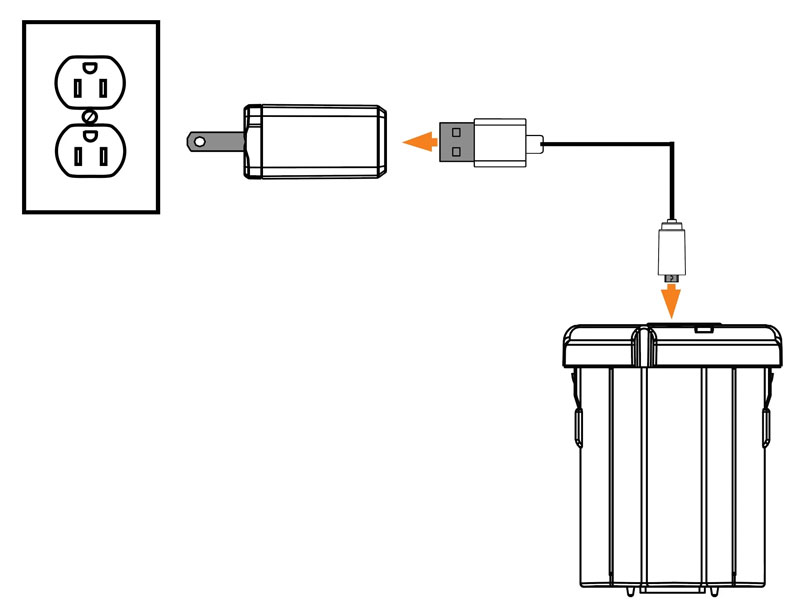
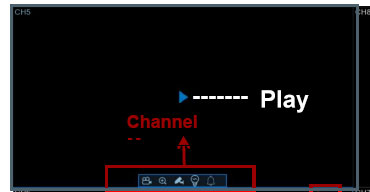
- If the camera is in sleep mode, click the Play icon in the center of its live view window to wake it up. You should then see the live feed from that camera.
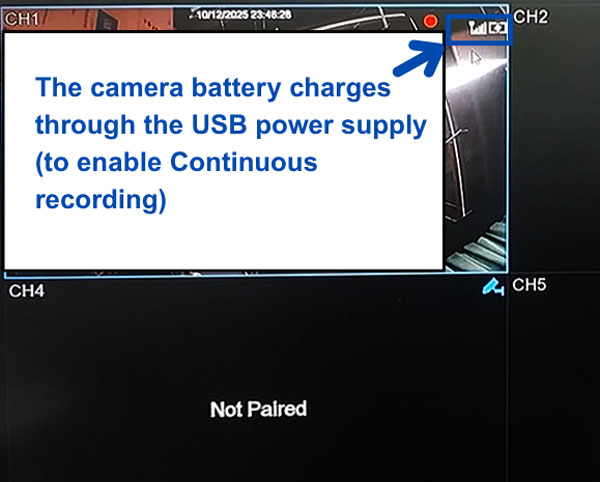
- When connected correctly, you will see a charging symbol on the live view screen (as shown in the following image).
![]()
- If you don’t see the symbol, unplug the USB cable and insert it again firmly.
Note: The camera must stay powered through the USB supply to record continuously. If it runs only on battery, it defaults to motion-triggered mode and records short clips (up to 2 minutes) when motion is detected.
You can confirm the charging and live feed status using the HDMI interface connected to your NVR monitor or TV. You should see both the charging symbol and the live video feed.
Step 2 – Select Continuous Recording Mode
- Go to the NVR menu:
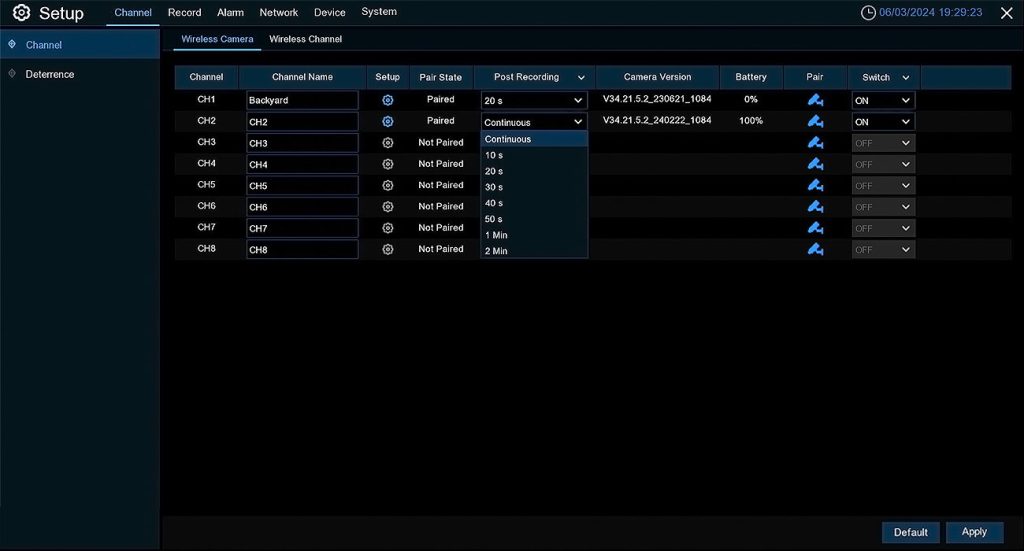
Setup >> Channel >> Channel >> Wireless Camera - In the Post Recording column, select Continuous for the channel you want.
- Click Apply to save the change.
- Repeat this for each channel.
If the Continuous option disappears after saving, the most common cause is unstable charging detection. Continuous recording is available only when the camera is actively charging and the charging icon is clearly visible in live view.
If Charging is not visible, complete the following:
- Remove and reinsert the battery.
- Disconnect and firmly reconnect the USB cable.
- Make sure the power adapter is securely plugged into the power socket.
- Confirm the antenna is firmly attached, positioned vertically, and not pressed against a wall.
- Keep the NVR elevated and not placed directly on the floor to maintain stable wireless communication.
Continuous mode depends on stable power detection. Weak or unstable wireless signal can cause the camera to disconnect, which may prevent the NVR from maintaining Continuous mode.
Step 3 – Set and Save the Recording Schedule
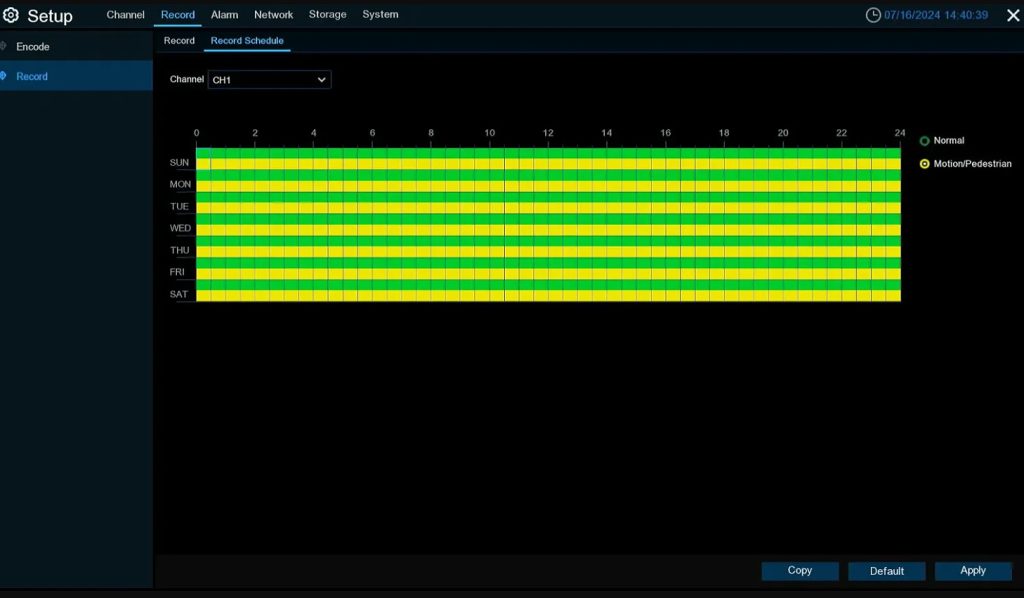
- Go to Setup >> Record >> Record Schedule.
- Select the specific camera channel (for example, CH1, CH2, etc.).
In the schedule grid:
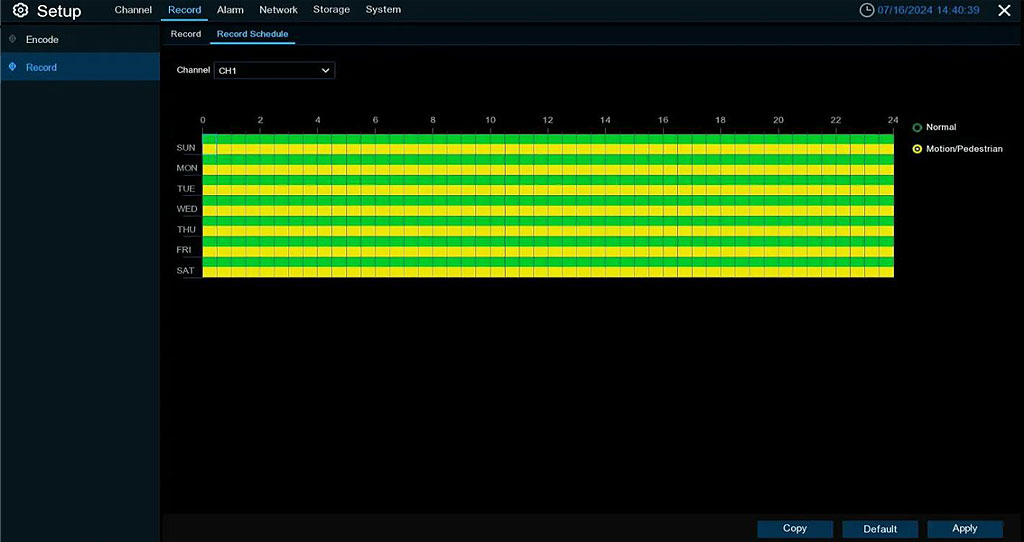
- Green represents Normal (Continuous) Recording.
- Yellow represents Motion Recording.
To enable continuous recording, fill the entire timeline for each day in green. Click Apply to save the schedule for each channel.
After saving, return to the HDMI live view screen to confirm:
- The camera feed is active.
- The charging icon is visible.
- A red dot appears, showing the camera is recording.
If power is interrupted, the camera switches to battery mode and automatically records on motion only.
Once stable USB power is restored and the charging icon is visible in live view, the system should return to Continuous recording.
Continuous mode will not return only if the recording settings were reset through System >> Maintenance >> Load Default or if the unit was reset using the hardware reset button.
How to Schedule Recording in the Wireless NVR Camera System
Navigate to Setup >> Record to configure recording parameters. For the detailed wireless camera system setup check the setup guide
Stream Encoding: Mainstream vs Substream
This menu allows you to configure the image quality of the recorded video or the network transmission. “Mainstream” refers to the quality of the recorded video that is saved on the HDD, while the “Substream” is the quality of the preview video accessed remotely (e.g., through the web client and VMS pro software). The Mobile stream defines the preview quality viewed via remote access on a mobile device. In the Audio menu, you can set the switch of the audio of the connected network camera, the volume of the input/output, and the audio type.
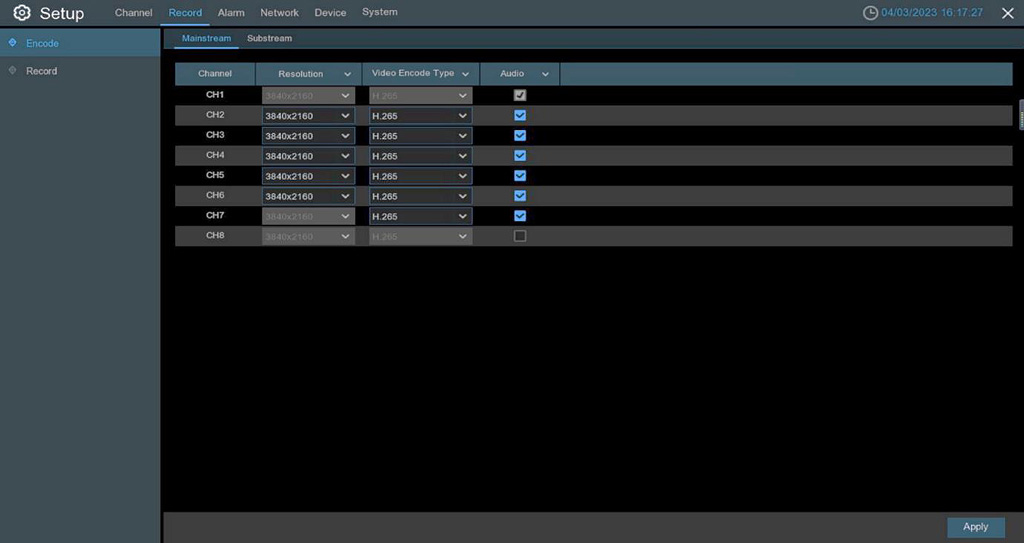
Mainstream
Mainstream is the high-resolution video saved to your NVR’s hard drive. This stream is typically used for playback and archiving.
- Resolution: This parameter represents the resolution of the preview image. If the recording page’s resolution is set to Auto, this parameter cannot be set.
- Video Encode Type: Channel decoding type, with options of H.264 and H.265.
- Audio: Enabling this option will support audio synchronous recording.
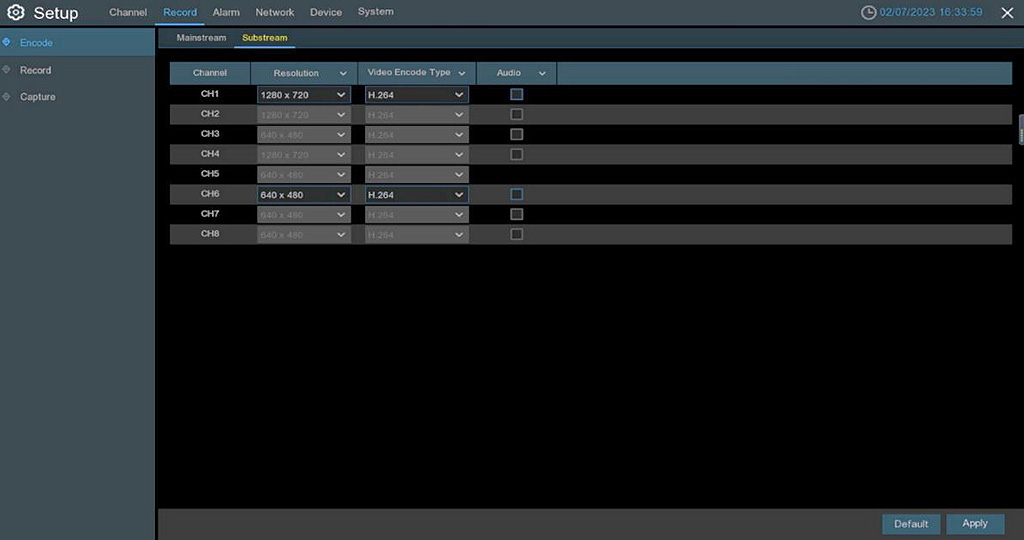
Substream
- Resolution: This parameter represents the resolution of the preview image.
- Video Encode Type: Channel decoding type, with options of H.264 and H.265.
- Audio: Enabling this option will support audio synchronous recording.
Recording Settings
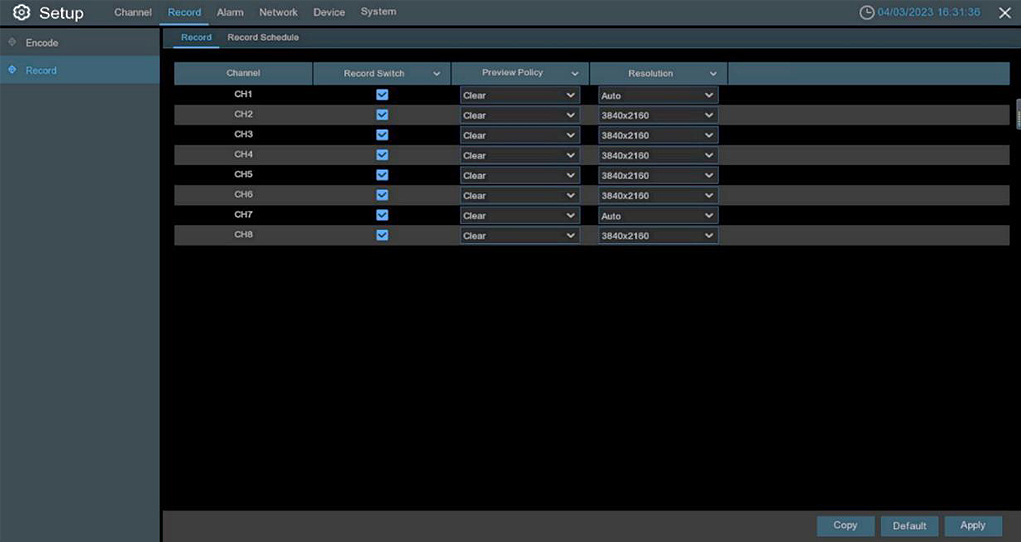
Here you enable recording, select the preview policy, resolution
- Record Switch: Select to enable recording in this channel.
- Preview Policy: Channel preview strategy, with options of Clear and Smooth.
- Resolution: Recording resolution, when Auto is selected, the resolution on the Stream page cannot be set.
Recording Schedule
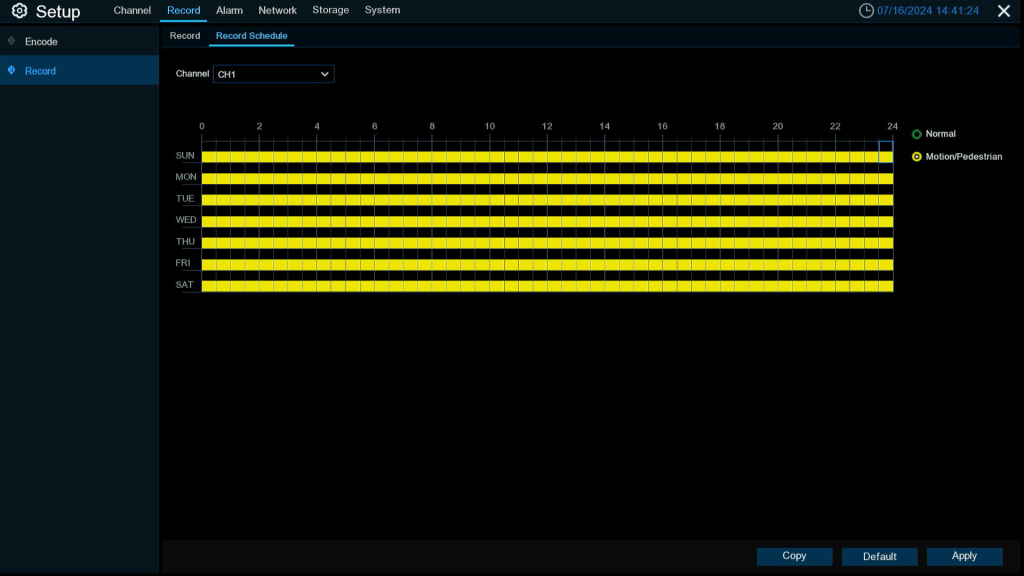
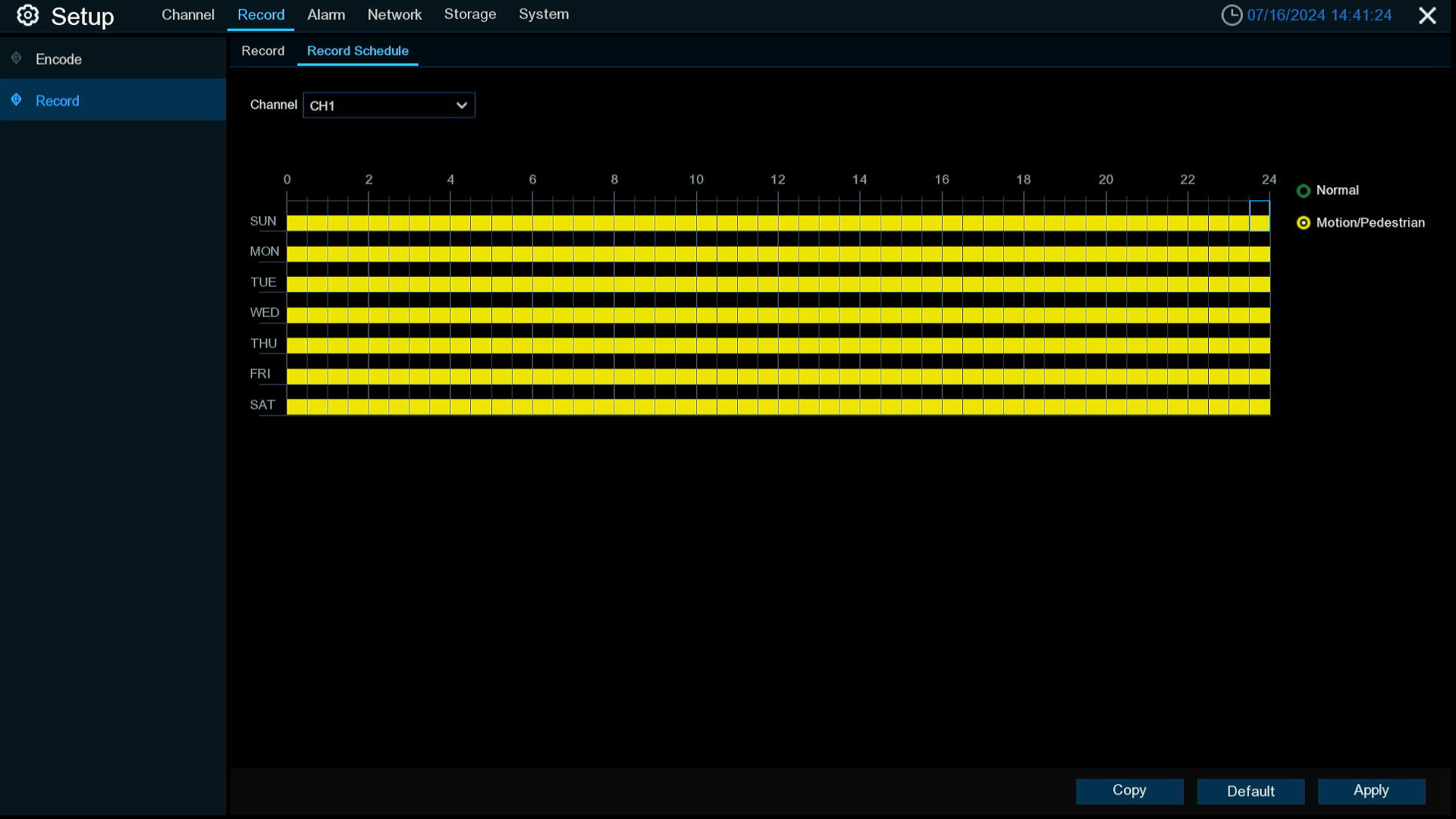
This menu allows you to specify when the NVR records video and determine the recording mode for each channel. The recording schedule allows you to set a recording schedule, such as Normal (Continuous) recording every day (or hour), Motion/Pedestrian detection recording times. To set the recording mode, click on the mode radio button (“Normal”, “Motion/Pedestrian”), and then drag the cursor to mark the area. The recording schedule is only valid for one channel. If you want to use the same recording schedule for other channels, click on the Copy (Apply) button to use the copy function. Click on Apply to save the settings.
- Channel: Select the channel to set its recording parameters.
- Normal: When the area is marked in green, it means that the channel records continuously during that time slot. The regular recording setting area appears when the channel’s Post Recording is set to Continuous mode
- Motion/Pedestrian: When the area is marked in yellow, it means that the channel records Motion/Pedestrian detection events during that time slot.
- No Record: The time slot marked in black represents no recording schedule during that time period
NOTE: To use Motion/Pedestrian recording, you must enable and configure the channel’s parameters settings in the “Alarm” menu.
Wireless Camera System Accessories
Solar Panel
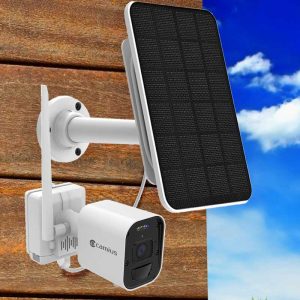
Powers the camera battery using solar energy, reducing the need for manual recharging
-
Wireless Security Cameras & Systems for Home and Business, Wireless Battery Security Camera Add-ons, Wireless Security Camera Systems - 4K Wireless NVR Kits
$89.00Original price was: $89.00.$39.99Current price is: $39.99. Add to cart
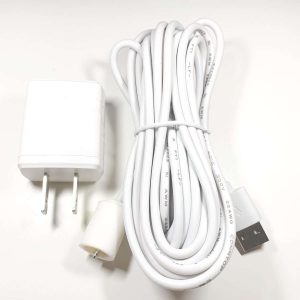
USB Power Charger with 14 ft Cable
Charges the camera battery or powers the camera directly for continuous operation and recording. From August 1, 2025, this charger is included with all cameras in ready kits and add-on camera purchases—no separate order required.
-
Wireless Battery Security Camera Add-ons, Wireless Security Cameras & Systems for Home and Business
$29.99Original price was: $29.99.$15.99Current price is: $15.99. Select options This product has multiple variants. The options may be chosen on the product page
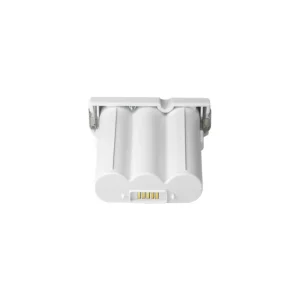
3-Cell Lithium-Ion Battery
Keep an extra battery on hand for quick hot-swapping to minimize downtime. Recommended when using the wire-free setup with motion-triggered recording.
-
Wireless Security Cameras & Systems for Home and Business, Wireless Battery Security Camera Add-ons, Wireless Security Camera Systems - 4K Wireless NVR Kits
$59.00Original price was: $59.00.$35.99Current price is: $35.99. Add to cart
Optimizing Your Wireless DVR Security Camera Systems Setup
Whether you choose Wire-Free or Continuous Mode, Camius ensures your wireless security camera with recording meets your specific requirements. Here are additional tips to optimize your system:
- Motion Detection Settings: To enable Pedestrian mode, access the Alarm menu (Setup>>Alarm) and select the appropriate option.
- Battery Life Management: Continuous recording is ideal for users requiring uninterrupted surveillance but requires the camera to remain plugged in.
Active battery duration between charges for our Camius 4K wire-free camera can vary greatly and based on the following variables:
- The deterrent schedule, for lights and siren activation.
- The motion detection sensitivity
- The surrounding environment, fluttering tree leaves for example will lead to higher false detection.
- Vehicle or foot traffic level.
- Checking the on-demand video feed for extended durations.
By understanding and utilizing these modes, you can maximize the efficiency and effectiveness of your Camius wireless security camera system.
FAQs about Camius Security Cameras Wireless System Recording
What recording modes are available for Camius wireless 4K cameras?
There are two modes:
- Motion‑Activated Wire‑Free Mode wakes the camera upon motion, records for 10 s–2 min, then sleeps to save battery.
- Continuous Recording Mode requires USB power and records continuously via HDMI‑connected setup in the NVR interface. From August 1, 2025, this charger is included with all cameras in ready kits and add-on camera purchases—no separate order required.
How many wireless cameras can I connect to the NVR?
You can pair up to 8 Camius 4K wireless cameras with a compatible Camius wireless NVR.
What’s the difference between mainstream and substream encoding?
- Mainstream is full-resolution footage saved to the HDD.
- Substream is lower-resolution video for remote preview.
- Mobile stream is optimized for viewing on phone apps (Camius View)
Can I customize recording based on schedule or event type?
Yes. Within the NVR settings, you define schedules per camera channel, setting recording options for continuous, motion, pedestrian detection, or no‑record periods
How do I adjust battery usage without USB?
Use motion‑activated mode and set post‑recording duration to balance between capturing events and conserving battery. For more tips check this guide
Which power option is better: battery or USB?
- Battery (wire‑free) is flexible and easy to install, ideal for locations without outlets, but limited by battery life.
- USB‑powered supports true continuous recording without downtime but needs a stable power source.
What cases does continuous recording stop and several cameras switch motion recording?
Continuous recording stops in cases of hard disk errors, when a wireless camera does not detect charging, or when a wireless camera goes offline. If there is a hard disk error, all wireless cameras will exit continuous recording.
Go to Menu → Alarm → Exception → Event Type: Disk Error to enable alarms and notifications for hard drive issues such as Disk Errors or Full Disk warnings.
For detailed HDD health checks, open Menu → Device → Disk → S.M.A.R.T.
If the HDD is not formatted, follow these steps on how to format it HDD formatting steps, visit the guide
Shouldn’t continuous recording resume after the camera restores USB power charging?
Continuous recording will resume once the wireless camera comes back online, as long as the user did not change the continuous recording mode before USB power was restored.
In what cases does a camera’s wireless signal drop if the location hasn’t changed?
Several situations can cause this:
- Signal obstruction by people: The human body contains a high water content, which reflects and absorbs wireless signals. Movement can act as a moving obstacle and cause signal fluctuations.
- Poor NVR placement or antenna orientation: If the NVR is placed on the floor or its antennas are not vertical, signal coverage can drop by more than 30%. Concrete, tile, and metal surfaces also weaken the signal.
- Interference from household appliances: Microwave ovens, refrigerators, and TVs can cause interference. Microwaves in particular may lower the signal-to-noise ratio by more than 15 dB. Keep wireless NVRs at least 3 – 5 feet away from such devices.
Can a signal drop (or weak wireless signal) reset recording from continuous to motion?
If the camera stays connected to power, a signal drop that causes the camera to go offline will not permanently change the recording mode. Once the interference decreases and the wireless camera reconnects to the NVR, it will automatically return to continuous recording.