How to Set Up Deter Mode on Camera Using a Camius NVR, DVR

Table of Contents

Deter Mode on Camius Spotlight Cameras

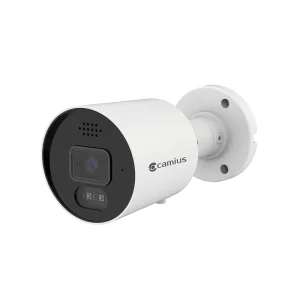
Camius PoE spotlight cameras and battery operated wireless security cameras support  deter mode. This guide covers wired PoE NVR camera systems with Camius NVRs and DVRs. Users will need to configure the siren and deterrence (light) settings. This can typically be done through the NVR’s local HDMI interface accessible while the NVR is connected to the monitor or TV via HDMI video output or using the NVR’s web browser menu or the accompanying NVR software provided by Camius.
 
Note: While this guide focuses on Deterrence and Siren Settings, please be aware that some DVRs and NVRs may have slightly different menu layouts. However, the core concepts and steps remain the same.
 
The siren can be set to activate upon motion, human & vehicle detection or other triggers, emitting a loud, attention-grabbing sound that can scare off intruders and alert nearby individuals. The deterrence lights, on the other hand, can be used to illuminate the area around the camera, making it difficult for intruders to operate in the dark and increasing the chances of them being identified. The latest SPOT828A-RB and GuardVR4K come with not only white but red and blue lights which can intimidate unwelcomed visitors and criminals.
 
By setting up these deterrence & siren functions, you can create a more secure environment and deter potential criminals from targeting your property.

Deterrence Settings

The below example is based on the NVR’s web browser interface. 

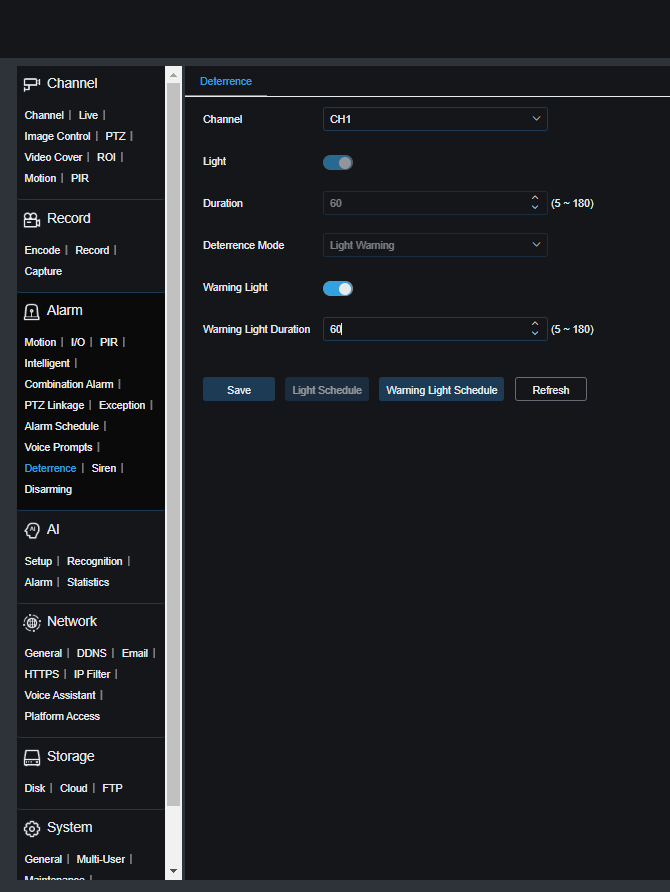
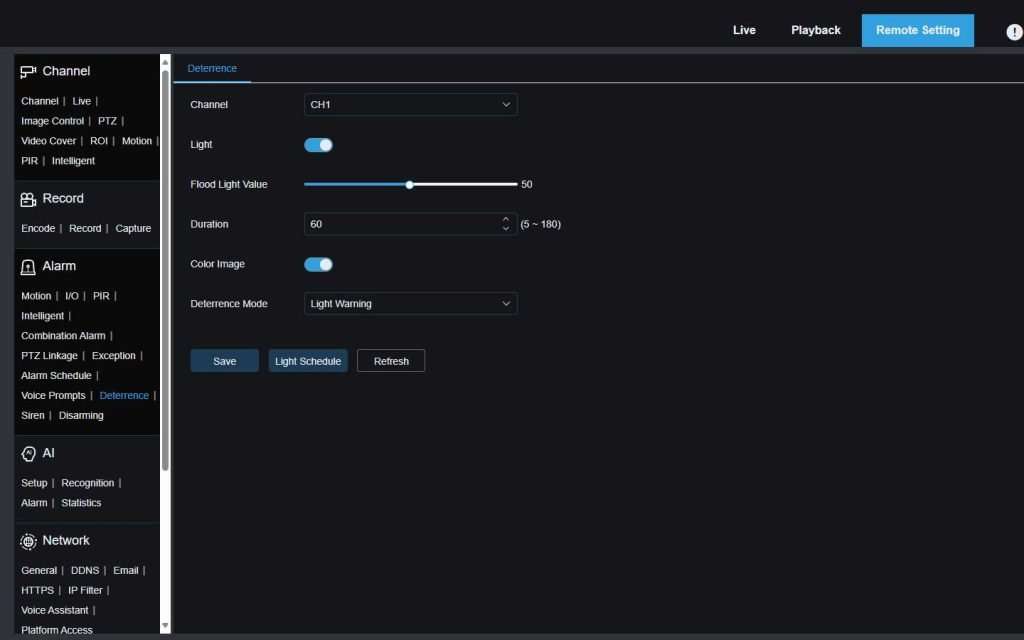
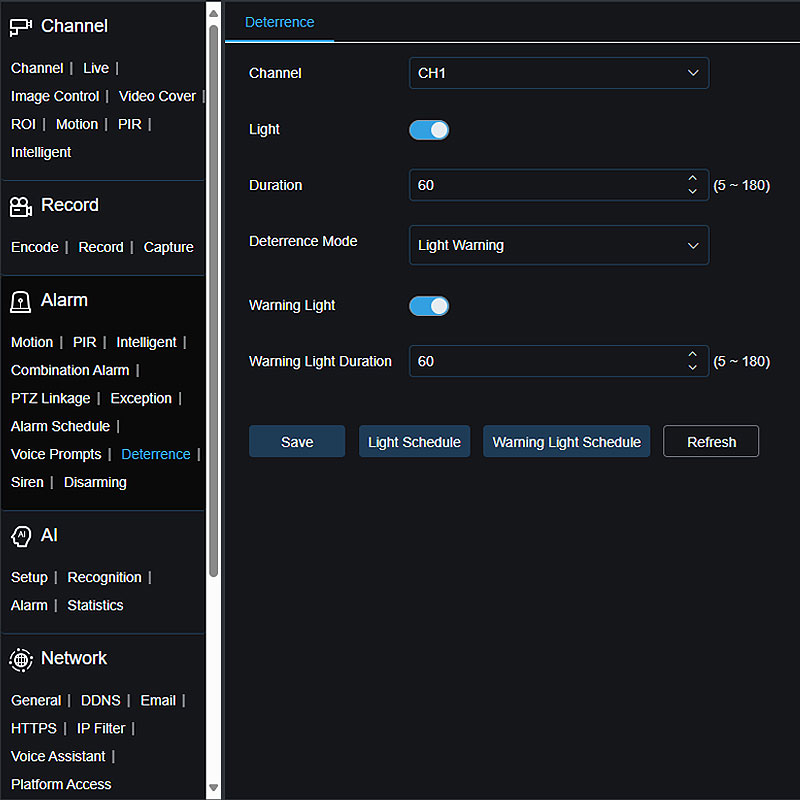
In Remote Setting, select Alarm followed by Deterrence, where you can activate the Lights by enabling the Light toggle (it is off by default), adjust the Light Value, its duration, and selecting the Deterrence Mode

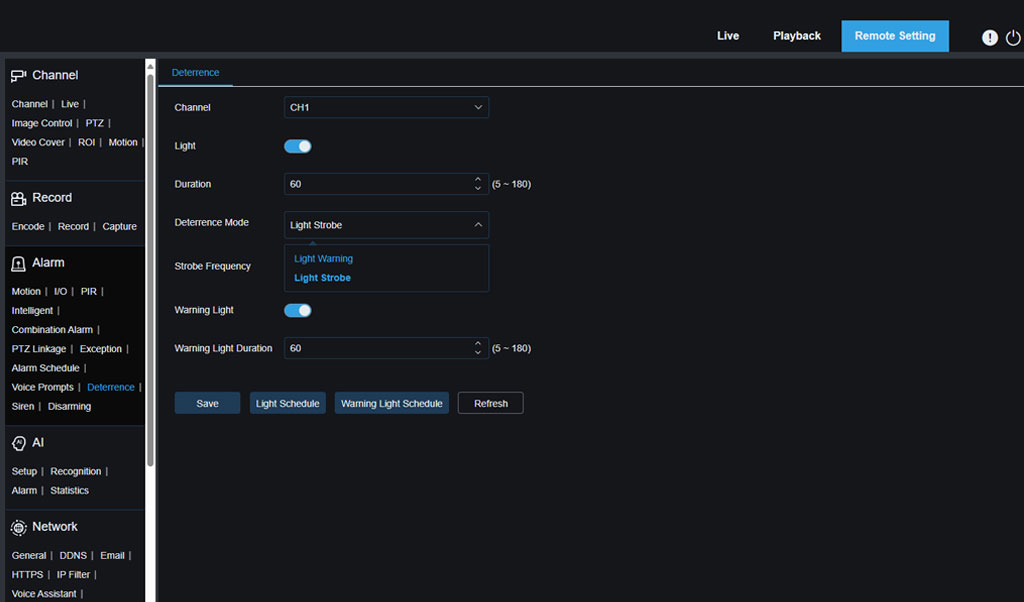
Picture 1 shows the Deterrence settings for the SPOT828A-R camera.  You can select Deterrence mode between Warning and Strobe Light (Picture 2)

  • Light Warning: The lights remain steady during deterrence.

  • Light Strobe: The lights blink at a set frequency during deterrence.

Picture 1 shows the Deterrence settings for the SPOT828A-R camera
Picture 1: PoE camera system - IPVAULT1128PR 8 Channel PoE NVR with SPOT828A-R (Alarm>>Deterrence)
Camius spotlight camera deterrence lights
Picture 2: PoE camera system - IPVAULT1128PR 8 Channel PoE NVR with SPOT828A-R (Alarm>>Deterrence>>Deterrence Mode))

Image Control Settings for PoE Camera System

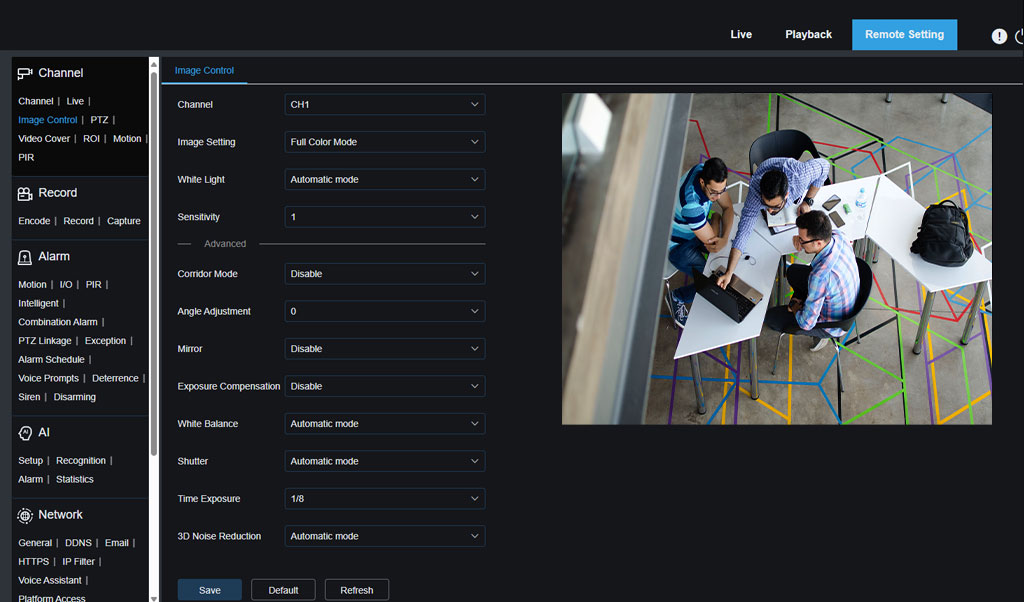
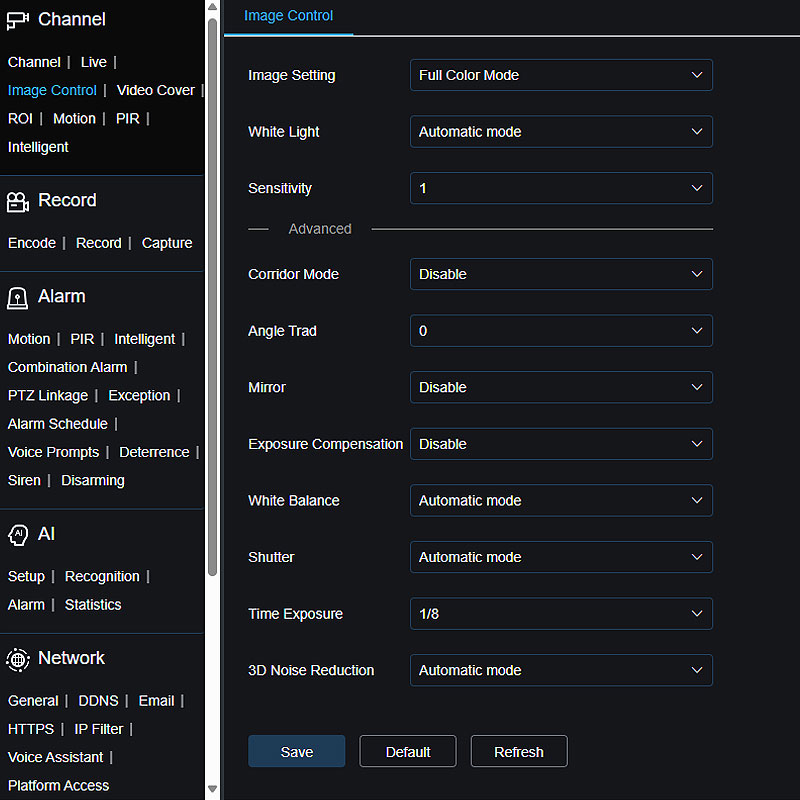
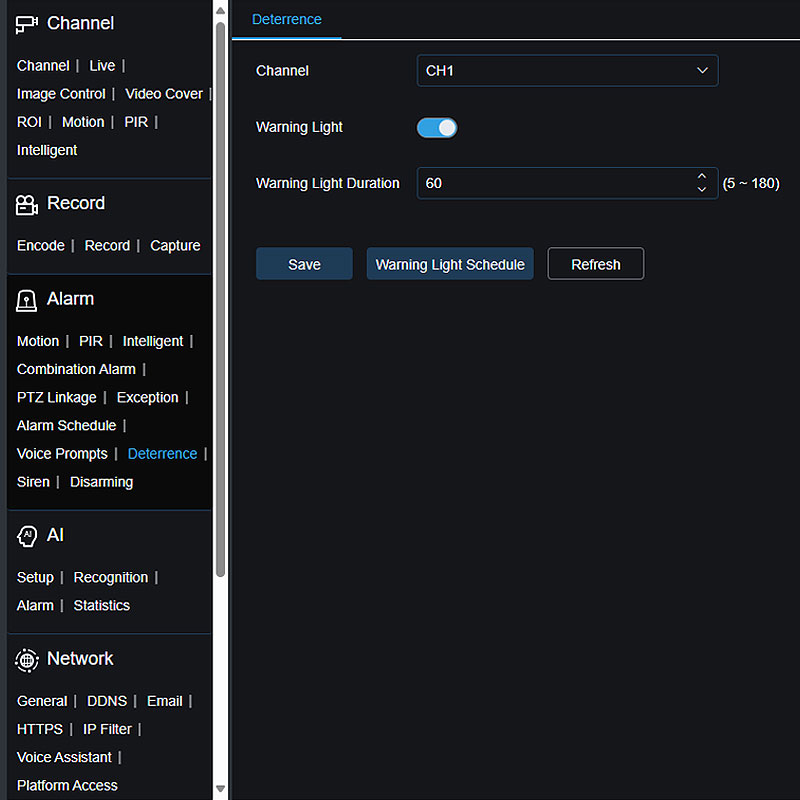
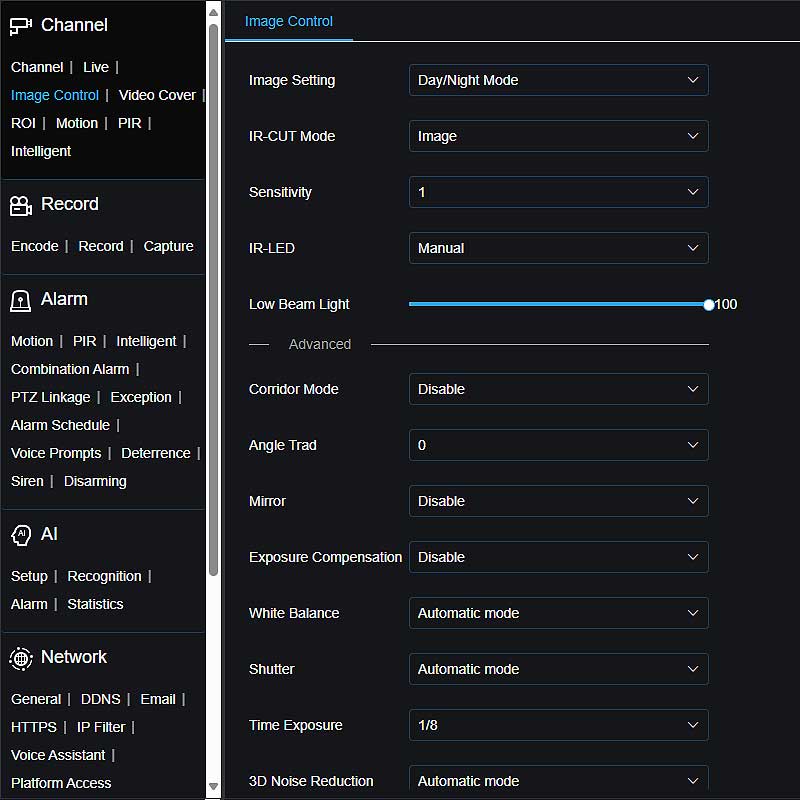
The SPOT828A-RB and GUARDVR4K cameras offer not only White light but Red, and Blue Light capabilities. Adjust camera image settings in Channel >> Image Control to suit your environment with two options: Full Color and Day/Night modes, which affect Deterrence settings.

Full Color Mode
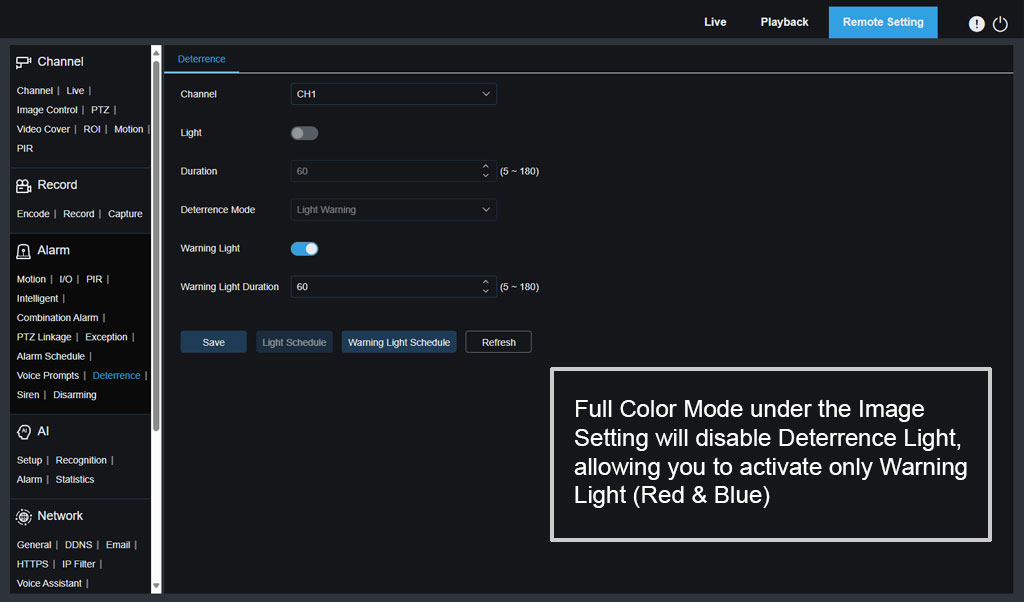
  • Deterrence Settings: Only Warning Light (Red & Blue) available.
  • Fill-in Light Options:
    • Automatic Mode: Adjusts light intensity based on ambient illumination.
    • Manual: Sets fill-in light at a fixed brightness.
    • Schedule: Schedules on/off times for white light.
    • OFF: Disables the white light.
  • Sensitivity: Adjusts ambient light sensitivity from 0 to 3.
IPVAULT1128PR SPOT828A RB full color mode
IPVAULT1128PR with SPOT828A-RB: Full Color Mode
IPVAULT1128PR SPOT828A RB full color mode auto deterrence
IPVAULT1128PR with SPOT828A-RB: Deterrence setting when the camera has Full Color Mode activated
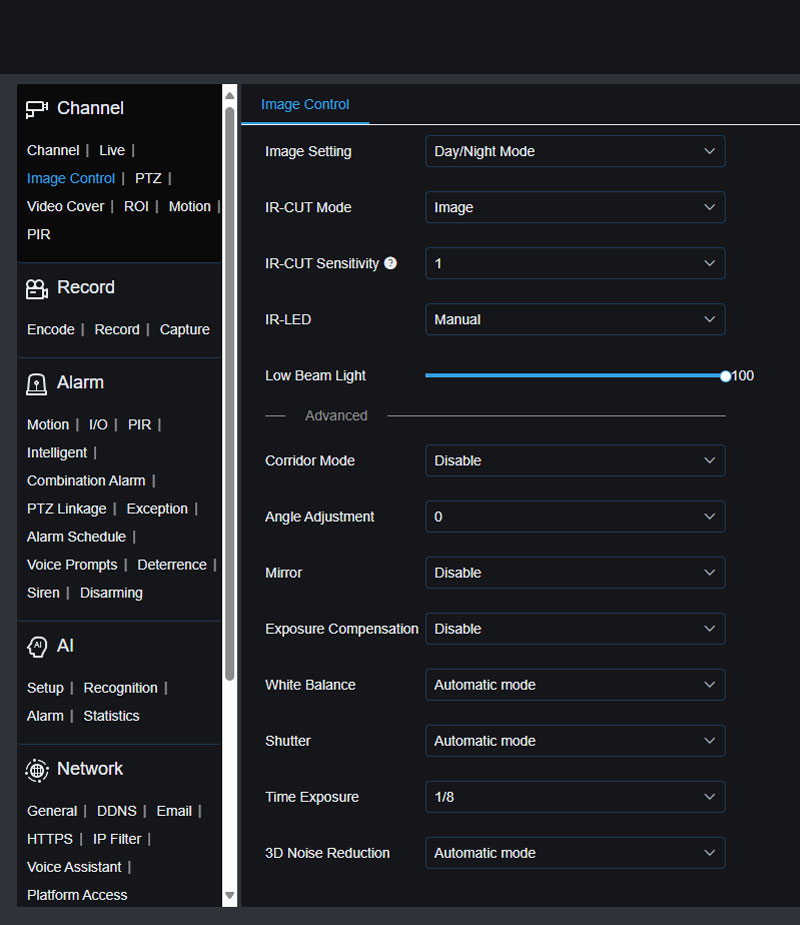
Day/Night Mode
  • Deterrence Settings: Full customization available.
  • Alarm >> Deterrence: Activate Light (White Light) and Warning Lights (Red & Blue).
IPVAULT1128PR SPOT828A RB day night mode
IPVAULT1128PR with SPOT828A-RB: Day/Night Mode
IPVAULT1128PR SPOT828A RB Day Night mode auto Full deterrence
IPVAULT1128PR with SPOT828A-RB: Deterrence setting when the camera has Day/Night Mode activated

Light Schedule

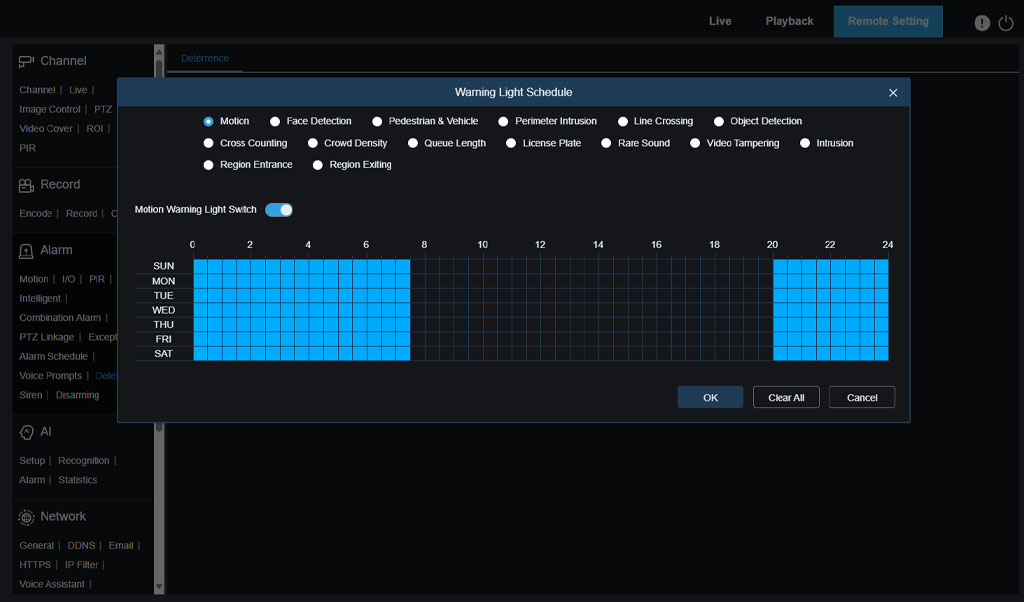
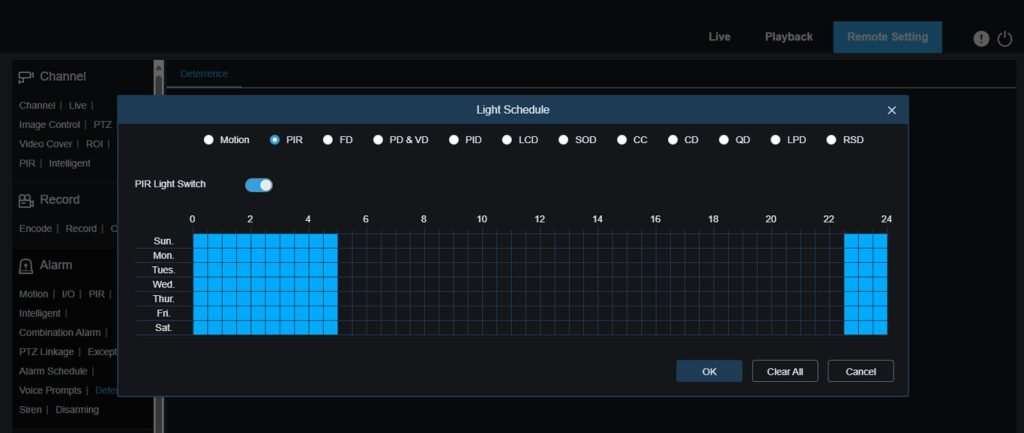
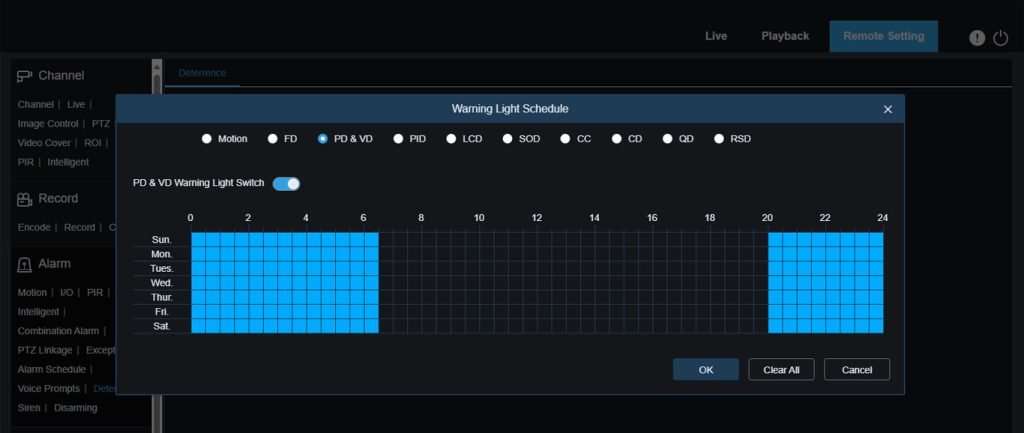
Click Light Schedule for Spot828A-R cameras (Picture 4) and Warning Light Schedule for the GuardVR4K dome camera, SPOT828A-RB (Picture 5) to customize the time of the day, when you want the Deterrence to be activated, along with selecting the event triggering lights ranging from motion to intelligent (AI) events.

SPOT828A-R LIGHT SCHEDULE
Picture 4: IPVAULT1128PR with SPOT828A-R (Alarm>>Deterrence>>Light Schedule)
GuardVR4K dome camera lightts schedule
Picture 5: IPVAULT1128PR with SPOT828A-RB (Alarm>>Deterrence>>Warning Light Schedule)

Siren and its schedule

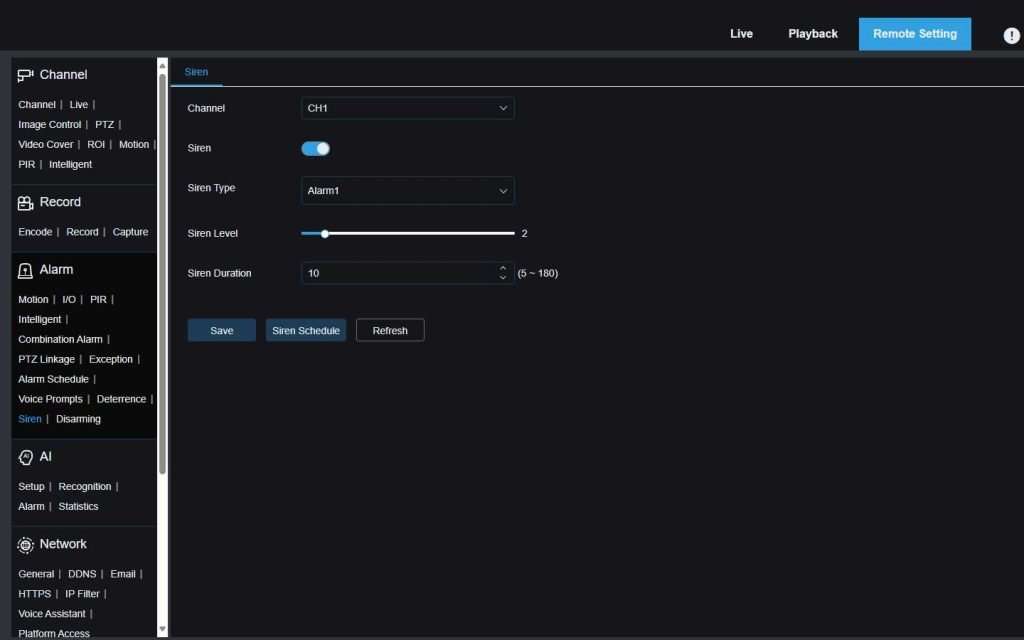
Enhance your security capabilities by taking advantage of the camera siren settings. With the ability to activate and customize the siren, you have full control over its time schedule, event triggers, and duration. By default, the siren is turned off, ensuring that it remains silent until you choose otherwise.

To access and modify these settings, refer to Picture 6, which illustrates the configuration options. With this level of customization, you can fine-tune your security system to respond effectively to potential threats, offering peace of mind even when you’re away.

IPVAULT2256PR-and-SPOT828A-R-siren-web
Picture 6: IPVAULT1128PR & GuardVR4K

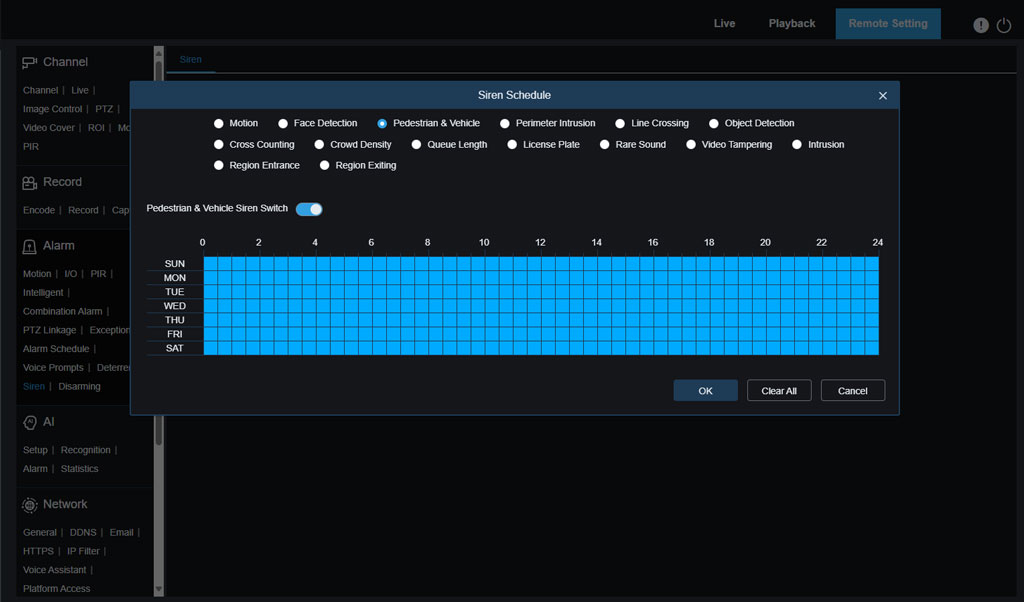
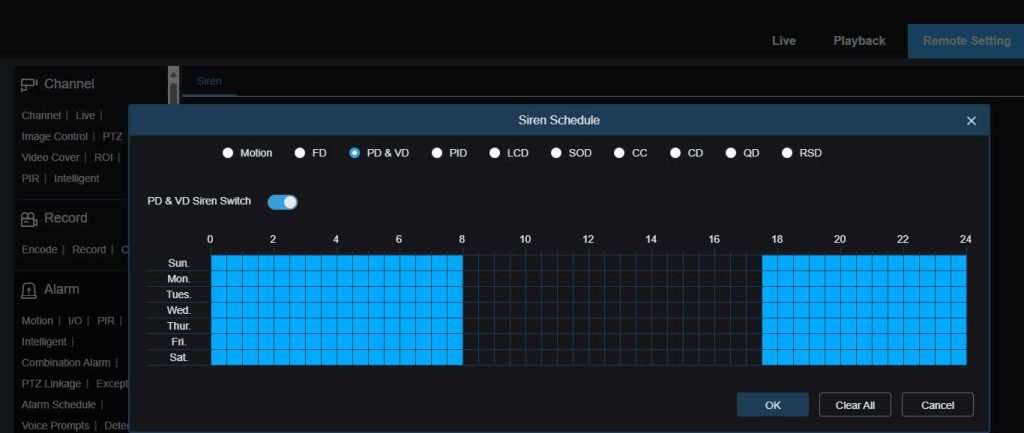
Siren Schedule tab allows you to customize time of the day when you want the siren to be active including selecting events triggering it. The picture 7 shows the siren schedule for the GuardVR4K dome camera triggered by Human and Vehicle Detection.

2256PR and SPOT828A R GUARDVR4K siren schedule web
Picture 7

Deterrence and Siren Settings in 16 Channel NVR

The Camius IPVAULT2320PR is the latest 16 channel NVR featuring the most advanced capabilities available. 

  • , ,

    Price range: $1,799.00 through $2,490.00 Select options This product has multiple variants. The options may be chosen on the product page
  • ,

    Original price was: $249.00.Current price is: $149.00. Add to cart
  • , ,

    Price range: $1,290.00 through $1,790.00 Select options This product has multiple variants. The options may be chosen on the product page
  • , ,

    Original price was: $990.00.Current price is: $699.00. Add to cart
Deterrence Settings

This guide will walk you through the configuration of Deterrence and Siren Settings on this system.

  • Navigate to Remote Setting >> Alarm >> Deterrence
  • Select the Channel and Enable the Light toggle (which control Write Light), select the duration of the light (value is in seconds), Warning Light (control Red and Blue Lights).
  • Select the Deterrence mode between Light Warning or Light Strobe. 

Light Warning
A light warning involves a steady bright light, serving as a visible deterrent to potential intruders by indicating that the area is under surveillance.

Light Strobe
A light strobe involves a rapidly flashing light, designed to attract immediate attention and create a sense of urgency or alarm.

  • You can control duration of White and Warning Lights in seconds
2320PR SPOT828A RB Alarm Deterrence
Warning Light Schedule

To set the Warning Light Schedule for each event, follow these steps:

  • Drag your cursor over the squares to select the hours of the day you want the warning light to be active.
  • Click OK to save your settings.
IPVAULT2320PR SPOT828A RB Image Control Full Mode Deterrence Light oFF warning light schedule motion

Siren Settings

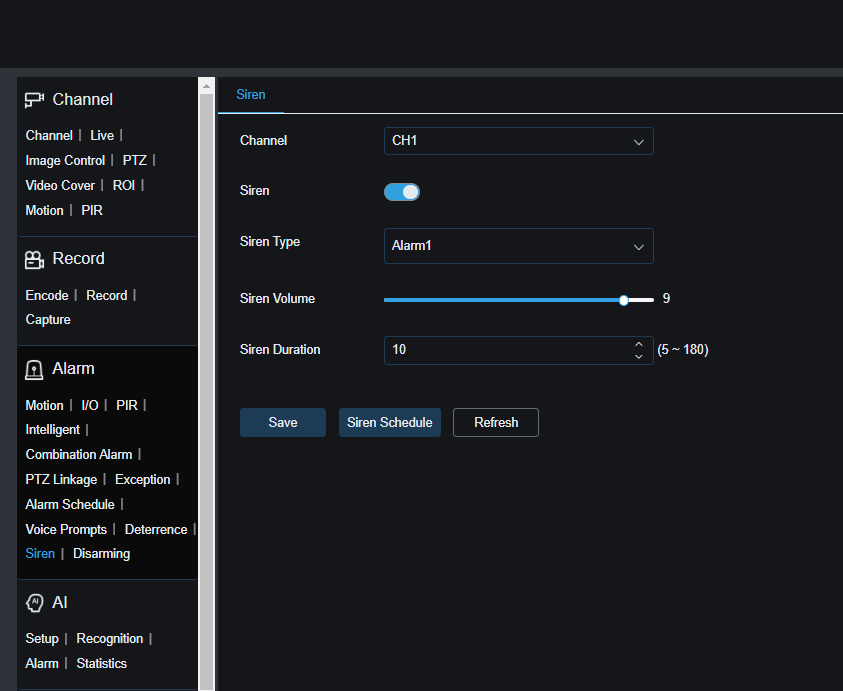
The siren is a powerful deterrent to stop criminal activity. Users have full control over their camera system’s deterrence and siren settings. By default, the siren is turned off and requires activation and schedule customization. Follow these steps to configure it:

  • Navigate to Remote Setting >> Alarm >> Siren
  • Select the channel and enable the siren toggle
  • Specify the volume and the duration of the siren (value is in seconds).
2320PR SPOT828A RB Alarm Siren
Siren Schedule

Click on ‘Siren Schedule’ to select hours of the day when you want the siren to be active. To set the Siren Schedule for a certain event, follow these steps:

  • Select the Event and drag your cursor over the squares to select the hours of the day you want the warning light to be active.
  • Click OK to save your settings
IPVAULT2320PR SPOT828A RB alarm siren schedule

Image Control Settings

Image Setting and Deterrence functions are interconnected. When the  camera has White, Red and Blue Light capabilities, In the Channel >> Image Control menu, you can adjust camera image settings to suit your installation environment. There are 3 Image Settings to choose from which affect Deterrence settings. Currently the camera models with these capabilities are SPOT828A-RB, GUARDVR4K.

Full Color Mode

Under the Image Setting, Full Color Mode will disable Deterrence Light Settings, allowing you to activate only the Warning Light (Red & Blue).

Set the fill-in light for white light in Full Color Mode with four options:

  • Automatic Mode: Adjusts light intensity based on ambient illumination.
  • Manual: Applies fill-in light with a fixed brightness value.
  • Schedule: Automatically schedules on/off times for white light fill-in.
  • OFF: Disables the white light.

Sensitivity: Adjust sensitivity to ambient light from 0 to 3. Higher values increase sensitivity.

IPVAULT2320PR SPOT828A RB Image Control Full Mode
IPVAULT2320PR SPOT828A RB Image Control Full Mode Deterrence Light oFF warning light on

Day/Night Mode

  • Day/Night Mode under Image Setting allows users to fully customize Deterrence settings under Alarm. You will be able to activate Light (White Light) and Warning Lights (Red & Blue)
  • Under Alarm >> Deterrence you have all Deterrence settings available
IPVAULT2320PR SPOT828A RB Image Control Day Night Mode
IPVAULT2320PR SPOT828A RB Image Control Day Night Full deterrence light warning strobe

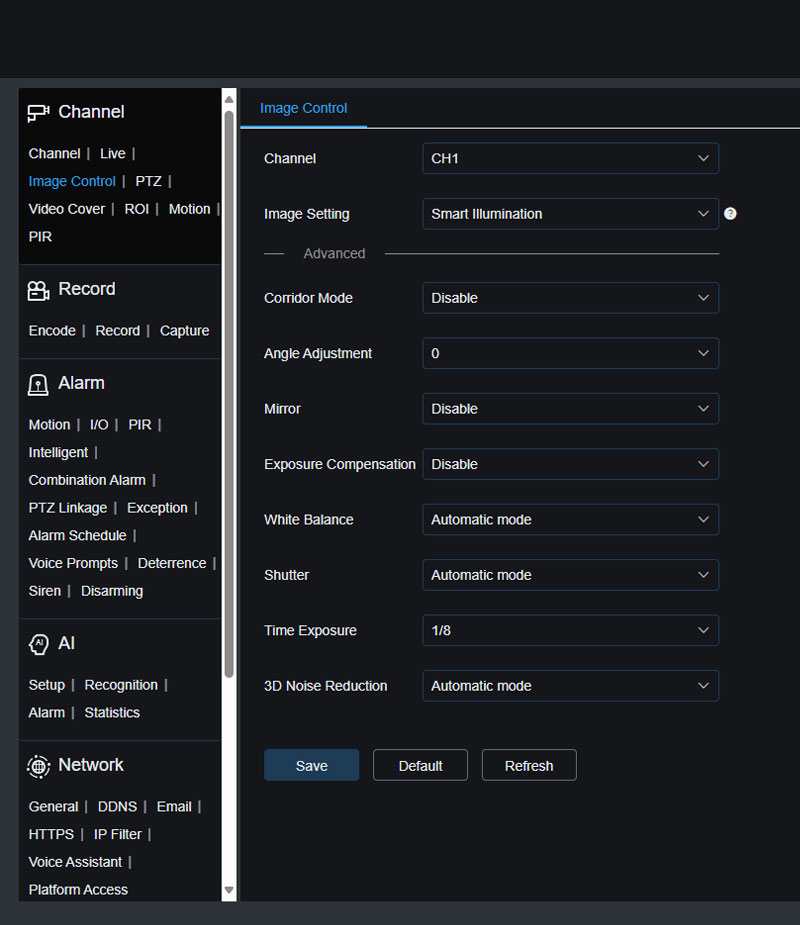
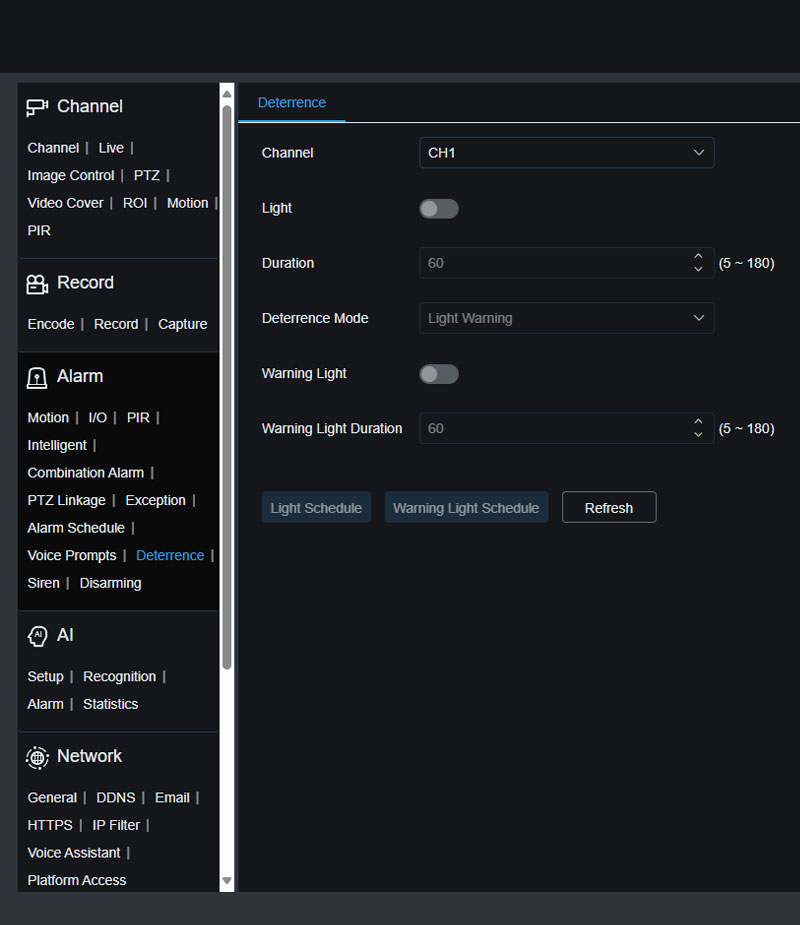
Smart Illumination

When the Image Setting is set to Smart Illumination mode, the Deterrence settings will not be available for configuration (they will be greyed out). In this mode, night vision is linked with a warm light to provide color images during alarms, returning to night mode afterward.

IPVAULT2320PR SPOT828A RB Image Control Smart Illumination Mode
IPVAULT2320PR SPOT828A RB Image Control Smart Illumination Mode Deterrence disabled

Manually Activate Lights and Siren for Instant Deterrence with Camius View App

Sometimes, when you are away, you will want to spook an unwanted visitor from your property, and the Camius View app gives you that option. To activate the Lights and Siren manually on your Camius camera, please follow these steps:

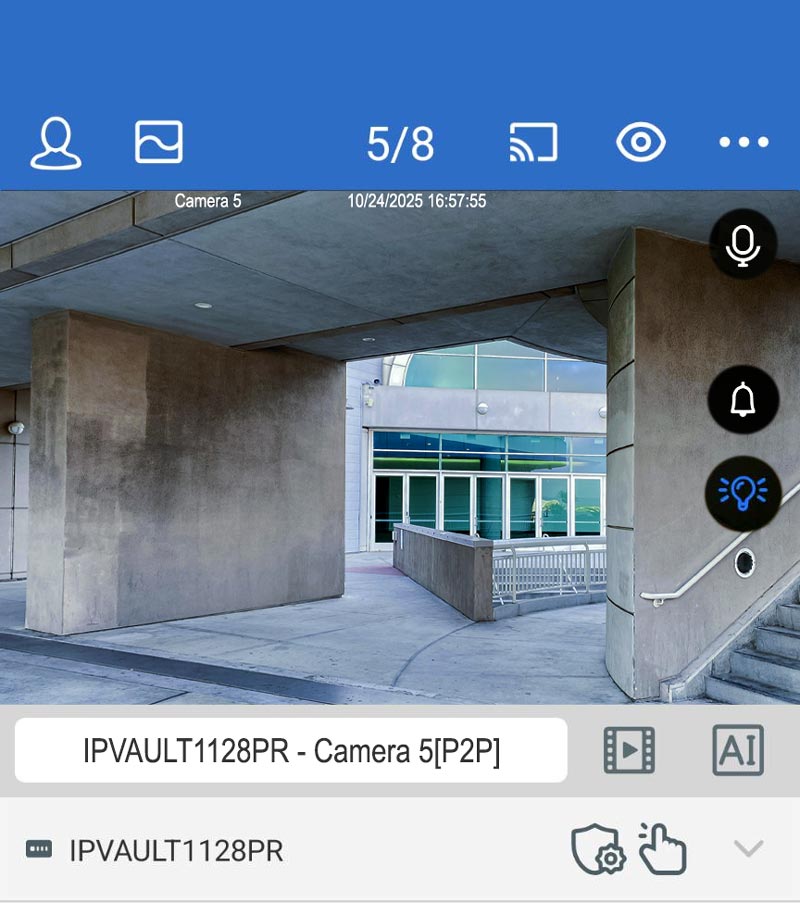
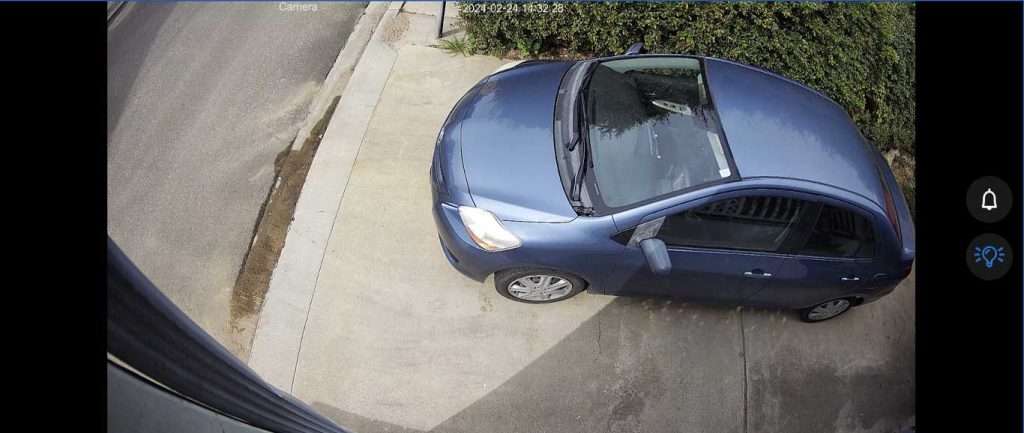
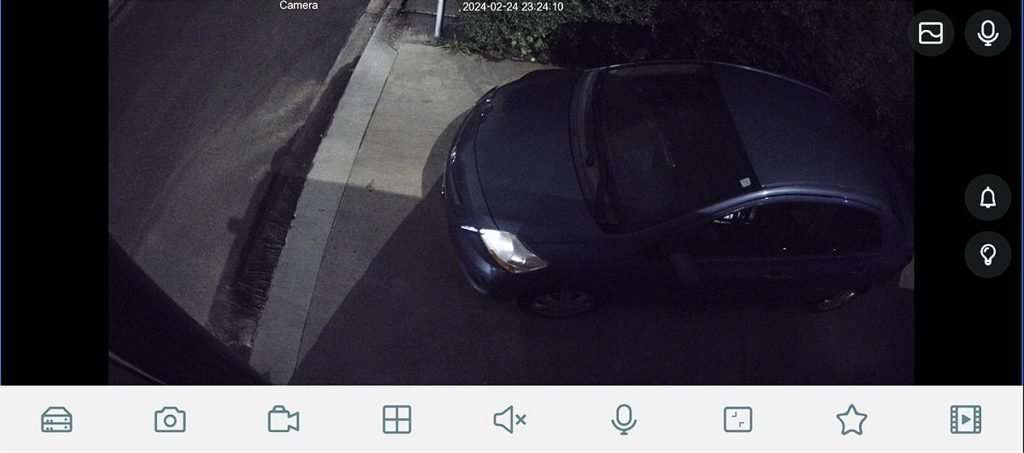
Open the Camius View mobile app, tab on the camera monitoring the intruder touch the Siren and/or Light icon on the right side of the screen as shown in Pictures 9 and 10.

Activate Lights and Siren on Camius View app 2
Picture 8 - Day Time
Camius spotlight cameras with lights off
Picture 9: Night Time with spotlights turned off
Camius PoE spotlight camera night vison with lights on
Picture 10: Night Time with spotlights activated

What are the Benefits of Installing Camius Audio Video Surveillance System for Business or Home?

By installing a Camius audio video surveillance system, you can enjoy a range of benefits that go beyond just deterring intruders. The high-quality footage captured by Camius 4K cameras can serve as valuable evidence in the event of a crime, helping law enforcement identify and apprehend perpetrators. Additionally, the presence of a security system can lead to lower insurance premiums, as it demonstrates your commitment to protecting your property. Furthermore, the peace of mind that comes with knowing your home or business is under constant surveillance is priceless. With Camius, you can rest assured that your safety and security are in good hands.

FAQs About Deter Mode on Camera

Deter mode on camera means the camera uses built in lights or a siren to warn intruders and push them away before a break-in happens. In Camius systems, deter mode lets the camera turn on white lights, flash red & blue warning lights, or sound a loud siren when the NVR detects human motion, vehicle motion, or perimeter intrusion. You can keep these features off, turn them on manually, or schedule them by day and time.

The SPOT828A-RB, 4K spotlight camera, has deterrence lights that are triggered by detection settings. If deterrence is enabled, the light may remain on (steady) or flash (strobe) depending on configuration. Adjust these in Alarm > Deterrence, or disable the linkage in AI > Pedestrian & Vehicle Detection and Alarm > Motion Detection.

No. When the camera is in Full Color mode, the Warning Light (red/blue) can only be set to On or Off. To access more deterrence options (white light, schedules, triggers), switch the camera to Day/Night mode under Channel > Image Control.

Full Color mode: Only Warning Light (red/blue) is available under Deterrence. White light is controlled separately under Image Control > White Light.

Day/Night mode: Full deterrence options are available, including White Light, Warning Lights, schedules, and trigger events.

Yes. In Day/Night mode, go to Alarm > Deterrence and use Light Schedule or Warning Light Schedule to set the hours and days when lights should activate, as well as the events (motion or AI) that trigger them.

Yes. The Camius View app allows you to turn deterrence lights and siren on or off manually while viewing live video. 

No. In nearly all cases, the deterrence lights are functioning correctly. Unexpected behavior usually comes from configuration or default settings, not from a hardware fault.