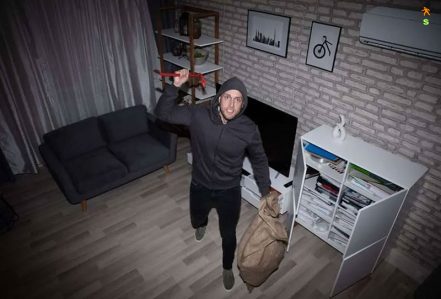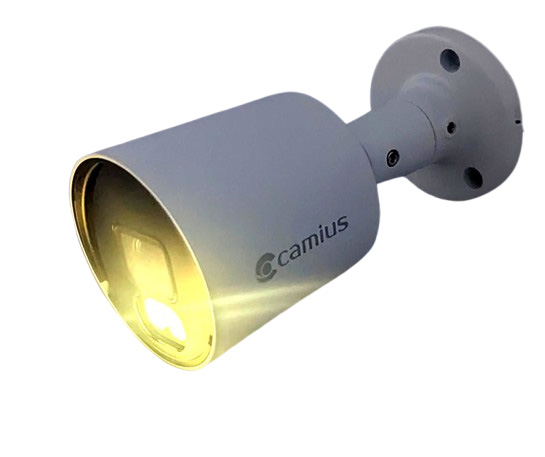
This guide shows how to make the white spotlight on FB4KPRO 4K analog outdoor cameras turn on only when a human, vehicle is detected at night. The camera uses the white spotlights to provide color video at night when Smart Illumination is active. Smart Illumination requires Camius hybrid DVR recorder and works based on camera mode, AI detection, and schedule settings. All required steps are explained below.
How to Set Up Spotlights on Camius 4K Analog Outdoor Cameras
How Analog Camera Spotlight Smart Illumination Works
Smart Illumination does not work like a regular motion light.
The FB4KPRO camera turns the light on only when:
- it is dark
- a human or vehicle is detected
- the camera and DVR settings are correct
If one setting is wrong, the light will not work as expected.
Step 1: Set the Camera Day and Night Mode to EXT (Required)
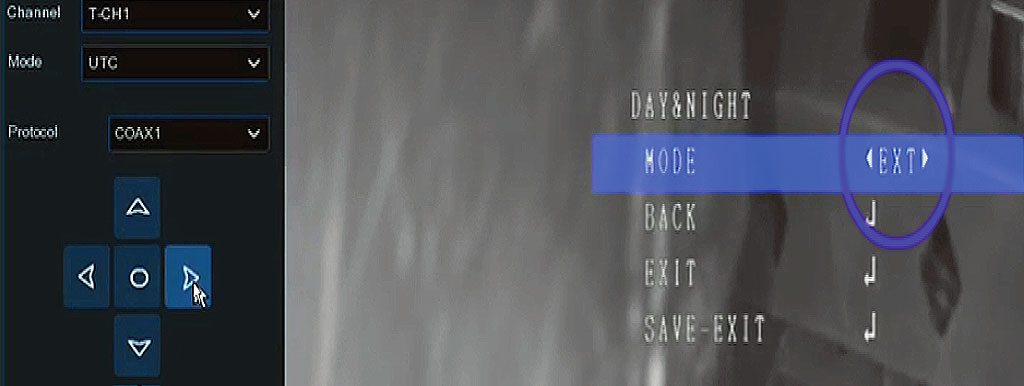
Smart Illumination works only when the camera Day and Night mode (DAY&NIGHT) is set to EXT.
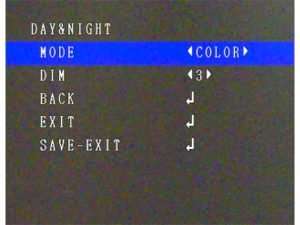
If the camera is set to COLOR, the camera forces color video at night and the spotlight behavior will be incorrect. If you prefer to have color night vision at all times, keep the COLOR mode.
How to change Day and Night mode
1- Connect the DVR to a TV or monitor using HDMI.
2- Go to Live View.
3- Select the camera channel.
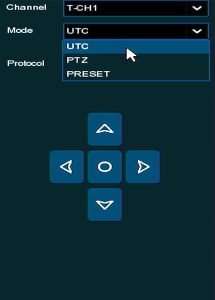
4- Open the camera quick menu and click the PTZ icon.
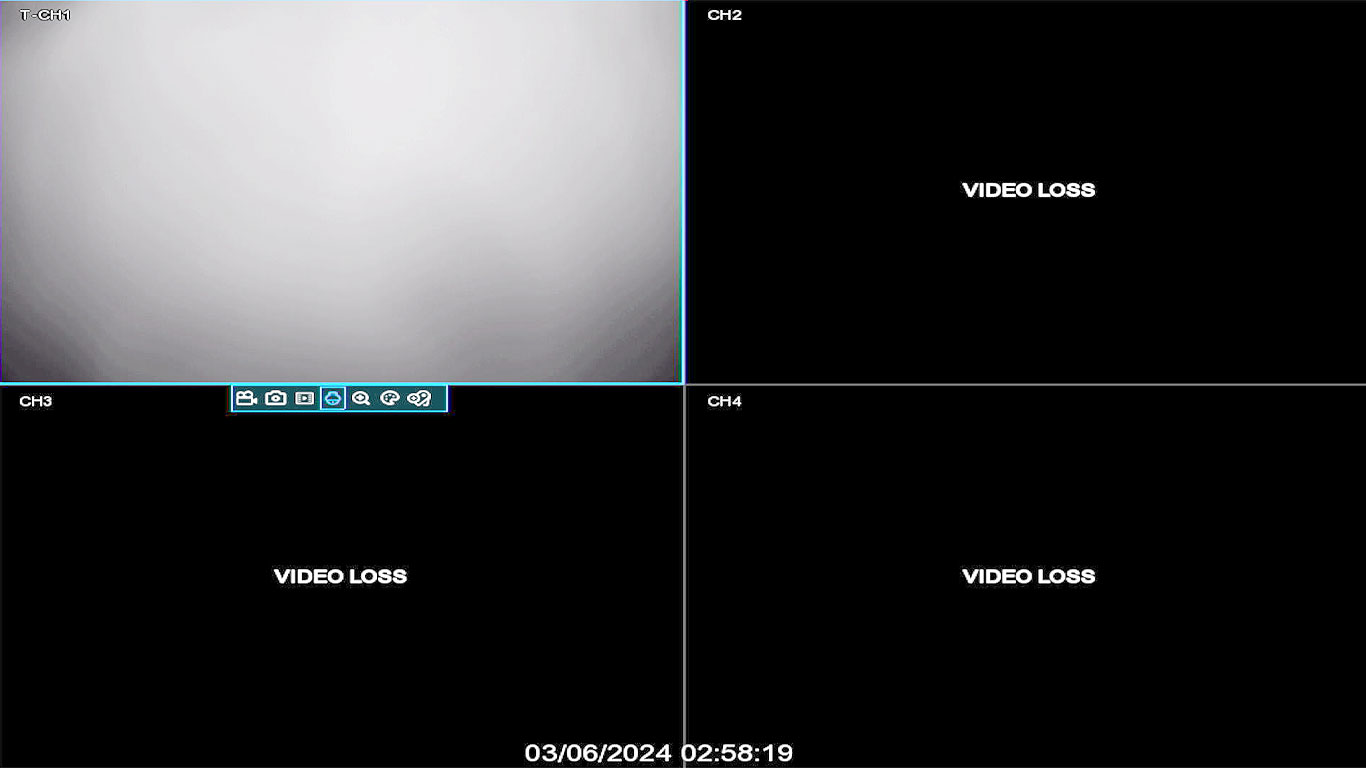
5- Under Mode, select UTC, then press the circle button in the center of the PTZ panel to enter UTC mode.
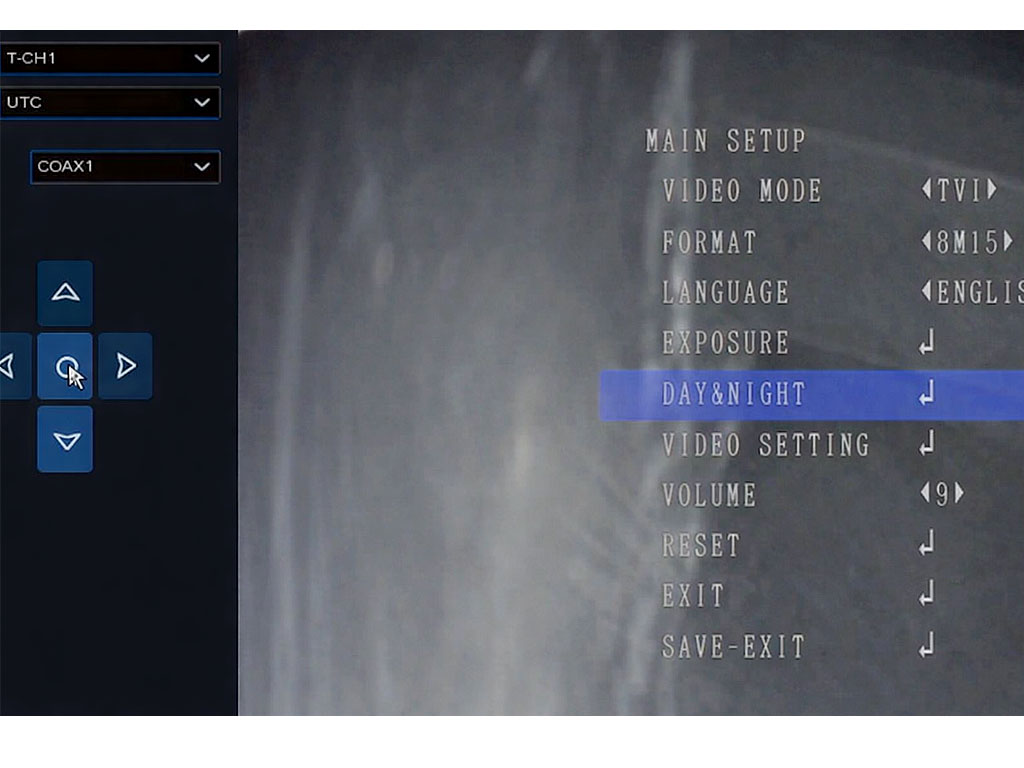
6- Use the arrow buttons to move down to DAY&NIGHT and and press the center circle button.
7- Change MODE to EXT using the left or right arrow buttons. Move down to SAVE-EXIT and press the center circle button to save.
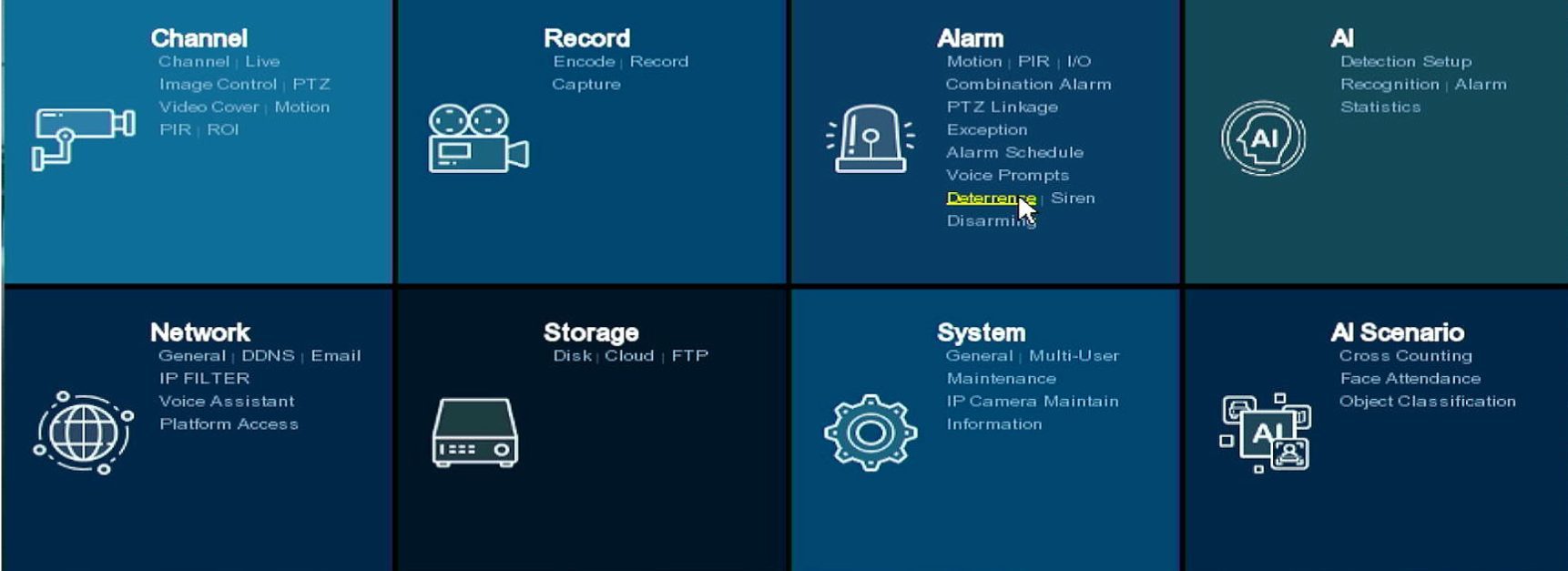
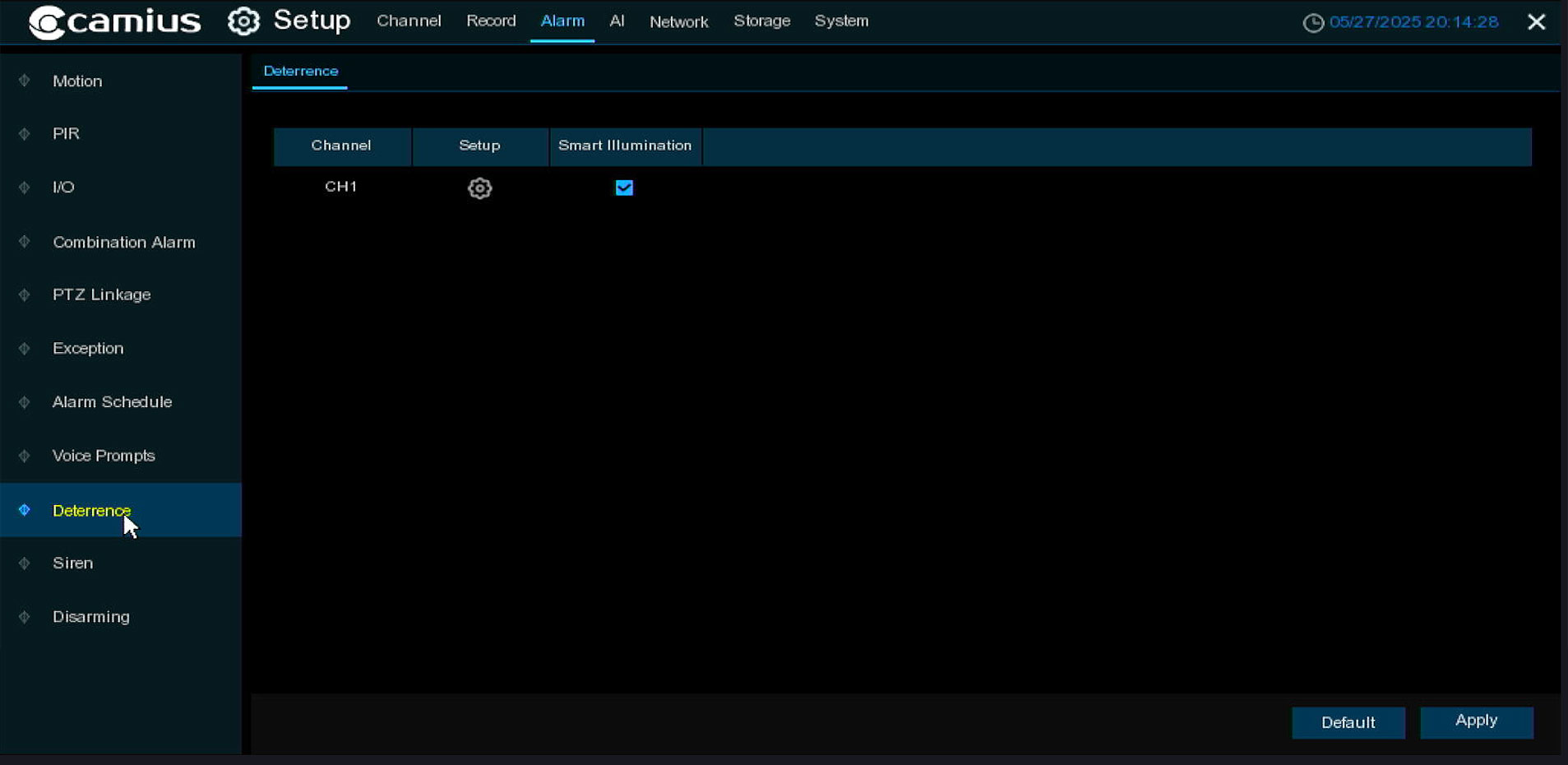
Step 2: Turn On Smart Illumination
- Go to Setup.
- Go to Alarm.
- Go to Deterrence.
- Select the camera channel.
- Turn Smart Illumination on by ticking the switch box.
- Click Apply.
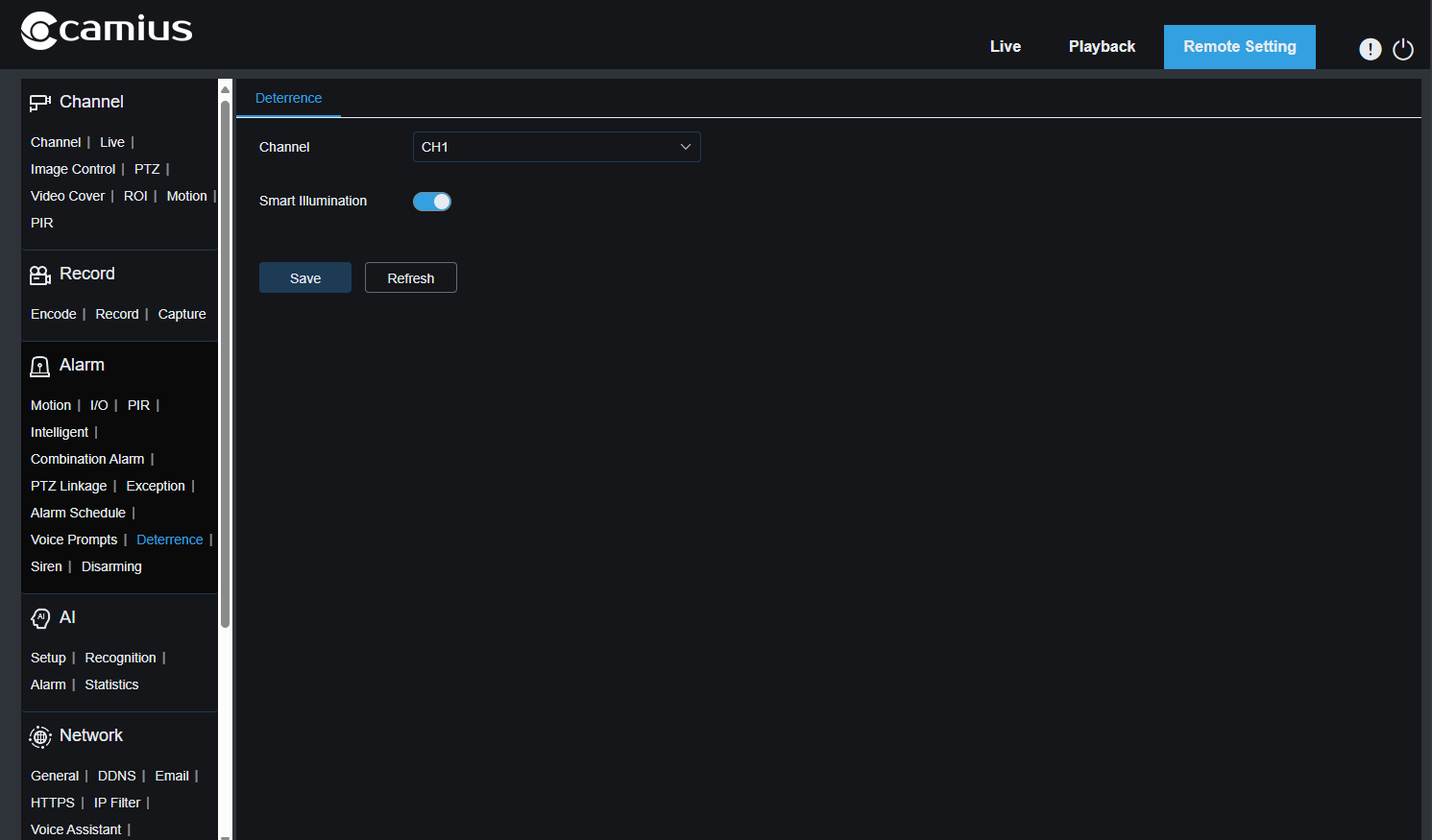
If you are accessing the DVR using a web browser, click on Remote Setting on the top right of the screen, followed by Alarm >> Deterrence
Step 3: Turn On Human and Vehicle Detection
Smart Illumination uses AI Human and Vehicle Detection, not basic motion detection.
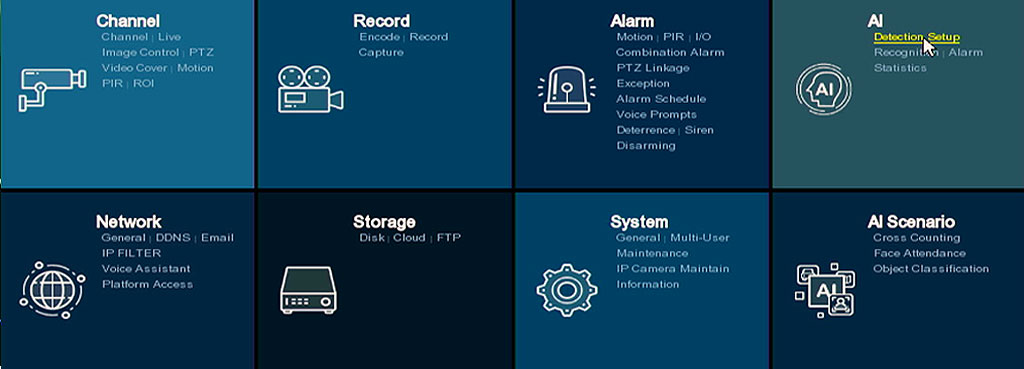
- Go to Setup.
- Go to AI.
- Go to Detection Setup.
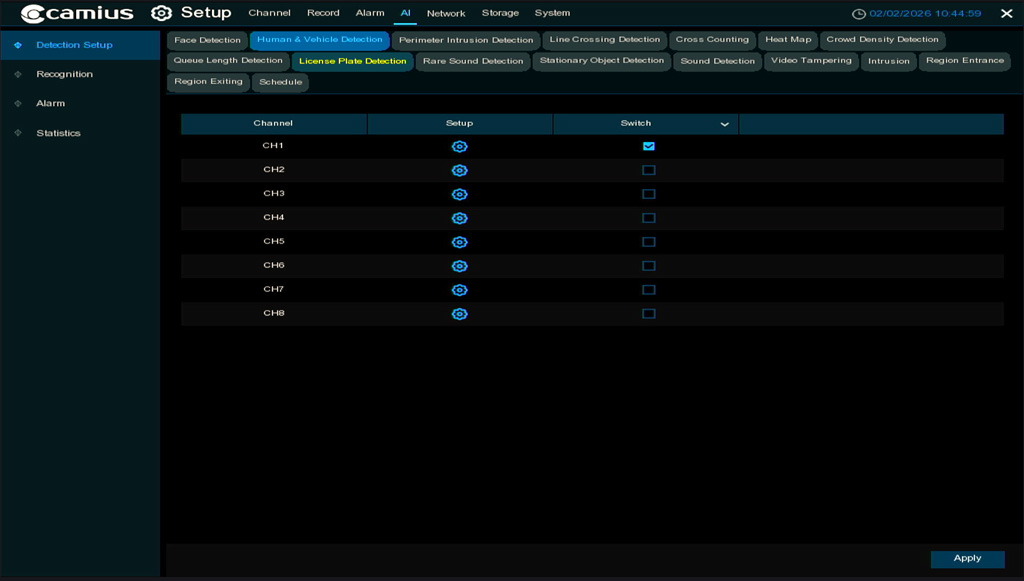
- Open Human and Vehicle Detection. Turn the Switch on for the camera channel.
- Click Apply.
AI Detection Switch Is Greyed Out
If the Switch for Human and Vehicle Detection is greyed out and cannot be turned on, this is normal behavior.
Some AI detection functions cannot run at the same time due to system performance limits. When one AI function is already enabled for a camera, other AI options may be unavailable.
AI Functions That May Conflict
The following detection functions are mutually exclusive. Only one of them can be active on a camera at a time.
- Face Detection
- Human & Vehicle Detection
- Perimeter Intrusion Detection
- Line Crossing Detection
- Cross Counting
- Crowd Density Detection
- Queue Length Detection
- License Plate Detection
If any of these functions is already enabled for the camera, the Human & Vehicle Detection switch may appear greyed out.
What to Do If the Switch Is Greyed Out
- Go to Setup (Remote Setting if you are using a web browser to access the DVR).
- Go to AI.
- Check other AI detection menus for the same camera channel.
- Disable any AI detection function that is already enabled.
- Return to Human & Vehicle Detection.
- Turn the Switch on and click Apply.
Only one main AI detection function can be active per camera.
Step 4: Detection Setup (Human and Vehicle Detection)
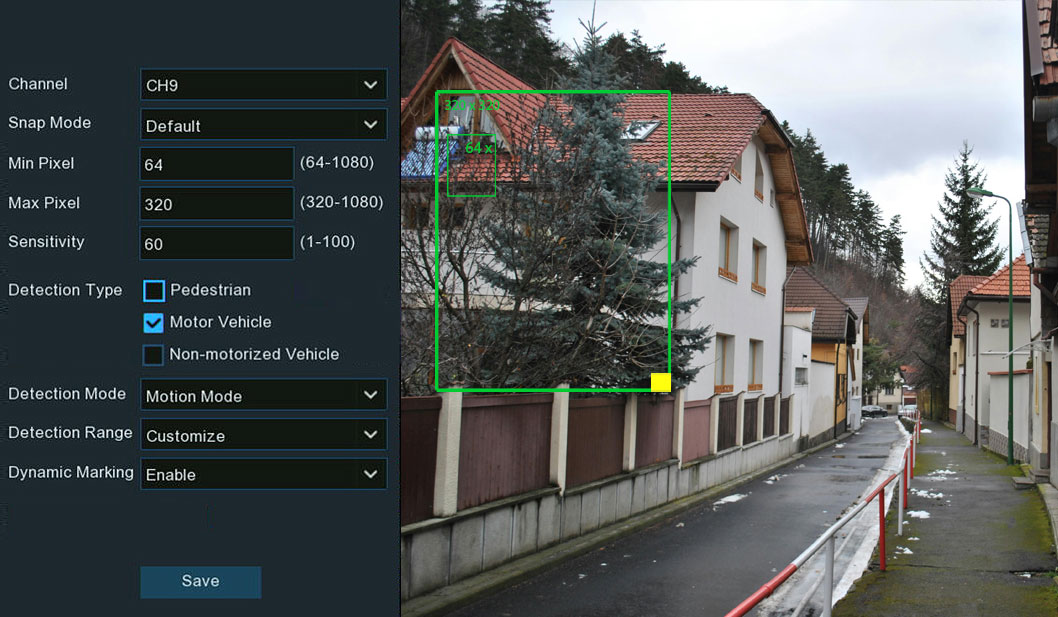
Depends on the camera’s distance, angle, and target area, you may need to tune the detection settings. These settings are adjusted after clicking the gear icon in the Setup column for the camera channel.
Min Pixel (Object Size Filter)
Min Pixel controls the minimum size an object must be, in pixels, before it is detected and it ranges 64 to 1080
- Lower values detect smaller, farther objects
- Higher values detect larger, closer objects
If Min Pixel is set too high, people or vehicles far from the camera will be ignored. The starting point of Min Pixel is 64.
If detection does not trigger at distance, keep Min Pixel at the lowest value.
Max Pixel (Maximum Object Size)
Max Pixel controls the largest size an object can be before it is ignored, and it’s value ranges from 320 to 1080.
This mainly affects objects very close to the camera, and it does not impact far objects.
Sensitivity
Sensitivity controls how easily detection triggers when an object moves. Sensitivity value ranges from 1 to 100.
If Sensitivity is too low, slow-moving people or vehicles may not be detected.
Adjust slightly higher or lower based on testing.
Detection Type
Select what the camera should detect:
- Pedestrian
- Motor Vehicle
- Non-motorized Vehicle
Tip: If bicycles are not needed, disable Non-motorized Vehicle to improve accuracy.
Detection Mode
- Motion Mode: Only moving objects are analyzed. Recommended for Smart Illumination.
- Static Mode:
Analyzes parked objects.
Not recommended for Smart Illumination.
Detection Range
- Customize: Allows you to draw a detection box. This improves accuracy.
- Full Screen: Analyzes the entire image.
This may reduce accuracy due to trees, sky, or distant areas.
Best practice is to draw the detection area around:
- the road or driveway
- areas where people or vehicles pass closest to the camera
Avoid:
- sky
- trees
- far background areas
Dynamic Marking
- When enabled: A green box appears around detected people or vehicles during live view and playback. This helps confirm detection is working.
Save and Test
- After adjusting any detection setting click Save.
- Test by walking through the detection area driving a vehicle through the detection area
When detection works:
a green “S” icon appears on the HDMI live view
Smart Illumination will trigger at night or in dark conditions.
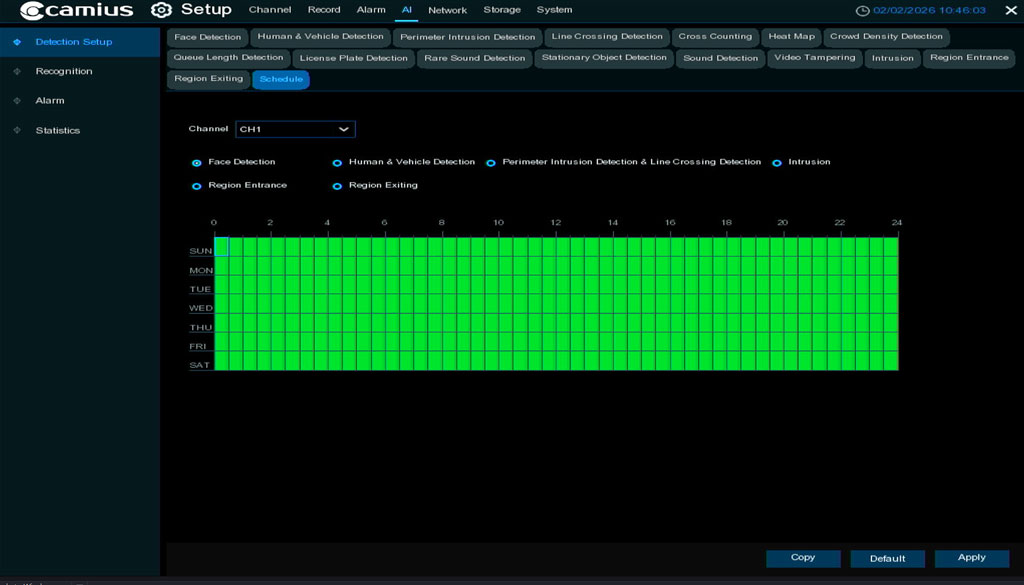
Step 4: Enable the AI Detection Schedule
Human and Vehicle Detection must also be scheduled.
- Stay in the AI menu.
- Open Schedule.
- Enable the schedule for Human & Vehicle Detection.
- Save the setting by clicking Apply.
If the schedule is green, it is enabled.
AI Schedule Mode Selection (Important)
- Inside the AI Schedule screen, you must select which detection function the camera will use.
- Click the Mode radio button to choose the detection function.
- Detection modes with a red radio button are mutually exclusive.
This means only one red mode can be active at a time. - If one red mode is already selected, other detection modes cannot be enabled.
Only one AI detection mode can be scheduled for a camera at one time.
For example, if any of these is selected
- Face Detection
- Perimeter Intrusion
- Line Crossing, etc
Then Human & Vehicle Detection cannot be scheduled until the other mode is disabled.
What to Do
- In the AI Schedule screen, check which Mode is selected.
- Disable or deselect other AI detection modes if needed.
- Select Human & Vehicle Detection as the active mode.
- Save the schedule by clicking Apply.
4K Analog Camera Spotlights Quick ChecklistÂ
- Day and Night (DAY&NIGHT) mode is set to EXT
- Smart Illumination is enabled
- AI Human or Vehicle Detection is enabled
- AI Detection Schedule is enabled
If all four items are set, the light will turn on only when a person or vehicle is detected at night or in dark conditions.
Once these settings are enabled, your Camius FB4KPRO 4K analog coaxial camera will automatically activate its white light at night or in dark environments when human or vehicle detected. This provides full-color night vision.
Note: If you add PoE IP cameras from Camius which include lights and siren, you’ll have enhanced deterrence control. With those models you can trigger lights + siren not only on basic motion/smart motion (SMD) but also on AI-events (human, vehicle, line-crossing, perimeter intrusion) for more accurate alarms and stronger deterrence:
- Camius 4K Spotlight PoE Security Camera
- Camius 4K Outdoor PoE Camera with Siren & Lights
- Camius 4K Pan-Tilt-Zoom (PTZ) PoE Camera
Upgrade to a 4K DVR System with Full Color Night Vision and AI Detection
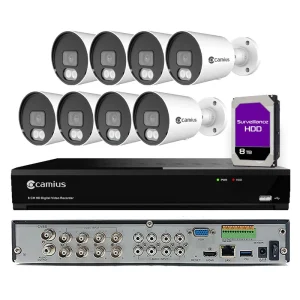
8 Channel DVR System with Smart Lights and Color Night Vision
Looking for a complete system with this camera and Smart Illumination support.
Our 8 channel DVR systems work with FB4KPRO cameras and provide color night vision, AI human and vehicle detection, and local recording with no monthly fees.
View 8 Channel DVR Systems
16 Channel DVR System with Smart Lights and Color Night Vision
For larger homes or business properties, our 16 channel DVR systems support multiple FB4KPRO cameras with Smart Illumination, color night vision, and advanced AI detection.
View 16 Channel DVR Systems
FAQs about the Best Color Night Vision CCTV Camera Systems
Is color night vision worth it?
Yes—color night vision is absolutely worth it, especially for outdoor security in low-light or no-light environments. Unlike infrared systems that only show black-and-white footage at night, color night vision captures real-world details like clothing color, vehicle paint, and license plates—critical information when identifying people or incidents.
Camius 4K analog cameras feature motion-activated white LED lights, enabling true full color night vision, even in total darkness. These cameras also use smart motion detection that can differentiate between people and vehicles—reducing false alerts and increasing detection accuracy.
This is a significant upgrade for homeowners and business owners still using older BNC-based systems. If your current setup includes 720p, 1080p, or 4MP cameras, upgrading to a Camius 4K system delivers much sharper video, better low-light visibility, and improved overall reliability—without the need to rewire.
In fact, many customers with older Lorex, Swann, and Samsung CCTV systems have switched to Camius to get better image quality, more advanced features, and long-term system compatibility—all while keeping their existing coaxial cable infrastructure.
Whether you’re securing a home, small business, or commercial facility anywhere in the U.S. or Canada, Camius full color night vision cameras offer a powerful and cost-effective upgrade path.
Is 4K worth it for security cameras?
Yes—4K resolution is a major upgrade for anyone still using 720p or 1080p analog cameras. The difference in clarity, zoom quality, and overall detail is significant. For example, you can identify faces, license plates, and small movements across wide areas with fewer cameras.
Camius 4K analog DVR camera systems are designed for easy upgrades using existing coaxial cables, even power sources, which means you don’t need to rewire or switch to IP camera systems. Whether you’re upgrading an old CCTV system in California, Texas, New York and anywhere else, 4K gives you better evidence and better peace of mind.
Is full color night vision possible?
Yes—full color night vision is now possible, thanks to smart illumination and advanced sensors. Unlike IR-based systems that default to black-and-white, Camius 4K analog DVR systems use white LED spotlights triggered by not just regular video motion, but smart motion, differentiating between humans and vehicles, or set on a schedule to provide color video even in complete darkness.
This technology is perfect for monitoring yards, gates, storefronts, or driveways after dark. You’ll see real-world colors, which can be crucial during investigations. Whether you’re in Los Angeles, Houston, Chicago or rural areas, this kind of visibility gives your camera system a major edge.
What is the best color night CCTV camera?
The best color night vision CCTV camera is one that delivers true color footage in complete darkness, offers reliable motion detection, and works with existing coaxial cable setups. The Camius FB4KPRO stands out as a top choice in this category.
Here’s why it’s one of the best:
- 4K Ultra HD resolution for clear, detailed video
- Built-in motion activated white LED lights for full color night vision
- Weatherproof metal housing for outdoor use
- Works with Camius hybrid DVRs and standard BNC cabling—no need to rewire
Whether you’re upgrading an older analog system in California, Texas, Florida, or beyond, the Camius FB4KPRO is ideal for home and business users who need high-resolution footage with real color, day or night.
Shop Camius 4K BNC Color Night Vision CCTV Camera Systems
8 Channel DVR Systems
-
Commercial DVR Security Camera Systems, 8 Camera DVR System, 8 Channel DVR Systems, DVR Security Systems – 4K 8 and 16 Channel DVR Kits
$1,390.00Original price was: $1,390.00.$1,090.00Current price is: $1,090.00. Add to Cart -
8 Channel DVR Systems, 8 Camera DVR System
$929.00Original price was: $929.00.$799.00Current price is: $799.00. Add to Cart -
8 Channel DVR Systems, 8 Camera DVR System
$1,390.00Original price was: $1,390.00.$1,090.00Current price is: $1,090.00. Add to Cart -
Commercial DVR Security Camera Systems, 4 Camera DVR System, 8 Channel DVR Systems, DVR Security Systems – 4K 8 and 16 Channel DVR Kits
$849.00Original price was: $849.00.$599.00Current price is: $599.00. Add to Cart -
Commercial DVR Security Camera Systems, 8 Camera DVR System, 8 Channel DVR Systems, DVR Security Systems – 4K 8 and 16 Channel DVR Kits
Rated 5.00 out of 5$990.00Original price was: $990.00.$799.00Current price is: $799.00. Add to Cart
16 Channel DVR Systems
-
Commercial DVR Security Camera Systems, 16 Camera DVR Systems, 16 Channel DVR Camera Systems
$1,890.00Original price was: $1,890.00.$1,699.00Current price is: $1,699.00. Add to Cart -
Commercial DVR Security Camera Systems, 16 Camera DVR Systems, 16 Channel DVR Camera Systems
$1,890.00Original price was: $1,890.00.$1,649.00Current price is: $1,649.00. Add to Cart -
Commercial DVR Security Camera Systems, 16 Channel DVR Camera Systems, 8 Camera DVR System
$1,590.00 – $2,149.00Price range: $1,590.00 through $2,149.00 Select options This product has multiple variants. The options may be chosen on the product page