How to Set Up a DVR with Alarm Output on Camius 8- and 16-Channel Systems

Camius hybrid DVRs – such as the TRIVAULT4K184R2 (8-channel DVR systems) and TRIVAULT4K2168R (16-channel DVR systems) – include alarm input/output (I/O) terminals for sensors, sirens, and automation devices.
These wired functions turn your DVR into a complete, intelligent security system, not just a video recorder.

Understanding Alarm Inputs and Outputs

Camius DVRs provide:

  • Alarm Inputs (IN 1–8 / IN 1–16): For connecting dry-contact sensors like PIR detectors, door contacts, or panic buttons.
  • Alarm Output (OUT 1): A relay switch that activates external devices (sirens, lights). It supplies no power itself; it only closes a circuit.

8-Channel DVRs (e.g., TRIVAULT4K184R2): 8 alarm inputs and 1 alarm output relay

16-Channel DVRs (e.g., TRIVAULT4K2168R): 16 alarm inputs and 1 alarm output relay

Each input may be configured as Normally Open (NO) or Normally Closed (NC) in the DVR menu.

DVR Alarm I/O vs. Motion Detection

Motion detection analyzes the video feed in cameras. Alarm I/O responds to physical sensors wired to the DVR.

Disabling motion alerts in cameras does not disable Alarm I/O triggers. Alarm inputs remain independent: they will still cause recording, push alerts, or relay activation, based on your settings under Setup → Alarm → I/O.

For more setup tips, visit our Camius DVR Setup Guide.

Wiring & Configuration

Step 1: Wiring

  • Connect one end of the sensor to an Alarm In terminal and the other to GND.
  • If using a siren or strobe, wire its control leads to the Alarm Out (NO/COM) terminals.
  • Use 22–24 AWG low-voltage cable for stability

Step 2: Configuration

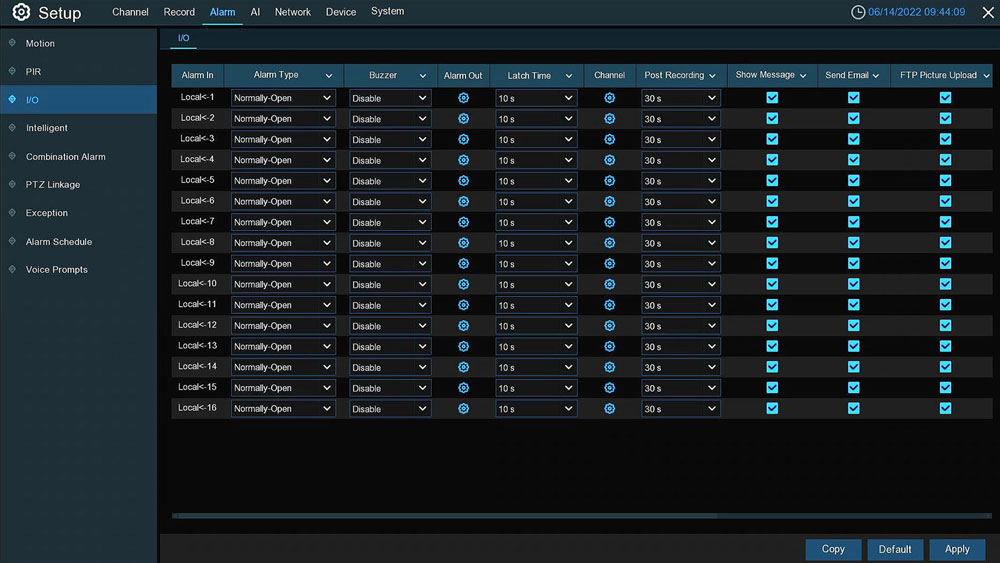
Navigate to Setup → Alarm → I/O.

  • In the Alarm In list, select the input (e.g. Local ≤ 1).
  • Under Alarm Type, select NO or NC.
  • Enable Buzzer, Alarm Out, Push Notification, etc.
  • Set Latch Time (duration of activation) and Post Recording (how long cameras record after trigger).
  • Optionally enable Show Message, Send Email, and FTP Picture.
  • Click Apply.
Note: To receive Push/Email alerts from an I/O input, at least one camera must be selected in the Record Channel field. If no camera is linked, only the internal buzzer will trigger.
 

Camius 16 channel DVR with alarm outputs - 16 alarm zones

Step 3- Testing of the DVR Alarm System

Trigger the sensor manually to verify that the DVR activates buzzer, recording, or Alarm Out as configured.

DVR Alarm Output Use

The Alarm Out relay closes its circuit when triggered by a defined event (motion, I/O, etc.). It does not supply power. Always use a separate power source for any siren or light.

If Latch Time = 10s, for example, the siren or light will remain active for 10 seconds.

Important Note: The DVR also includes Audio In and Audio Out ports for sound. These are completely separate from Alarm Out and should not be confused.

PTZ Linkage

Use PTZ Linkage to automatically direct PTZ cameras when events occur.

  • Go to Setup → Alarm → PTZ Linkage.
  • Select the camera channel.
  • Choose the event trigger: Motion, Alarm I/O, or Intelligent (if camera supports).
  • Assign a Preset, Tour, or Pattern.
  • Click Apply, then test.

Detail:

  • For analog PTZ domes (RS-485), linkage responds instantly because the DVR handles both I/O and PTZ control locally.
  • For IP PTZ cameras (XVR mode), linkage works only for events managed by the DVR (motion, I/O). The IP camera’s own I/O does not trigger DVR linkage unless it forwards events to the DVR.
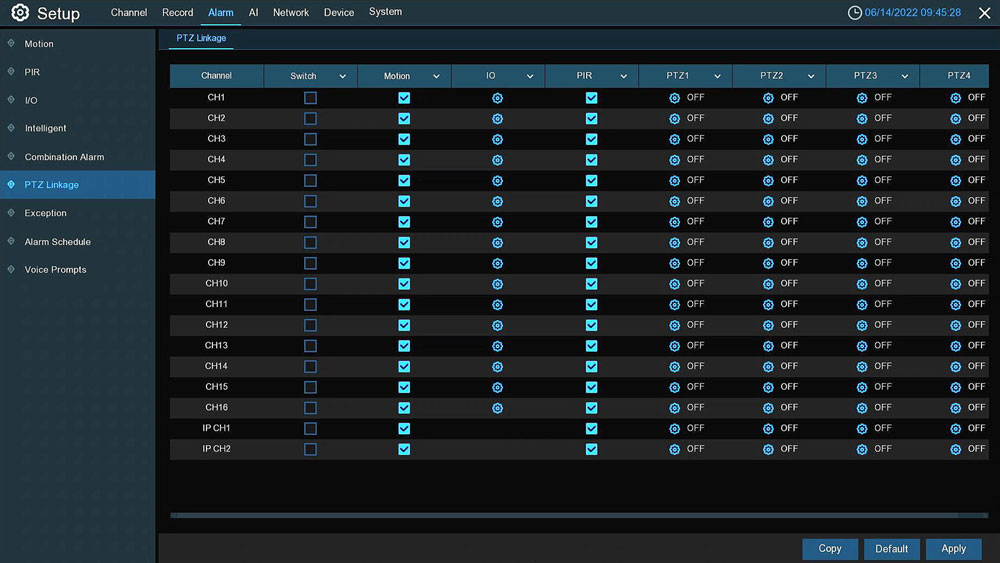
Camius 16 channel DVR with Alarm output- PTZ linkage

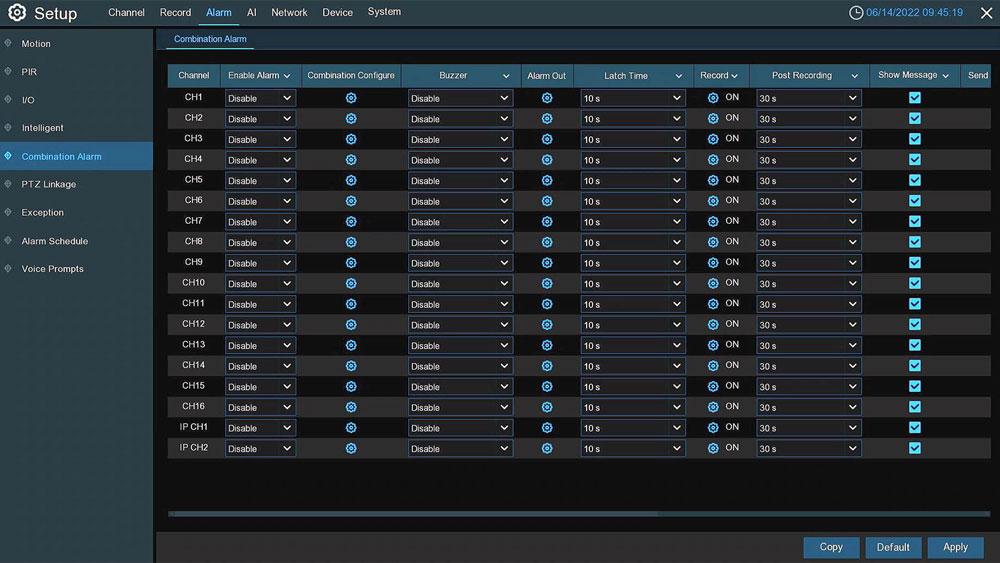
Combination Alarm in the DVR with Alarm Output and Input

The Combination Alarm feature lets the DVR only respond when multiple conditions occur together, e.g. motion + alarm input.

To configure:

  • Go to Setup → Alarm → Combination Alarm.
  • Enable the desired channel.
  • Click the gear icon under “Combination Configure.”
  • Select which events to combine: Motion, Alarm I/O, PIR, Intelligent.
  • Choose output actions (Alarm Out, Buzzer, Recording, etc.).
  • Click Apply, then test by triggering both conditions simultaneously.

Events handled purely within a camera’s software (e.g. its own I/O) are not part of this combination unless forwarded to the DVR.

Camius DVR with alarm output-combination alarm

Enhance your DVR with Camius Spotlight IP cameras featuring built-in sirens and deterrent lights. These smart cameras link with the DVR’s Combination Alarm to trigger light and sound alerts for instant on-site deterrence.

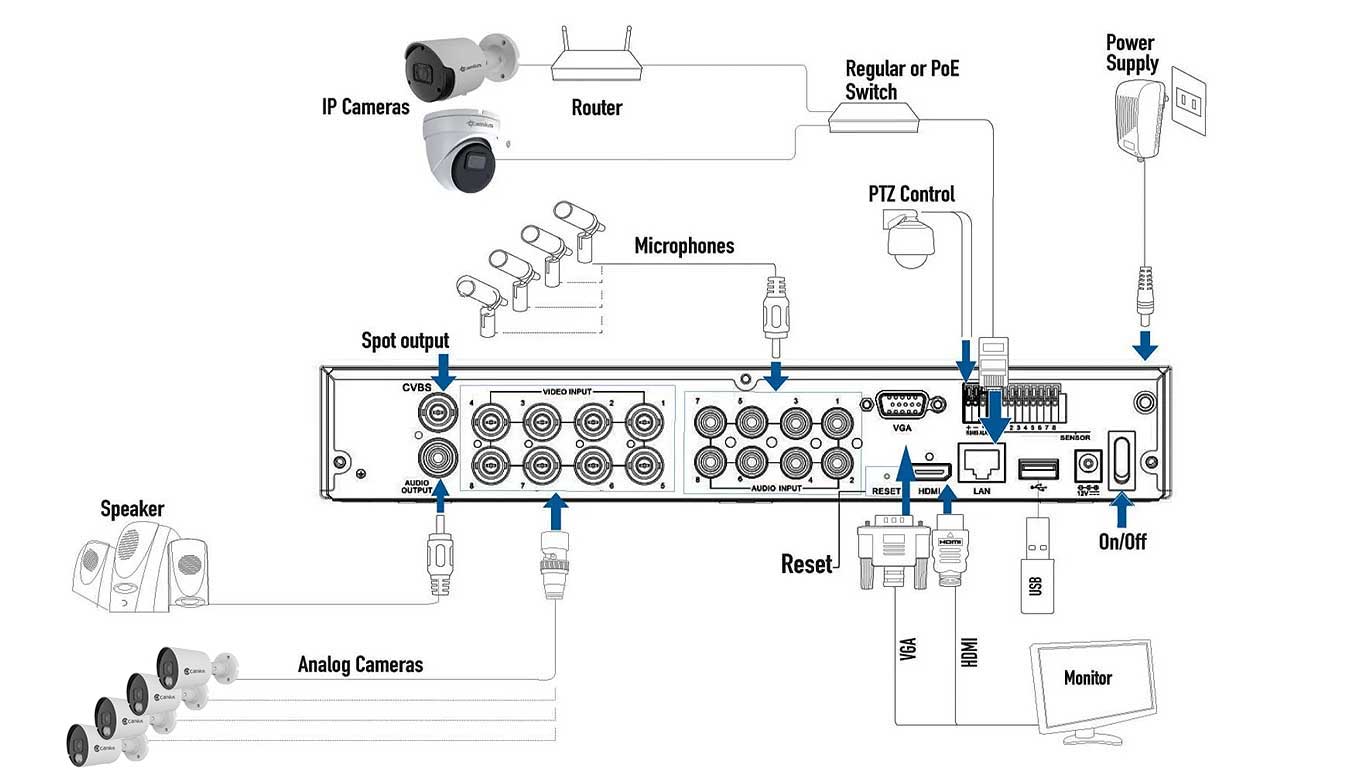
Alarm I/O Layout on DVRs Rear Panel

On the 16-channel model (TRIVAULT4K2168R), the green block labeled ALARM / RS-485 / SENSOR provides:

  • 16 Alarm Inputs (IN 1–16)
  • 1 Relay Output (NO/COM)
  • Shared Ground (GND)
  • RS-485 A/B for PTZ control

The 8-channel model shares the same layout but only 8 inputs.


The Camius 16 channel DVR  Rear Panel
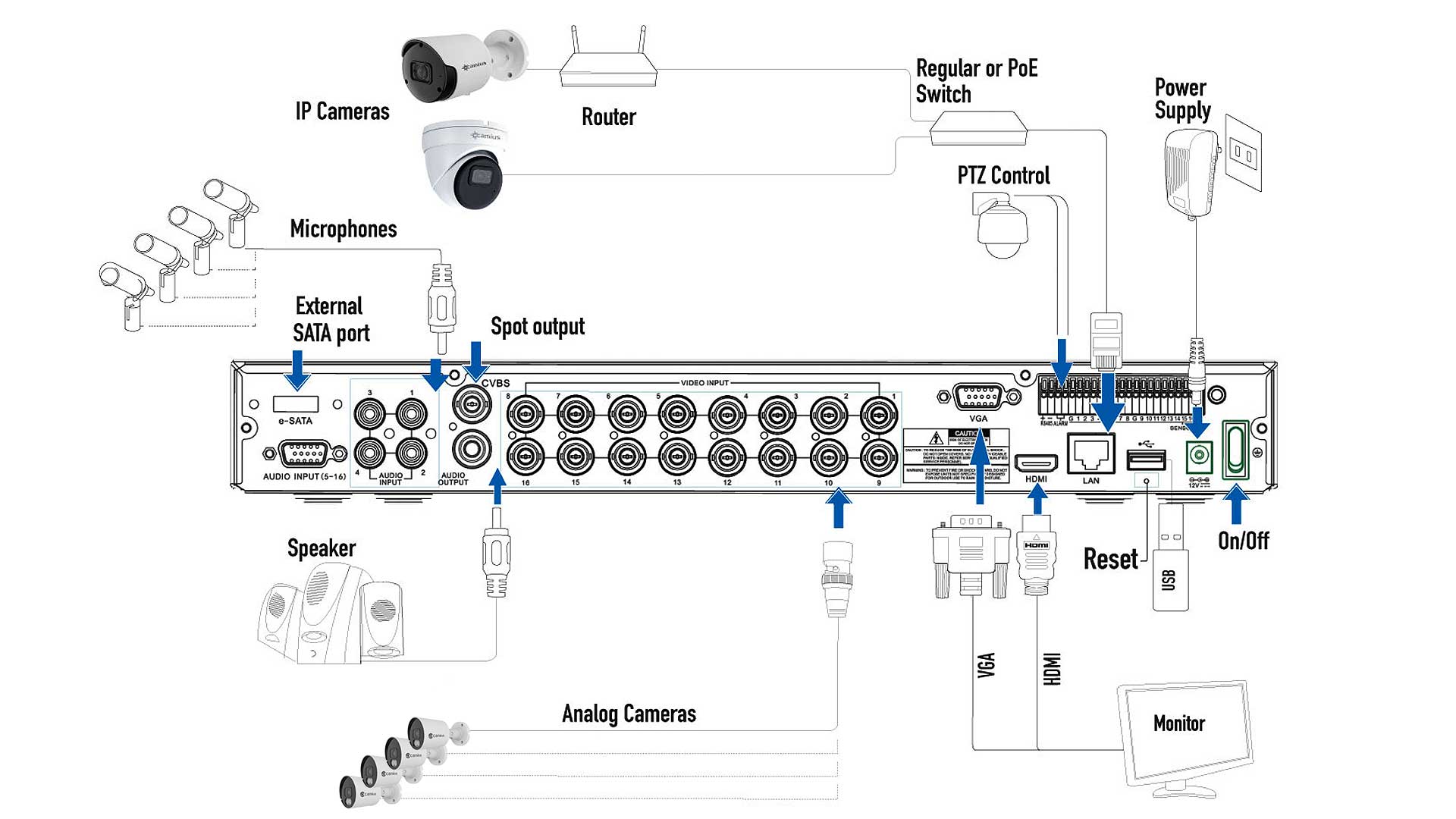
Camius 16 channel DVR with alarm output

The Camius 8 channel DVR  Rear Panel

Camius 8 channel DVR with alarm input and output

Smart Detection, FTP, and Cloud Upload

The DVR supports uploading snapshots or short video clips to:

Paired with Camius AI IP cameras, the DVR can interpret human, vehicle, face, line crossing, and intrusion detections.

Shop Camius DVRs with Alarm Input/Output

  • 8 or 16 Alarm Inputs + 1 Relay Output
  • Hybrid support: analog HD + IP
  • Built-in AI motion and detection analytics
  • Free Camius View App for push notifications
  • Expandable storage (up to 28 TB via 2 HDDs + eSATA)
  • No subscription fees, lifetime U.S. support

FAQs about DVRs with Alarm Output

It’s a relay contact that allows the DVR to control external devices like sirens or lights by closing the circuit when a trigger occurs.

Alarm I/O is a physical sensor input; motion detection inspects video. Disabling motion alerts does not disable I/O triggers.

While an I/O input can act alone (e.g. buzzer or relay), Push/Email alerts require a linked camera channel under Setup → Alarm → I/O.

Yes — the input can trigger buzzer or relay without a camera, but Push/Email alerts will only be sent when a camera channel is linked.

No. The I/O input names shown as Local ≤ 1–16 are system-defined and cannot be edited in the DVR menu.

On the DVR’s rear panel, locate the Alarm Out (NO/COM) terminals.

  1. Connect the external siren or strobe’s control leads to NO (Normally Open) and COM (Common).
  2. Power the siren from an external 12 V DC supply — the DVR relay provides no voltage.
  3. On the DVR, go to Setup → Alarm → I/O and enable Alarm Out for the event you want to trigger.
  4. Set the Latch Time for how long the siren remains active, then click Apply.

When triggered, the DVR closes the NO–COM circuit, activating the external device for the configured duration.

Tip: If you prefer an all-in-one option without external wiring, consider Camius deterrence cameras that include built-in lights and sirens:

Both cameras can be added to a Camius DVR in XVR mode and configured under Setup → Alarm → Combination Alarm or PTZ Linkage to activate lights and sirens automatically when motion or an alarm input occurs.

  • 30 V DC / 2 A
  • 125 V AC / 0.5 A

Always power high-current devices separately and let the DVR relay act only as the control signal.

No. Alarm Out is a relay switch, not an audio or powered output.
It does not send sound or voltage — it simply opens or closes a circuit to control another powered device such as a siren or strobe.

For audio, the DVR includes separate Audio In and Audio Out ports:

  • Audio In is used to connect an external microphone or camera with built-in mic.
  • Audio Out connects to a speaker, monitor, or amplifier for playback.

These are completely independent from the Alarm Out function.

PTZ control uses a separate RS-485 A/B terminal pair beside the Alarm I/O block.
Pins 1 and 2 handle PTZ communication; the rest of the block is for Alarm Inputs (1–16) and one Alarm Output relay.

Yes. They operate independently. You can have a sensor trigger both a PTZ preset movement and a siren activation by configuring both under Setup → Alarm → PTZ Linkage and Setup → Alarm → I/O.

Yes — when the sensor is wired to the DVR’s Alarm Input terminals.
If Alarm In 1 is triggered, the DVR can move an analog or IP PTZ camera (added by IP address) to a defined Preset, Tour, or Pattern set in Setup → Alarm → PTZ Linkage. It does not respond to I/O ports on the IP camera itself.

The Combination Alarm lets the DVR act only when selected conditions occur together — for example, motion + alarm input.

To configure:

  • Go to Setup → Alarm → Combination Alarm.
  • Enable the channel.
  • Click the gear icon under Combination Configure.
  • Select events to combine: Motion, Alarm I/O, PIR, or Intelligent Detection.
  • Choose actions such as Alarm Out, Buzzer, or Record.
  • Click Apply.

This reduces false alerts by ensuring the DVR reacts only to confirmed activity.

  • Analog PTZ (RS-485): Works directly with DVR Alarm I/O; fastest response.
  • IP PTZ (XVR mode): Works only with DVR-managed events (motion, Alarm In); the DVR sends PTZ commands via ONVIF or Camius private protocol.
  • Standalone IP PTZ: Uses its own web interface for smart events.

Camius DVRs include dedicated terminals for alarm and PTZ control on the rear panel.

  • The Alarm Input (I/O) ports accept low-voltage dry-contact triggers from external sensors such as PIR detectors, magnetic door switches, or panic buttons. Each input can be configured in the DVR menu under Setup → Alarm → I/O as normally open (NO) or normally closed (NC).
  • The Alarm Output is a dry-contact relay that activates connected devices such as sirens or strobe lights. It does not provide power and must switch an external 12 V DC or 110 V AC supply. The relay supports up to 30 V DC at 2 A or 125 V AC at 0.5 A.
  • For PTZ cameras, the DVR provides a separate RS-485 A/B terminal pair used to send control signals to analog PTZ domes. This two-wire connection allows pan, tilt, zoom, and preset commands configured under Setup → PTZ.

Together, these terminals let the DVR manage physical sensors, external alarms, and PTZ movement directly from one interface while keeping each system electrically isolated for reliable operation.

No. Camius DVRs add IP cameras by their local IP address, not by P2P ID.
P2P is used only for remote access through the Camius View App or VMS (video management software). Always add IP cameras via Setup → Camera → Registration using IP address, port, username, and password.

Yes.
Camius Spotlight IP Cameras have built-in sirens and deterrent lights that can be triggered through the DVR’s Combination Alarm or PTZ Linkage settings.
They provide instant visual and audible response to motion or alarm events.

Shop Camius IP Cameras

Visit the Camius Knowledge Base for firmware updates, installation diagrams, and full configuration walkthroughs for the TRIVAULT series DVR camera systems.