
Network Video Recorder Installation Guide
Network Video Recorders (NVRs) are the backbone of modern security camera systems. This network video recorder installation guide will walk you through the steps of setting up your Camius NVR, connecting cameras, configuring network settings, and accessing your system locally and remotely.
Camius NVRs are designed for homes, offices, and businesses requiring reliable video surveillance with PoE (Power over Ethernet) support, easy configuration, and AI-driven recording features.
For a printable step by step walkthrough with diagrams, download the official NVR Installation Guide here.
What You Need Before Starting Network Video Recorder Installation
Before installation:
- Place the NVR in a cool, dry, and well-ventilated area.
- Avoid blocking vents to prevent overheating.
- Check your local laws regarding video surveillance.
- Use only approved power supplies.
Unauthorized modifications can void the warranty. For warranty details, visit camius.com/warranty.
How to Connect a Camius NVR and PoE Security Cameras
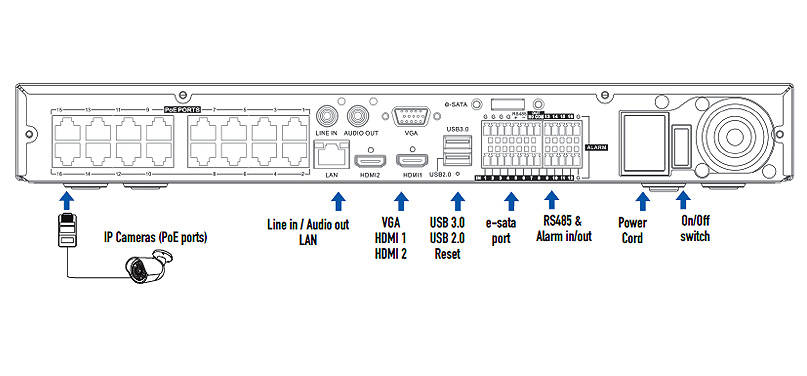
Depending on the model, Camius NVRs are available in 3 types:
Connection steps are similar across models:
- Connect the power cord and switch the NVR on.
- Use HDMI or VGA to connect a monitor.
- Plug PoE IP cameras directly into the NVR PoE ports, or connect them through a network switch.
- Connect the NVR to your router for internet access.
- Optional: Connect speakers, USB mouse, or storage devices.

First Login and Password Setup for Your NVR
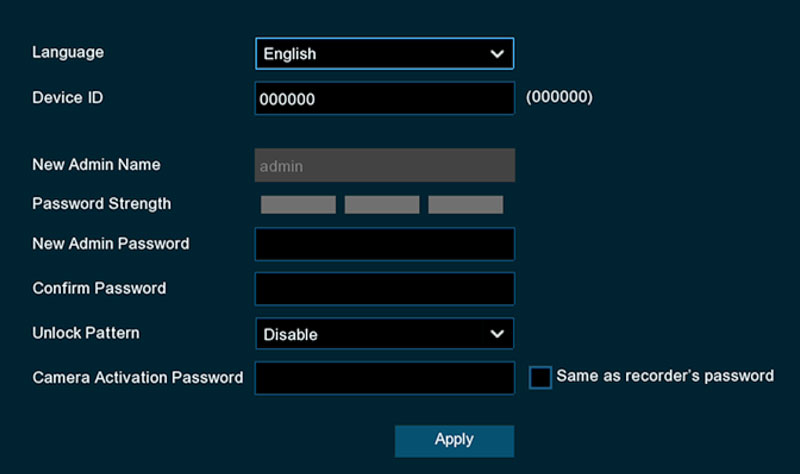
When powered on, the system will detect your monitor and prompt you to select:
- Language
- Device ID (default: 000000)
- Administrator login (default username: admin)
Set a secure password (8–16 characters with uppercase, lowercase, number, and symbol). Optionally, add an unlock pattern and password recovery questions.
It is recommended to tick the ‘Same as recorder’s password‘ checkbox under ‘Camera Activation Password’.
If this box is not selected, the cameras may not sync properly and can show password error after setup. This allows all connected PoE cameras to be activated with the same password as the NVR admin password.
If you lose your password, reset options are available:
- Press and hold the reset button (if available) for 10 seconds.
- Or submit a support request with your NVR’s MAC ID and system date following this guide (applicable to those NVRs which do not have a hard reset button).
Startup Wizard
The built-in wizard helps configure your system:
- Network Setup: DHCP is enabled by default. Static IP configuration is available. Configure ports (HTTP/HTTPS, RTSP, Client) if needed.
- Date and Time: Set your time-zone, enable NTP synchronization, and adjust for Daylight Saving Time.
- IP Camera Setup: Connected PoE cameras appear automatically. Non-PoE IP cameras can be added manually or via LAN search.
- Disk Setup: If using a new HDD, format it under Setup. Choose Auto Overwrite for continuous recording. Camius NVRs support SATA HDD/SSD up to 10TB.
- Mobile Setup: Scan the P2P QR code to link with the Camius View app (iOS/Android).
- Resolution: Choose the output resolution compatible with your monitor.

Adding and Managing IP Cameras on the Recorder
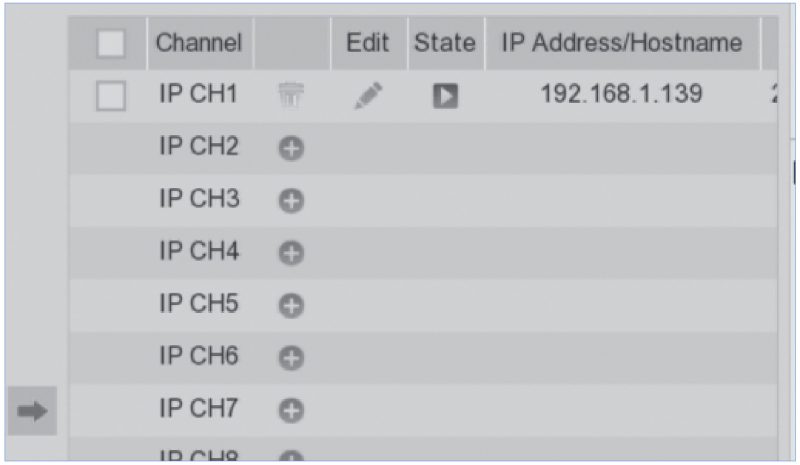
- Plug Camius PoE IP cameras into NVR PoE ports for automatic detection.
- Add ONVIF-compatible IP cameras manually via network settings.
- Use the pencil icon for manual configuration or click “+” to search available IP cameras on your LAN.
If you’re wiring 12–16 cameras, a 16-camera NVR security system keeps cabling simple and storage centralized.
Access and Configuration
Local Access
- Use a USB mouse and monitor connected to HDMI/VGA.
- Navigate through the main menu for system settings, camera setup, and playback.

Web Browser
- Install the Camius Device Config Tool from camius.com/support.
- Use the tool to detect the NVR’s IP and log in via browser.

Remote Access with the Camius View App
- Install the Camius View App from iOS or Google Play.
- Add devices by scanning the QR code or using the Online Search option.
- To confirm internet access, disconnect Wi-Fi and test using mobile data.
Recording Modes, Playback, and Backup Options
- Recording Modes: Configure schedules for continuous, motion, alarm, or PIR-based recording under Setup >> Record >> Record Schedule.
- Deterrence Schedule: Set lights and sirens for proactive deterrence.
- Live View: Double-click cameras for full screen, zoom using the scroll wheel, and access quick controls.
- Playback: Use the timeline to review events, filter by type, and export recordings.
- Backup: Save selected recordings to a USB drive in MP4 format.
Download the complete NVR installation guide here

FAQs on Network Video Recorder Installation
What is needed for network video recorder installation?
To install a Camius network video recorder, you need the NVR unit, compatible Camius PoE or IP cameras, a monitor with HDMI or VGA input, a router or switch for internet connection, Ethernet cables, and the included power supply. For recording, install a Camius-supported SATA hard drive or SSD. Camius 8 channel NVRs support up to 10TB, 16 channel NVRs support up to 14TB, and 32 channel NVRs support up to 16TB of storage.
How do I connect cameras during network video recorder installation?
Camius PoE IP cameras plug directly into the NVR’s PoE ports for automatic detection. You can also add Camius IP cameras over the local network. If you use ONVIF-compatible third-party IP cameras, add them manually through the NVR menu or with the Camius Device Config Tool.
How do I configure network settings on a Camius NVR?
On a Camius NVR, the simplest setup is to use DHCP. The DHCP box is usually checked by default, but make sure it is ticked so your router can automatically assign the correct network parameters. If you prefer manual setup, you can enter a static IP address, subnet mask, gateway, and DNS servers in the NVR’s Network Settings. Camius also allows adjustment of HTTP, HTTPS, RTSP, and Client ports if needed for advanced configurations.
How do I set up recording on a Camius network video recorder?
On your Camius NVR, go to Menu >> Setup >> Record >> Record Schedule. Choose between continuous recording, motion detection, alarm-based recording, or PIR-based recording. Apply schedules to one or multiple channels as needed. For long-term storage, Camius NVRs support high-capacity hard drives: 8 channel models up to 10TB x1, 16 channel models up to 14TB x2, and 32 channel models up to 18TB x4. To avoid interruptions, enable Auto Overwrite, which ensures new video replaces the oldest footage once the drive is full.
Can I access my Camius NVR remotely after installation?
Yes. Download the Camius View app for iOS or Android. Scan the QR code on your Camius NVR to link it via P2P ID. This lets you watch live video, playback, and receive notifications securely without complex port forwarding.
How do I reset my Camius NVR if I forget the password?
If your Camius NVR includes a reset button, press and hold it for 10 seconds until you hear audible confirmation. This resets login details while keeping your recordings. If your model has no reset button, send the MAC address and current date displayed on your Camius NVR using a support ticket form for reset assistance.
Recommended Hardware
For medium to large deployments, pair this setup guide with 16-channel 8MP PoE NVR to handle up to 16 UHD cameras with built-in PoE.