

Setting up your Camius NVR Network Video Recorder System

Get your Camius PoE NVR system up and running in no time with this step-by-step installation guide.

For detailed instructions, download the updated Camius PoE NVR Installation Guide (PDF) here or view the full IPVAULT NVR user manual.

Table of Contents

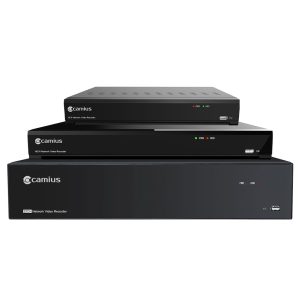
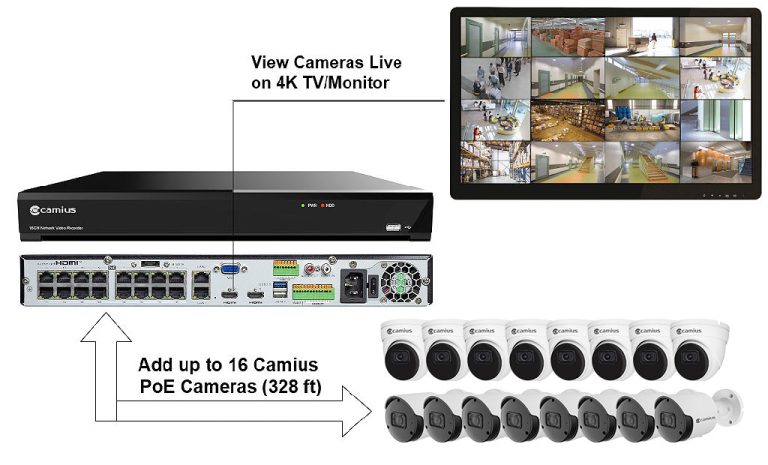
This guide applies to Camius 8, 16 and 32 Channel NVR network video recorder and below camera systems:

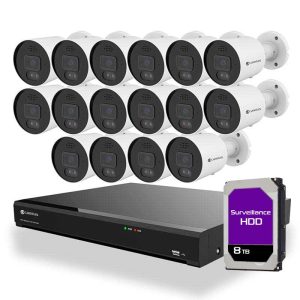
Need a complete NVR camera system for a new site. Browse Camius kits with indoor and outdoor cameras and pre-installed local storage.

Step-1 Powering on the NVR for the first time

After plugging in your cameras, monitor, and mouse, turn on the NVR using the On/Off switch.

During the Camius loading screen, the NVR detects the monitor connected to the HDMI or VGA port, and a message will appear if a higher resolution is available.

On the startup screen, please create a password for the NVR to be used for local and remote access.

  • Select the desired menu Language.
  • The default Device ID is 000000.
  • The administrator username is ‘admin’
  • Password requirements: 8-16 characters, a lowercase, an uppercase, a digit, and a special character.
  • You can activate and edit users under Menu >> Setup >> System >> Multi-user

The unlock pattern is optional for easy access: Click on the tab ‘to Draw’ and set your unlock pattern then click ‘Apply’. In addition, users can select or skip Password Recovery Questions & Answers.

How to set a password on my new Camius DVR or NVR recorder?

Step-2 Logging in

Unlock the NVR using the newly created password, and if the password is lost, here’s how to reset it:

1 – If your recorder has a reset button (R-series) shown on the Connection Diagram, press and hold it for 10 seconds to reset. After the audible confirmation, the NVR will reset all settings, including the password. Resetting will not erase recorded footage on your hard drive unless set under Maintenance >> Reset settings.

2 – If your recorder doesn’t have a reset button, email the current date on the NVR’s interface and The MAC address of the NVR to su*****@****us.com to receive a reset password:

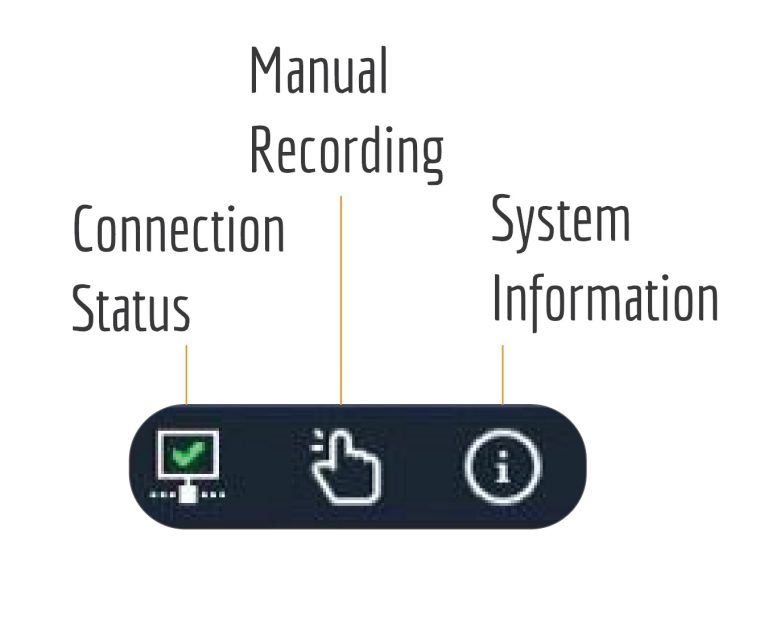
To find the MAC address, click the (i) information icon at the bottom menu on the NVR’s interface. The Camius Device Config Tool and the Camius View app are other ways to find the MAC.

Step-3 Startup Wizard – Network

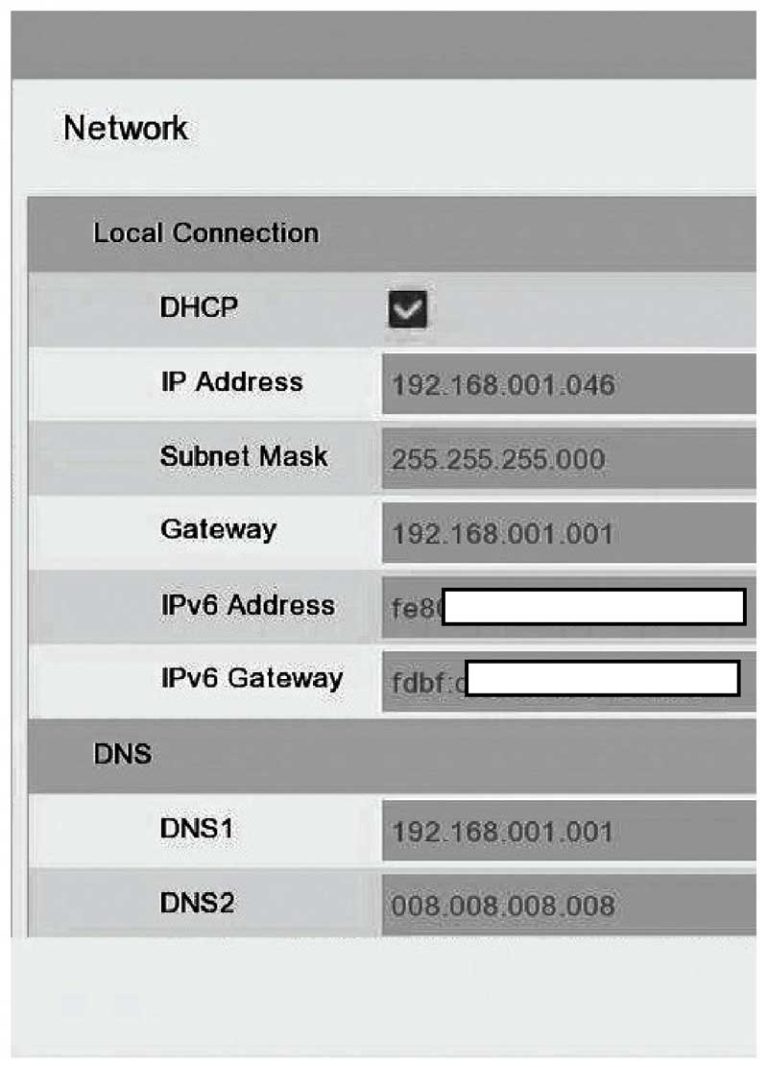
If your router supports DHCP, keep the DHCP checkbox ticked. The router will automatically assign network parameters to the NVR. Otherwise, you can set up a static IP.

  • The IP address identifies the NVR on the local network.
  • The subnet mask for a basic setup is 255.255.255.0
  • The Gateway is typically your router’s IP address.
  • DNS1/DNS2: The primary and backup DNS servers.
  • Web Ports: (HTTP/HTTPS/RTSP) is 80 by default, and the ‘Client’ port is 9000 by default; both are customizable.
  • UPnP: If your router supports Universal Plug’n’Play. The NVR will attempt to configure port forwarding automatically; otherwise, you can forward those ports manually on the router.

PPPOE protocol is for DSL connections.

PoE NVR networ settings

Step-4 Startup Wizard – Date & Time

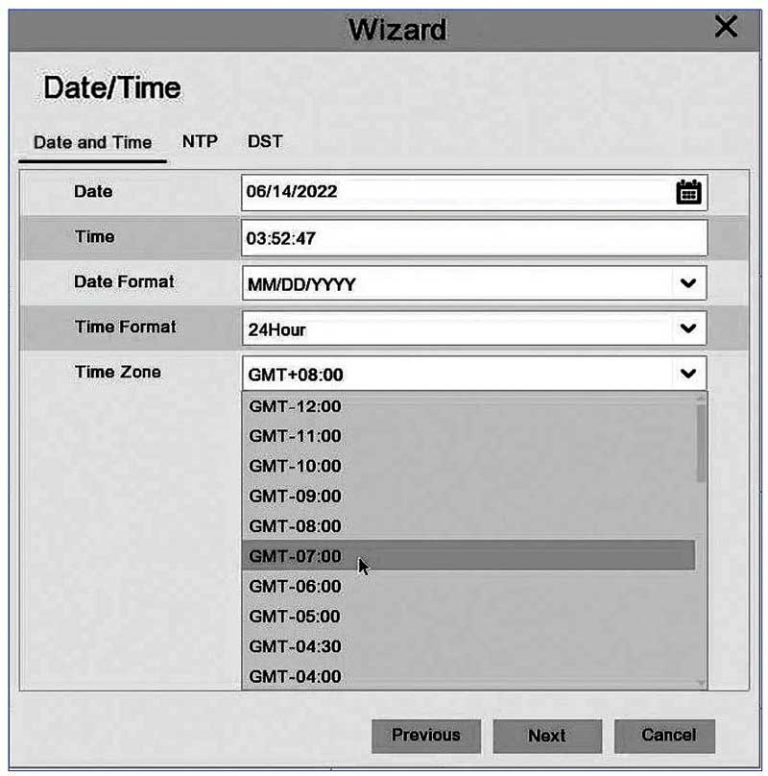
Synchronizing your NVR’s internal clock with your local Date & Time is essential; here are the steps:

  1. Set your local time zone relative to GMT, for example, with Daylight Saving On: {PST Pacific: GMT-7}  {MST Mountain: GMT-6}  {CST Central: GMT-5}  {EST Eastern: GMT-4}
  2. Set the date, time, and formats manually.
  3. It’s recommended to use NTP (Network Time Protocol), which synchronizes date and time over the Internet. Click the checkbox, choose one of the servers, and click Update Now.
  4. Enable DST for Daylight Saving Time.
  5. Once done, click Next.
Camius POE NVR date and time settings

Step-5 Startup Wizard – IP Cameras

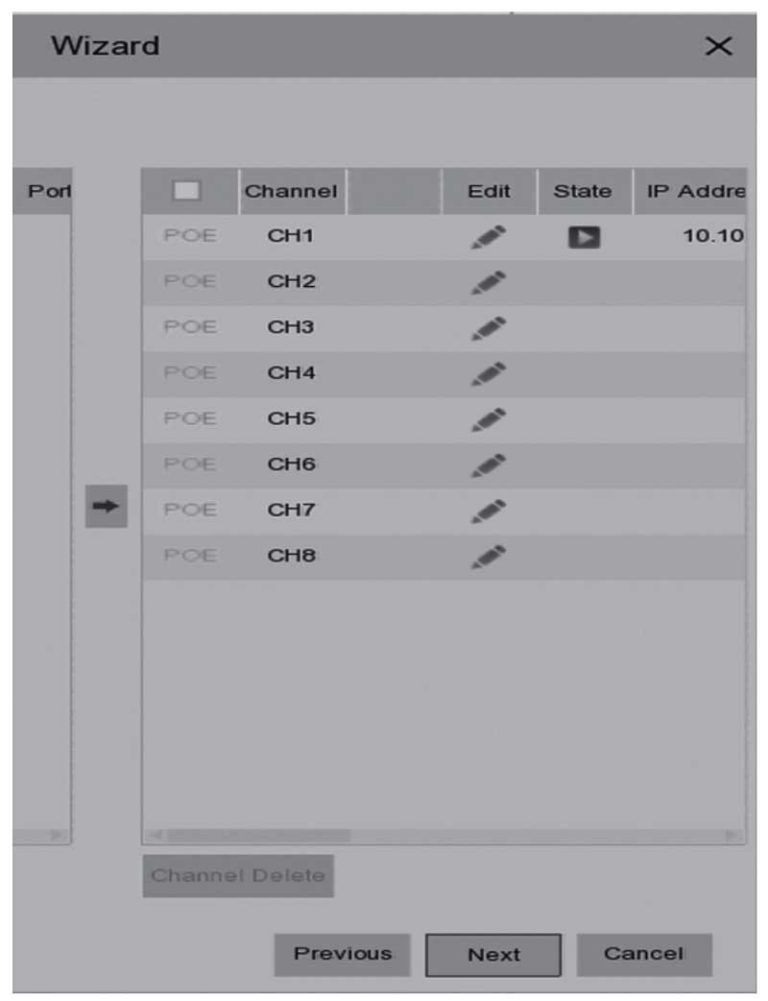
For NVRs with built-in PoE, Camius IP cameras plugged into any PoE port will appear on the right side during this step. Green status indicates a successful connection, while a grey circle could mean a password or network parameters mismatch.

  • Non-PoE IP cameras on your LAN appear on the left side; you can add them using the middle arrow.
  • To add cameras manually, click the edit (pencil) icon, switch mode to ‘manual’, and click on the arrow or enter the details based on the compatible camera’s network settings.
  • After selecting manual mode, you can click the plus symbol to search for available IP cameras on the LAN.
Camius poe NVR start wizard adding poe cameras

Step-6 Startup Wizard – Storage

  • If your NVR came with a pre-installed Hard Disk Drive, it would appear on the Disk screen.
  • Check the ‘State‘ column; if it’s ‘Normal,’ click Next. Otherwise, click in the HDD checkbox and then ‘Format HDD.’ We recommend having ‘Overwrite’ set to ‘Auto.’
  • Enter the NVR’s password to confirm; once the HDD is formatted, its State will turn to ‘Normal.’
  • Adding NetHDD requires a file server on your LAN with NFS or SMB enabled, NFS requires an IP and Directory on the file server, and limiting disk size is optional.
  • SMB connections require a username, IP, and Directory on your file server.

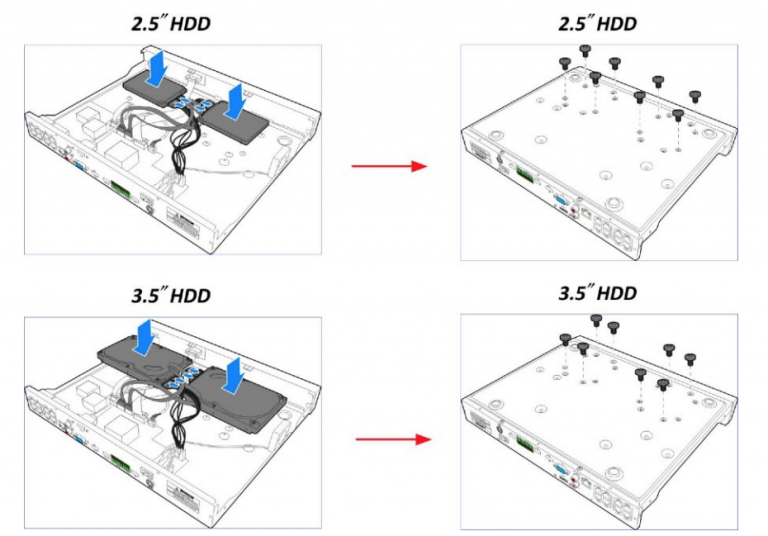
To physically install or replace an HDD, power off the unit, then remove the cover screws, remove the cover and the HDD screws. Then, plug the HDD in using the data & power connectors and reinstall the HDD screws. Follow this guide on how to install a hard drive.

Storage Capacity by NVR Channel Count

  • 8 channel NVRs support one SATA hard drive or SSD up to 10TB.
  • 16 channel and 32 channel NVRs support SATA hard drives or SSDs up to 14TB per SATA port.
HDD installation on a PoE NVR

Step-7 Startup Wizard – Mobile

This screen displays the NVR’s P2P ID.

  • To access the NVR remotely, you can scan the QR code with your Camius View smartphone app.
  • Next is the IP address assigned to your NVR, subnet mask, and ports.
  • The Summary screen is the last step of the Wizard; click on ‘Don’t show this window next time‘ if you don’t wish to display the Wizard on the next reboot.
  • Finally, click on the Finish button to save.
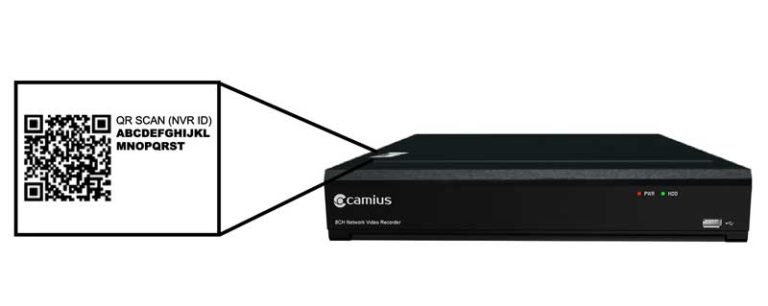
PoE NVR -easy security cameras mobile app QR code

Step-8  Adding your NVR to the Camius View App

Download the Camius View app on your smartphone or tab from the iOS or Android app store.

On the first run, the App will require network access and other permissions; once authorized, the App will start a tutorial highlighting the plus symbol add button.

Camius view app logo

To get to the add device button later, Tap on the top left menu icon and then on Devices to open the Device Manager page.

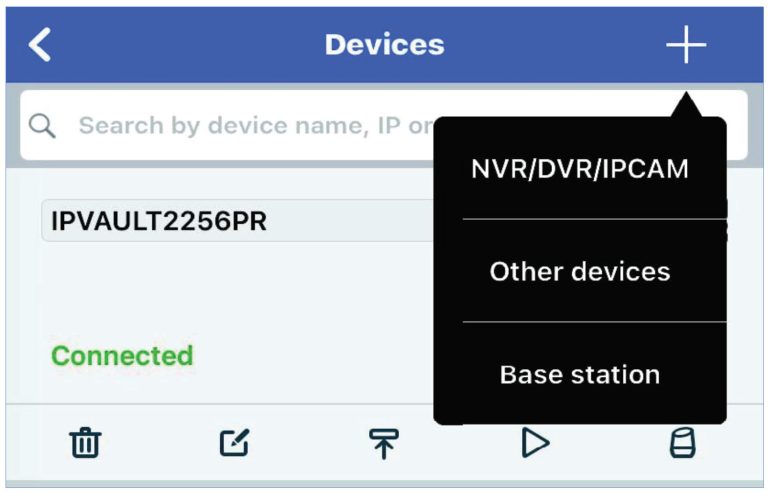
Tap the plus symbol button at the top right to add a new device, and select NVR/DVR/IPCAM, which opens a search page.

Option 1: Scanning your Local Area Network
Tap on Search the local Network button
Once the NVR is found, tap on it, enter port 80, and the NVR’s password, and save.

Option 2: Using the QR code which can be found on the NVR’s case label, and on the information page
After tapping on the plus symbol in the device manager and selecting NVR/DVR/IPCAM, the camera starts with a square in the middle, point your smartphone camera at the NVR’s QR code and capture it.

To verify that your NVR is online, disconnect the WiFi on your smartphone and let the App reload using cellular data.

Device-Manager-IPVault2256PR-Connected

Step-9  NVR Configuration

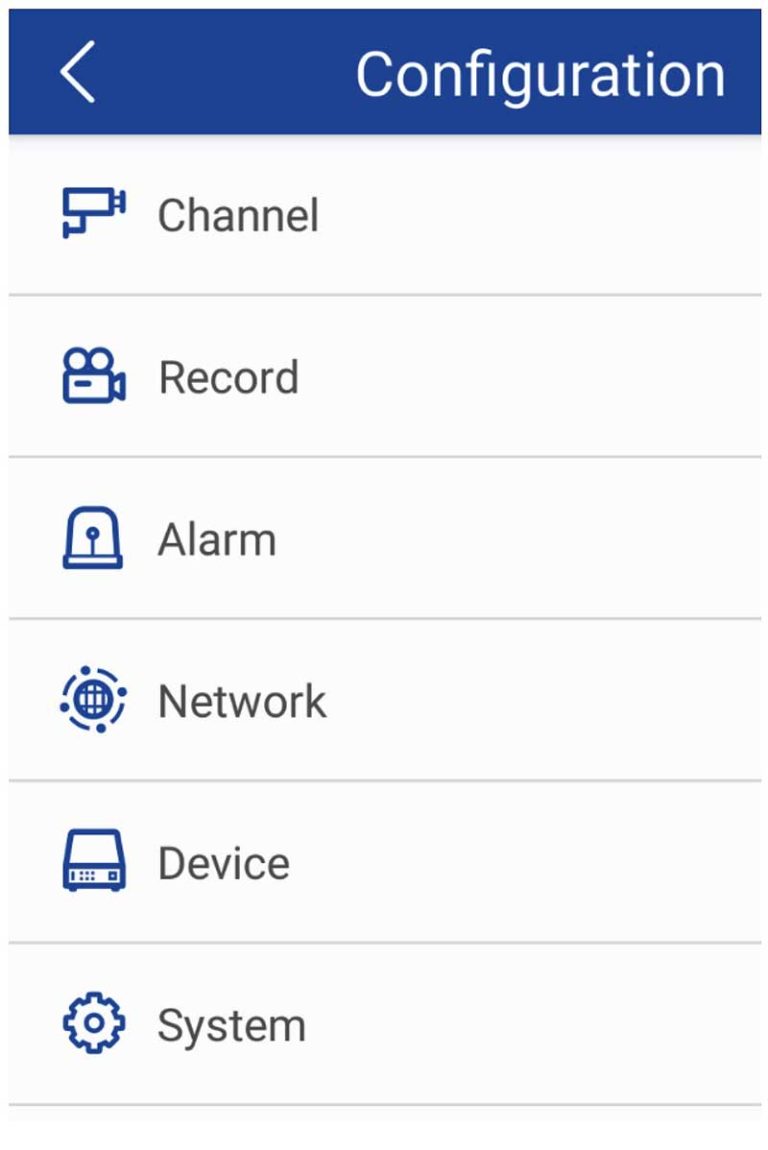
Accessing the configuration page on the Camius View app: Tap on the main menu icon >> Configuration >> Tap on the NVR you want to configure.

Accessing the configuration page using a web browser: The local IP address on the NVR can be found on the information page and on the network page, to find the NVR’s IP address on a PC, visit camius.com/support, download and install the Camius Device Config Tool. This software scans your LAN and displays all Camius devices found.

Camius security camera system - Camius View app

Enter your NVR’s local IP  into your browser’s address bar, and use your admin username and NVR’s Password to log in. The Configuration page is under Remote Settings.

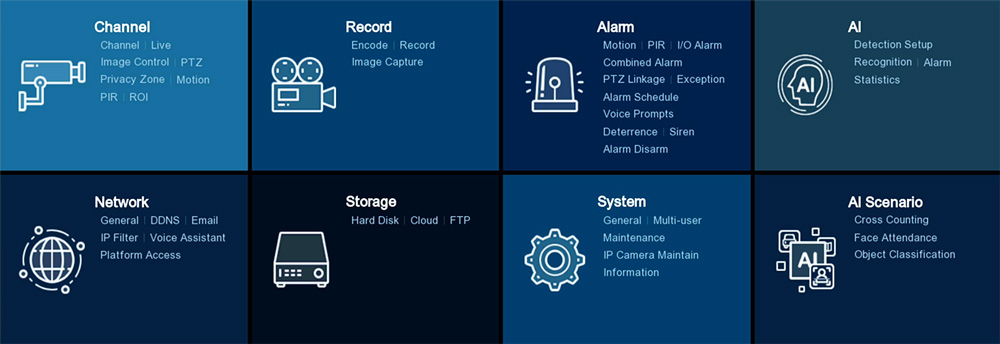
Accessing the configuration page on a monitor connected to the NVR: Using the provided mouse, click on the bottom left menu button >> Setup.

Camius PoE NVR setup menu

Step-10 Configuring Event-based recording

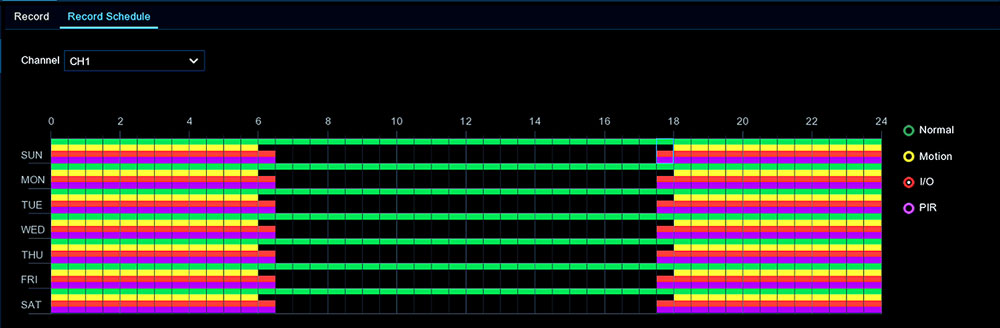
  • On the NVR’s monitor, click on the Menu icon >> Setup >> Record >> Record Schedule.
  • Check the yellow button for motion recording, the red button for alarm, or the purple button for PIR.
  • Then click and drag inside the grid to select the hours to allow motion events to be recorded, click ‘Copy‘ to apply these settings to other cameras, then click ‘Apply.’
PoE NVR recording schedule

Deterrence Schedule

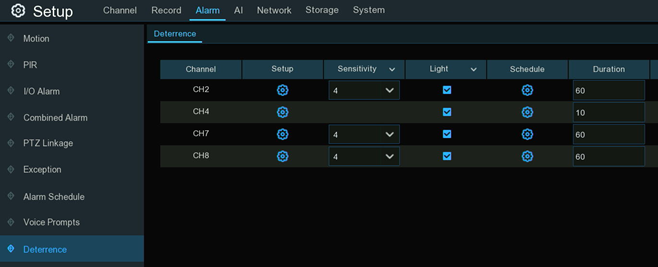
Navigate to Setup >>Channel >> Deterrence >> Setup the select the target area and then Schedule, here you can activate the Lights.

Camius IPVault NVR-Deterrence settings

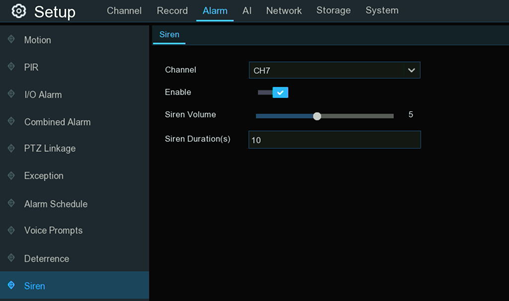
Siren

If your connected camera includes a built-in speaker, you can configure it to function as a siren. This feature allows the speaker to emit a loud alarm sound in addition to any voice intercom functions. The following  IP cameras support Deterrence and Siren:

Camius NVR IPVAULT - configure IP camera with siren

How to navigate the Live View

While the multi-camera view is displayed on the monitor connected to the NVR, double-click on one of the channels to expand and again to restore the previous view

using the scroll wheel on the mouse you can zoom in and out

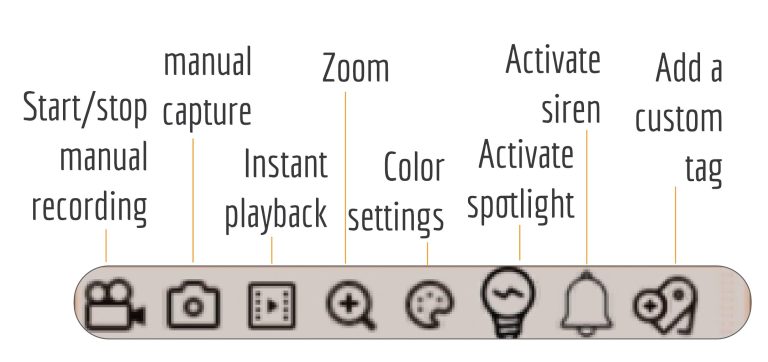
Clicking on one of the channels once will display the camera menu, which provides direct access to camera actions.

Camera-menu-bar

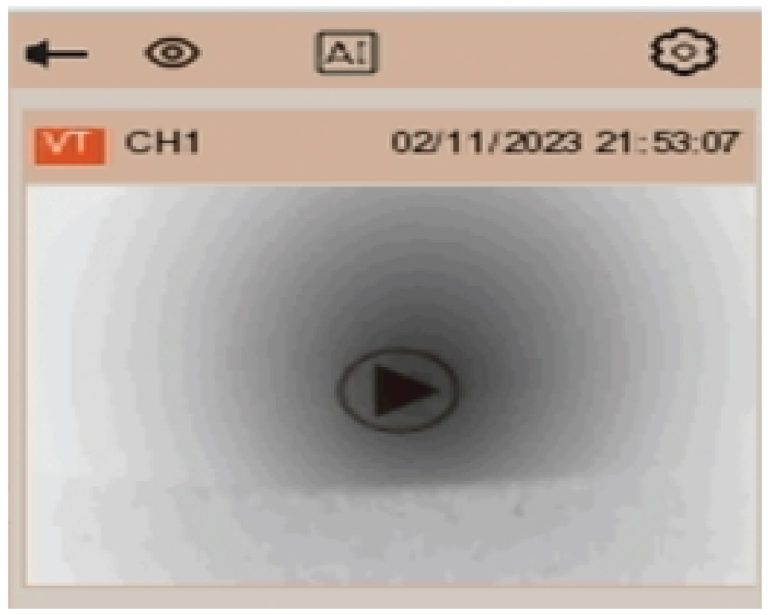
The event panel appears automatically on the right side when an event is triggered, you can filter which alarm type appears in this panel by clicking on the gear symbol.

Click on the pin symbol to pin the panel permanently, and on the eye symbol to hide it.

The AI symbol displays captured AI statistics.

The-Event-panel

How to playback recorded video

  • Click on the playback icon on the taskbar at the bottom of the screen
    A red underline indicates days with available recordings on the date menu, click on one of the days.
  • You can filter by the type of event to search, and select channels you want to play. The 24-hour timeline will populate continuous recordings as green blocks and other event types in different colors.
  • Clicking on the timeline jumps the playback position to the selected time.

How to backup or copy recorded video

Backing up on the NVR requires a thumb drive. On the playback search page, click on the events tab, select the date, type, and channels, and then click the search button. Next, select one or multiple event thumbnails, click the Backup button at the bottom, choose .MP4 (recommended), then click Save, select a folder on the thumb drive, and click OK.

Interface Reference Guide

Error Messages

  • No Camera: The IP camera is disconnected, check the connection.
    Decoding Failed: IP camera’s compression mismatch, try switching it to H.264

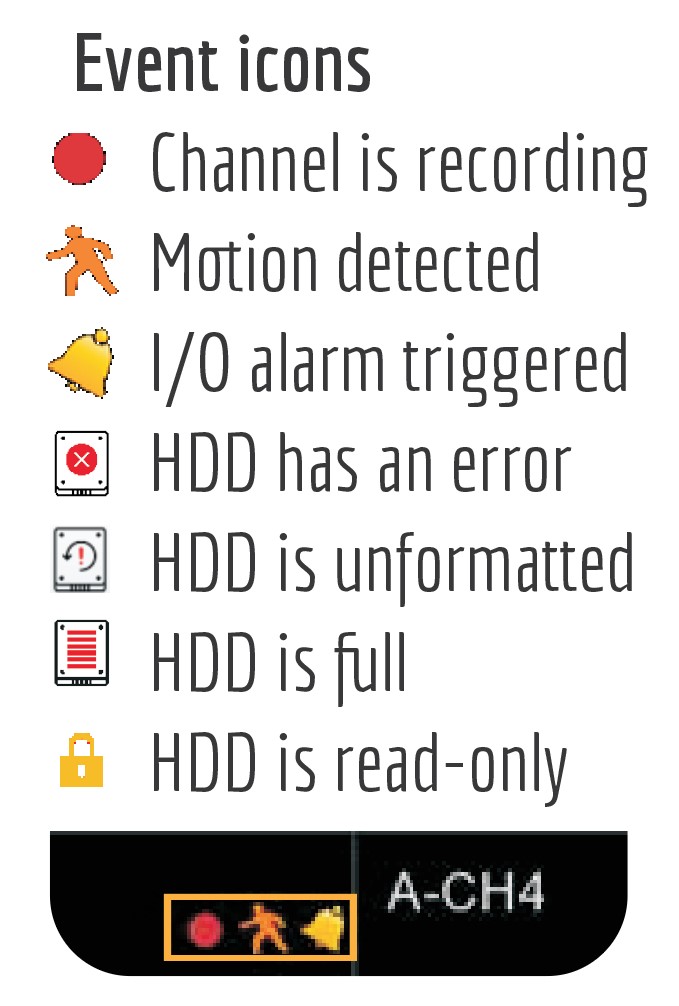
Event icons

These icons appear on each channel when an event takes place.

Event-Icons

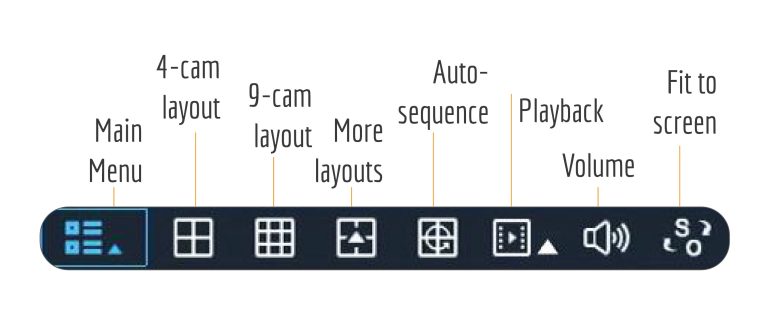
Taskbar Icons (Bottom left)

Menu-Bar-1

Taskbar Icons (Bottom right)

Menu-Bar-2

Connection Diagram of 8 Channel NVR

8 Channel NVR (8 PoE Ports): This diagram shows all possible connections; different models may come with different ports.

Connection Diagram 8 Channel NVR

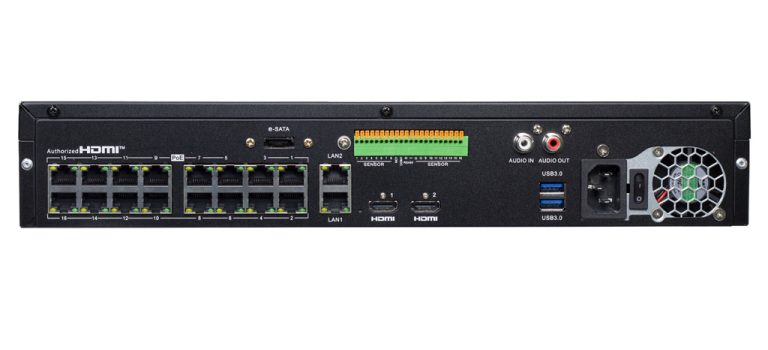
Connection Diagram of 16 Channel NVR

16 Channel NVR (16 PoE Ports): This diagram shows all possible connections; different models may come with different ports.

IPVAULT2320PR and 16 2K cameras connection diagramm 1024

Rear Panel of Camius 32 Channel NVR

32 Channel NVR (16 PoE Ports): This diagram shows all possible connections; different models may come with different ports.

Camius professional 32 channel NVR RAID

If you’re still choosing gear, start with an NVR surveillance system designed for easy setup, PoE connectivity, and 24/7 recording

We hope this guide helps you make the most out of your Camius NVR. Thank you for choosing Camius!

Frequently Asked Questions About Camius PoE NVR Setup

A Network Video Recorder (NVR) is a specialized computer system that records video footage from IP (Internet Protocol) cameras over a network. Unlike traditional video recording systems,  Camius NVRs use advanced network connectivity to receive and store digital video streams from cameras, providing a cutting-edge video surveillance solution tailored to meet diverse security needs. Check Camius network video recorders’ range

Camius NVR (Network Video Recorder):

  • Utilizes Camius IP cameras

  • Processes video encoding directly at the camera level

  • Connects cameras via PoE Rj45 ports or local network 

  • Offers Camius’ flexible installation options

  • Provides superior video quality

  • Enables exceptional scalability

  • Allows easy remote access through Camius platforms

Camius DVR (Digital Video Recorder):

  • Uses analog cameras, CVBS/AHD/CVI/TVI

  • Processes not only video encoding at the recorder but audio as well

  • Requires direct coaxial cable connection

  • 8 to 16 analog limited camera placement

  • Unlike other manufacturers DVRs, Camius features hybrid XVR mode where you can add not only analog but IP cameras as well to the DVR

This is rare. Most of the time, the camera appears right away on the NVR. If it does not, common causes include a bad or long Ethernet cable, no PoE power, or the camera being set with a different password or static IP.

Go to Menu Setup > Channel > IP Channels > PoE Power on your NVR. If the connected port shows 0 W, the port is not powering the camera. Try another port or test with a short cable.

Connect the camera directly to the NVR with a short Cat5/6 cable under 10 feet. If it works, the original cable run may be damaged or too long.

Go to Menu Setup > Channel > IP Channels and click Search. If the camera is found, add it. If not, click the pencil icon to add it manually.

Normally no. If the Camius PoE camera is in default mode, the NVR will automatically assign its own password to the camera, which makes the system plug-and-play. You only need to enter a username and password if you had previously changed the camera’s login.

  • During Startup Wizard → IP Cameras:

Cameras connected to the PoE ports will appear automatically.

    • A green circle means the connection was successful.
    • A grey circle indicates a password or network mismatch (for example, if the camera already has its own password).
  • After the Wizard (system running or when expanding the system):

If you add more Camius IP cameras later, go to Menu > Channel > IP Channels > Advanced Setup and enable “Use the Admin password as camera activation/connection password.” When this is checked, the NVR’s administrator password will be used to activate or connect to newly added or reset cameras.

On the NVR, click on the Menu Icon >> Setup >> System >> General >> Output Configuration >> Scale and Offset. Click on Setup and Scale to adjust the visible screen size, X for horizontal, and Y for vertical; once you see the red frame, right-click to go back and Apply to save changes. You can also find the detailed guide on how to adjust the NVR’s monitor’s resolution.

On the Camius View app – Tap on Menu>>Push Notifications>> Setup>> toggle the switch on.
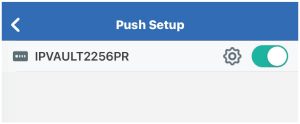
Enable push notification in the Camius View app

  • Check if you are using the latest version of the Camius View app.
  • On the App’s ‘Devices‘ page, make sure your recorder uses the P2P (ID) instead of (IP Address); if in doubt, delete it and add it again.
  • In the Media Port, make sure to enter the correct port number: Port 80 is for R-series recorders and IP cameras, and Port 9000 is for non-R-series devices.

Visit the complete step-by-step guide with troubleshooting instructions for the Camius View app.
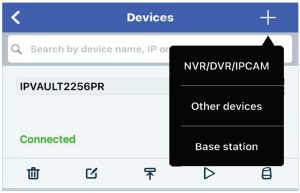
Device Manager IPVault2256PR Connected