
How to Access IP Cameras on Camius View App and VMS Pro Software
This guide explains how to access and troubleshoot IP cameras using the Camius View mobile app on iOS and Android, as well as the VMS Pro software on Windows and Mac computers. The same connection requirements and troubleshooting steps apply to both platforms.
If you can not access your Camius IP cameras, DVR (digital video recorder), or NVR (network video recorder) on the Camius View smartphone app, please check the below (Picture 1):
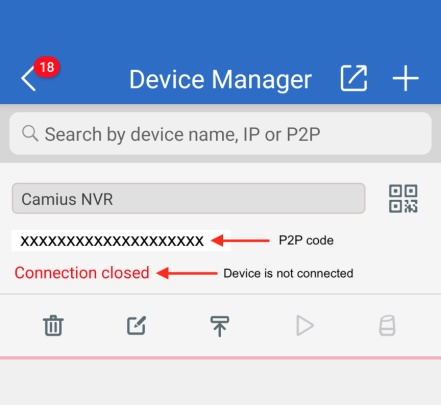
Check P2P Status
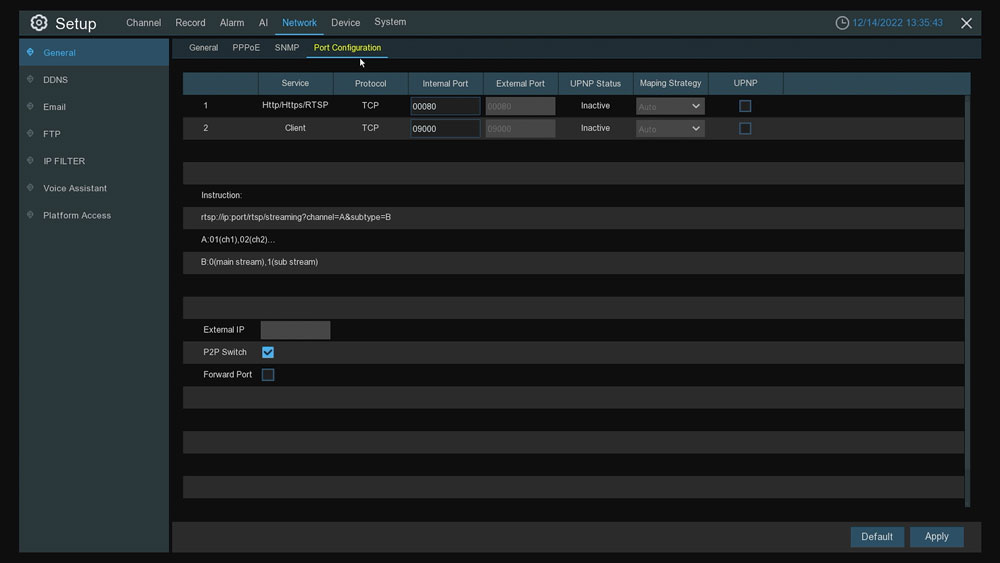
On the DVR / NVR go to Menu → Network → General → Port Configuration and make sure the P2P switch checkbox is ticked.
My cameras work on home Wi-Fi but stop working when I switch to cellular data.
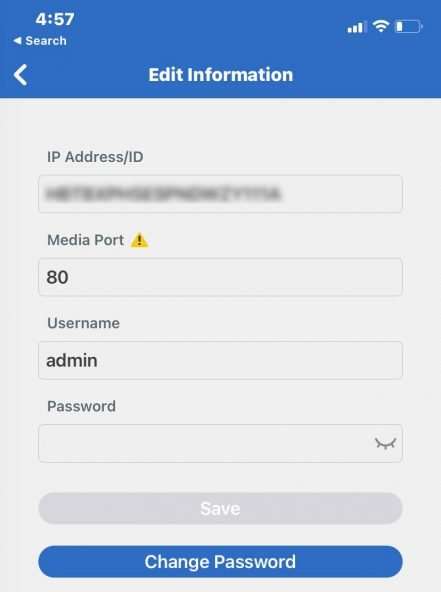
The DVR or NVR was added to the Camius View app using its local IP address. A local IP only works when your phone is on the same network as the recorder. To fix this, open the app, go to Devices, and delete the current entry. Re-add the device by scanning the QR code on the recorder screen or entering the P2P ID found under Setup > System > Information. Set Media Port to 80. Save, turn off phone Wi-Fi, and test on cellular.
The app says "connect failed" right after I scan the QR code and never asks for a password.
A failed connection before the password screen means P2P is not reaching the server. This is a network issue, not a password issue. Check the following in order. On the recorder, go to Setup > Network > General > Port Configuration and confirm the P2P switch is on and Media Port is set to 80. Go to Setup > System > Information and confirm Network Status reads “Connected.” If it shows anything else, the recorder is not reaching the internet. Delete the app entry and re-add fresh via QR scan. If it still fails, connect the recorder temporarily to a phone hotspot and test again. If it connects through the hotspot, your router or ISP is blocking outbound P2P traffic. See the router and ISP section below.
Use the latest version of the Camius View app
On the App’s ‘Devices‘ page, make sure your recorder is added using P2P (ID) instead of IP (IP Address), and if in doubt, delete it and add it again.
In the Media Port, make sure to enter the right port number:
1- Use port 80 for Camius NVRs, DVRs and IP cameras
- 8 channel NVRs
- 16 channel NVRs
- 32 channel NVRs
- 8 and 16 channel Hybrid DVRs
- PoE IP cameras
- Wireless NVR system
2- Port 9000 for the non-R series is required, applied to devices which do not have a hard reset button (IPVAULT1128P, IPVAULT2320P16N, IPVAULT8320-N, TRIVAULT4K2168, TRIVAULT4K184, SPOT828A, IRIS528A, BOLTVM5, etc)
Make sure you’re connected to a reliable network on your phone
Enable DHCP
On the DVR go to menu → Setup → Network → General and make sure the DHCP box is checked. This allows the router to assign the DVR the correct IP, Gateway, and DNS settings.

Check Your Internet Connection
If you recently changed your router or internet provider, the DVR may not be getting through to the internet.
Check the network cable and try a different router port. On the DVR go to Setup → System → Information and confirm the Network Status shows “Connected.”
To verify the connection, use the free Camius Device Config Tool on a PC or Mac that is on the same network (the Camius network / digital video recorder and PC should share the same first three segments of the IP address). Once you run the tool, it will list any Camius devices online; if the recorder appears there, it is connected to the network.

My NVR connects locally but not remotely and I have an Arris G36 router
The Arris G36 firewall blocks P2P traffic at the High and Medium security settings. This is confirmed in Arris’s own documentation. If your system works on your home Wi-Fi but fails when you switch to cellular data, the router firewall is the cause.
- Step 1: Log into the router at 192.168.0.1, go to Firewall > IPv4, and check the current setting. If it shows High or Medium, change it to Low. Save and reboot the router. Test the Camius View app with your phone’s Wi-Fi turned off.
Note: UPnP is already on by default on the G36 and does not need to be changed.
Official Arris reference confirming P2P is blocked at High and Medium firewall settings:
https://arris.my.salesforce-sites.com/consumers/articles/knowledge/G34-G36-IPv4-Firewall-Setup - Step 2: If lowering the firewall does not fix it, contact your internet provider and ask them to confirm Port 80 is not blocked on your account. Xfinity in particular applies its own firewall restrictions to the G36 at the account level, separate from the router settings. This requires a call to ISP directly.
I want to keep my Arris G36 firewall on High. Can I still access my NVR remotely?
Yes. If you prefer to keep the firewall at High or your ISP restricts P2P at the account level, you can use port forwarding and DDNS as an alternative to P2P.
- Log into the router at 192.168.0.1, go to Connected Devices, find the NVR, and reserve its IP address as a static assignment.
- Go to Advanced > Port Forwarding and forward Port 80 to that reserved IP. Save and reboot.
- Set up DDNS on the NVR for remote access via the Camius View app or browser.
Known G36 bug: port forwarding rules may not save if the NVR’s IP falls outside the DHCP pool range. Before adding the forwarding rule, go to Advanced > DHCP and confirm the pool covers 192.168.0.2 through 192.168.0.253.
DDNS setup guide: camius.com/ddns-setup
See the DDNS setup guide
My internet comes from a cellular home gateway, T-Mobile, Verizon, or Starlink router.
Cellular home internet providers place customers behind carrier-grade NAT, which blocks P2P traffic used by the Camius View app. This is a carrier network restriction, not a DVR or app issue. Port forwarding on these devices typically does not work either. The only confirmed workaround is pairing port forwarding with DDNS if the carrier allows it, or switching to a standard broadband connection. Contact your carrier to ask if they can assign you a public IP address. See the DDNS setup guide.
Check for IP address conflict
- Connect the Camius DVR or NVR using a simple network setup. The recorder and the computer must be connected to the same local network and subnet. Avoid defective network cables and remove any intermediate devices such as extenders or secondary routers that may cause IP address conflicts.
- A simple setup example includes a DVR (NVR) connected by network cable to a router or switch, with a PC connected to the same router, all sharing the same IP base such as 192.168.1.x.
I have a mesh Wi-Fi system such as Eero, Google Nest, or Orbi.
Connect the DVR or NVR directly to the main mesh node using an Ethernet cable, not a satellite unit. Connecting to a satellite node often causes the recorder to show as locally connected but fail to reach the internet for P2P. If you are unsure which unit is the main node, it is the one connected to your modem or wall internet port.
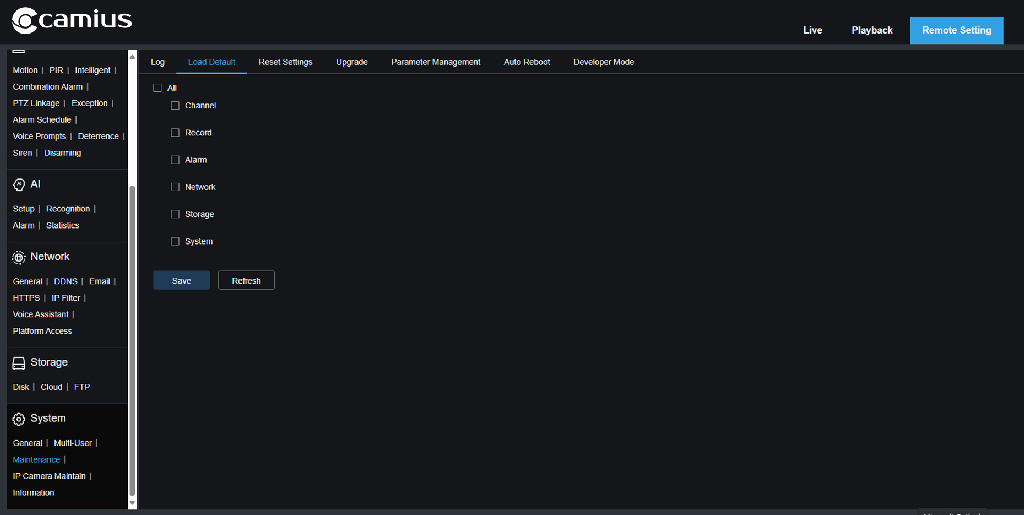
Reset Network Settings
On the DVR, go to Setup → System → Maintenance → Load Default, check Network, and Apply.

Check the Camius device network status
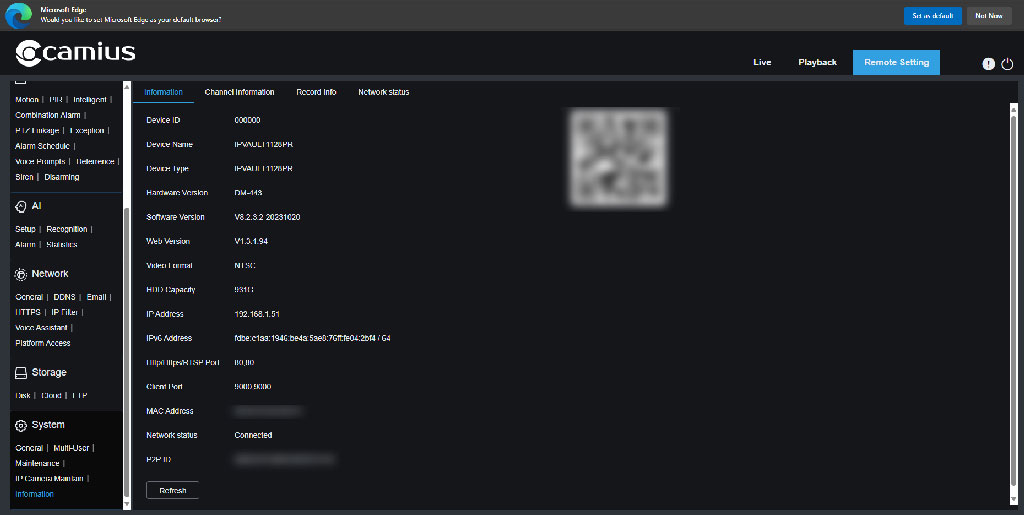
Navigate to Setup >> System >> Information and check the Network Status if it shows ‘Connected’ or using the web browser menu click on Remote Setting followed by System >> Information
If the above steps don’t help, submit a support request and include the device model number and the current ’Firmware/Software Version,’ which can be found using the Camius Device Config Tool
Wrong Password
Before you add the Camius security device to the app, make sure to set a password following the below setup guides:
- IP camera setup guide
- DVR setup guide
- NVR setup guide
- or follow this quick tutorial on how to set a password for your DVR or NVR
We got you if you lost your IP camera or DVR NVR recorders password. Follow the below links on how to reset your device password:
A full guide on how to add your Camius IP security camera, DVR digital video recorder, or NVR network video recorder to the Camius View app is available at THIS LINK.
Desktop access using VMS Pro
If you are accessing the system from a Windows or Mac computer, use the VMS Pro software. Device adding, login credentials, and network requirements are the same as in the Camius View app.
For local viewing on the same network, users can also access the Camius DVR or NVR through a web browser by entering the device IP address. The Device Config Tool can be installed on a computer to scan the local network and identify the recorder IP address. If the system fails to connect on both mobile and desktop, the issue is usually related to network settings or recorder status.
How to test if your router or ISP is blocking the connection.
Connect the DVR or NVR to the personal hotspot on an iPhone or Android phone using an Ethernet to USB adapter, or connect just the phone to the hotspot and test the app on that phone with Wi-Fi off. Do not use a separate MiFi or mobile router for this test, as those have the same carrier restrictions. If the app connects through the phone hotspot but not through your home router, the issue is your router or ISP blocking outbound P2P traffic. Refer to the router-specific steps above or contact Camius support.
For further assistance with the app, please submit a request through the Camius View app by navigating to:
About > Feedback > Fill out the form > Send Email.
The form will be sent directly to the app’s developer, who will attempt to recreate the issue and review any errors in the log. This step is essential for providing you with the necessary support.