
Security Camera Tutorials and Setup Guides
Learn fast. Install with confidence. Security camera tutorials below cover NVR, DVR, and wireless systems. Follow a guide, then move to the right product page. Shipping in the U.S. and Canada. Delivery for Middle East and Europe on request.
Fast answers for installers and technicians about about setting up a security camera system
Set Up Security Camera System
Open the quick start steps for your device, then follow the recorder wizard for network, date and time, analog and IP channels, and storage (disk).
Install IP Camera
Add IP camera to PoE NVR
Connect the camera to a PoE port on the NVR. Open IP Channels. Tap Search. Select the camera. Enter admin credentials. Add. A green status confirms a successful link. For third party devices, select ONVIF, match compression and resolution.
Steps
- Plug the camera into a PoE port on the NVR.
- On the NVR, open Menu, IP Channels.
- Run Search and select the camera.
- Enter username and password, then Add.
- Confirm green status.
Guides: Add IP camera to PoE NVR

Add IP Camera from Local Network
Power the PoE IP camera. Find the IP with the Device Config Tool. Add the stream on the recorder under IP Channels. Use Private for Camius or ONVIF for third party IP security cameras.
- IP camera setup guide
- How to connect IP camera to analog DVR
- Download IP Camera Installation Guide
- IP Camera User Manual
- https://camius.com/zoom-focus-adjustment-boltv/
PoE IP Camera NVR Setup
Run the start wizard. Keep DHCP on if the router serves IPs. Set the date and time, set recording schedule.
Analog DVR Camera System Setup
Set up a Camius DVR for analog cameras. Connect power, HDMI, and BNC camera lines. Run the Startup Wizard to set network, date and time, and format the disk. Add recording schedules, then confirm live view and playback. For full instructions open the following guides:
Easy Setup of Residential and Commercial Outdoor Wireless Security Cameras with NVR
Power the NVR and attach the antenna. Place the cameras with their attached antennas and inserted batteries next to the NVR and pair them. On the NVR, open Pair or hold the camera pairing button for three seconds to start pairing. Format the HDD. Set recording schedules, alerts, light, and siren. Lights and siren are optional. Keep them off if not needed. In Camius View, add the recorder by scanning the QR code or entering the P2P ID or using local network search. Turn off Wi-Fi on the phone and test on cellular.
Configure NVR/DVR in a web browser
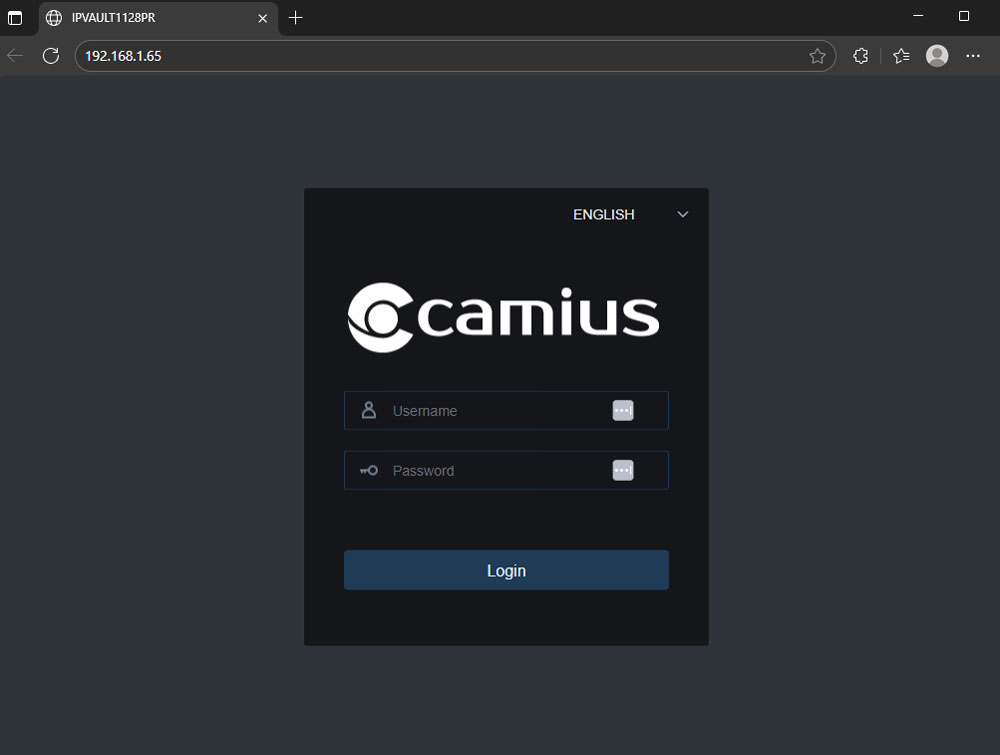
Find the NVR IP with the Device Config Tool. Open the IP in a browser. Log in as admin. Use Remote Settings for channels, network, recording, and users. Default HTTP port is 80.
Steps
- Download the Device Config Tool.
- Scan the LAN and copy the NVR IP.
- Paste the IP in a browser and log in.
- Open Remote Settings.
- Save and apply changes.
Visit the guide: Configure Camius NVR using a web browser
Reset DVR or NVR password
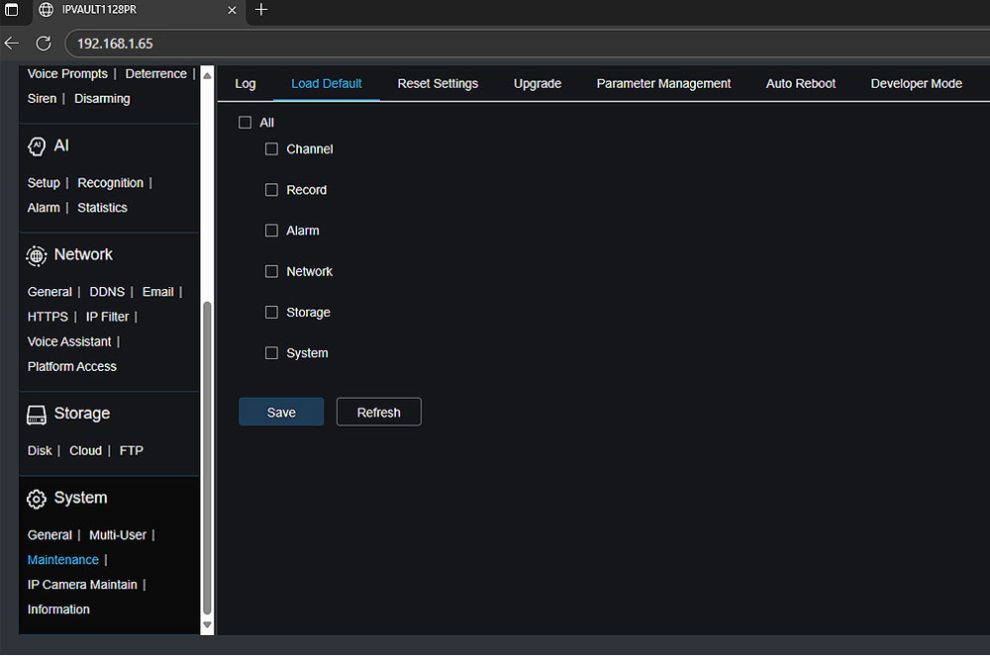
- Camius NVRs and DVRs with a reset button, press and hold for 10 seconds.
- No reset button, send the device date on the recorder interface and the MAC address using the support ticket form
to receive a reset.
Recorded video remains unless a full reset option was selected.
Guides:
Install or replace a hard drive
Power off your hybrid DVR or NVR recorder. Remove the cover. Connect SATA data and power to the drive. Secure with screws. Power on. Format the drive under Disk and set Overwrite to Auto.
Guides:
Wireless, Analog DVR, NVR IP camera Remote Viewing
Add the device in Camius View by scanning the QR code or entering the P2P ID. Do not add a local IP for remote access. Use port 80 (port 9000 for older models, which were purchased 6 to 10 years ago). Turn off Wi-Fi on the phone and test on cellular to confirm external connectivity.
Steps
- Open Camius View, tap Add device, then select NVR, DVR, or IPCAM.
- Scan the QR code on the recorder’s Mobile screen or sticker, or type the P2P ID.
- Enter the admin username and password. Set Media Port to 80 (9000 for older models, purchased 5 to 10 years ago)
- Save and wait for Connected status.
- Disable Wi-Fi on the phone, open Live view, confirm video loads over cellular.
Mobile App Troubleshooting checks
- Recorder online: Verify Ethernet to router, DHCP enabled or valid static gateway and DNS, Internet status shows Connected.
- Time sync: System, Date and Time, enable NTP, tap Update Now.
- App version: Update Camius View to the latest release.
- Starlink or CGNAT: Use Router bypass with a third-party router, keep P2P enabled, avoid local IP entries.
- Errors: “Device offline” means the recorder has no Internet. “Connection failed” means credentials or port are incorrect. “Decoding failed” means switch the camera stream to H.264 and match resolution to recorder limits.
Wireless, Analog DVR, NVR IP camera Remote Viewing
Add the device in Camius View by scanning the QR code or entering the P2P ID. Do not add a local IP for remote access. Use port 80 (port 9000 for older models, which were purchased 6 to 10 years ago). Turn off Wi-Fi on the phone and test on cellular to confirm external connectivity.
Steps
- Open Camius View, tap Add device, then select NVR, DVR, or IPCAM.
- Scan the QR code on the recorder’s Mobile screen or sticker, or type the P2P ID.
- Enter the admin username and password. Set Media Port to 80 (9000 for older models, purchased 5 to 10 years ago)
- Save and wait for Connected status.
- Disable Wi-Fi on the phone, open Live view, confirm video loads over cellular.
Mobile App Troubleshooting checks
- Recorder online: Verify Ethernet to router, DHCP enabled or valid static gateway and DNS, Internet status shows Connected.
- Time sync: System, Date and Time, enable NTP, tap Update Now.
- App version: Update Camius View to the latest release.
- Starlink or CGNAT: Use Router bypass with a third-party router, keep P2P enabled, avoid local IP entries.
- Errors: “Device offline” means the recorder has no Internet. “Connection failed” means credentials or port are incorrect. “Decoding failed” means switch the camera stream to H.264 and match resolution to recorder limits.
Guides
- Camius View smartphone app
- Access my IP cameras on Camius View app
- Adding Camius DVR, NVR, Security cameras to the VMS Pro software
- Playback and back up recorded footage on the VMS Pro Software

How to add your Camius IP Camera to Blue Iris
Blue Iris, Video Security Software, is one of the most popular remote video management applications. Watch this video on how to use Camius cameras with Blue Iris
FAQs: Set up security camera systems
How to install an IP camera
Power the PoE camera, locate its IP, add in IP Channels, enter credentials, set H.264 if decoding fails.
Network video recorder installation steps
Install the NVR in a ventilated spot, connect HDMI, mouse, LAN, then run the wizard and format the disk.
IP camera NVR setup for third party models
Pick ONVIF in IP Channels, match resolution and frame rate, set H.264 if required, save, confirm green status.
How to connect IP camera to analog DVR
Switch the DVR to XVR mode, then add the IP stream under IP Channels with the camera credentials.
How to record video from IP camera system?
Record to a Camius NVR for continuous or event based capture. Format storage, set a schedule, then verify clips in Playback. Alternatives include recording to a camera micro SD card or to a PC with VMS Pro.
NVR recording, recommended
- Connect the IP camera to a PoE port on the NVR or to the same LAN.
- On the NVR go to Menu, Setup, Disk. Format the HDD and set Overwrite to Auto.
- Go to Setup, Record, Record Schedule. Choose Continuous for 24/7 or select Motion or AI events on the grid. Click Copy to apply to other channels. Apply.
- For motion or AI events go to Setup, Channel, Motion or AI. Define the area and sensitivity. Link deterrence only if needed.
- Open Playback. Pick date, channel, and stream. Confirm the timeline shows recorded blocks.
Camera micro SD recording
- Power off the camera. Insert a compatible micro SD card. Power on.
- In the camera web interface go to Storage. Format the SD card.
- Go to Record, Schedule.